DocsAccount
Your plan and billing
Updated
The Billing & plan page shows which plan you are on and, on Pro, what you pay and when. To open it, press your account button at the top right of the dashboard, or your name at the bottom of a book’s sidebar, and choose Billing & plan.
What each plan includes, and what you see at a Pro feature, is in Free and Pro: how the two plans differ.
On the Free plan
The Plan section shows Free, a Monthly or Annual — 2 months free switch, and Upgrade to Pro.


Choose Monthly or Annual — 2 months free, then press Upgrade to Pro. The amount is shown on the checkout page, where you can also enter a promo code. Free and Pro follows the upgrade step by step.
On Pro
The Plan section shows Pro with a tag beside it, and under it the date your plan renews and what it costs, such as “$20.00/month”.


The tag shows where your plan stands:
- Active: your plan is paid and renews on the date shown.
- Cancels and a date: you have cancelled. You keep Pro until that date, and the line under Pro starts with “Ends”.
- Past due: your last payment did not go through. You keep Pro while it is retried, and the line “Update your payment method to keep your subscription active.” appears under the plan. Update your card through Manage billing.




If a promo code takes something off your plan, a line under the renewal date names the code, the discount, your next charge and when the discount ends.
Your card and invoices
Under Billing details you see the card your plan is charged to, such as “Visa ending 4242”, and an Invoice history row.
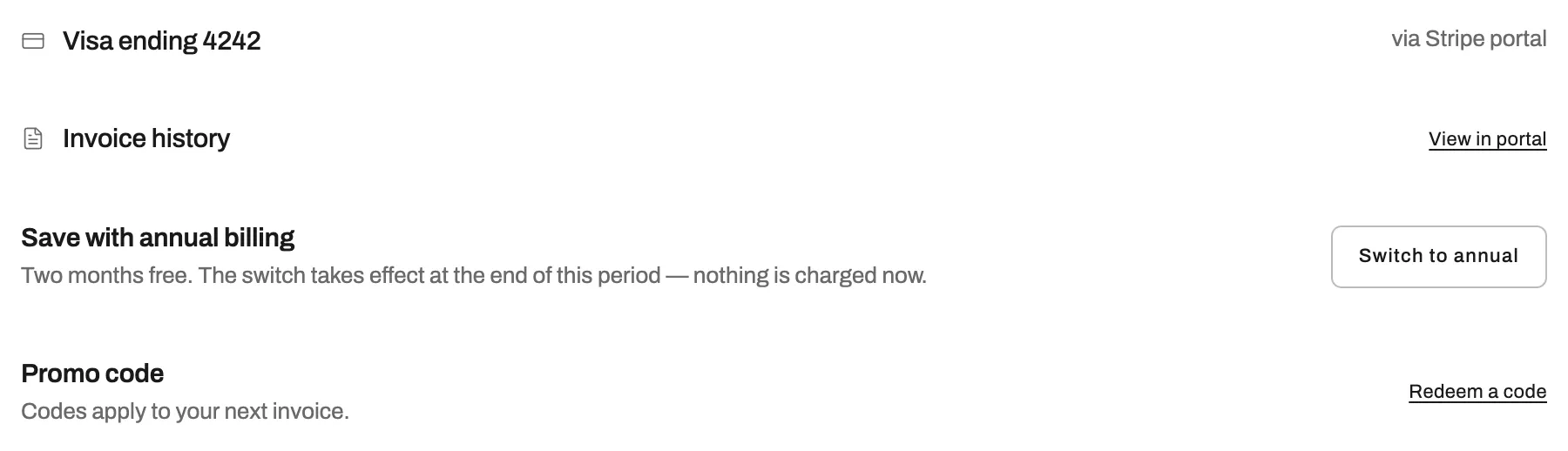
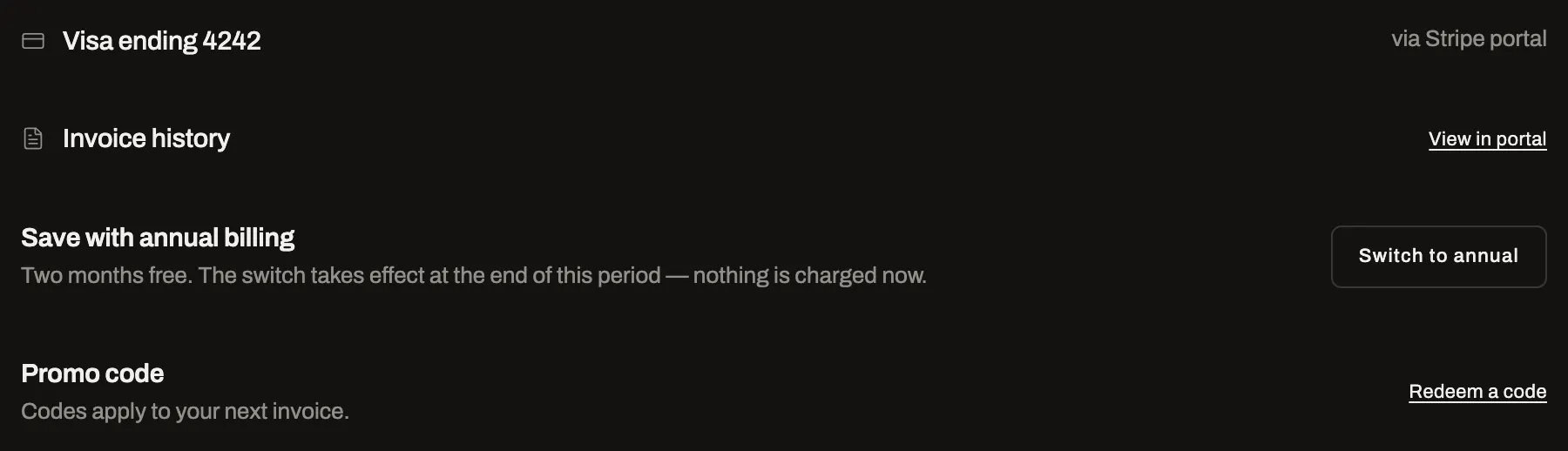
Your card, your invoices and cancelling are kept in the billing portal, which is run by Stripe, the company that takes payments for Gnarlywog. To open it:
- Press Manage billing, or View in portal on the Invoice history row.
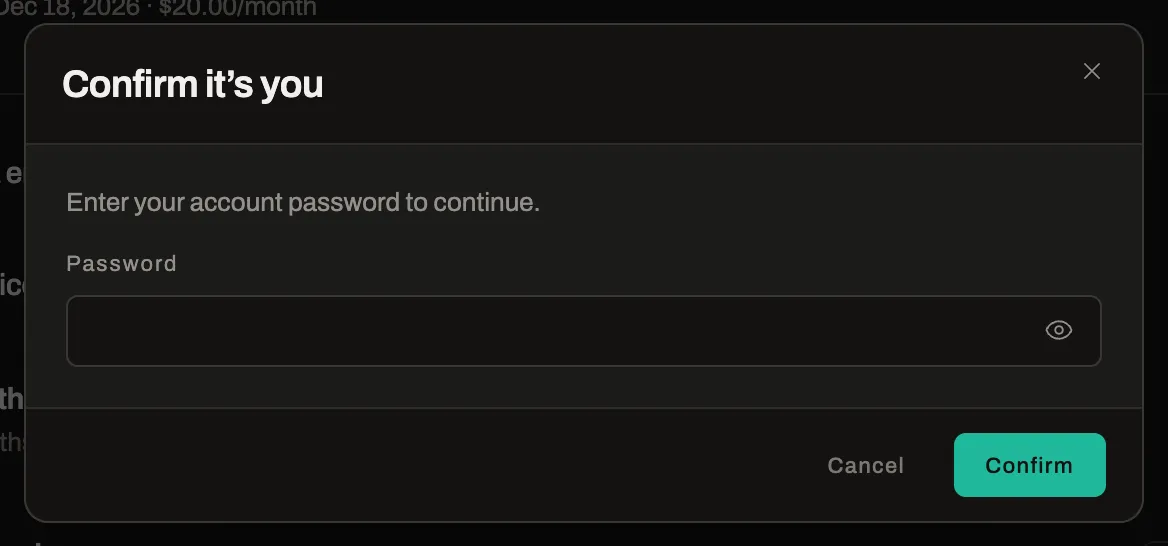
- A dialog titled Confirm it’s you opens. Type your password, or answer the question your account asks, and press Confirm. Keep your account secure explains this step.
The billing portal opens. There you can change your card, see your invoices and cancel Pro. When you are done, it brings you back to Billing & plan.
Switch to annual billing
If you pay monthly, the Save with annual billing row offers two months free.
- Press Switch to annual.
- Confirm it is you.
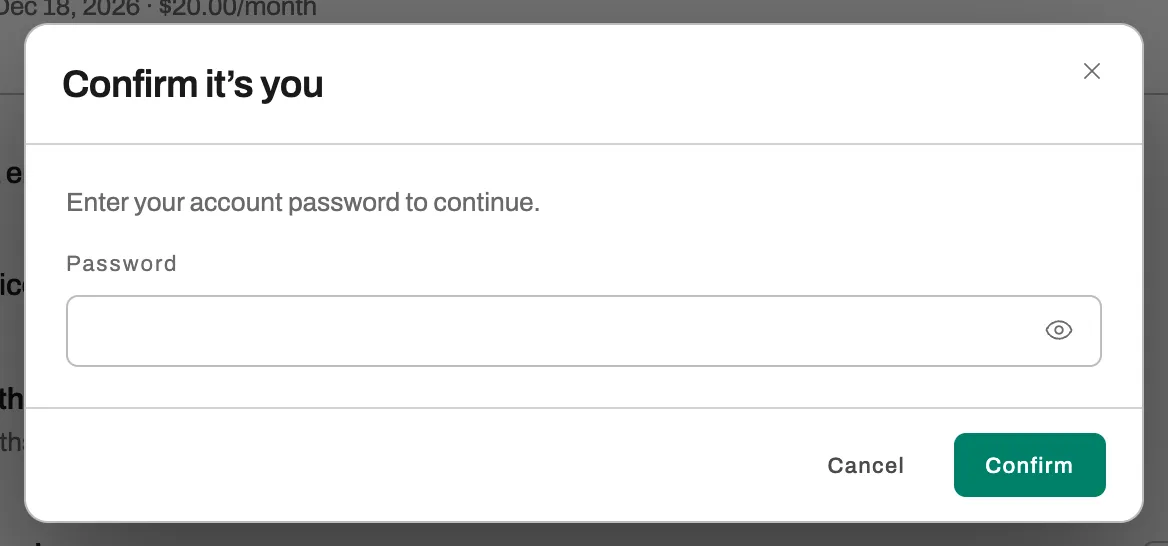
Nothing is charged when you press it. Your monthly plan runs to the end of the month you have paid for, and the annual plan begins that day. Until then the line under Pro names both dates and the annual price, and the row reads “Annual billing starts” with the date.
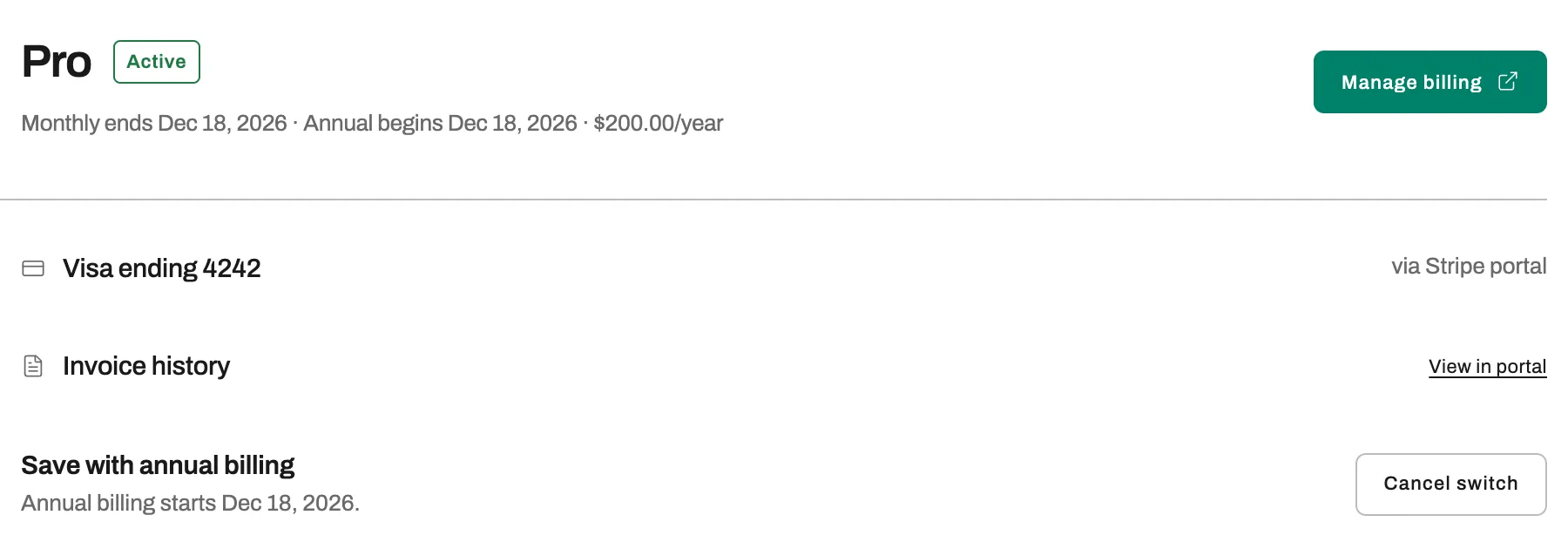
Changed your mind? Press Cancel switch before that date, and you stay on monthly billing. The row is not shown once you pay annually, or while your plan is set to cancel.
Use a promo code
On Pro, the Promo code row applies a code to your next invoice.
- Press Redeem a code.
- Type your code in the box.
- Press Apply.


When the code is applied, the row says “Code applied — your discount shows above.” and the discount line appears under your plan. If the code cannot be used, the row says why: it is not right, it has expired, it is no longer available, or your account has used it already.
The row is not shown while your plan is set to cancel or a switch to annual is waiting. A code for your first payment goes in on the checkout page instead.
Cancel Pro
- Press Manage billing and confirm it is you.
- Cancel in the billing portal.
You keep Pro until the end of the month or year you have paid for. Until then the tag beside Pro reads “Cancels” with that date. After that your account returns to the Free plan, and nothing is deleted. Free and Pro explains what happens to your books.
Pro payments are not refundable, monthly or annual, and the unused part of a period is not refunded. The refund policy has the details.
Related
- Free and Pro: how the two plans differ: what each plan includes, upgrading, and what happens when Pro ends.
- Keep your account secure: the Confirm it’s you step.
- Change your email and account settings: your other account pages, and the billing emails you always get.
- Report a bug, share an idea or ask for help: ask about a charge or your plan, on Pro.
- Delete your account: deleting your account ends Pro at once, without a refund.