DocsCollaboration
Write the feedback form your beta readers answer
ProUpdated
Each book has one feedback form. It is a short list of questions, and your beta readers answer it at the end of every chapter. You write it on the Feedback form tab of the Beta readers page, and the answers come back to each chapter’s Feedback panel. The form is part of beta readers, a Pro feature. See Free and Pro.
There is one form for the whole book. You cannot give one chapter different questions from another. Questions about the book as a whole go on a second form. See Ask readers about the whole book.
Step 1: Open the feedback form
- Open the book.
- In the sidebar, choose Users, then Beta readers.
- Choose the Feedback form tab.
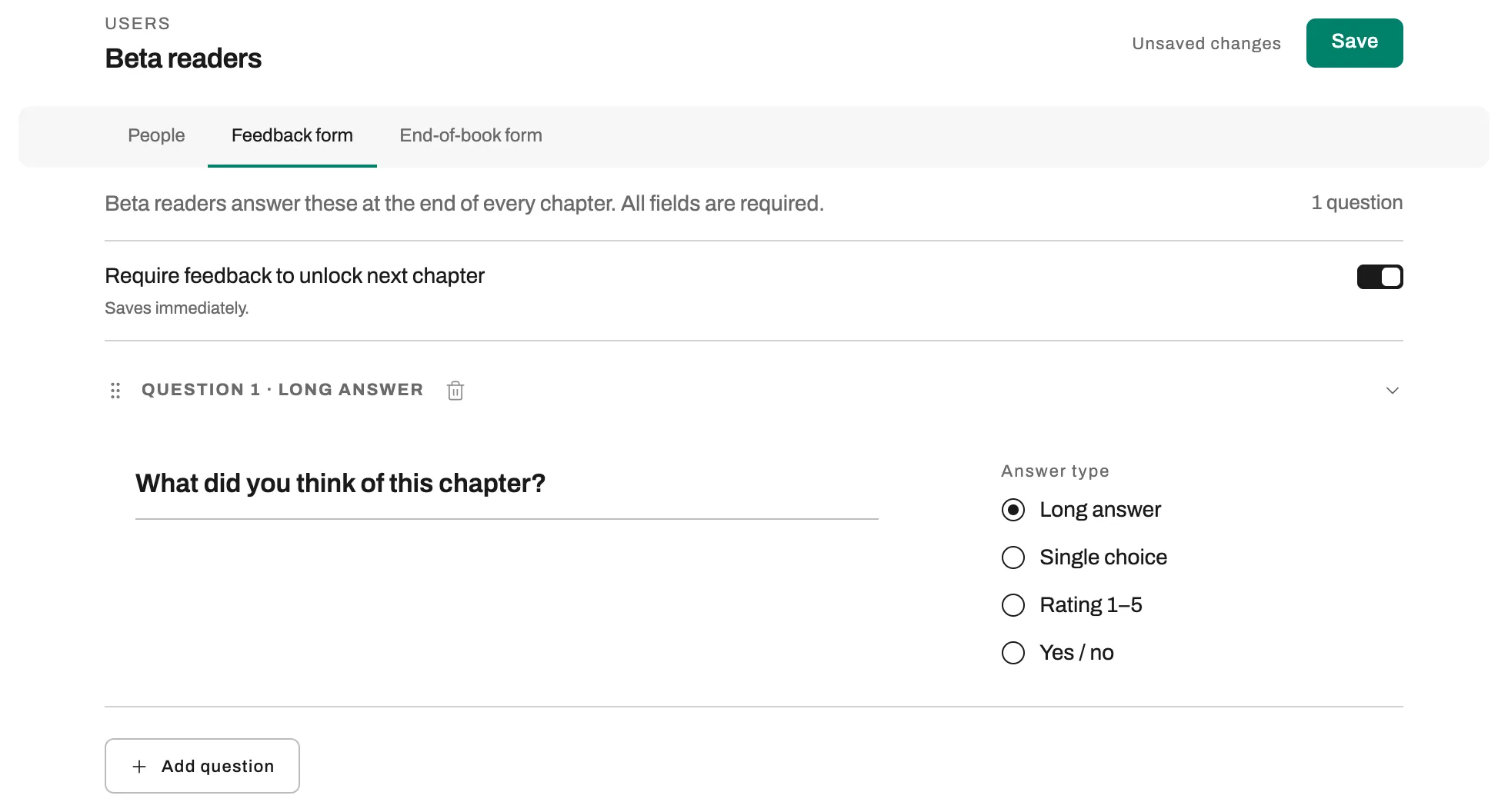
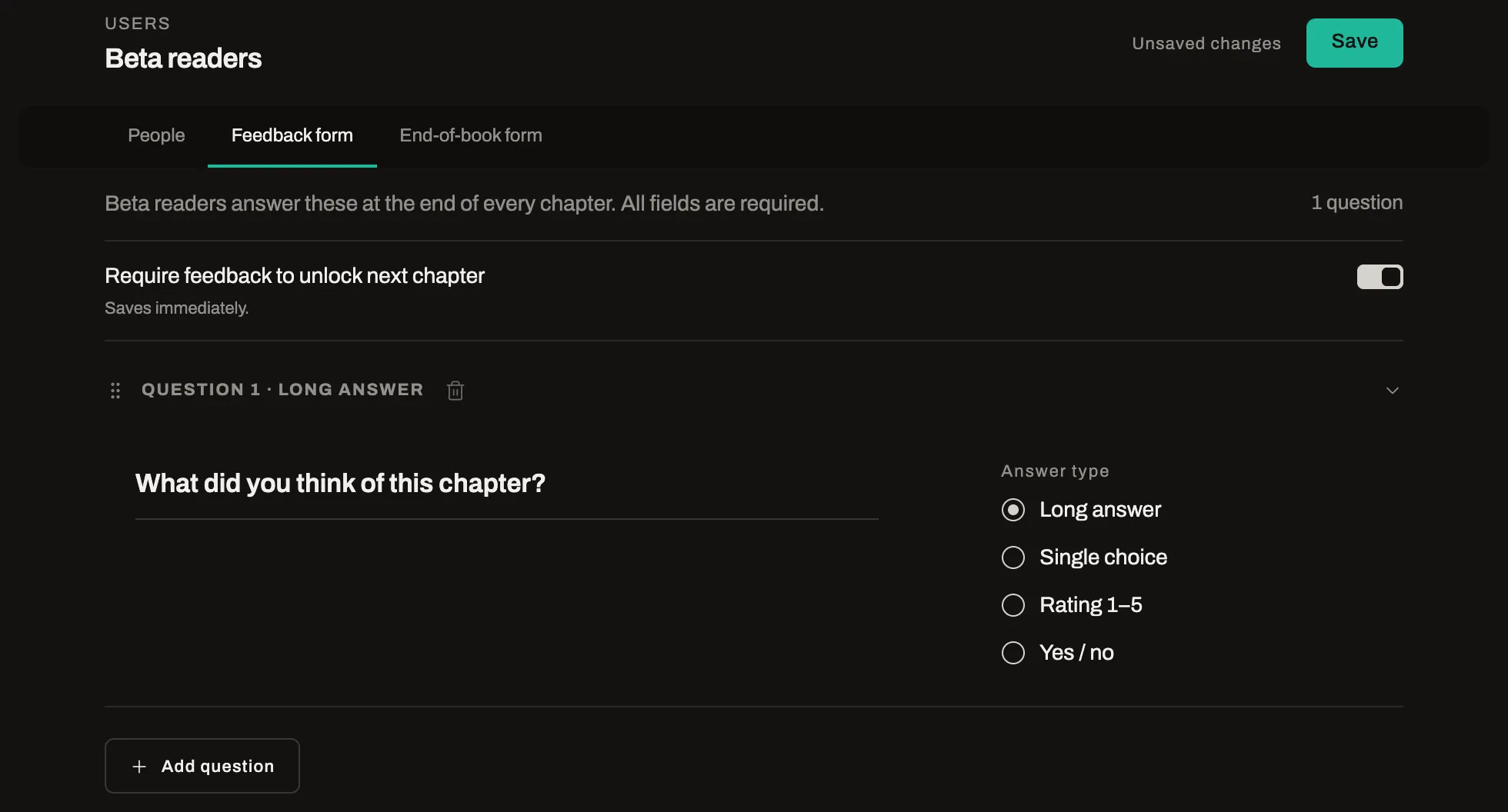
A new book’s form opens with one question already written: “What did you think of this chapter?” It is a suggestion and it is not saved yet, so the page shows “Unsaved changes” and a Save button. Until you press Save, the book has no feedback form, and you cannot invite a reader. You can save the suggestion as it stands, or change it first.
Step 2: Write your questions
- Click the question’s wording and type your own. A question can be up to 300 characters long.
- Under Answer type, choose how the reader answers.
- Press Add question for the next one. A form holds up to 10.
| Answer type | What the reader gets |
|---|---|
| Long answer | A box to write in. |
| Single choice | Your own list of options, to pick one from. Type them under Options. |
| Rating 1–5 | The numbers 1 to 5, to pick one from. |
| Yes / no | Yes and No. |
A Single choice question needs at least two options and takes up to 10. Press Add option for another, and the bin at the end of an option to remove it.
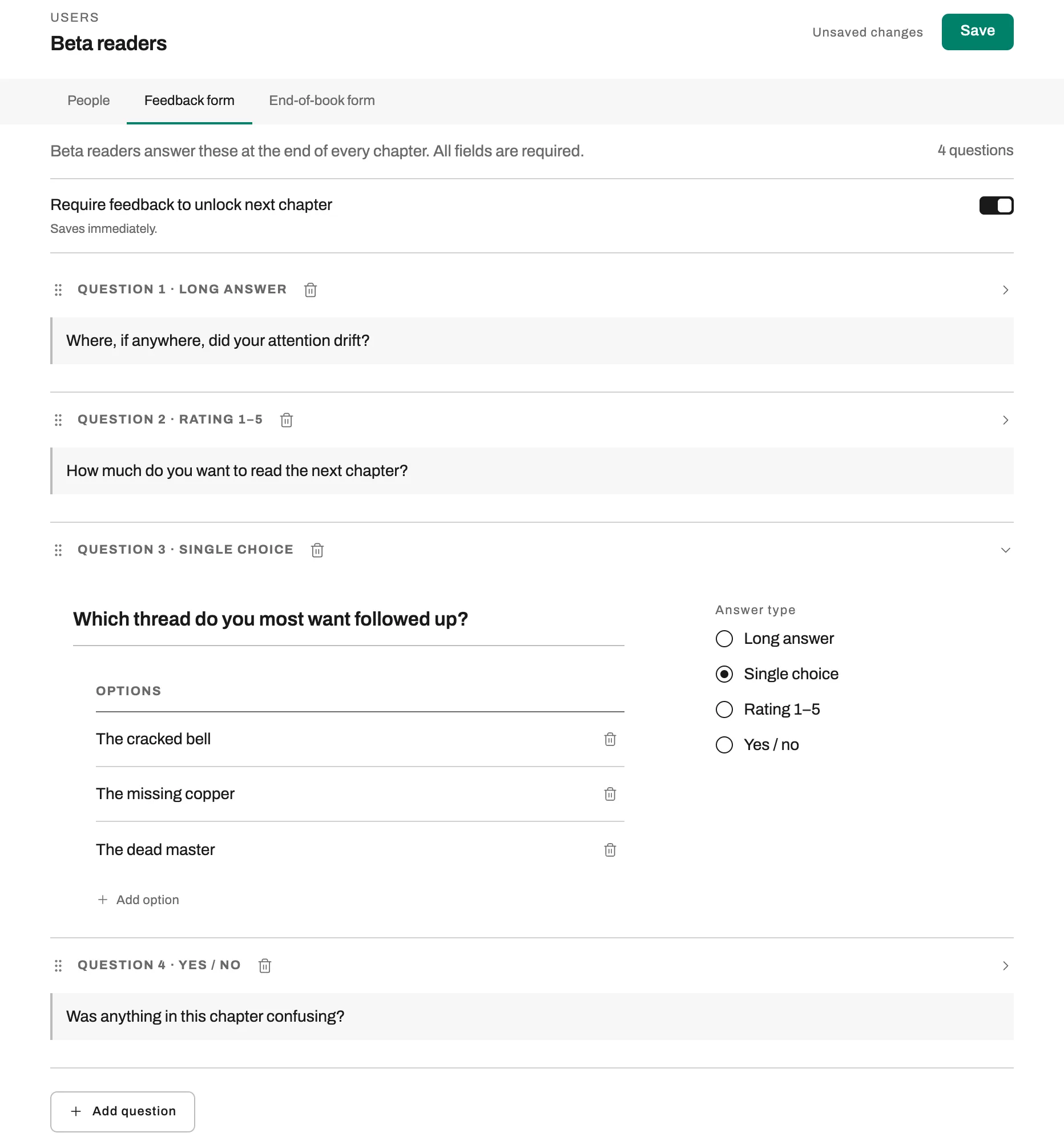
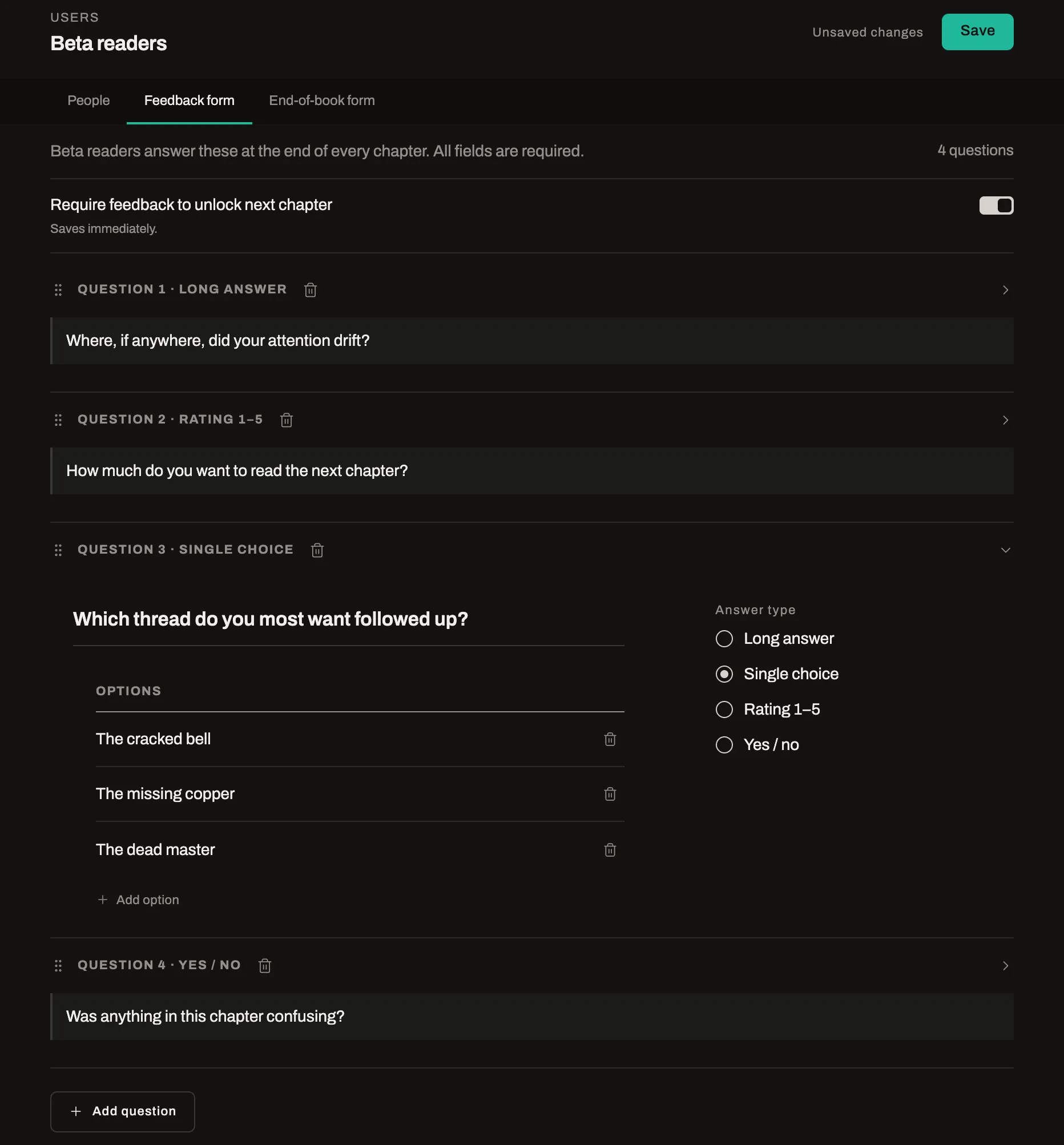
To arrange the list:
- Reorder: drag a question by the handle at the start of its heading.
- Remove: press the bin beside the question’s heading. While the form has one question, its bin is greyed out. A form keeps at least one.
- Fold: press a question’s heading to fold it down to its wording.
Step 3: Save the form
- Press Save at the top of the page. It appears, with “Unsaved changes” beside it, as soon as you change anything, and while the suggested question is not saved yet.
- Wait for the notice “Feedback form saved.”
If a question is not ready, the form is not saved and a notice says how many questions to fix. The message is under the question: a question with no wording, or a Single choice with fewer than two options.
If you leave the page with changes you have not saved, Gnarlywog asks first. Press Keep editing to stay, or Discard changes to lose them.
Choose whether chapters unlock in order
The switch above the questions, Require feedback to unlock next chapter, is on to begin with. It is in both frames above.
- On: a reader cannot open a chapter until they have sent the form for the chapter before it.
- Off: a reader can open any chapter in any order. The form still has to be answered in full to send it, and its note reads “required to continue” instead of naming the next chapter.
The switch is not part of Save. It takes effect as soon as you press it.
What your reader sees
When a reader reaches the end of a chapter, the button at the foot of their page becomes Continue to feedback. It opens your form.
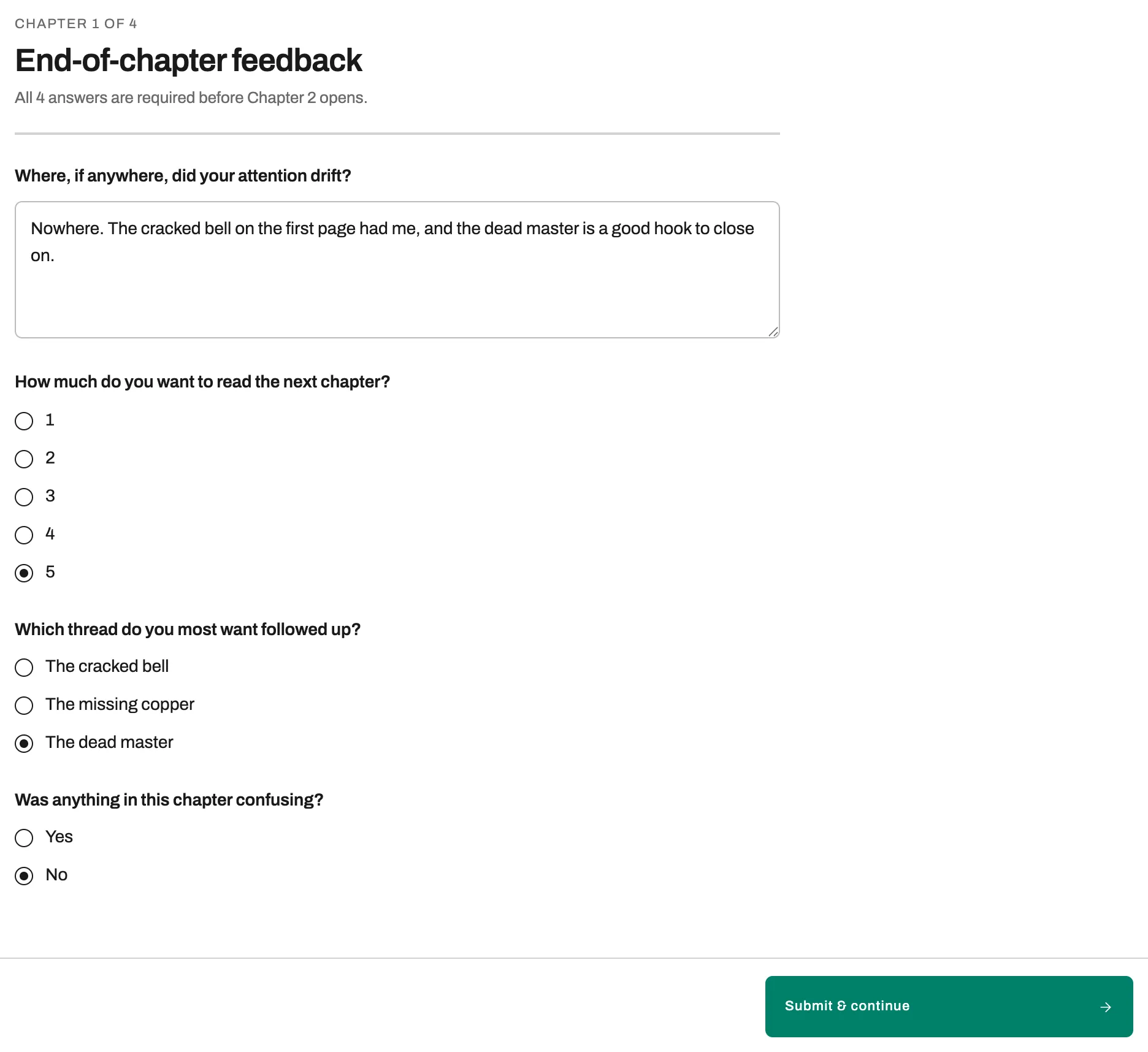
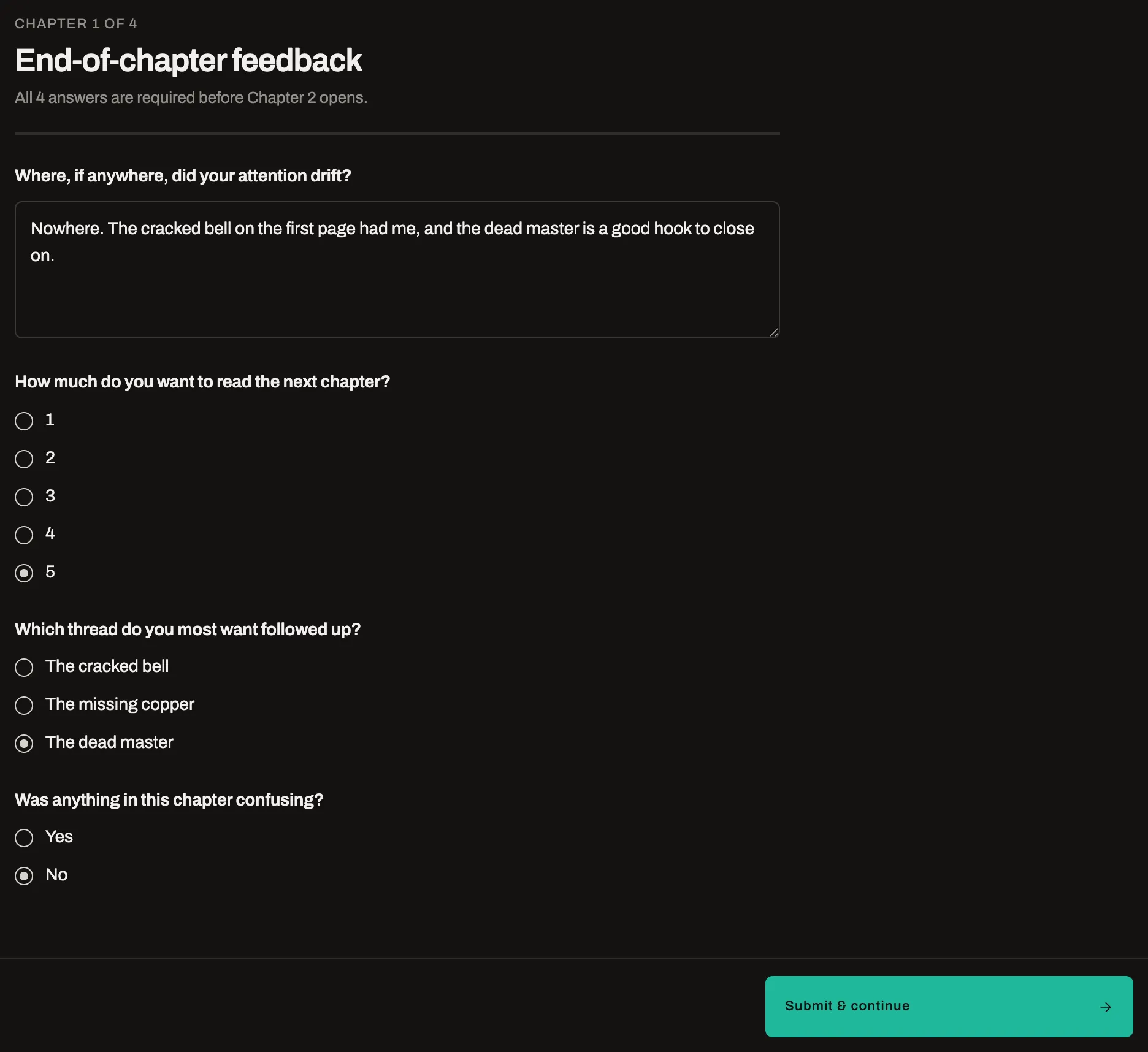
Every question has to be answered. Submit & continue stays greyed out until it is, and then it sends the answers and opens the next chapter.
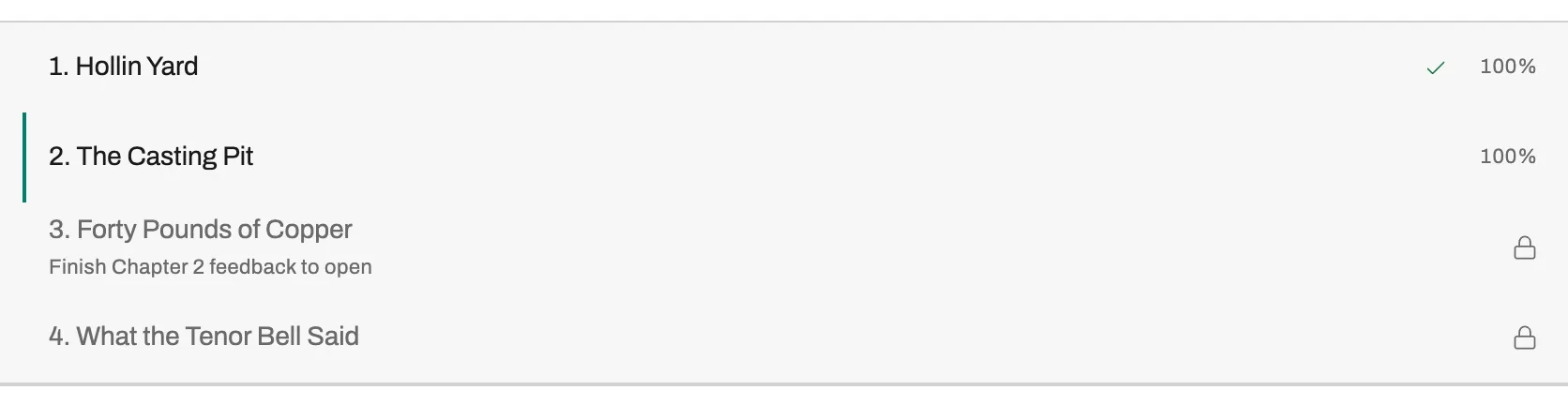
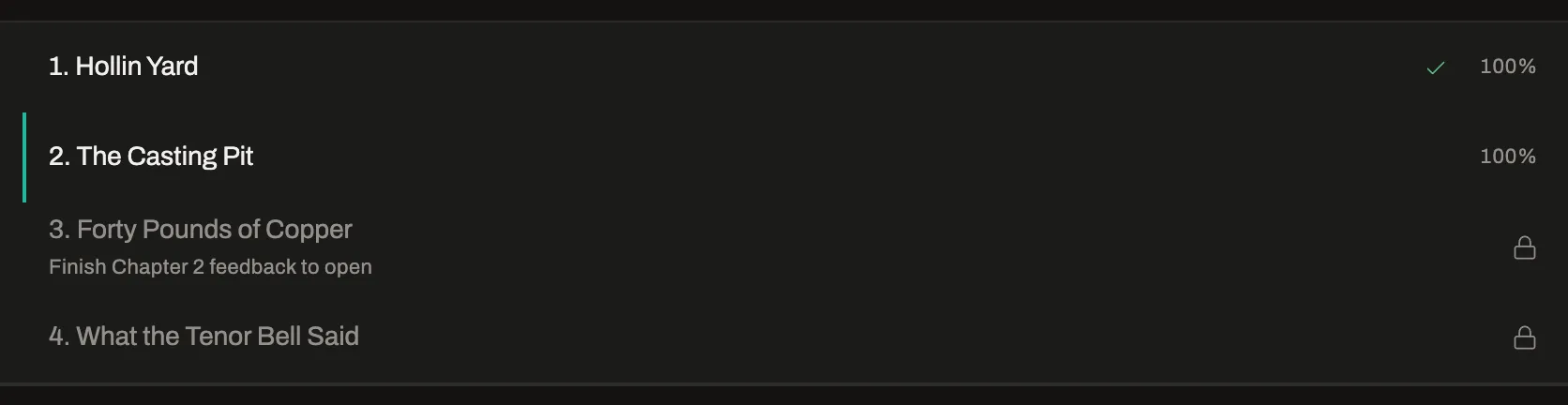
With the switch on, the reader’s list of chapters shows a lock on each chapter they cannot open yet, and a tick on each one they have sent the form for.
The rest of the reader’s side is covered in What your readers and editors see.
Read the answers
In the chapter list under Content, a chapter with answers you have not read has a small speech bubble after its word count.
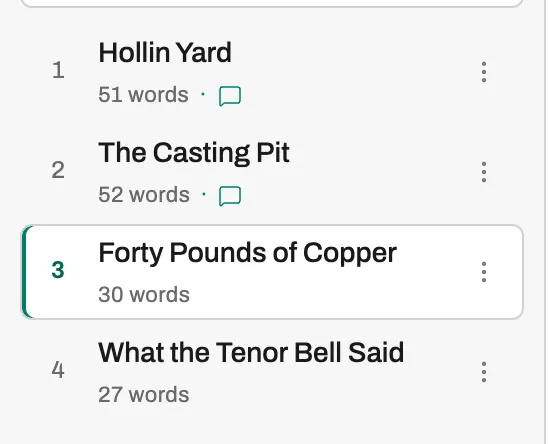
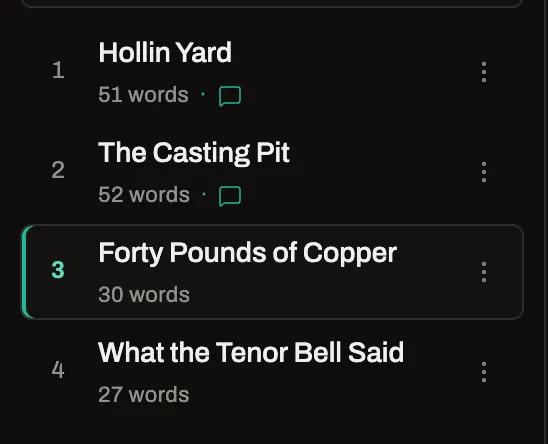
- Open the chapter.
- Open the side panel and choose the Feedback tab, the speech bubble. If the tab is not in the row, press the three dots at the end of the row and turn Feedback on under Panels. Find your way around a book shows that menu.
- Read down the panel. It lists your questions, with every reader’s answers to this chapter summed up under each.
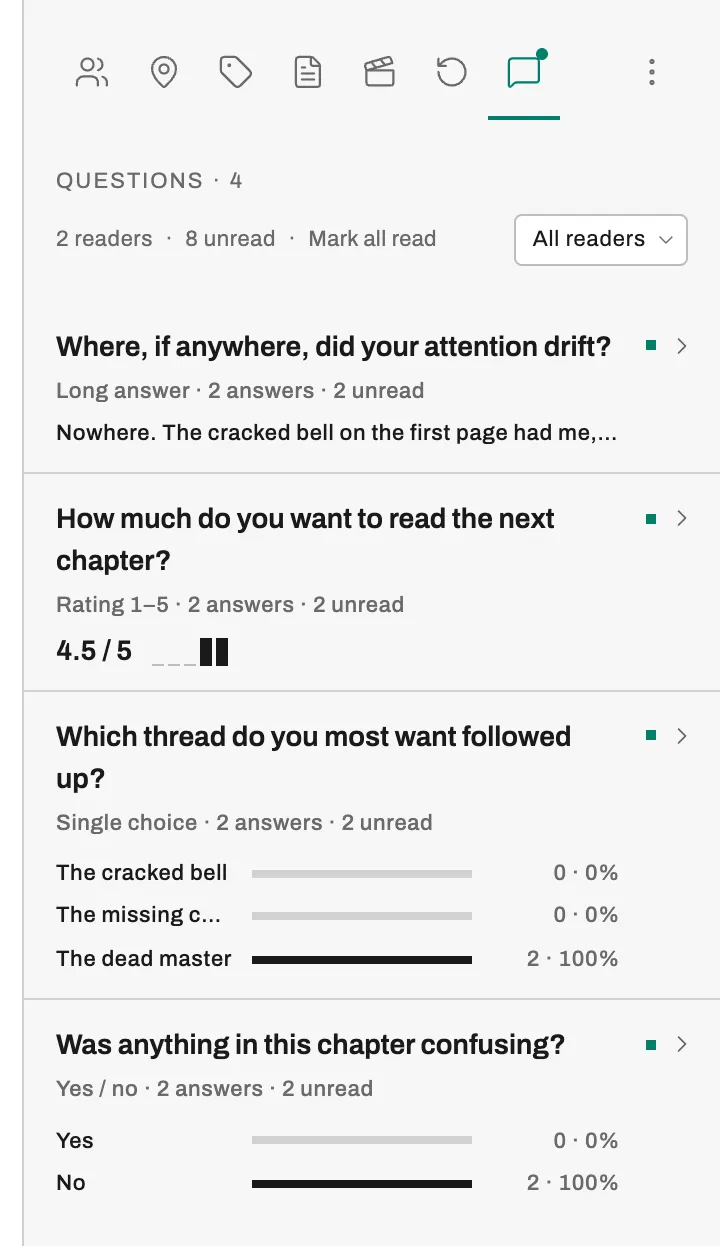
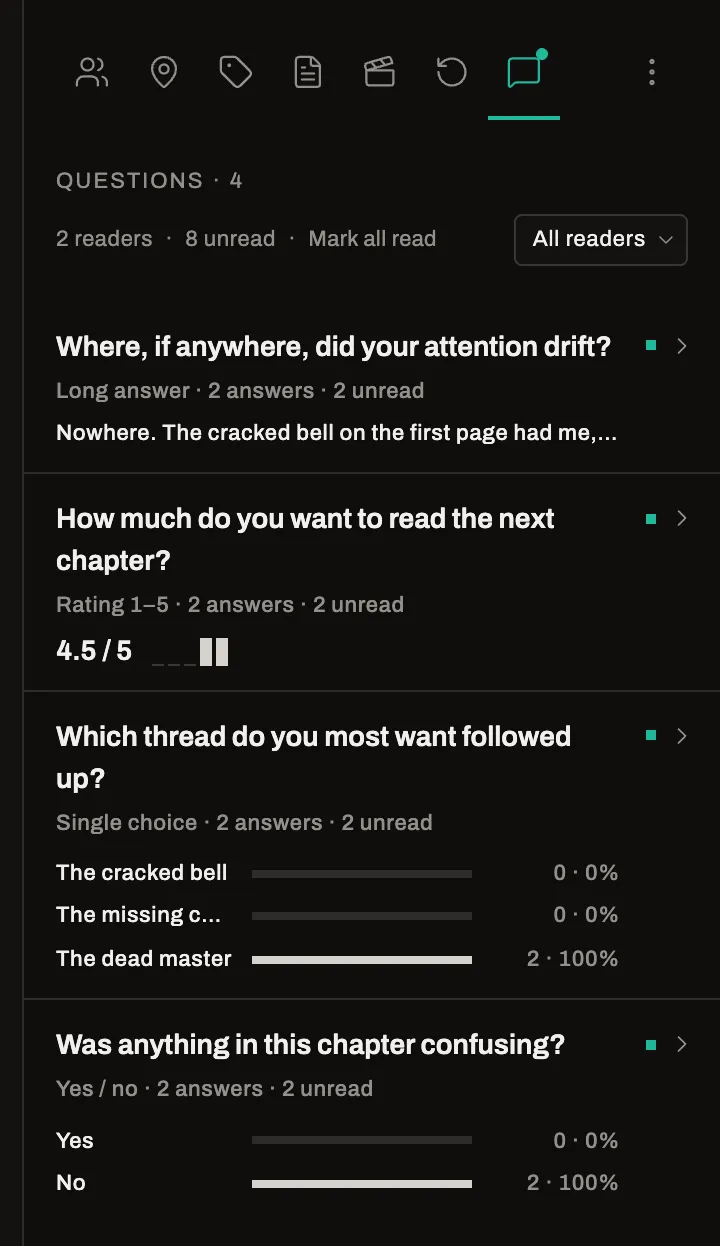
- A written question shows the start of one answer.
- A rating shows the average.
- A choice or a yes or no shows how many readers picked each answer.
- The line at the top counts the readers who have answered and the answers you have not read. All readers narrows the panel to one reader.
Press a question to open it and read each reader’s own answer.
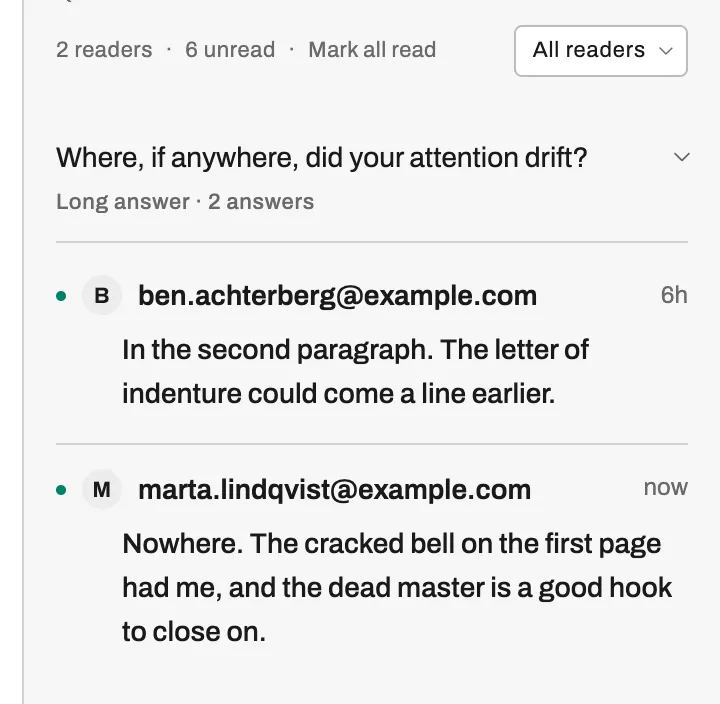
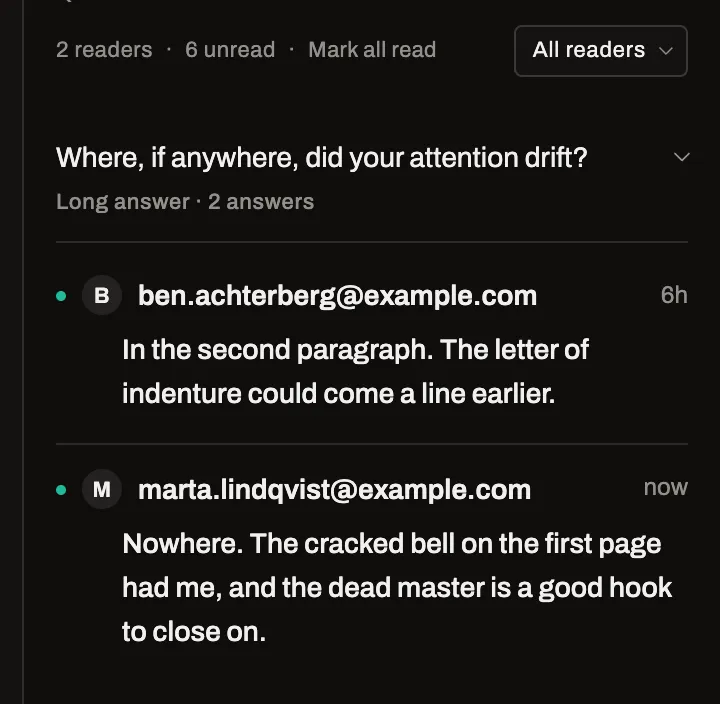
The panel names a reader by the display name they set on their account, or by their email address if they have not set one. A dot before an answer means it is new to you. Opening a question counts its answers as read, and Mark all read does the same for the whole chapter.
To go through one reader’s answers chapter by chapter, and to tag them, use that reader’s page. See Invite beta readers and read their feedback.
Change the form after readers have answered
You can change the form at any time. Readers get the new questions from the next form they open.
- Reword a question: the answers already given stay with it, shown under the new wording.
- Add a question: readers answer it on the next form they open. A chapter a reader could already open stays open to them.
- Remove a question: its answers are kept. In the chapter’s Feedback panel the question stays in the list, and there and on a reader’s page it is marked No longer in use.
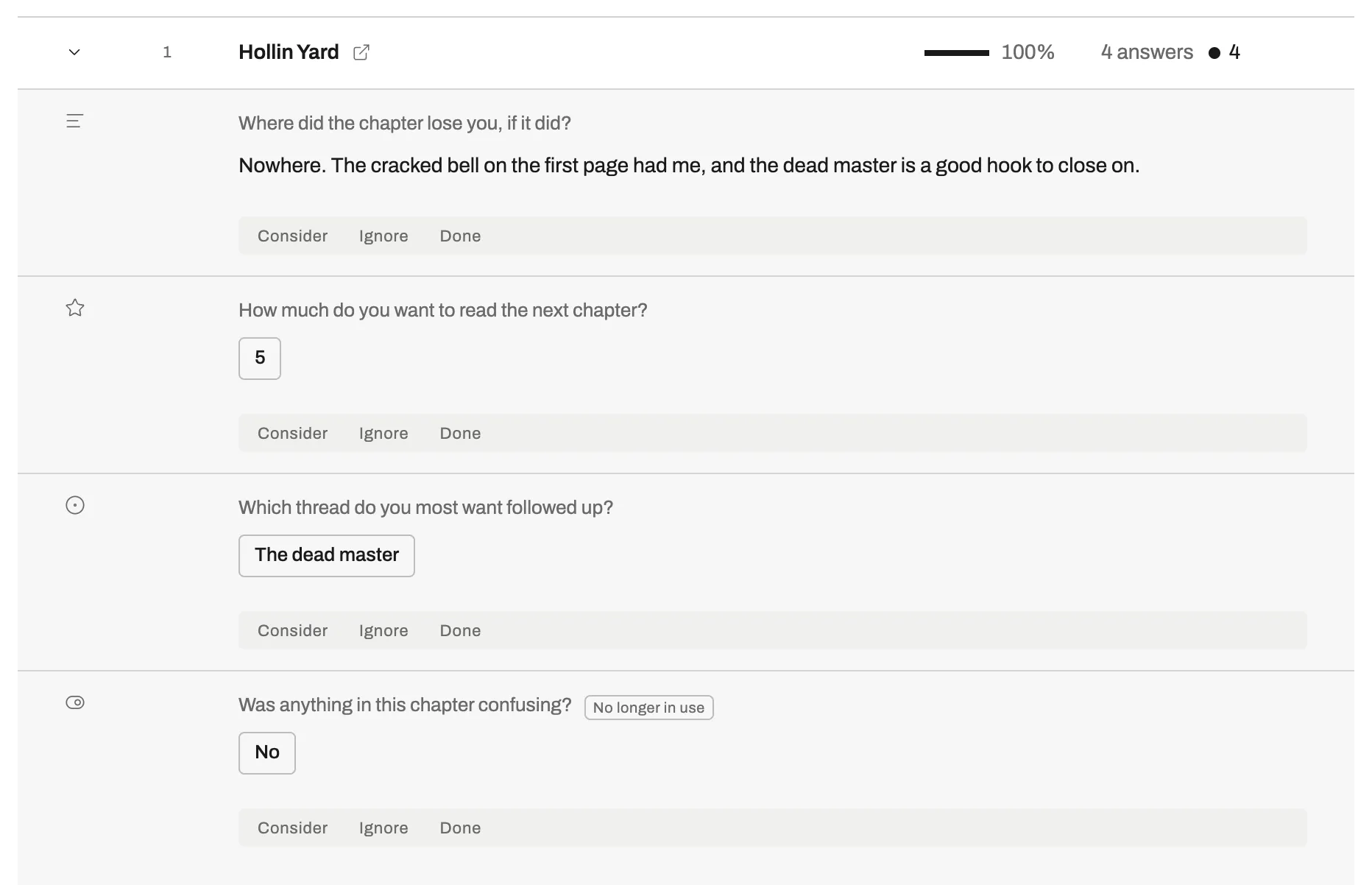
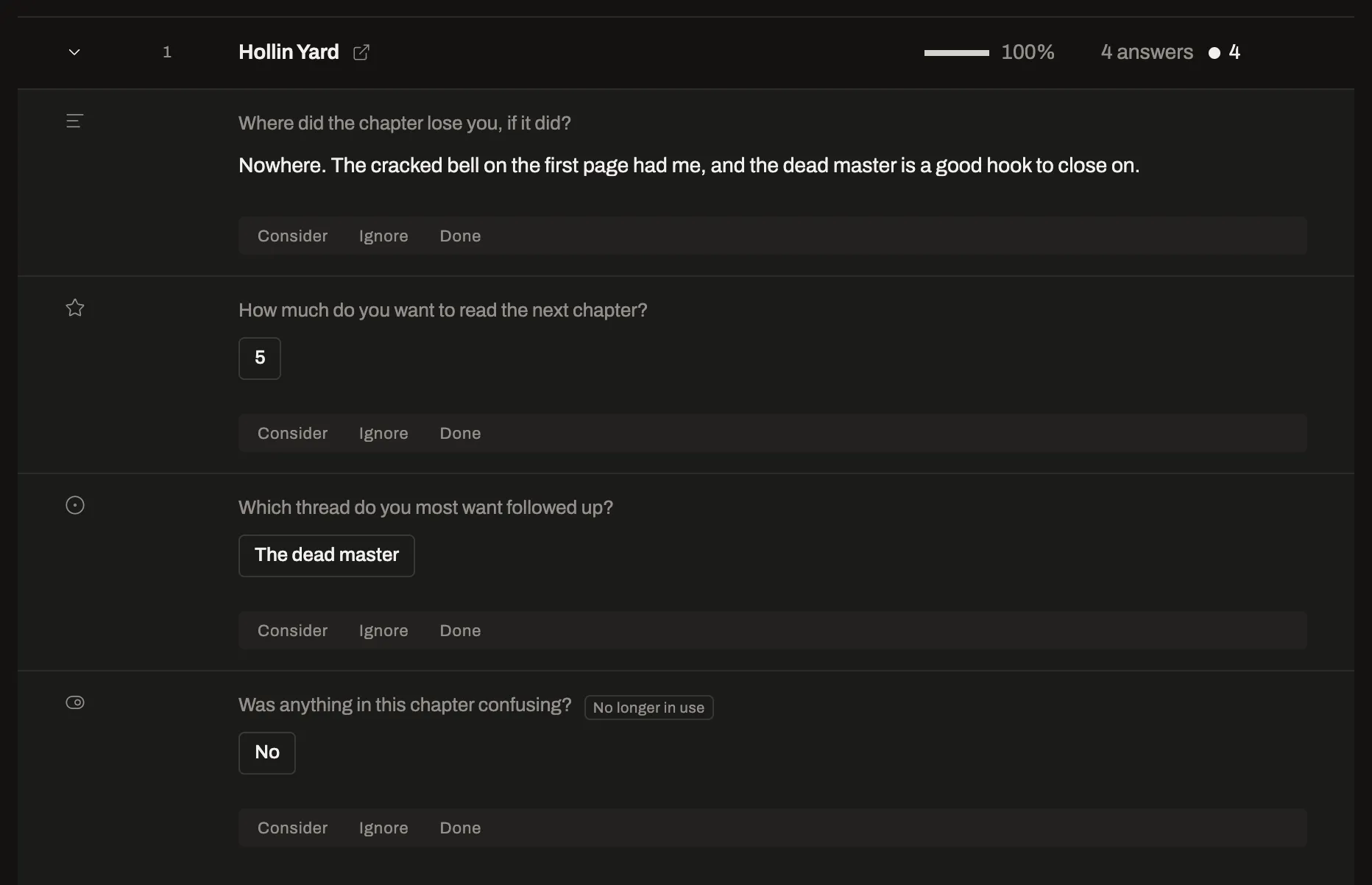
A feedback form cannot be deleted, and it cannot be emptied: it always keeps one question.
Related
- Invite beta readers and read their feedback: invite the people who answer the form, and tag their answers.
- Ask readers about the whole book: the second form, asked once at the end.
- Find your way around a book: the side panel and its tabs.
- Organize your book with chapters and parts: the chapter list where the speech bubble shows.
- Free and Pro: what Pro adds, beta readers included.