DocsExport
Check that your book is ready to export
Updated
Each export page checks your book before it lets you make a file. The Review tab of the panel on the right lists what it found: problems that stop the export, and warnings that do not. This article explains how to read the tab, then lists every check for Kindle, Print and DOCX and how to clear it.
Where the checks are
- Open the book and choose Export in the sidebar.
- Press Kindle, Print or DOCX.
- Press Review, the last icon in the row of tabs at the top of the panel on the right.
You do not have to open the tab to know whether something is wrong. Under the header of every export page there is a button with a count, on whichever tab you are. Press it to go to Review.


- A red dot and “issues” means at least one thing stops the export. The Export button is dimmed until every issue is cleared. While there are issues, the button counts only those, not the warnings.
- A yellow dot and “warnings” means nothing stops the export. The Export button works.
- No button means the book is ready.


Read the Review tab
The line at the top of the tab is the whole count: here, “5 blocking · 2 warnings”. “Blocking” on this line and “issues” on the button under the header are the same thing.
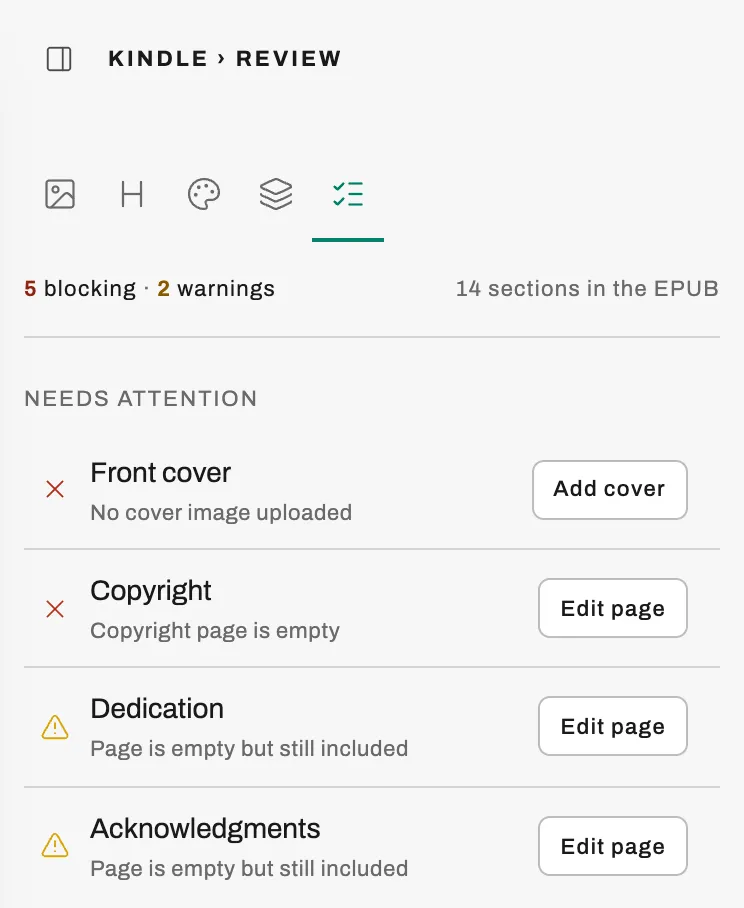
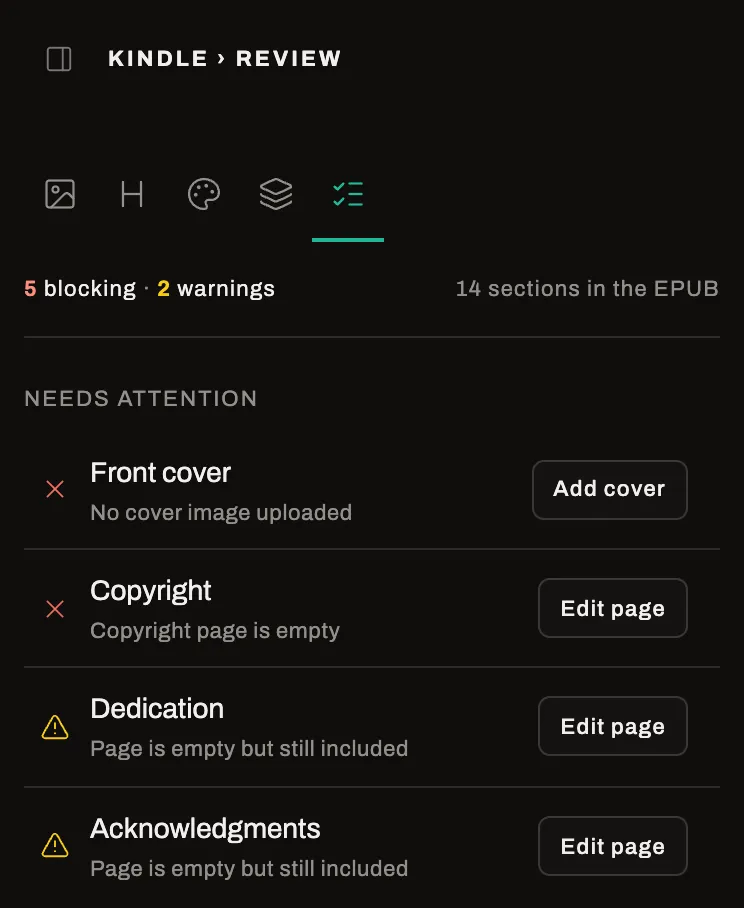
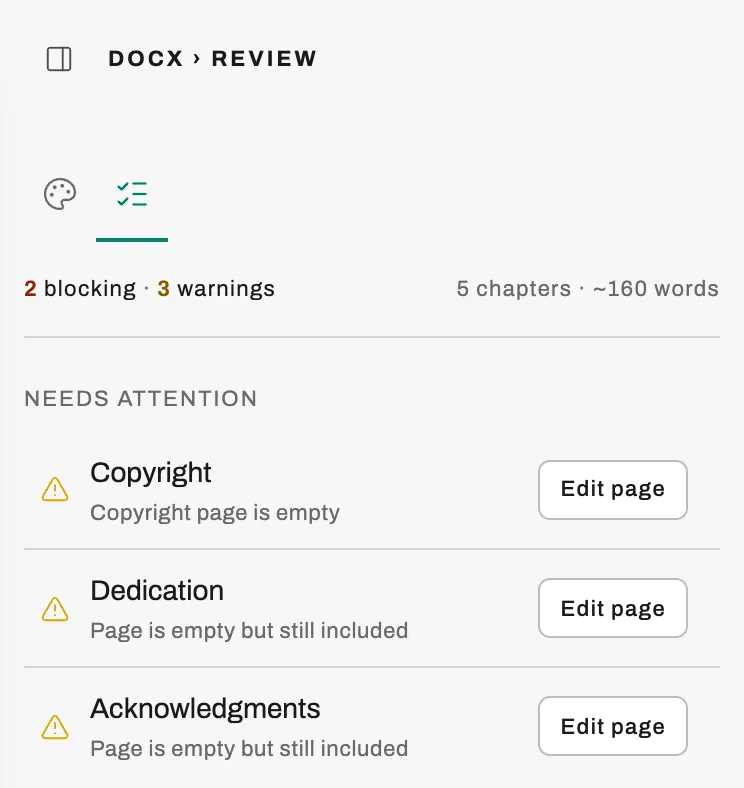
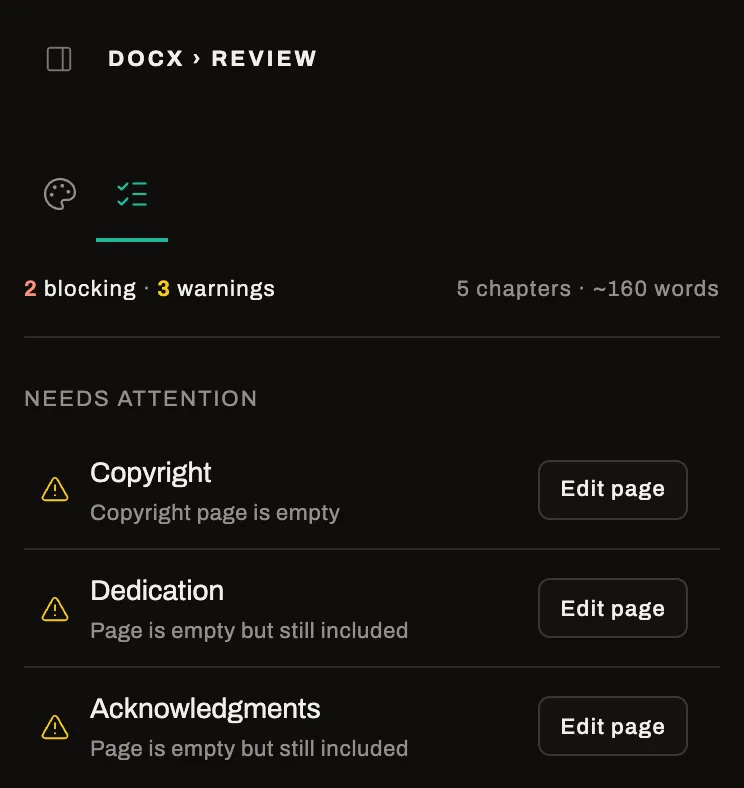
Needs attention lists the pages of the book that have a problem. Each row has:
- A red cross if it stops the export, or a yellow triangle if it only warns. The rows that stop the export come first.
- The name of the page, and under it what is wrong.
- A button that takes you to where you fix it, such as Edit page or Add cover.
Below that, the body of the book has a list of its own for each kind of thing in it: Chapters, Parts and Image pages. A list’s heading ends in a count, and anything with a problem is named under it. Red stops the export and yellow warns, as above. A grey line at the end of the list says why, such as “Empty chapters break the EPUB”. Press a name to open that chapter, part or page.
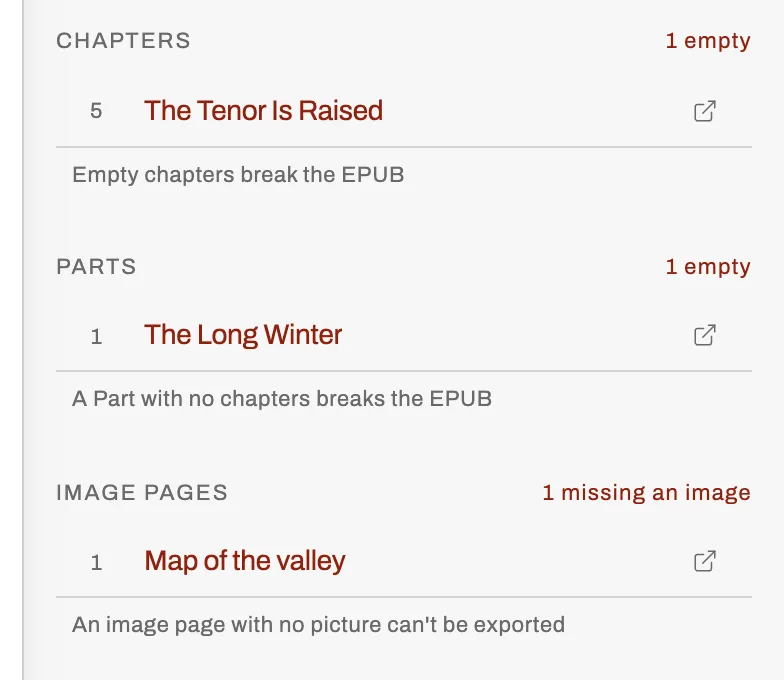
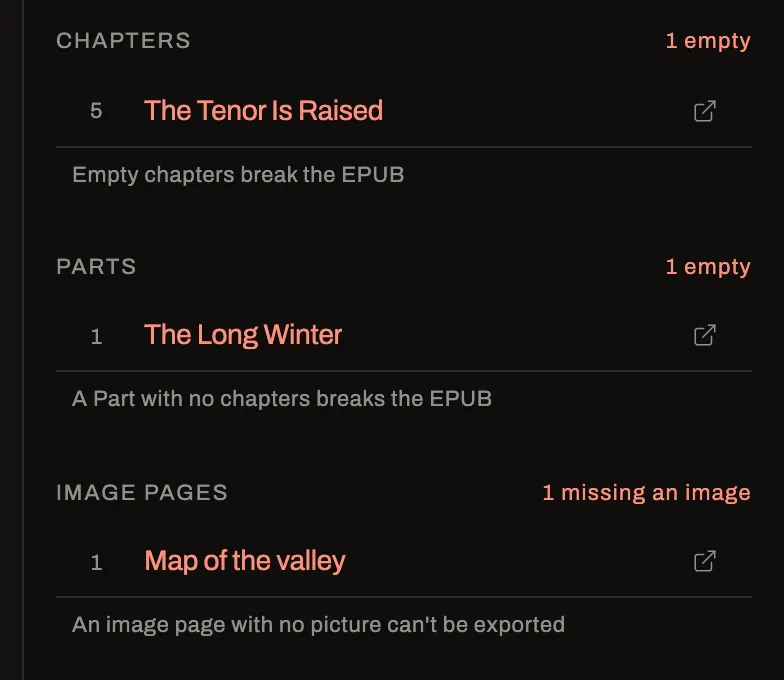
Each empty chapter, each empty part and each image page with no picture counts as one issue. That is how the book above gets to five: the cover, the copyright page, one chapter, one part and one image page.
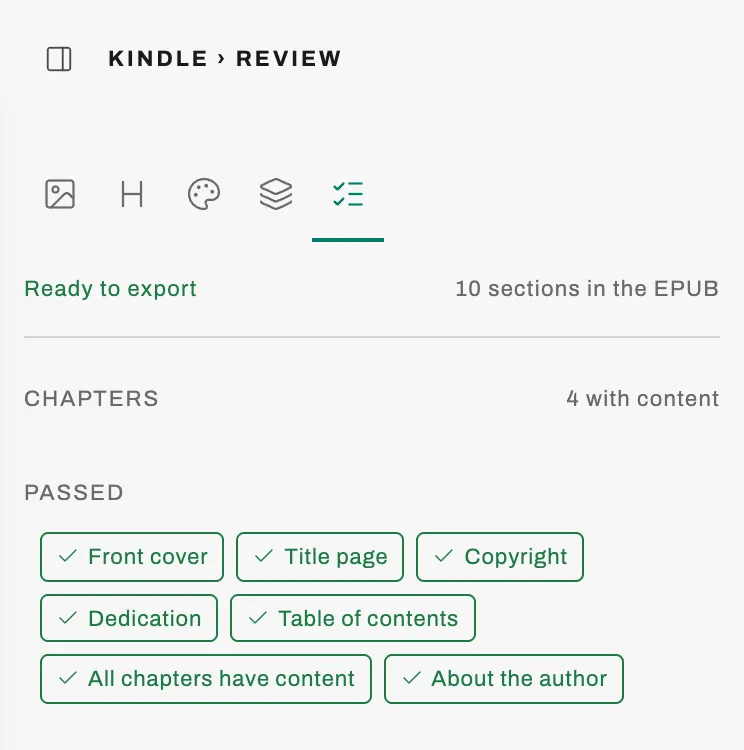
Parts is shown only if the book has parts, and Image pages only if it has full-page images. When nothing is wrong, a heading ends in a grey count instead, such as “4 with content” or “1 ready”.
Passed lists every check with nothing wrong, as green tags.
When the book is ready
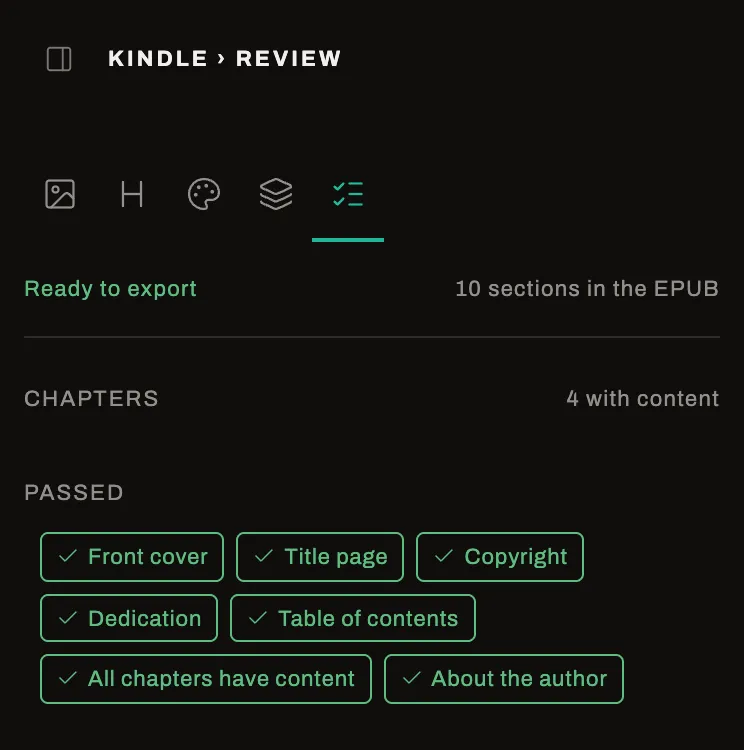
With nothing left to clear, the top line reads Ready to export, Needs attention is gone, and the button under the header is gone too.


You can export with warnings left. Read them first: a warning usually means the file will have an empty page in it, or will be missing something you meant to add.
The count on the Review tab changes as soon as you press a switch under Included pages. The button under the header, and the Export button, change when you press Save.
The same book on three pages
The three exports do not ask for the same things, so one book can have three different counts. The book above has 5 issues on Kindle, 4 on Print and 2 on DOCX.
- Kindle needs a front cover. Print and DOCX do not.
- Kindle and Print stop for an empty Copyright page. DOCX only warns.
- Kindle and Print stop for a part with no chapters. DOCX does not check parts.
- Kindle warns about pictures with no description. Print warns about pictures that are too small to print well.
One full-page image shows the difference. On Kindle it is listed in yellow as “without alt text” until you describe the picture. On Print the same page is listed as “below 300 DPI” if the picture is too small for the page.
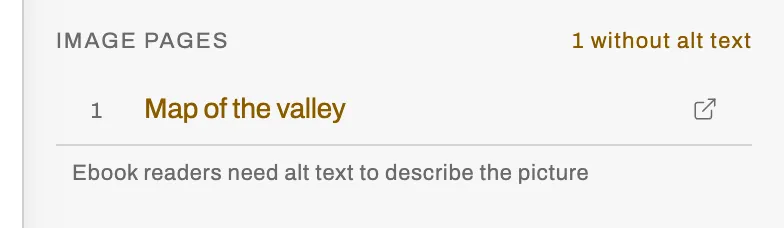
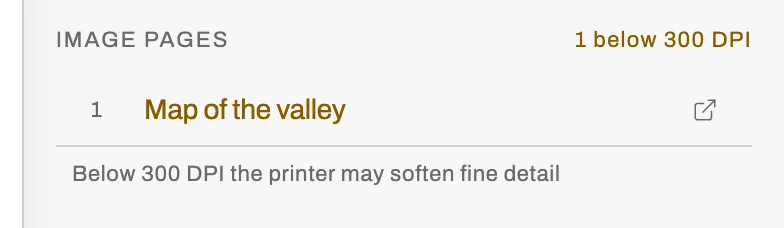
The heading of Image pages, and the line under the list, name one kind of problem at a time, the most serious first. If several pages are listed, open each one to see what it needs.
Kindle: every check
In the tables below, Stops the export marks a check that dims the Export button. Everything else is a warning.
| What you see | What it means | How to clear it |
|---|---|---|
| Front cover: “No cover image uploaded” | Stops the export. An ebook has to have a front cover. | Press Add cover. It opens the Cover tab, where you add the picture. |
| Front cover: “Cover image has formatting issues” | Warning. The cover is there but fails one of the cover checks. | Press Fix cover. The Cover tab lists what is wrong with the picture. |
| Title page: “Book title and author are required”, “Book title is required” or “Author name is required” | Stops the export. The book has no title, no author, or neither. | Press Edit page and fill in the title and the author. |
| Copyright: “Copyright page is empty” | Stops the export. A Kindle book always has a copyright page, and yours has no text. | Press Edit page, write the page and save it. |
| Dedication, Acknowledgments or About the author: “Page is empty but still included” | Warning. The page is switched on and has nothing on it. | Press Edit page and write it. Or turn off its switch under Included pages and press Save. |
| Also by: “No related books added yet” | Warning. The page is switched on and has no book on it yet. | Press Add books. Or turn off its switch under Included pages and press Save. |
| Chapters: “No chapters yet” | Stops the export. The book has no chapters. | Press Add chapter. |
| Chapters list: “1 empty”, with the chapter in red | Stops the export. A chapter has no text. Each empty chapter counts. | Press the chapter and write it, or delete it from the chapter list. |
| Chapters list: “1 needs alt text”, with a row such as “Hollin Yard · 1 image without alt text” in yellow | Warning. A picture inside that chapter has no description, so the file does not claim to meet the accessibility standard. | Press the row. It opens the Media page on that picture, where you write its alt text. |
| Parts list: “1 empty”, with the part in red | Stops the export. A part has no chapter under it. Each empty part counts. | Press the part to open it. Then, in the chapter list, move a chapter under the part or delete the part. |
| Image pages list: “1 missing an image”, with the page in red | Stops the export. A full-page image has no picture yet. Each such page counts. | Press the page and add its picture, or delete the page. |
| Image pages list: “1 without alt text”, with the page in yellow | Warning. The picture has no description for readers who cannot see it. | Press the page and fill in its alt text. |
| Offline conflicts: “1 chapter has unresolved versions” | Warning. A chapter was changed in two places while you were offline. The export uses the chapter as it stands now. | Press the chapter under it. It opens with the Revisions panel on its Offline tab, where you settle which version to keep. |
At the bottom of the Kindle Review tab, Accessibility reads Conformance claimed or Not claimed. It reads Not claimed while either alt text warning above is there. Export your book for Kindle covers that section.
Print: every check
| What you see | What it means | How to clear it |
|---|---|---|
| Cover page: “No cover image uploaded” | Warning. The Cover page switch is on and the book has no cover, so that page would print blank. | Press Add cover. Or turn off Cover page under Included pages and press Save. |
| Title page: “Book title and author are required”, “Book title is required” or “Author name is required” | Stops the export. The book has no title, no author, or neither. | Press Edit page and fill in the title and the author. |
| Copyright: “Copyright page is empty” | Stops the export. A printed book always has a copyright page, and yours has no text. | Press Edit page, write the page and save it. |
| Dedication, Acknowledgments or About the author: “Page is empty but still included” | Warning. The page is switched on and has nothing on it. | Press Edit page and write it. Or turn off its switch under Included pages and press Save. |
| Also by: “No related books added yet” | Warning. The page is switched on and has no book on it yet. | Press Add books. Or turn off its switch and press Save. |
| Margins: a line such as “Inside margin is 0.3 in. KDP asks for at least 0.375 in … so it may reject the file.” | Warning. A margin is smaller than Amazon KDP asks for in a book of this length. | Make that margin larger on the Formatting tab and press Save. The row has no button. |
| Chapters: “No chapters yet” | Stops the export. The book has no chapters. | Press Add chapter. |
| Chapters list: “1 empty”, with the chapter in red | Stops the export. A chapter has no text. Each empty chapter counts. | Press the chapter and write it, or delete it from the chapter list. |
| Parts list: “1 empty”, with the part in red | Stops the export. A part has no chapter under it. Each empty part counts. | Press the part to open it. Then, in the chapter list, move a chapter under the part or delete the part. |
| Image pages list: “1 missing an image”, with the page in red | Stops the export. A full-page image has no picture yet. Each such page counts. | Press the page and add its picture, or delete the page. |
| Image pages list: “1 below 300 DPI”, with the page in yellow | Warning. The picture has too few pixels to print sharply at the size of the page. | Press the page and replace the picture with a larger one. |
| Offline conflicts: “1 chapter has unresolved versions” | Warning. A chapter was changed in two places while you were offline. The export uses the chapter as it stands now. | Press the chapter under it. It opens with the Revisions panel on its Offline tab, where you settle which version to keep. |
Print does not check alt text, because a printed page has none. The printed cover has checks of its own on the Cover tab. Add your book’s cover covers them.
DOCX: every check
On the DOCX page every page of the book has a switch, so a check about a page applies only while that page is switched on.
| What you see | What it means | How to clear it |
|---|---|---|
| Cover page: “No cover image uploaded” | Warning. The Cover page switch is on and the book has no cover. | Add a cover on the Kindle or Print page, or turn off Cover page and press Save. The row has no button. |
| Title page: “Book title and author are required”, “Book title is required” or “Author name is required” | Stops the export. The title page is switched on and the book has no title, no author, or neither. | Press Edit page and fill them in. Or turn off Title page and press Save. |
| Copyright: “Copyright page is empty” | Warning. The copyright page is switched on and has no text. | Press Edit page and write it. Or turn off Copyright and press Save. |
| Dedication, Acknowledgments or About the author: “Page is empty but still included” | Warning. The page is switched on and has nothing on it. | Press Edit page and write it. Or turn off its switch and press Save. |
| Also by: “No related books added yet” | Warning. The page is switched on and has no book on it yet. | Press Add books. Or turn off its switch and press Save. |
| Chapters: “No chapters yet” | Stops the export. The book has no chapters. | Press Add chapter. |
| Chapters list: “1 empty”, with the chapter in red | Stops the export. A chapter has no text. Each empty chapter counts. | Press the chapter and write it, or delete it from the chapter list. |
| Image pages list: “1 missing an image”, with the page in red | Stops the export. A full-page image has no picture yet. Each such page counts. | Press the page and add its picture, or delete the page. |
| Offline conflicts: “1 chapter has unresolved versions” | Warning. A chapter was changed in two places while you were offline. The export uses the chapter as it stands now. | Press the chapter under it. It opens with the Revisions panel on its Offline tab, where you settle which version to keep. |
DOCX has no Parts list. It does not check alt text or the size of a picture.
Other things that dim the Export button
The Export button can be dimmed with nothing on the Review tab. The line under the header says why.
- The file name is too short. A name needs at least 3 characters.
- A Print margin is outside the range the page allows. Fix it on the Formatting tab of the Print page.
- An export is already being made. You can have one export of each kind in progress at a time, across all your books.
- You are offline. Exporting and downloading need a connection. Going offline on an export page takes you to one of your book’s chapters; open the page again once you are back online.
Related
- Export your book for Kindle: the Kindle page, from the preview to the file.
- Export your book as a print-ready PDF: the Print page.
- Export your book as a Word file: the DOCX page.
- Add your book’s cover: the cover an ebook has to have, and the cover checks.
- Write your book’s copyright page: the page that stops a Kindle or Print export while it is empty.
- Fill in your book’s title page: the title and the author.
- Organize your book with chapters and parts: moving a chapter under a part, and deleting either.
- Add a full-page image between chapters: the picture, its alt text and its resolution.
- Manage your book’s images in Media: where the alt text of a picture inside a chapter is written.
- Keep writing without a connection: where an offline version comes from, and how to settle it.