DocsWriting
Write on a tablet or phone
Updated
On a tablet or a phone, Gnarlywog changes to a simpler layout made for writing. You get your chapters, the book’s pages and a menu to move between them. Planning, export and sharing stay on the desktop. This page says what is different from the desktop screen described in Find your way around a book.
When you get the tablet layout
There is nothing to switch on. Gnarlywog chooses the layout from the size of your screen:
- Any screen or window narrower than 1,100 pixels gets the tablet layout. That covers phones, most tablets, and a desktop window you have made narrow.
- A touch screen gets it up to 1,400 pixels wide, which covers a large tablet held sideways.
The first time you get the tablet layout after opening Gnarlywog, a notice at the bottom of the screen reads “Tablet mode: some features are available on desktop.” It goes away by itself after a few seconds.


The screen on a tablet
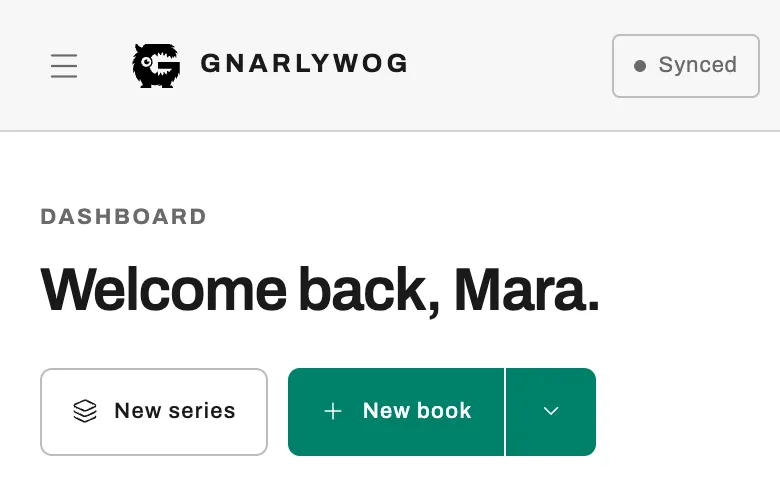
Open a book and its chapter fills the screen. The sidebar and the side panel are not there. In their place is one bar across the top:
- The menu button, three lines at the left. It opens everything the sidebar used to hold.
- The book’s title.
- The sync status, at the right. Synced means your work is saved to your account.
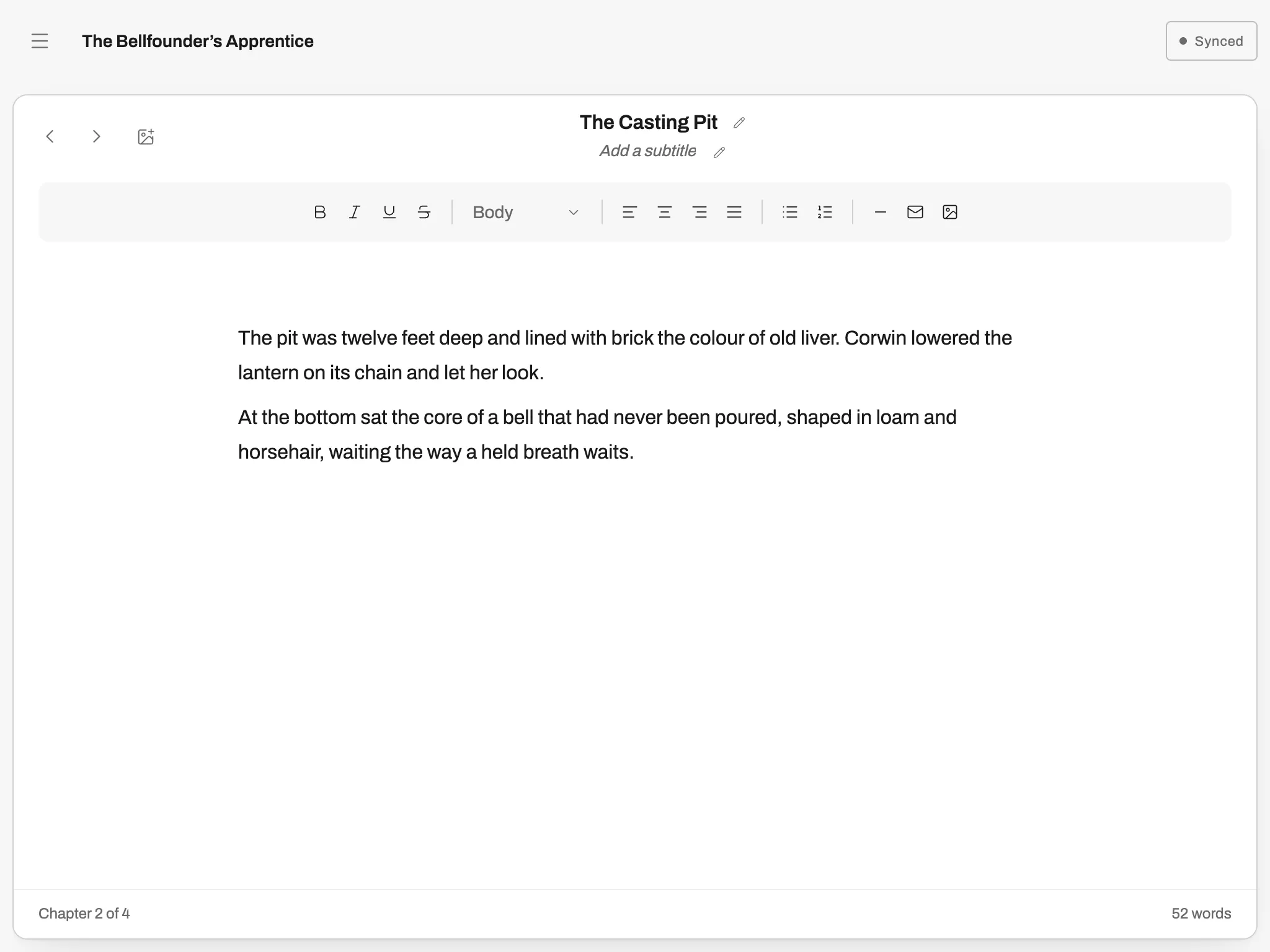
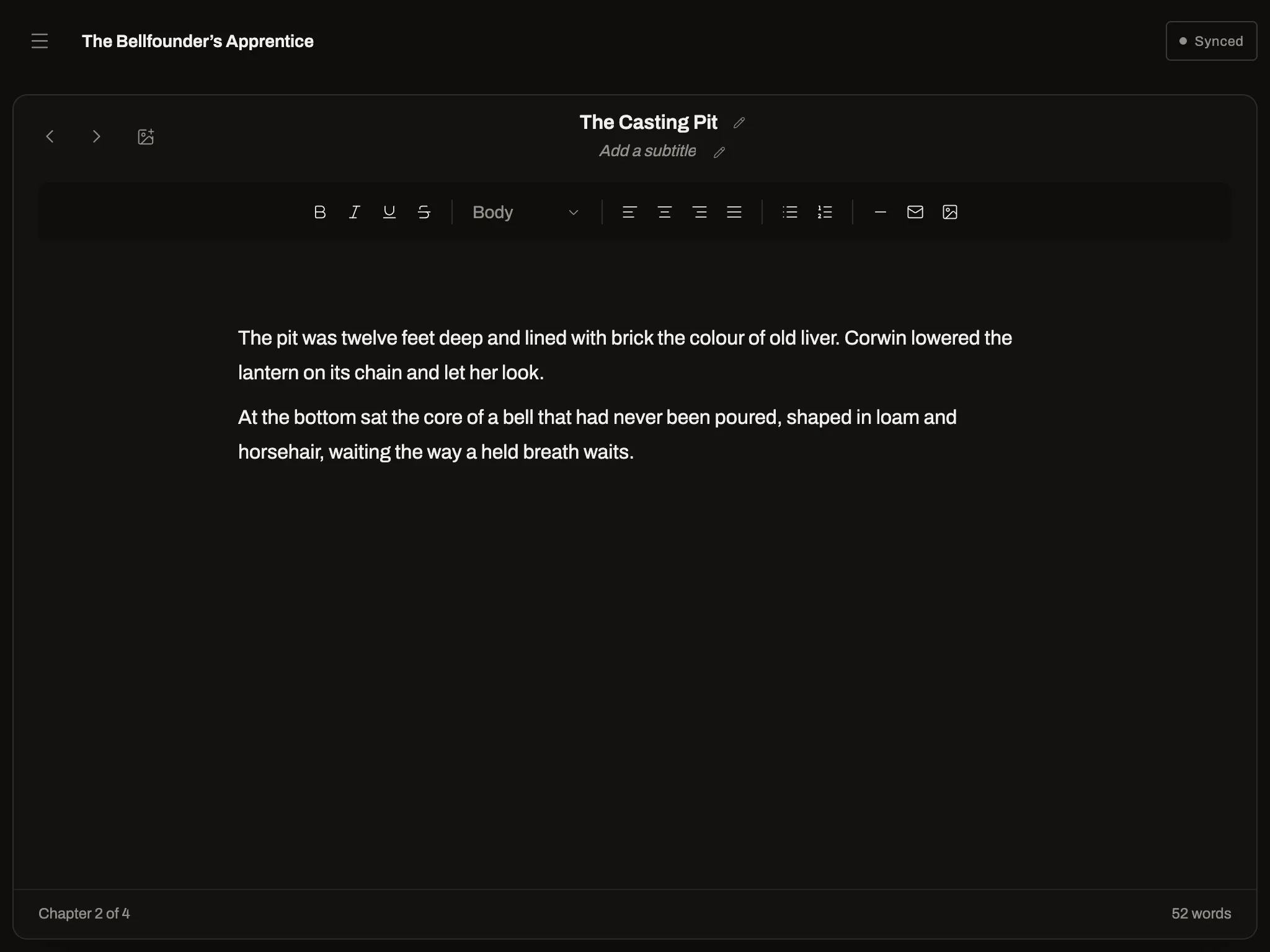
Under the bar, the chapter editor is the one you know: the two arrows, the picture button, the chapter’s title and subtitle, the toolbar, your text and the footer. Two things are missing from it. There are no glasses for focus mode, and the toolbar has no AI button.
Buttons and rows are larger than on a desktop, so they are easier to press with a finger. Turn the tablet and the chapter stays open where you were.
Open the menu
- Press the menu button at the top left. The menu slides in from the left.
- Press a chapter, a page or a link. It opens and the menu closes.
To close the menu without choosing, press the × at its top right, or press anywhere outside it.
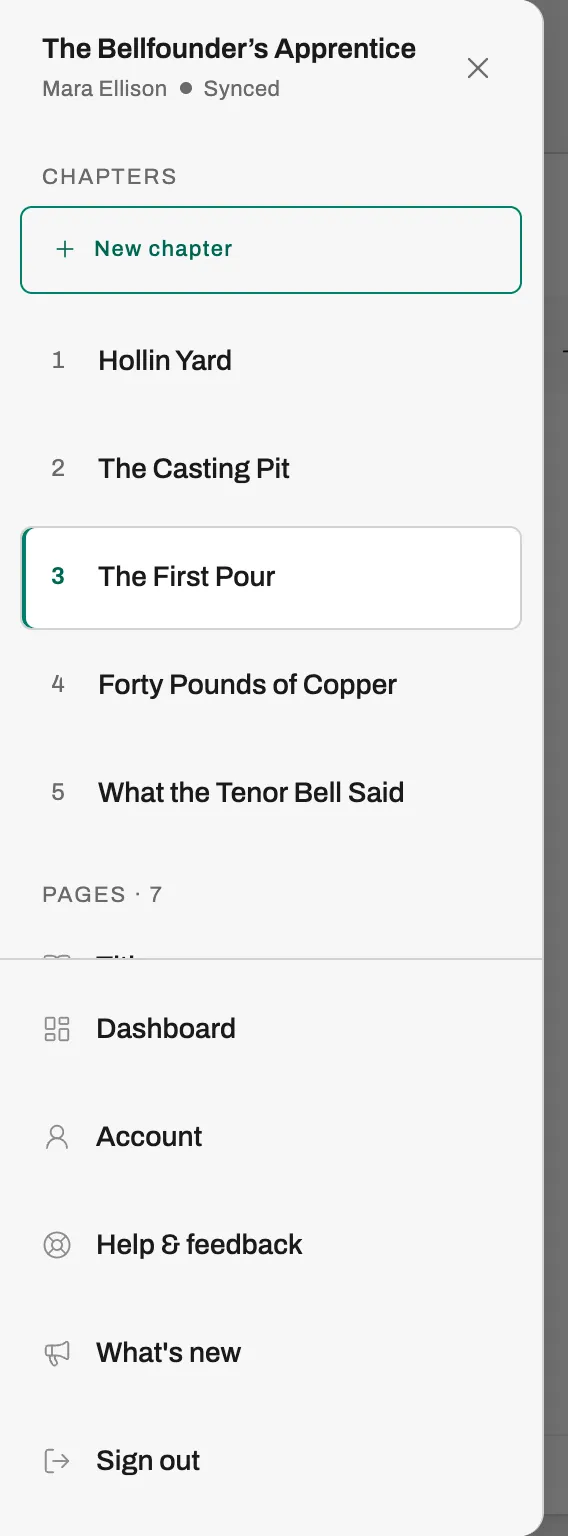
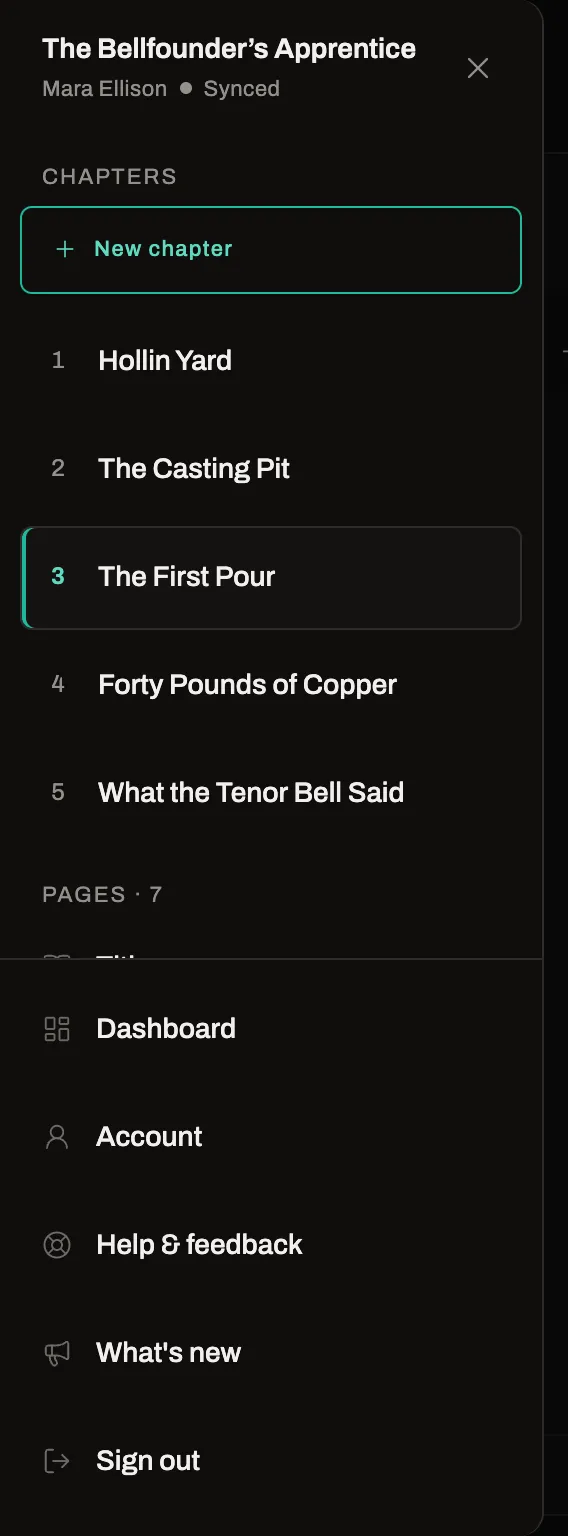
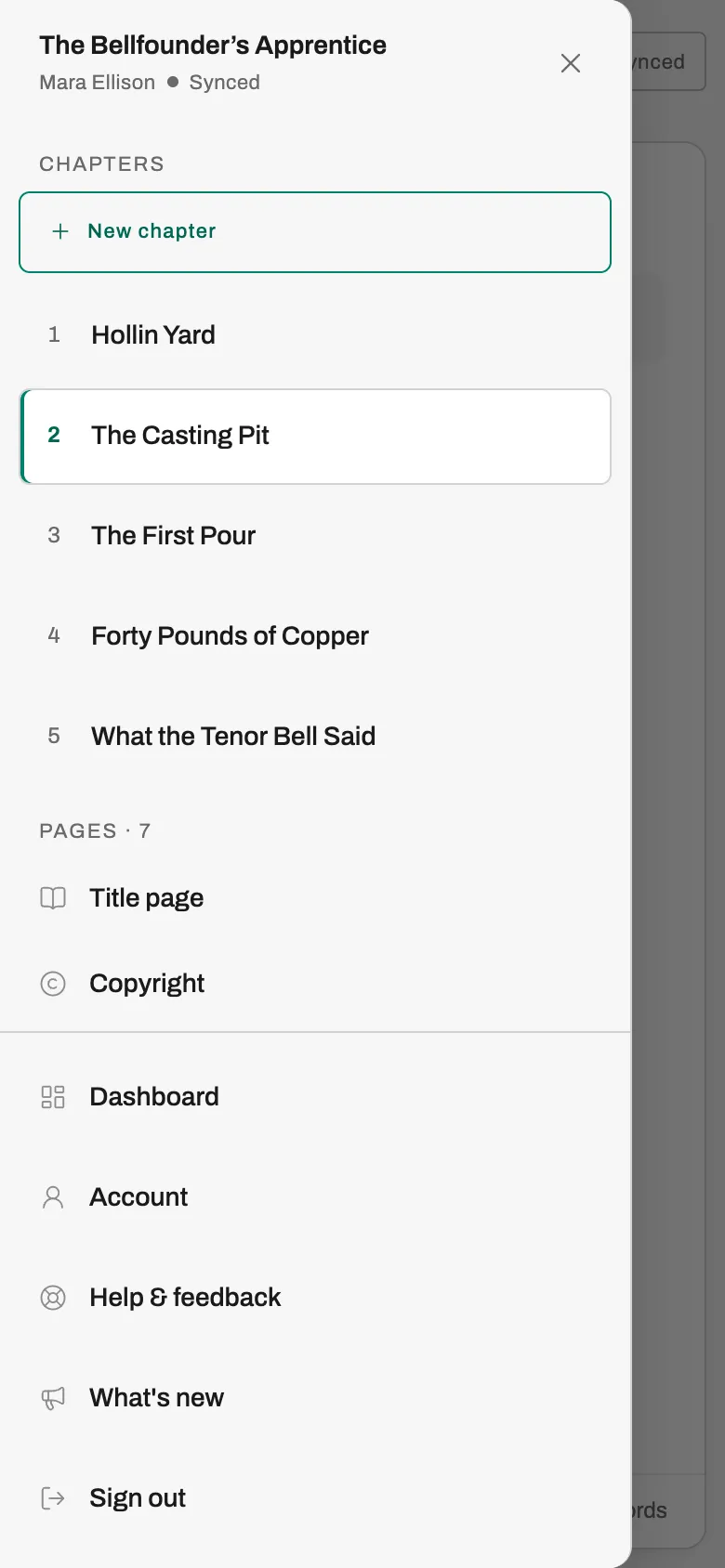
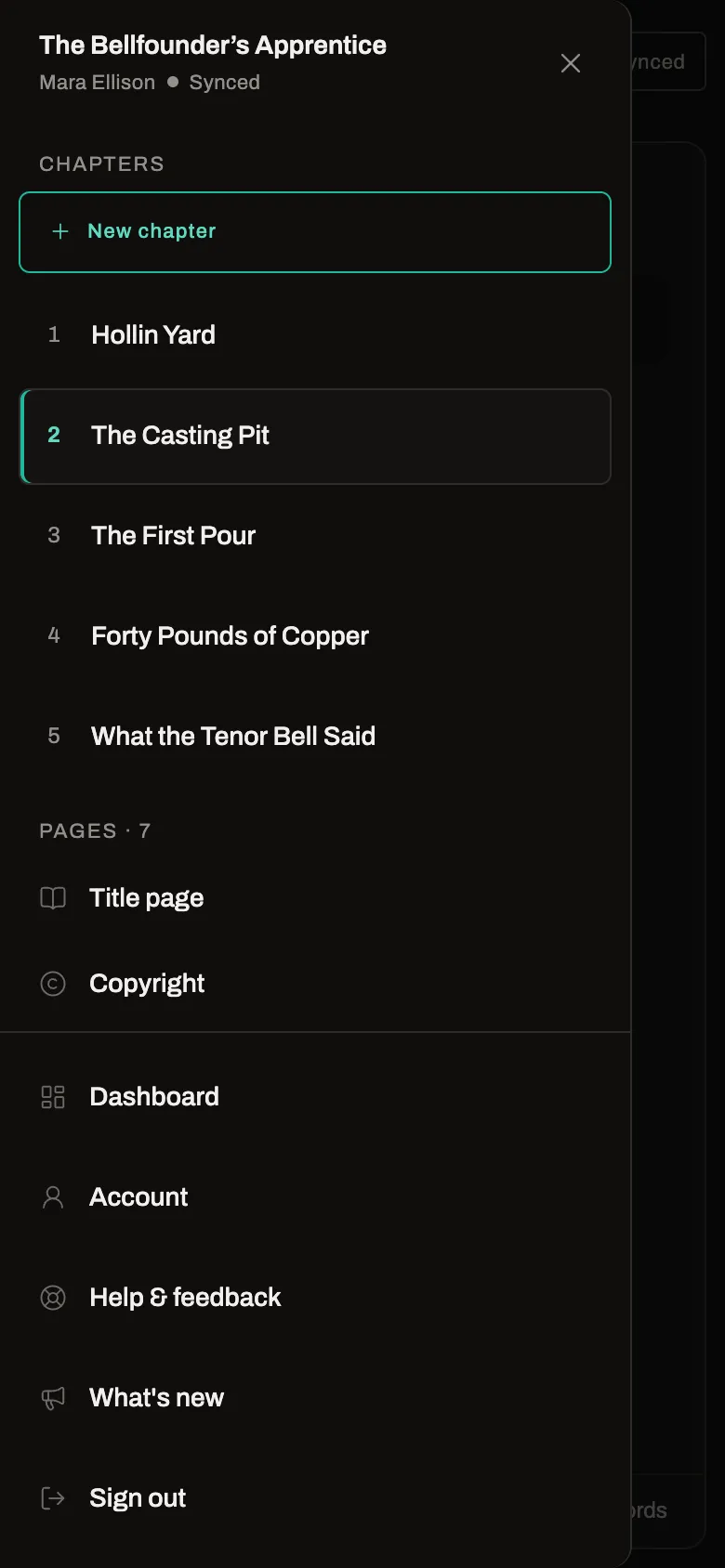
From top to bottom, the menu of a book has:
- The book’s title, with the author’s name and the sync status under it.
- Chapters. Every chapter in order, with its number. The chapter you have open is outlined. A part shows as a small heading above its chapters.
- Pages. The seven pages around your chapters: Title page, Copyright, Dedication, Summary, About the author, Acknowledgments and Also by.
- Tools. One entry, Handwriting import, which is a Pro feature.
- The foot, which stays in place: Dashboard, Account, Help & feedback on a Pro account, What’s new and Sign out.
On a tablet held sideways the foot takes up much of the menu, so the list above it is short. Scroll the list to reach Pages and Tools.
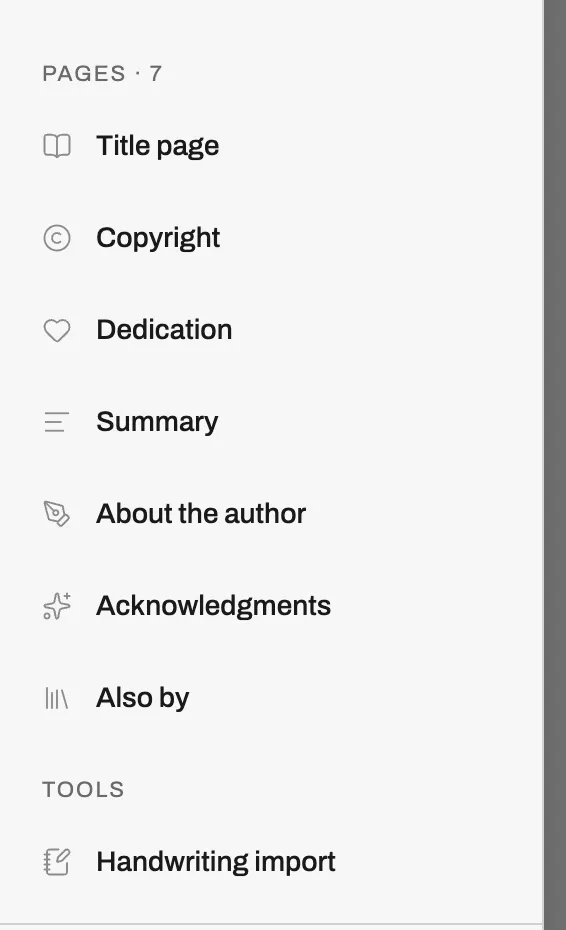
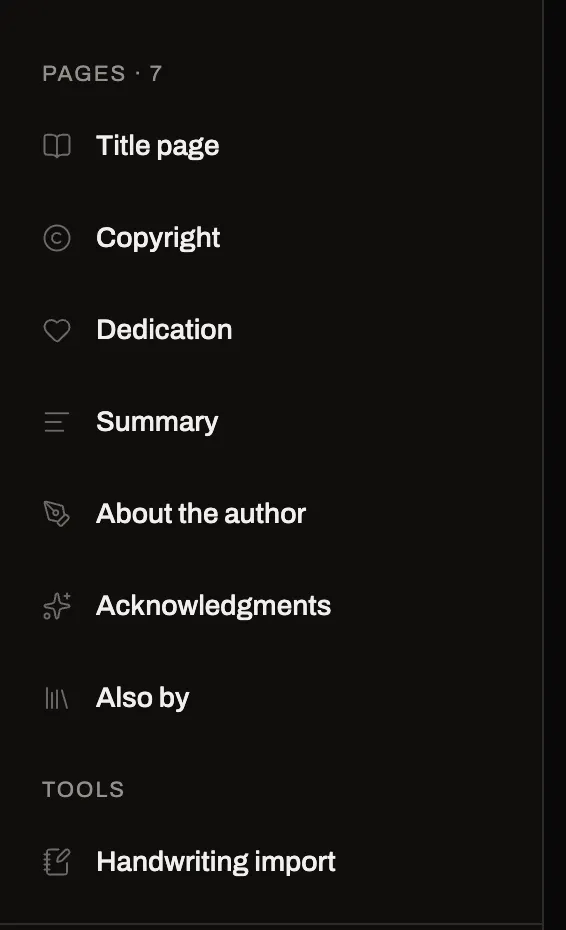
The chapter list here is simpler than the one in the desktop sidebar. It has no word counts, no search and no filter, and a chapter has no three-dot menu. Reordering, duplicating and deleting chapters, parts and full page images are covered in Organize your book with chapters and parts, and all of them need a desktop.
Write and format
Tap in the text and type. Your work saves itself, as it does on a desktop, and the footer shows your place in the book and the chapter’s word count. When the on-screen keyboard opens, the editor shrinks to the space above it, so the line you are typing stays in view.
The toolbar has the same buttons as on a desktop, in the same order, and stops at Image. Pictures inside a chapter are a Pro feature.


To rename the chapter, press the pencil beside its title, type, and press Enter. Each button, the title and the footer are explained in Write in the chapter editor.
Add a chapter
- Open the menu.
- Press New chapter, at the top of the chapter list.
The new chapter is added under the one you have open. It opens straight away and the menu closes. It is called “New chapter” until you rename it.
What needs a desktop
These are not in the tablet layout:
- The side panel, and so every tab in it: Characters, Locations, Tags, Notes, Beats, Revisions and the rest.
- Everything under Tools except Handwriting import: Outline, Chapter beats, Whiteboard, Progress, Characters, Locations, LitRPG builder, Import, Media and Prose builder.
- Export: Kindle, Print and DOCX.
- Users: Beta readers and Editors.
- The book’s settings, which is where a book is deleted.
- Part pages and full page images.
- Focus mode, the AI button, and the box that jumps to a chapter by name.
- Import EPUB on the dashboard.
The menu does not list any of them. If you reach one another way, for example from a bookmark or a link, you see Available on desktop in place of the page. Press Back to chapters to return to your book. In a series the button reads Back to series pages, and anywhere else Back to dashboard.
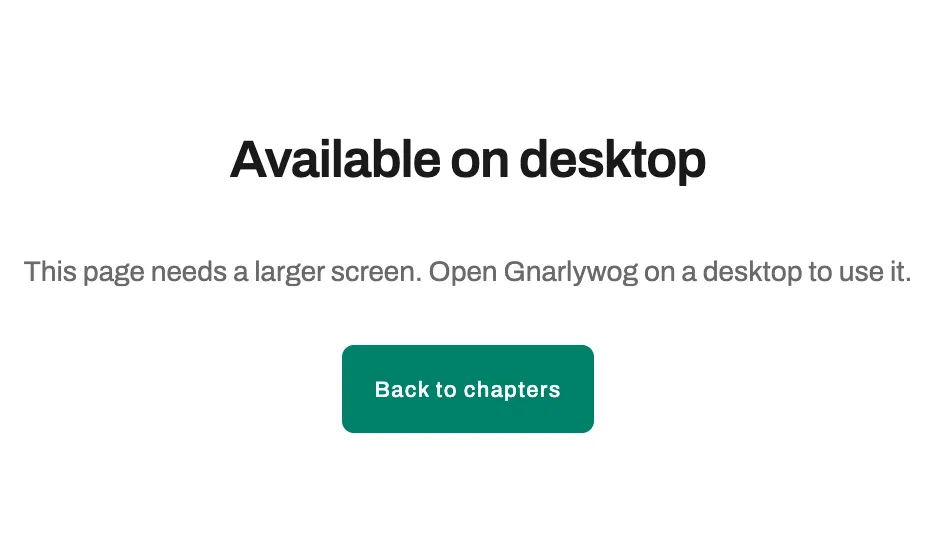
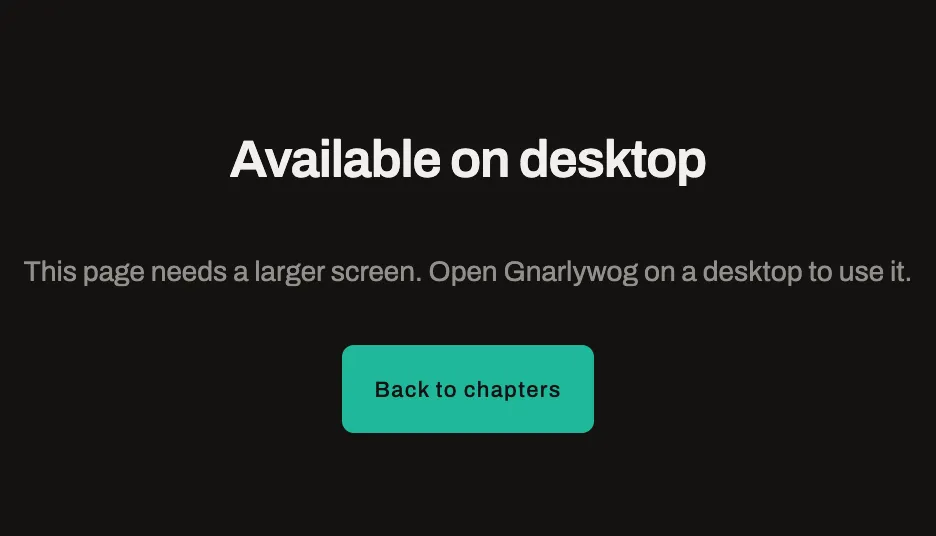
On a phone
A phone gets the same layout as a tablet, fitted to its width. The bar, the menu and the pages all work the same way. There is no separate phone design and no screen too small to open the app, though a small phone leaves little room for the text.
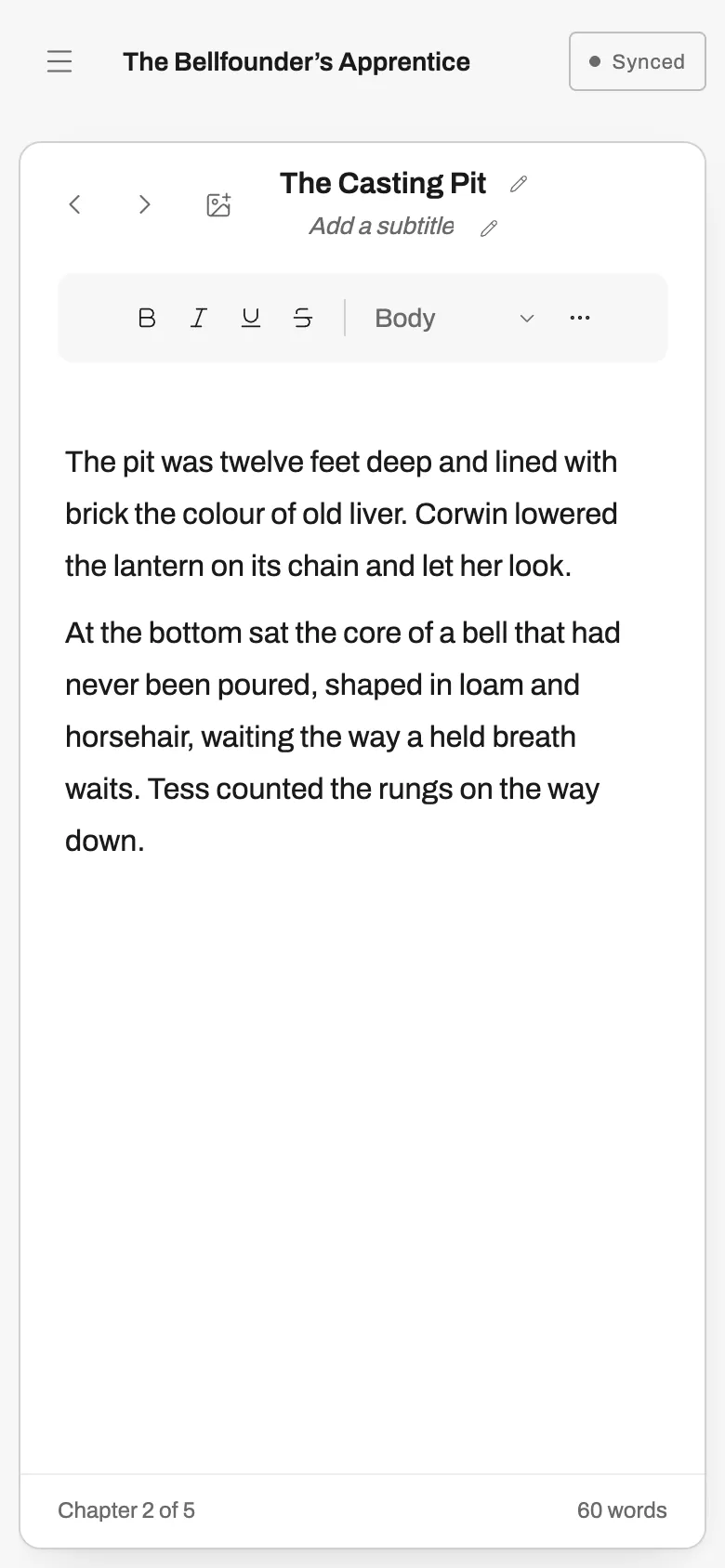
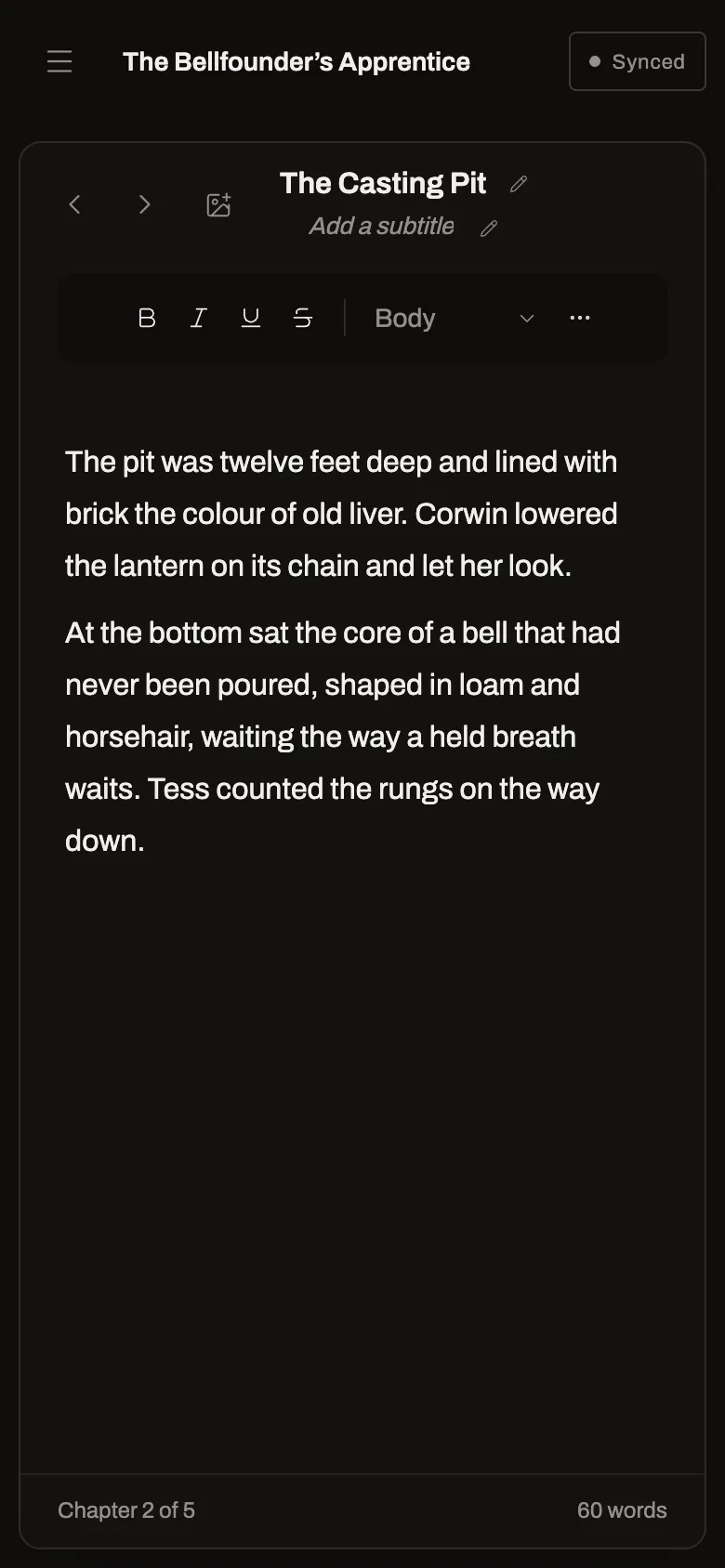
The toolbar does not fit on a phone. It keeps Bold, Italic, Underline, Strikethrough and the text style, and folds the rest away:
- Press the three dots at the end of the toolbar.
- Choose from the menu: the four alignments, Bullet list, Ordered list, Scene break, Letter or Image.
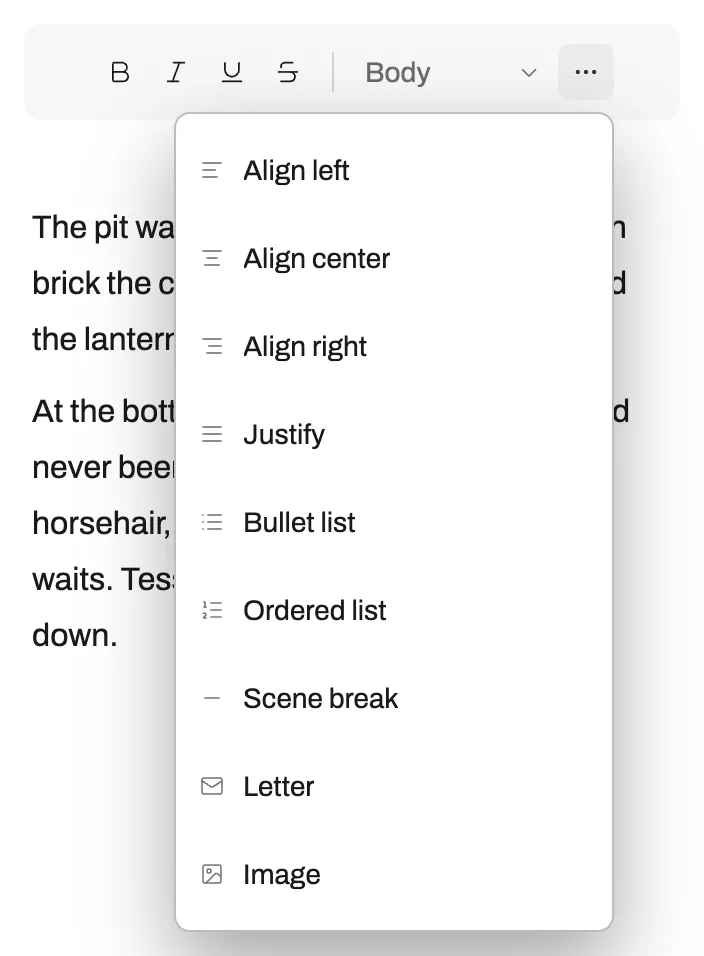
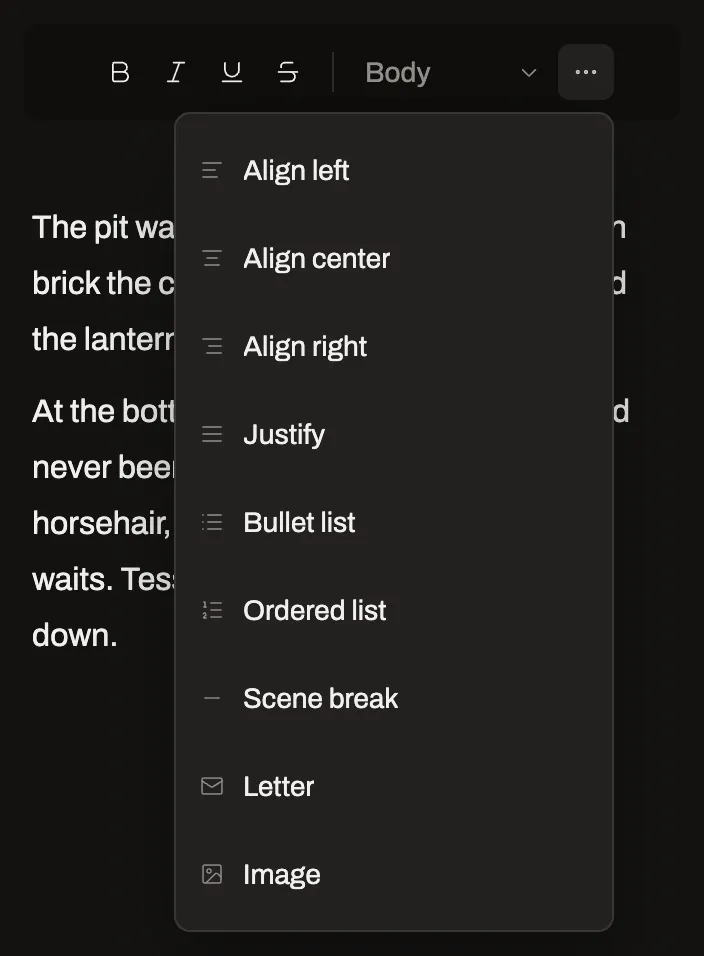
The menu covers most of a phone’s screen. On a tall phone the foot stays in place, as on a tablet. On a short one the whole menu scrolls, foot included, and the × stays at the top.
The dashboard and your account
Dashboard, in the foot of the menu, takes you back to all your books. The dashboard works as it does on a desktop: open a book, start one with New book, or start a series with New series. Import EPUB is not shown.
On the dashboard the menu holds only its foot. Account opens the same account pages as on a desktop: Details, Security, Billing & plan, Settings, AI and Offline. Change your email and account settings covers them.
A series opens in the tablet layout too. Its menu lists the series’ pages and Settings. The series’ Books and Tools need a desktop.
What a tablet hides in a chapter
Some things in a chapter belong to features that need a desktop. A tablet hides them and keeps them safe:
- LitRPG blocks, beat markers and AI text you have not accepted yet are not shown. They are still in the chapter, your typing cannot delete them, and they are back when you open the chapter on a desktop.
- An editor’s highlights are not shown either. They keep their place in the text and are back on a desktop.
- A chapter an editor is working on cannot be opened. In the menu it is dimmed and reads “An editor is working on this chapter”.
- A chapter with an editor’s draft waiting for you shows “An editor’s draft is waiting for your review” in place of its text. Reviewing a draft needs a desktop. See Work with an editor.
If you are the editor of someone else’s book, editing it needs a desktop as well.
Back on a desktop
Open Gnarlywog on a desktop, or make a narrow window wide again, and the full layout returns with everything in it. When the change happens while the app is open, a notice reads “Full layout restored.”
Related
- Find your way around a book: the desktop screen, with its sidebar and side panel.
- Write in the chapter editor: every button in the toolbar, and the rest of the editor.
- Organize your book with chapters and parts: what you can do with the chapter list on a desktop.
- Free and Pro: how the two plans differ: what Pro adds, Handwriting import included.