DocsAccount
Download a copy of everything in your account
Updated
Export your data makes one ZIP file of everything you have written and planned in Gnarlywog, so you can keep your own copy. It is on the Details page of your account. To open it, press your account button at the top right of the dashboard, or your name at the bottom of a book’s sidebar, and choose Details.
What the file holds
The archive is a copy of your work, not a finished book. It holds:
- Every chapter as its own text file, in Markdown, numbered in reading order, in a folder for each book.
- Your characters and locations as spreadsheet files, one pair for each series.
- Every image you uploaded, with its location, device and date details removed.
- A file named data.json with everything else in one place: your series, books, chapters, book pages, characters, locations, outlines, notes, tags, settings and display name.
- A README that says what is in each folder, how many books, chapters and images there are, and anything that could not be included.
It leaves out:
- feedback and comments from your beta readers and editors, and your editors’ drafts;
- the EPUB, PDF and Word files you exported from your books;
- your sign-in details, two-factor authentication and passkeys;
- your AI connection;
- your billing details and promo codes;
- your email address.
To make a file for readers or a printer, export the book itself instead: see Export your book for Kindle, Export your book as a print-ready PDF and Export your book as a Word file.
Step 1: Ask for the export
- Open the Details page.
- Find the Export your data row, under your email. The line under its name says what goes in and what is left out.
- Press Export my data, at the right of the row.


Step 2: Confirm it’s you
The file holds all of your work, so a dialog titled Confirm it’s you asks you to prove it is you first.
- Type your password, or answer the question your account asks: a code from your authenticator app if you use two-factor authentication, or your passkey.
- Press Confirm.
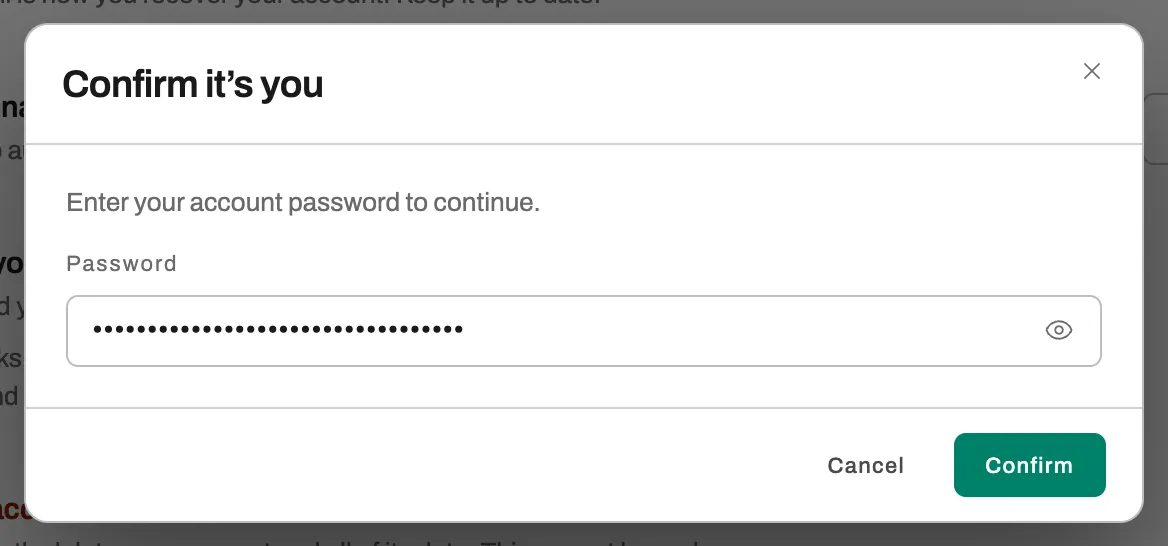
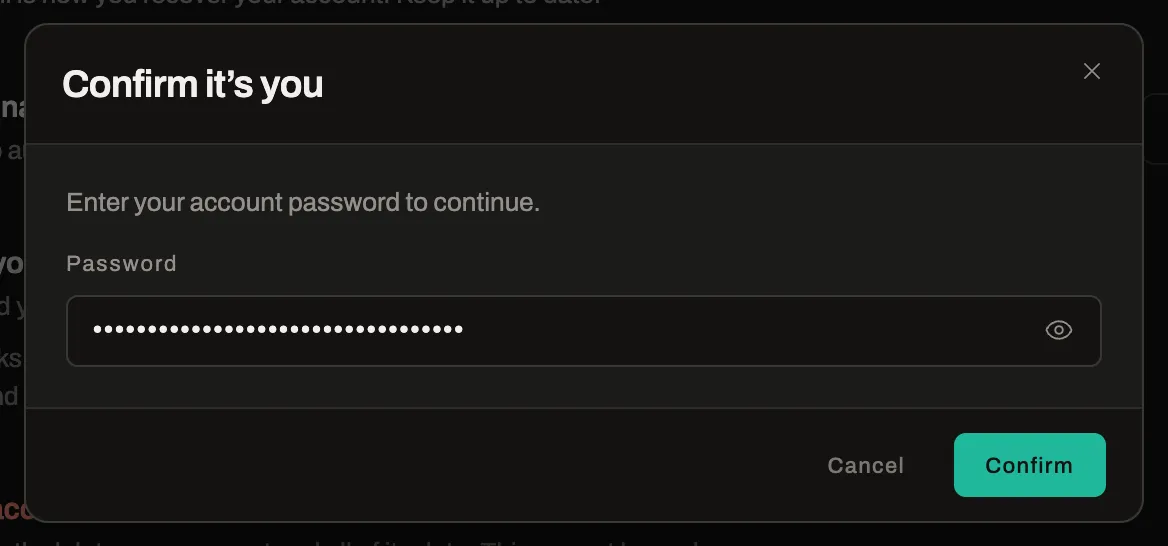
It asks every time you export. Keep your account secure explains the question in full.
Step 3: Wait while it is prepared
The row now says “You can leave this page — we’ll keep going.” At its right, a spinner shows how far it has got: Queued… while it waits its turn, then how many books are done, then Packaging media… and Finishing up….


A small account takes a few seconds. You can carry on writing in another tab, or leave and come back to the Details page later. No email is sent when it is ready, so come back to this row to collect it.
If a book could not be prepared, the export finishes without it and the row names it, such as “1 book couldn’t be included”. Ask for a new export to try again.
Step 4: Download the file
When the export is ready, the row says “Your export is ready.” and the date the link expires.
- Press Download.
- Your browser saves a ZIP file named with the day it was made, such as gnarlywog-export-2026-11-27.zip.


Open the ZIP on your computer to see the folders inside. The chapter files open in any text editor.
- Download keeps working for seven days, until the date shown. After that the row says “Your download link expired.”
- Request a new export stays dimmed for an hour after you asked, and the time beside it says when you can ask again. A new export replaces the old one.
- Download needs a connection, like the rest of your account pages. While you are offline it is dimmed.
If something goes wrong while the export is prepared, the row says so in red, such as “Something went wrong preparing your export. Please try again.” On Pro, the message also points you to Help & feedback if it keeps happening. Press Export my data to try again: an export that failed does not count towards the hour.
Before you delete your account
The Delete account dialog has an Export my data first link. It closes that dialog and starts this export, after the same Confirm it’s you question. Nothing is deleted. When your file is ready, download it, then open Delete account again. Delete your account walks through it.
Related
- Delete your account: what is deleted, and the export to take first.
- Change your email and account settings: the account pages and the Details page.
- Keep your account secure: the Confirm it’s you question.
- Export your book for Kindle: a finished ebook of one book.
- Free and Pro: how the two plans differ: what each plan includes.