DocsGetting started
Free and Pro: how the two plans differ
Updated
Gnarlywog has two plans. Free holds one book and has no time limit. Pro is $20 a month or $200 a year and has no limit on books. This page shows how the two differ while you work, how to upgrade, and how to manage or cancel Pro.
The pricing page lists every feature on each plan.
What the Free plan includes
On Free you can write and plan one whole book and export it as an ebook:
- One book, with the chapter editor, the outline, chapter beats, characters and locations.
- Word and Markdown import.
- EPUB export for Kindle and other ebook stores. A Free EPUB carries a small Gnarlywog credit page.
- A front cover, and the built-in themes.
- 150 MB of images and other media.
- Two entries on the Also by page.
Pro adds unlimited books and series, Print and DOCX export, EPUB import, a back cover and spine, images inside chapters, the whiteboard, editors and beta readers, the LitRPG builder, the AI tools, and 5 GB of media. It also removes the credit page from your EPUB.
How to tell which plan you are on
On the Free plan, once you have your book, the dashboard shows “1 of 1 free book” beside Library.


The right column of the dashboard starts with an Upgrade to Pro box.
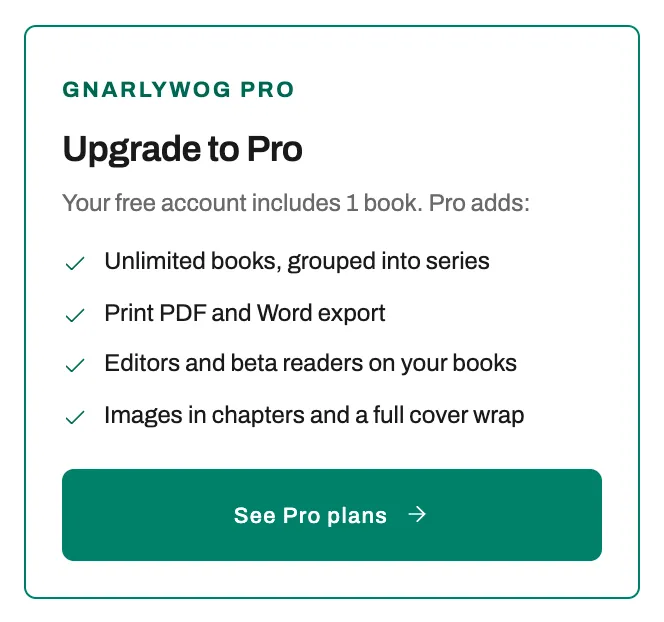
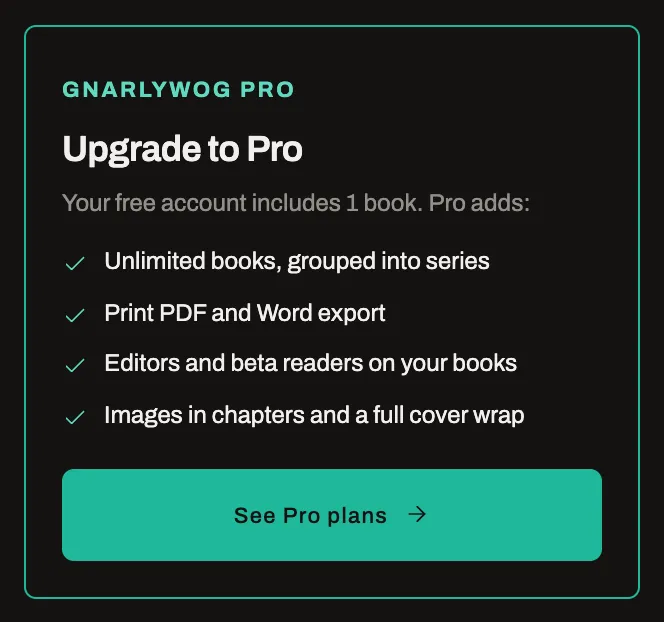
On either plan, you can check from your account menu:
- Press your account button at the top right of the dashboard. Inside a book, press your name at the bottom of the sidebar.
- Choose Billing & plan.
The page shows Free or Pro in large letters under Plan.
What you see at a Pro feature
Pro features are not hidden on the Free plan. When you press one, a dialog opens instead.
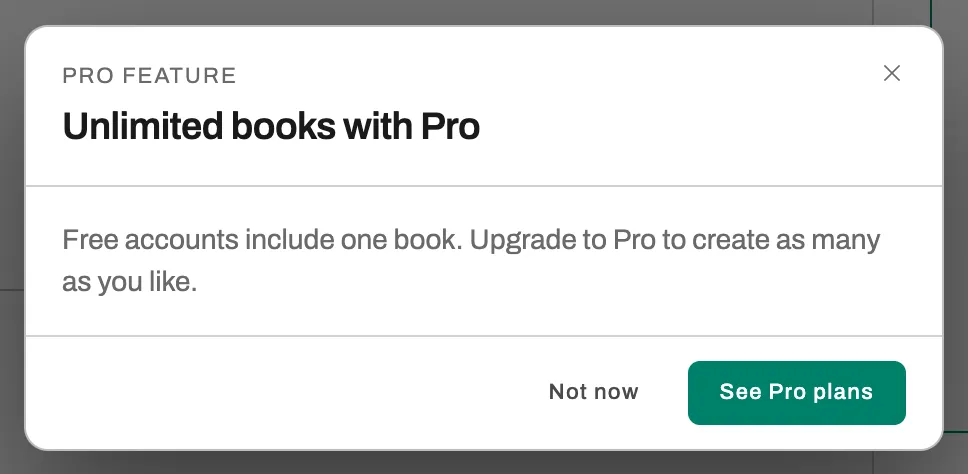
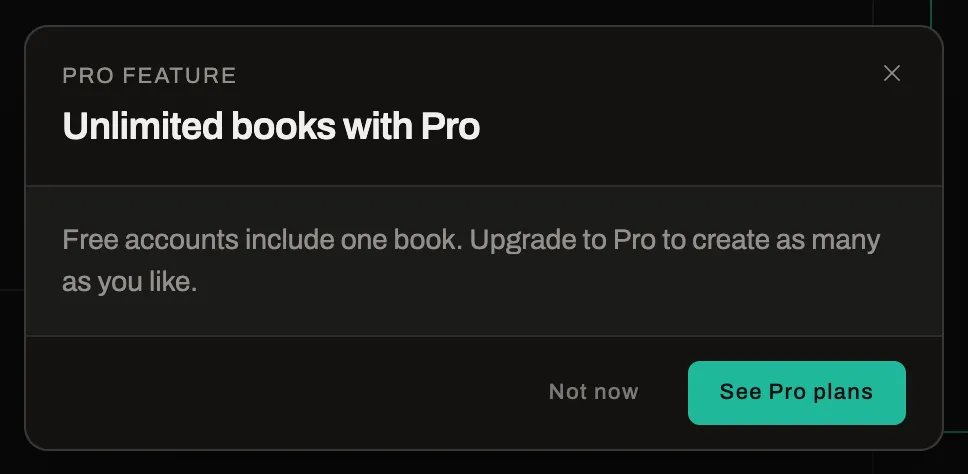
The heading names the feature you pressed. Not now closes the dialog and leaves everything as it was. See Pro plans opens Billing & plan. Neither one charges you or changes your plan.
A Pro feature can look five ways before you press it:
- A lock on a button. Once you have your one book, New book on the dashboard shows a lock. Pressing it, or a sample book under its arrow, opens the dialog and no book is created.


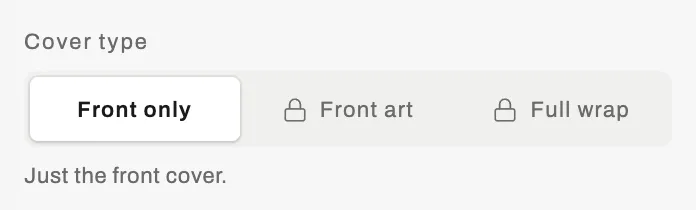
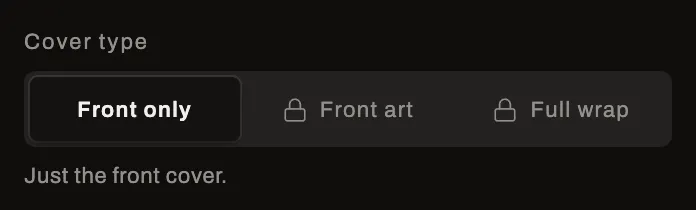
- A lock on an option. On the Print page, under Cover type, Front art and Full wrap each show a lock. Front only is yours to use.
- A bar across the page. Whiteboard opens, with a bar that reads “The whiteboard is a Pro tool. Upgrade to start a board.” Press Upgrade at the end of the bar for the dialog.


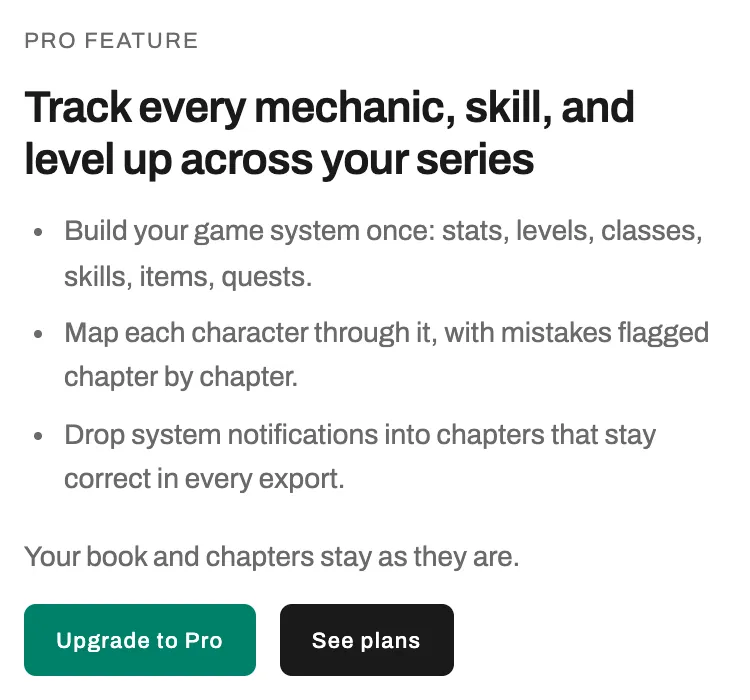
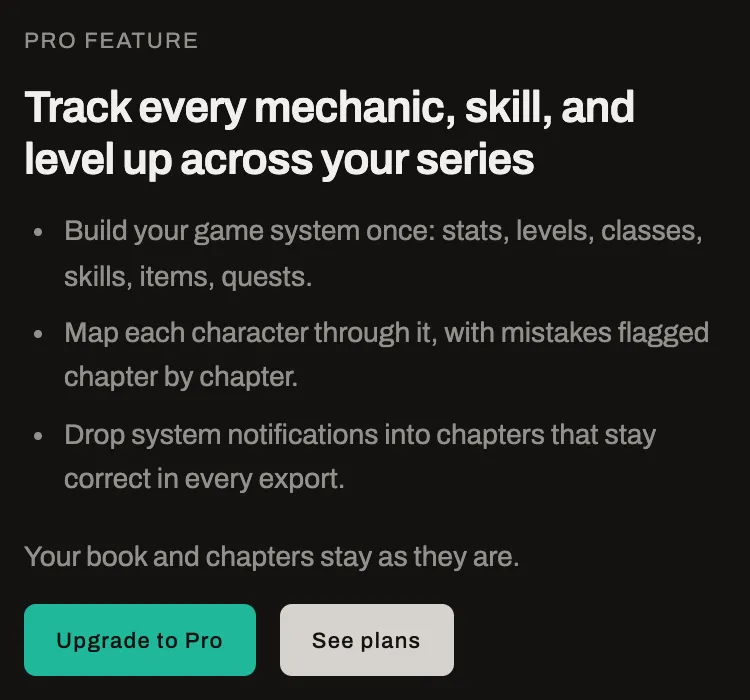
- A page about the feature. LitRPG builder opens on a page that says what the feature does, with Upgrade to Pro and See plans buttons.
- No mark at all. Some Pro features look like any other button until you press them: New series and Import EPUB on the dashboard, Export DOCX on the DOCX page, Invite beta reader on the Beta readers page, and Prose builder and Handwriting import in the sidebar. Each one opens the dialog.
The Print page opens on the Free plan, so you can see your book laid out. Exporting from it needs Pro.
Upgrade to Pro
- Open Billing & plan. Press See Pro plans in the dialog or in the dashboard’s Upgrade to Pro box, or choose Billing & plan from your account menu.
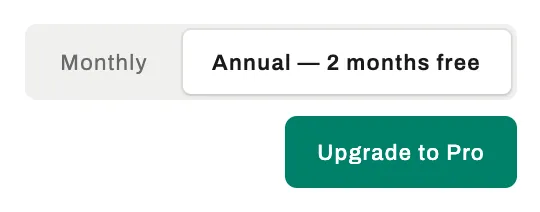
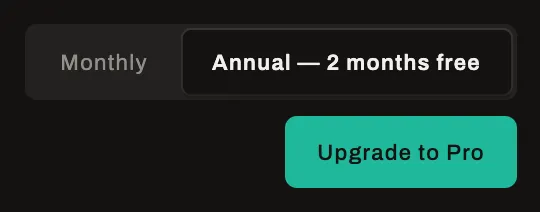
- Choose Monthly or Annual — 2 months free with the switch at the right of the Plan row.
- Press Upgrade to Pro, under the switch.
A checkout page opens. It is run by Stripe, the company that takes payments for Gnarlywog. It shows the amount before you pay, and it has a box for a promo code if you have one. Nothing is charged until you finish this page.
When you have paid, you are brought back to Billing & plan. A notice titled “Finishing up your upgrade” shows for a moment, and then the page shows Pro. If the notice changes to “Payment received”, your payment went through and your account is still catching up. Press Check again.
If you leave checkout without paying, Billing & plan shows “Checkout cancelled”. Nothing was charged and your plan has not changed.
Pro payments are not refundable. The Free plan has no time limit, so try what you need there first. The refund policy has the details.
Manage or cancel Pro
Your card, your invoices and cancelling are all in one place, the billing portal.
- Press your account button, then Billing & plan.
- Press Manage billing, at the right of the Plan row.
- A dialog titled Confirm it’s you opens. Type your account password and press Confirm.


The billing portal opens. It is run by Stripe too. There you can change your card, see your invoices and cancel Pro.
Back on Billing & plan, the line under Pro shows the date your plan renews and what it costs. If you pay monthly, a row titled Save with annual billing has a Switch to annual button. The switch happens at the end of the period you have paid for, and nothing is charged when you press it.
When you cancel, you keep Pro until the end of the month or year you have paid for. Until then the tag beside Pro reads “Cancels” with that date. The unused part of a period is not refunded.
What happens when Pro ends
Your account goes back to the Free plan. Nothing is deleted.
If you have one book, nothing changes for it. If you have more than one:
- The book you edited most recently stays as it was. You cannot choose a different one.
- Every other book becomes read-only. You can open and read it, but not change it.
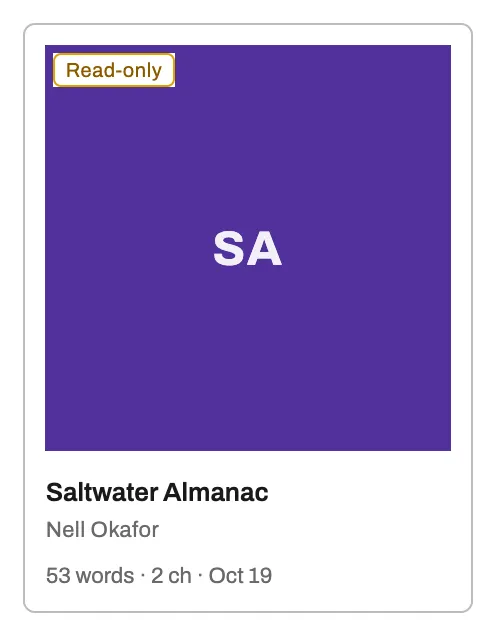
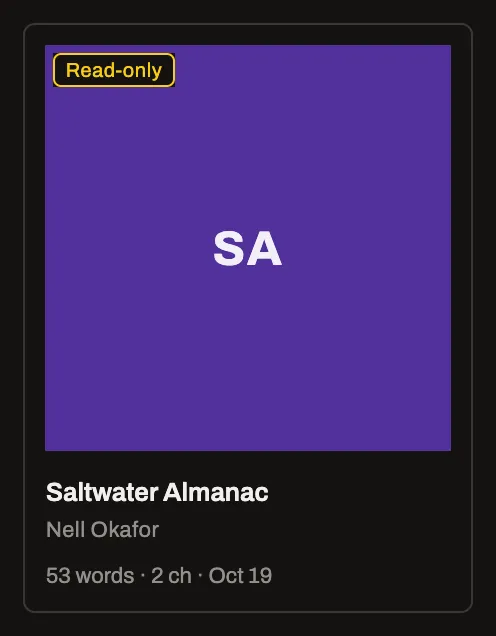
On the dashboard, a read-only book has a Read-only tag on its cover, and beside Library the count gives way to the plan’s allowance, “Free plan: 1 book”.
Opened, a read-only book has a bar across the top of the window. The Upgrade link at the far end of the bar opens the dialog.


Pro features stop being available, but the work you did with them is kept. When you upgrade again, every book can be edited again.
Related
- Create a book: start your one Free book.
- Explore Gnarlywog with a sample book: a sample counts as your one book on the Free plan.
- Find your way around a book: where each page named here is in the sidebar.
- Import an EPUB as a new book: a Pro feature.
- Your plan and billing: the Billing & plan page in full, with invoices, the switch to annual and promo codes.
- Report a bug, share an idea or ask for help: Help & feedback, part of Pro.
- Export your book for Kindle and Export your book as a print-ready PDF: what each plan gets when it exports.