DocsGetting started
Create a book
Updated
Every book starts on the dashboard, the page that lists your books. Press New book there and you get an empty book, ready for a title and a first chapter.
Step 1: Press New book
- Open the dashboard. From inside a book, press the Gnarlywog logo at the top of the sidebar.
- Press New book, the green button at the top right.


The book is created straight away and opens on its Title page.
Step 2: Name your book
- Under Book, click the Title box and replace “Untitled book” with your title.
- Under Author, click the Name box and replace “Author Name” with the name you write under.
- Press Save at the top right.
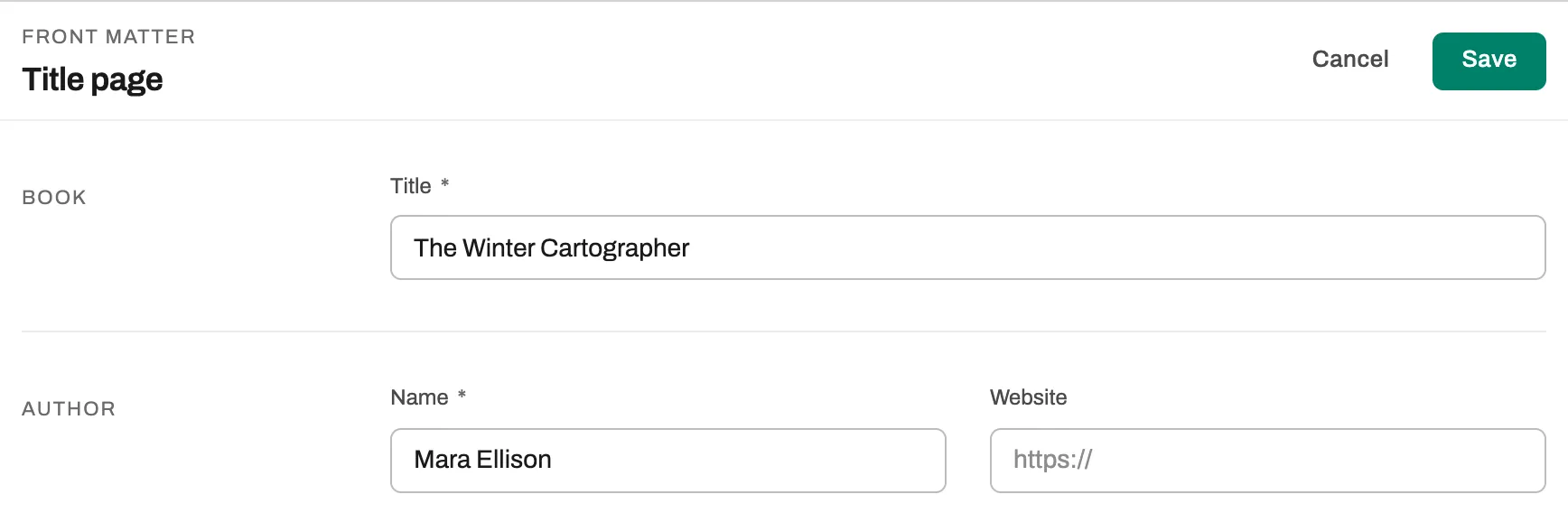
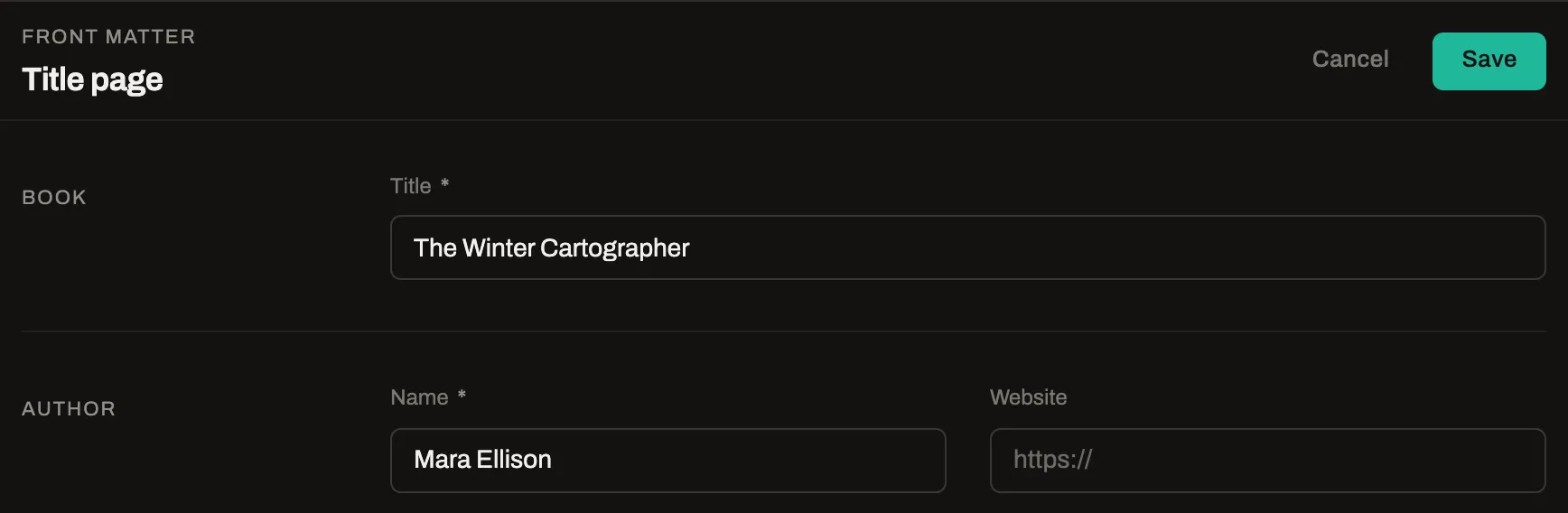
Cancel and Save appear once you change something. Title and the author Name cannot be left empty. Everything else on the page can wait: the author website, the publisher and the ISBN are all optional.
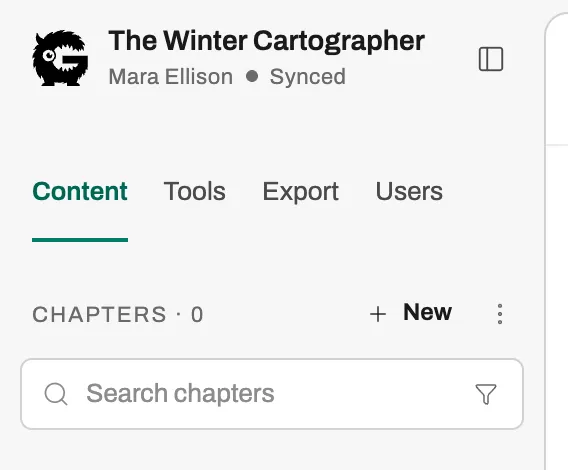
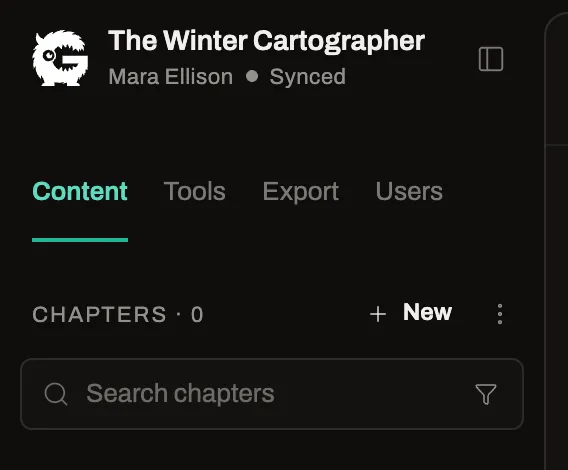
When the book is saved, its title and your name show at the top of the sidebar.
Step 3: Add your first chapter
- In the sidebar, with the Content tab open, press New beside Chapters.
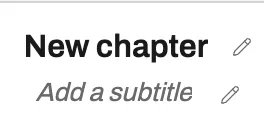
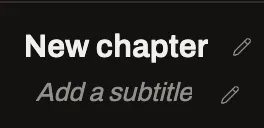
- The chapter opens, named “New chapter”. Press the pencil beside its name.
- Type the chapter’s title and press Enter.
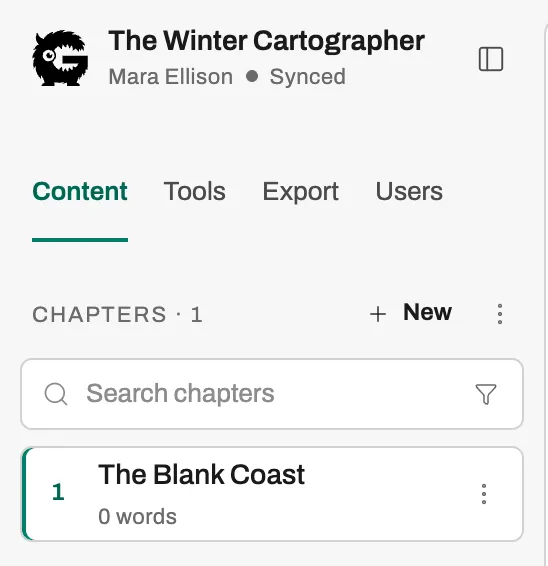
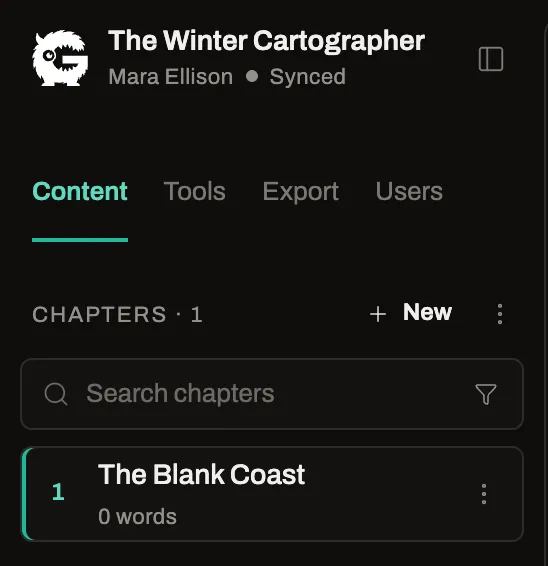
The chapter is listed in the sidebar with its number and its word count. Press New again each time you start another chapter.
Step 4: Find your book on the dashboard
- Press the Gnarlywog logo at the top of the sidebar.
- Look for your book under Library. The three books you worked on most recently are also under Continue writing.
- Press the book’s card to open it again.
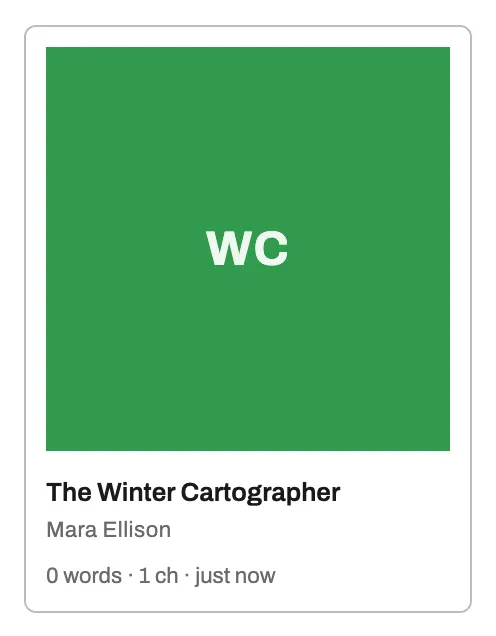
The card shows the title, the author, the word count, the number of chapters and when you last worked on the book. Until the book has a cover, the card shows the title’s initials instead.
Other ways to start a book
- Your first book: while you have no books, the dashboard also shows New book, Import a manuscript and Import EPUB in the middle of the page, with Open the sample book under them. Import a manuscript creates a book and opens its Import page, so you can bring in a Word or Markdown file straight away.
- A book in a series: press Add book on the series’s row on the dashboard. Series are a Pro feature. See Add, move and order the books in a series.
- A finished book: Import EPUB creates a book from an EPUB file. It is a Pro feature.
- A sample book: the arrow at the end of New book lists sample books you can open to look around. See Explore Gnarlywog with a sample book.
If you are on the Free plan
The Free plan holds one book. Once you have it, New book shows a lock, “1 of 1 free book” appears beside Library, and pressing New book offers Pro instead of creating a book.
Related
- Import a Word manuscript: bring chapters you have already written into your new book.
- Import a Markdown manuscript: the same steps for
.mdfiles. - Import an EPUB as a new book: create a book from a finished EPUB file (Pro).