DocsPlanning
Plan a chapter in beats
Updated
A beat is a short note of one thing that has to happen in a chapter. A beat set is one chapter’s beats, in order. You can plan the sets for the whole book on the Chapter beats page, under Tools, and work with one chapter’s beats in the Beats tab beside its text. Beats are for you: they are never part of the book.
Open the Chapter beats page
- Open a book.
- In the sidebar, press Tools.
- Under Planning, press Chapter beats.
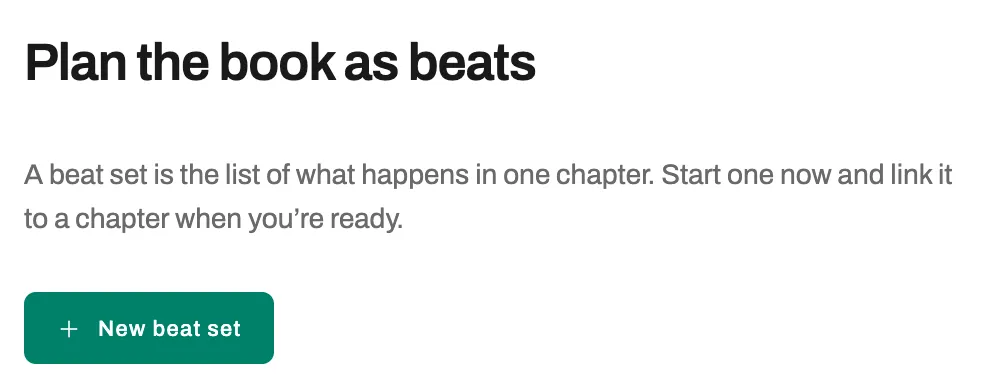
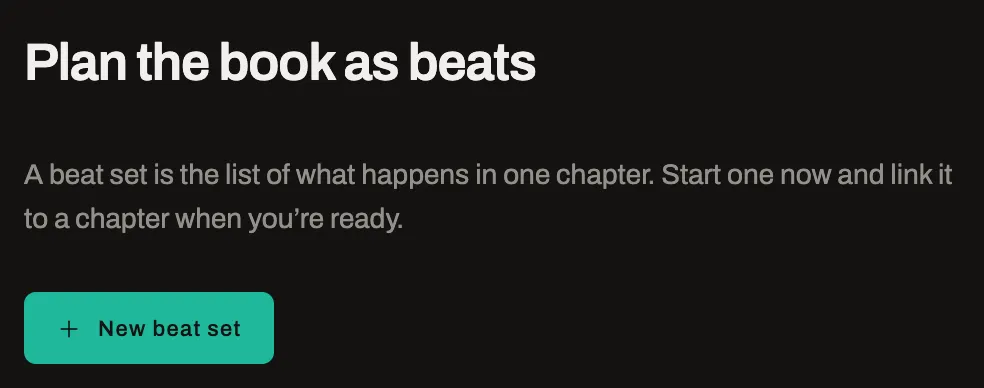
A book with no beat sets says what a set is and has one button, New beat set.
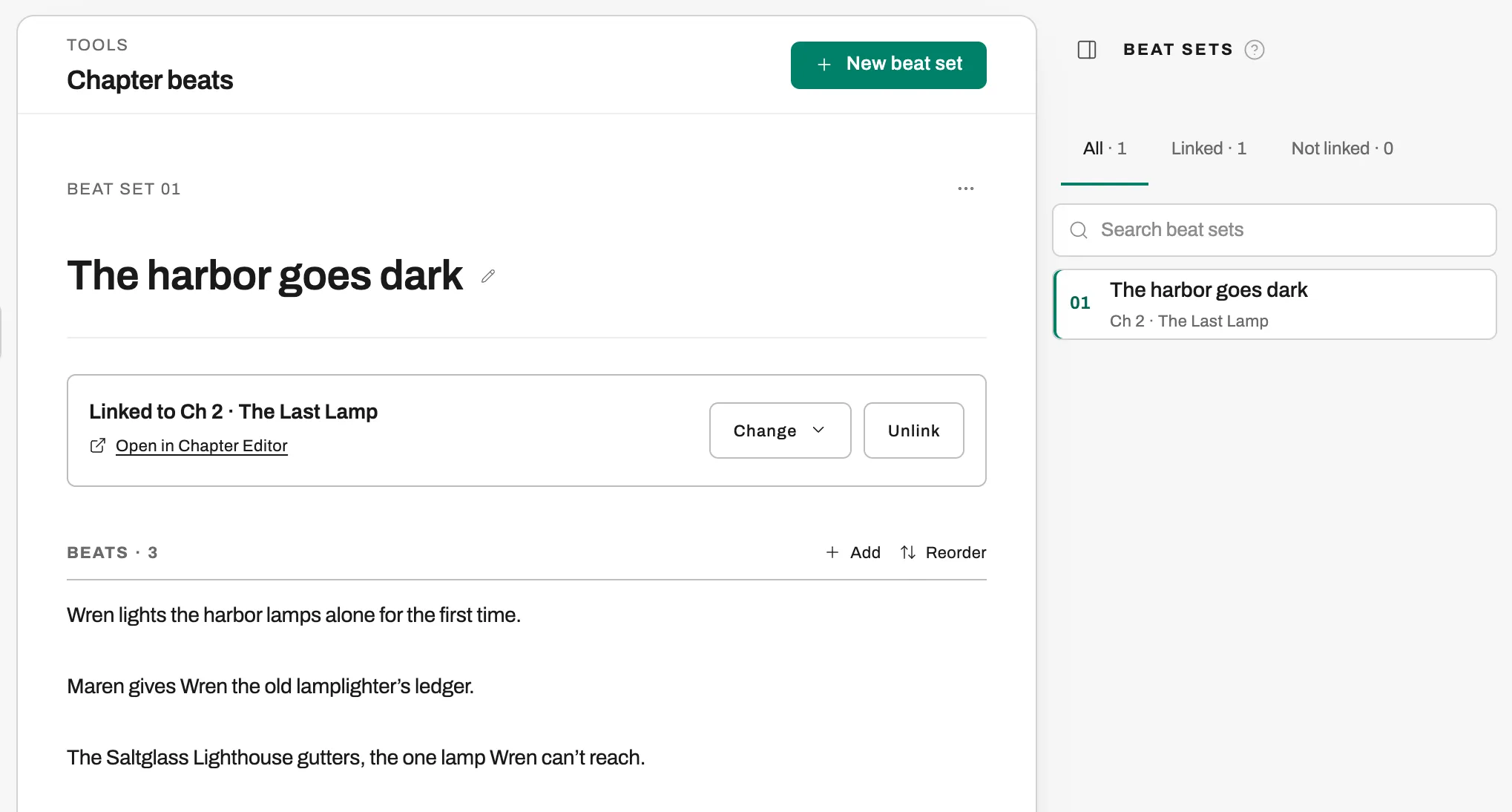
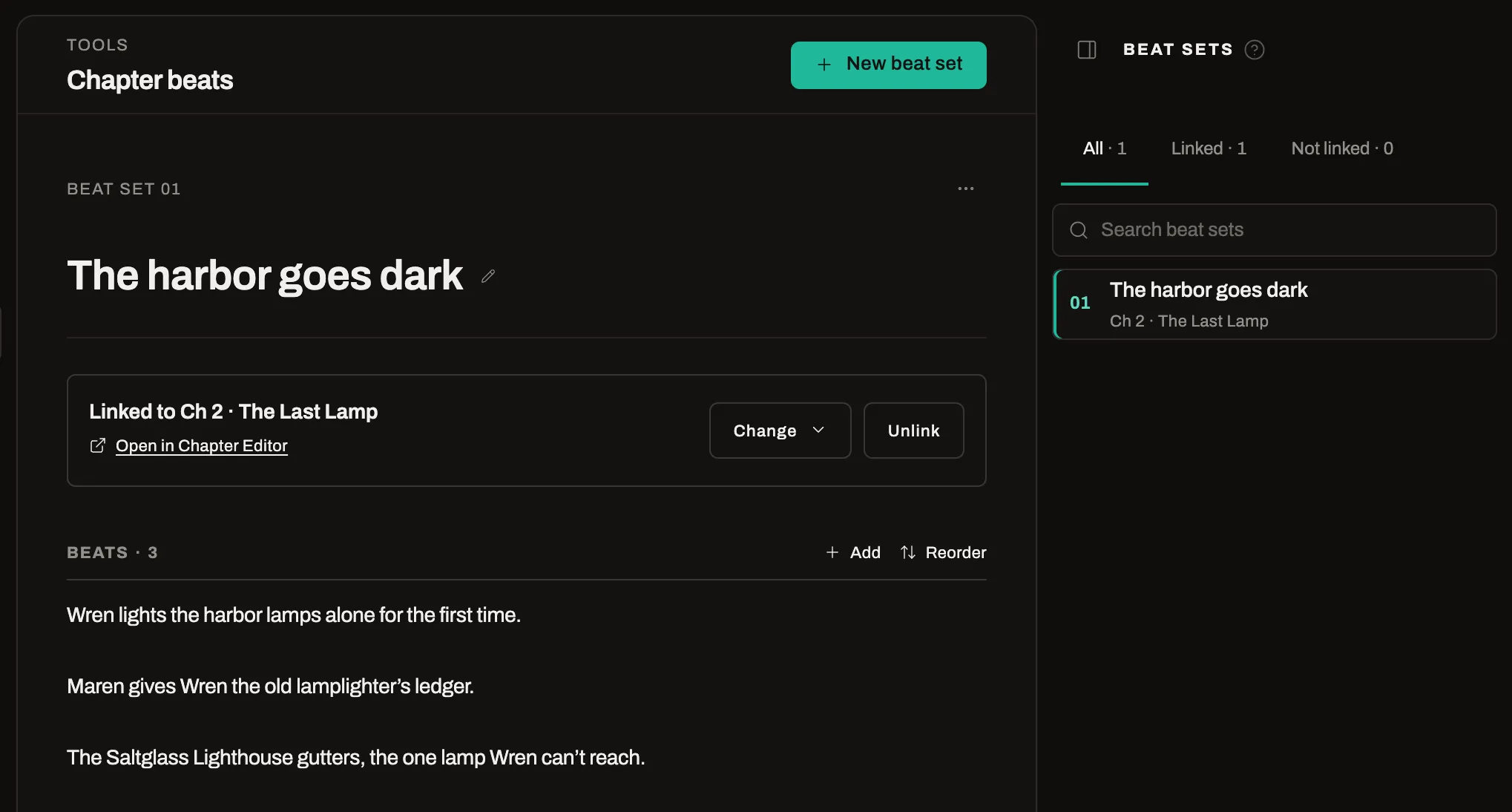
Once the book has sets, the page has two parts. The set you chose is in the middle: its name, its chapter and its beats. The list of every set is on the right, under Beat sets.
Start a beat set
- Press New beat set, at the top of the page.
- Press the name, Untitled beat set, type a name, and press Enter.
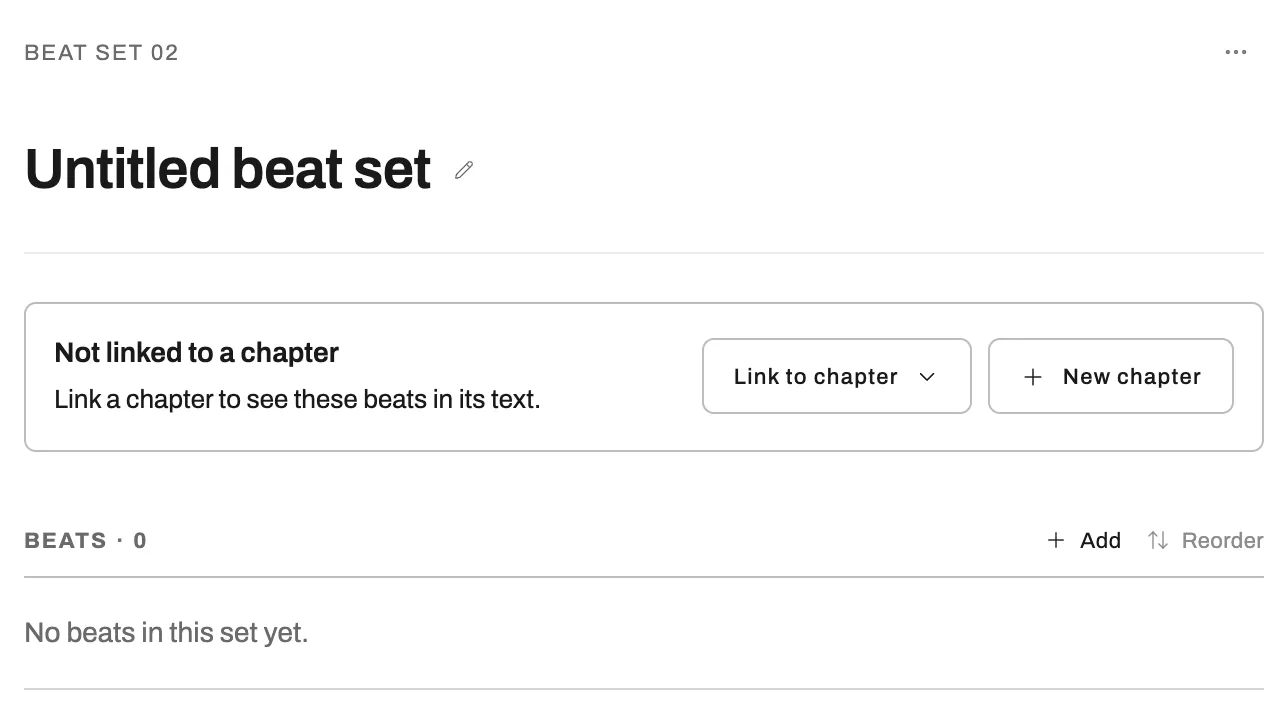
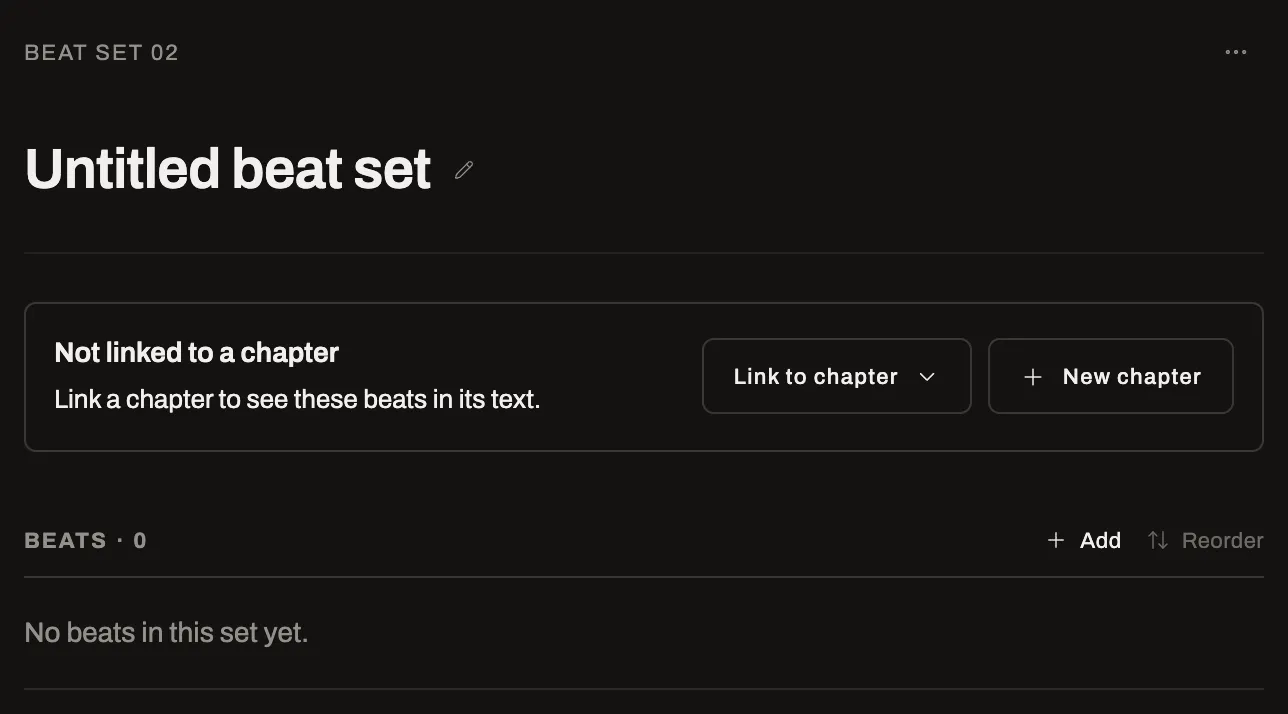
A new set is not linked to a chapter, and goes last in the list. The page saves as you go; the foot of the page reads All changes saved.
Add beats
- Press Add, at the right of Beats.
- Type the beat.
- Press Save, or Cmd+Enter on a Mac and Ctrl+Enter on Windows.
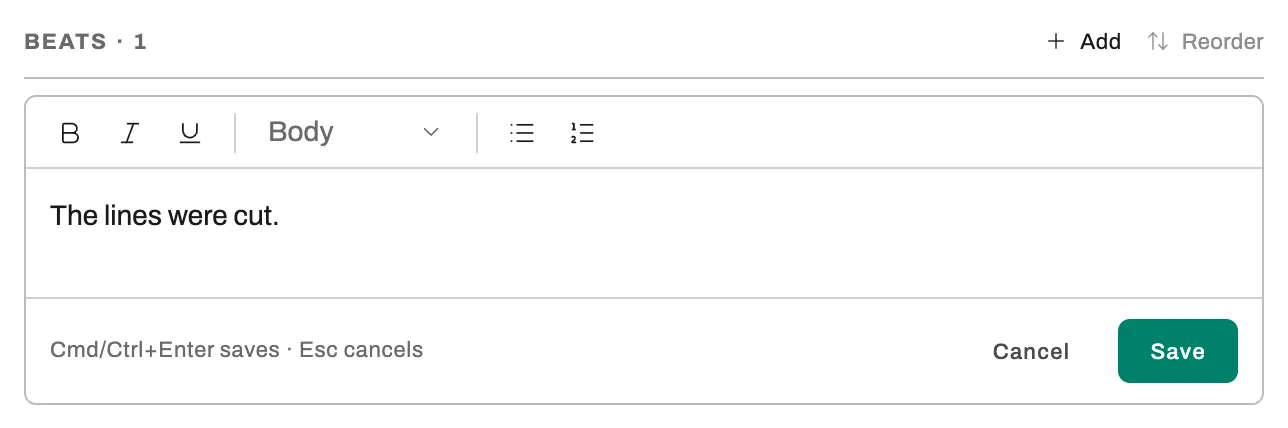
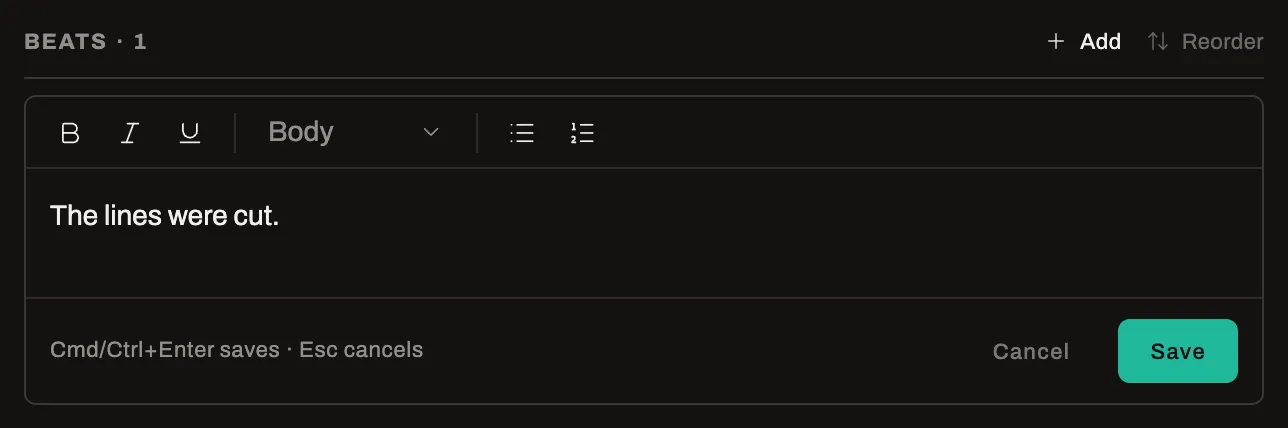
A beat can be more than a line. The toolbar has bold, italic, underline, the text style (Body and three headings) and bulleted and numbered lists. Enter starts a new line, so it does not save. Pressing somewhere else leaves the box open; press Save or Cancel to close it.
- To change a beat, press it.
- To delete a beat, point at it and press the bin at its right. It goes at once, and a message, “Beat deleted”, offers Undo for a few seconds.
A set holds up to 100 beats, and a beat up to 20,000 characters. A book holds up to 500 sets.
Put beats in order
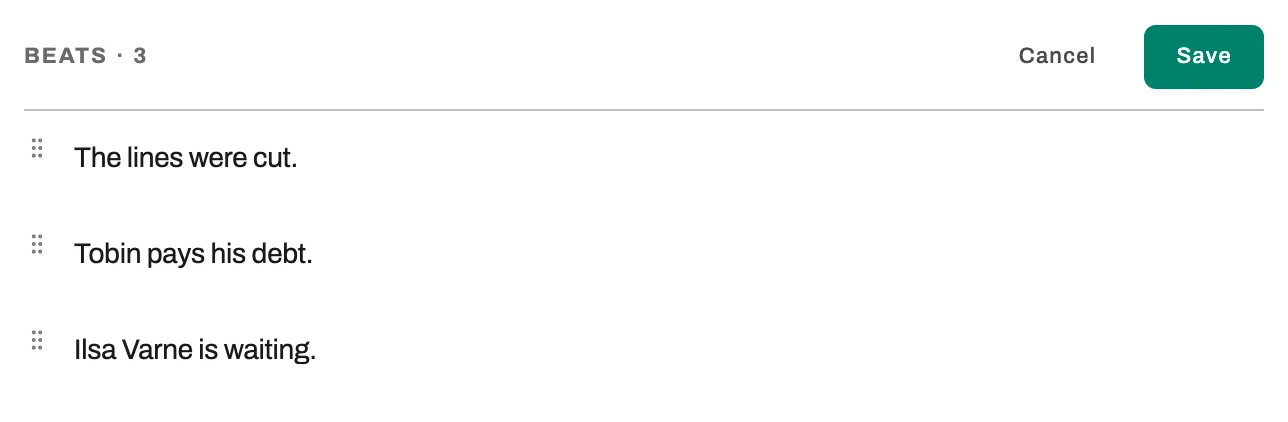
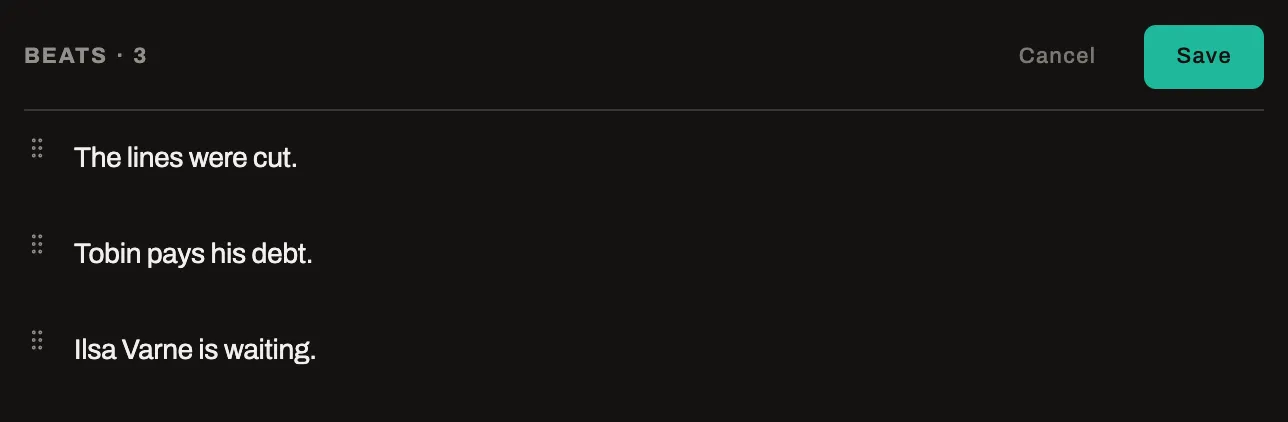
- Press Reorder.
- Drag a beat by the six dots at its left.
- Press Save. Cancel puts the beats back as they were.
Link a set to a chapter
A set that is not linked has two buttons.
- Link to chapter lists the book’s chapters. Type in Search chapters to narrow the list, and press a chapter.
- New chapter makes a chapter for the set, covered next.
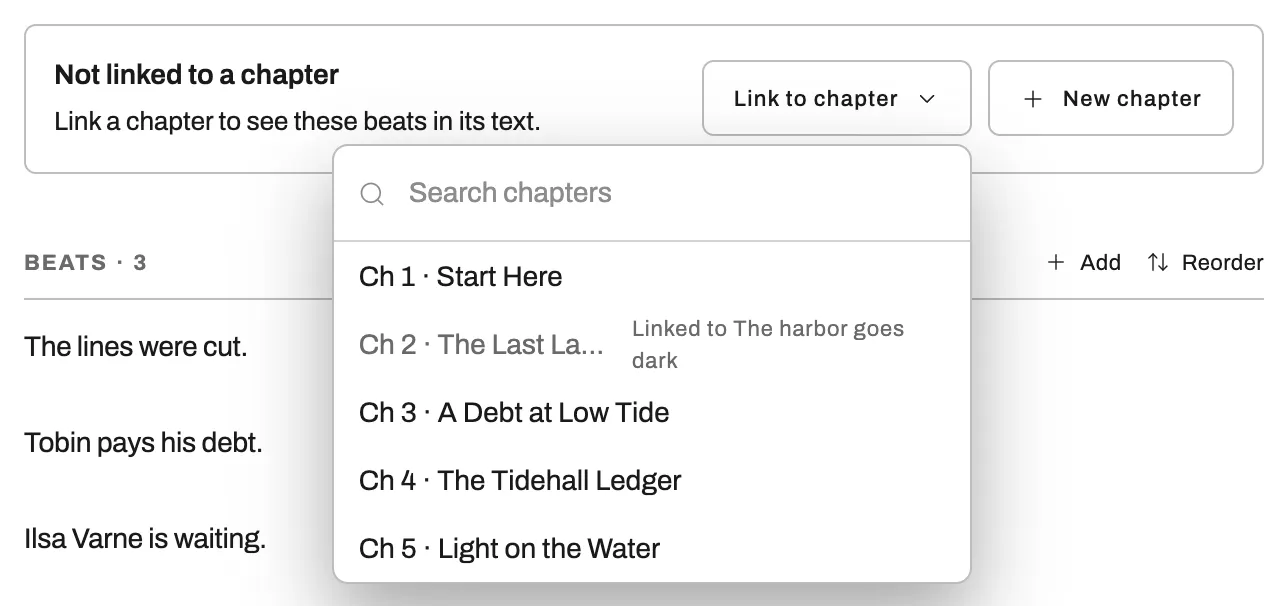
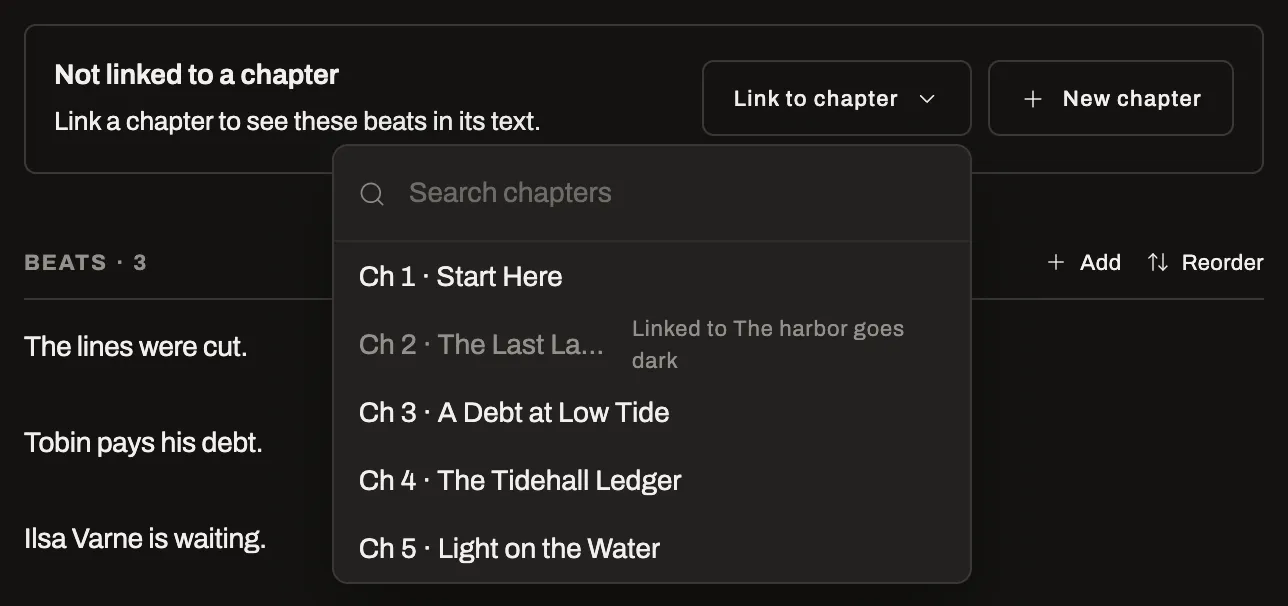
A chapter that already has a set is dimmed and names the set that holds it. It cannot be chosen.
Once the set is linked, the box names its chapter.


- Open in Chapter Editor opens the chapter with its Beats tab showing.
- Change moves the set to another chapter.
- Unlink takes the set off the chapter. The set keeps its beats, and the chapter keeps its text.
When you link a set to a chapter that has text, its beats wait in the chapter’s Beats tab, marked Not in text, until you place them. Placing is covered below. When the chapter is empty, the beats go straight into it.
Make a chapter for a set
- On a set that is not linked, press New chapter.
- Type the chapter’s title. It starts as the set’s name.
- Press Create & link.
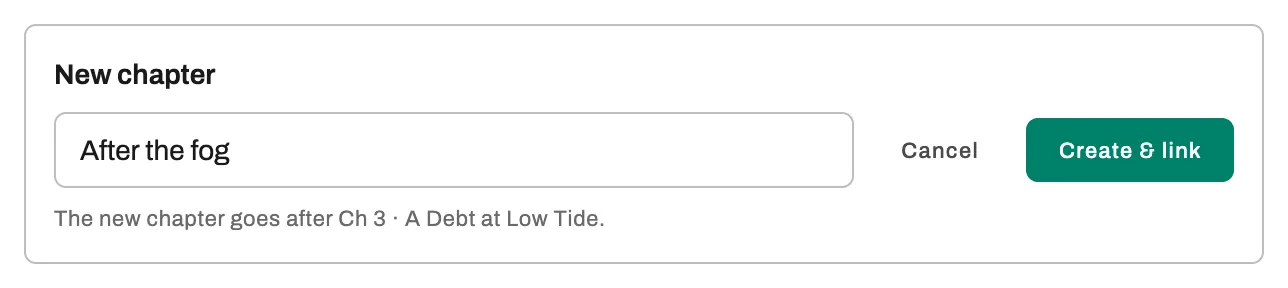
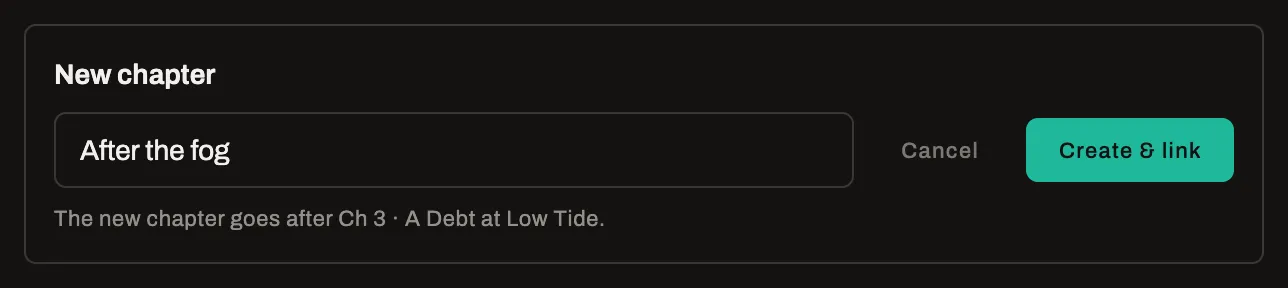
The line under the box says where the chapter will go: after the chapter of the nearest linked set above this one in the list, or first in the book when there is none. The chapter is empty and is added to your book.
The list of beat sets
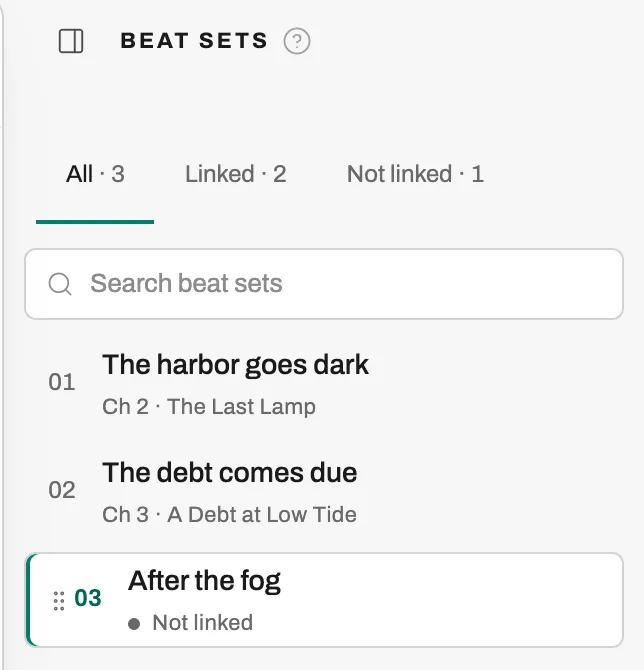
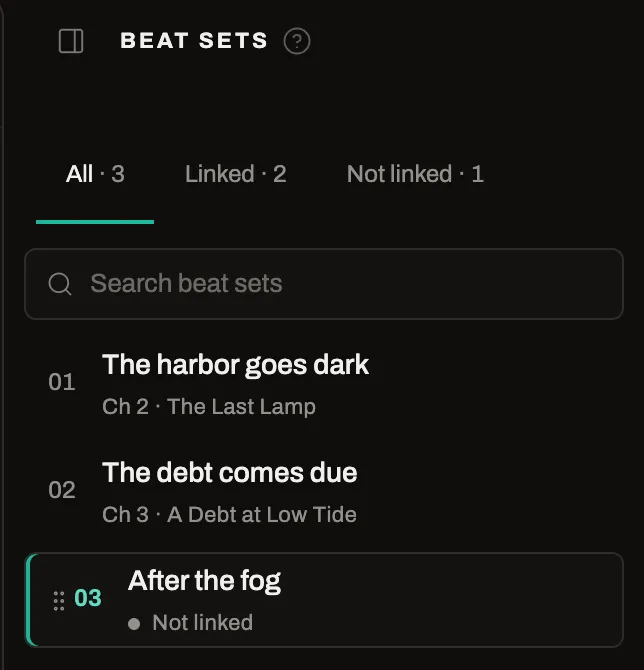
- The sets are in story order and numbered from the top. A linked set follows its chapter: move the chapter and the set moves with it.
- A set with no chapter stays where you put it. Drag it by the six dots at its left. The dots are there on the All tab while the search box is empty.
- All, Linked and Not linked narrow the list. Their counts are for the whole book.
- Search beat sets finds a set by its name or by the words in its beats.
Delete a beat set
- Choose the set in the list.
- Press the three dots at the right of Beat set and its number.
- Press Delete beat set.
- Press Delete beat set again to confirm.
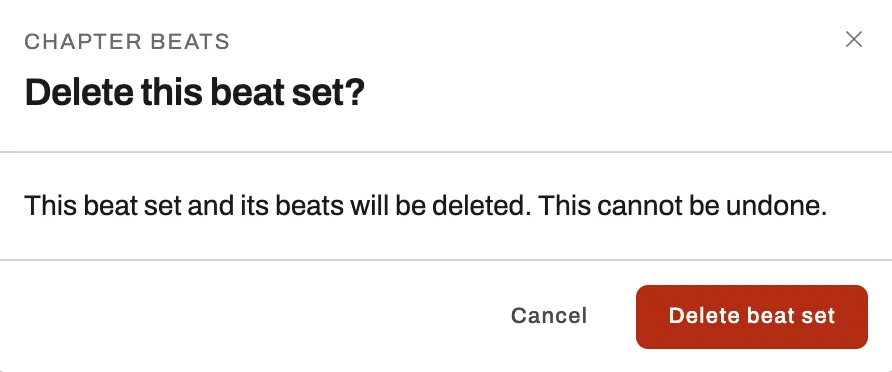
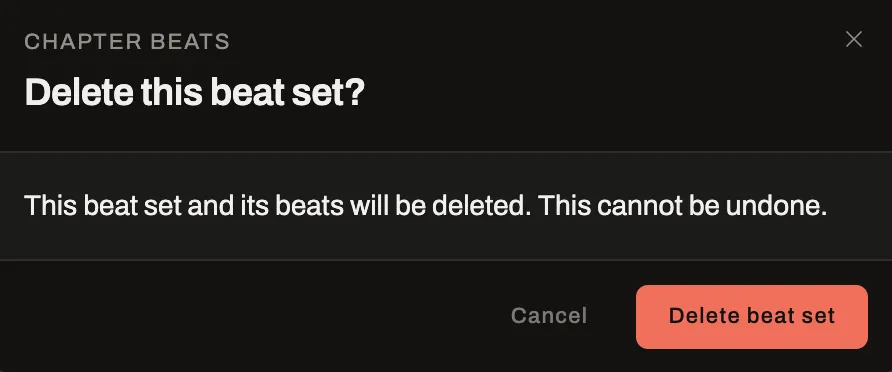
The set and its beats are deleted and cannot be brought back. When the set is linked, its bars leave the chapter and the chapter keeps its text.
If you delete a chapter instead, its set is not deleted. It becomes a set with no chapter.
Beats beside the chapter
Open a chapter and press the clapperboard in the side panel’s row of tabs. The panel’s name changes to Beats. A new book has the tab in the row already.
In the chapter, each beat is a bar above the text it is about. The text from one bar to the next is that beat’s part of the chapter.
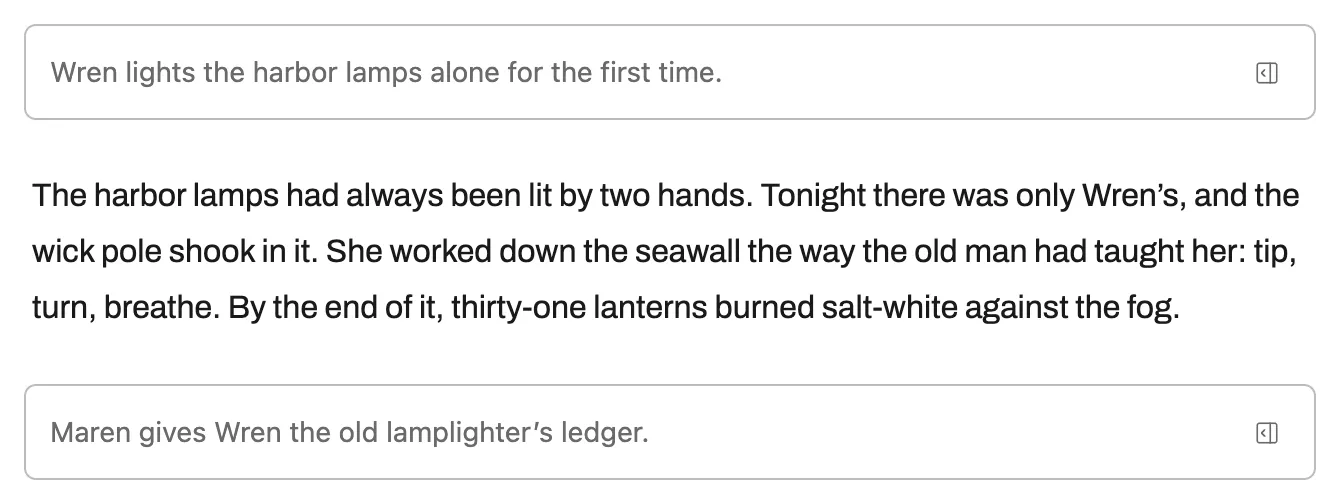
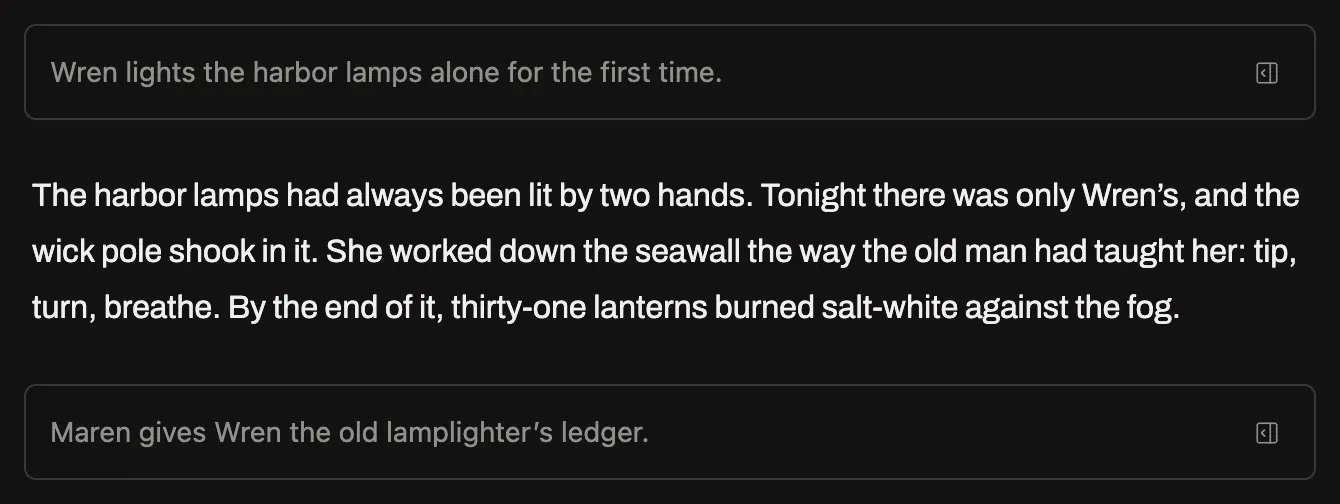
A bar cannot be typed in or deleted from the text; it is changed from the panel. The icon at the right end of a bar shows that beat in the panel. A beat longer than one line has an arrow at the left of its bar that folds it to its first line.
The panel lists the chapter’s beats under In this chapter. Press a beat to choose it.
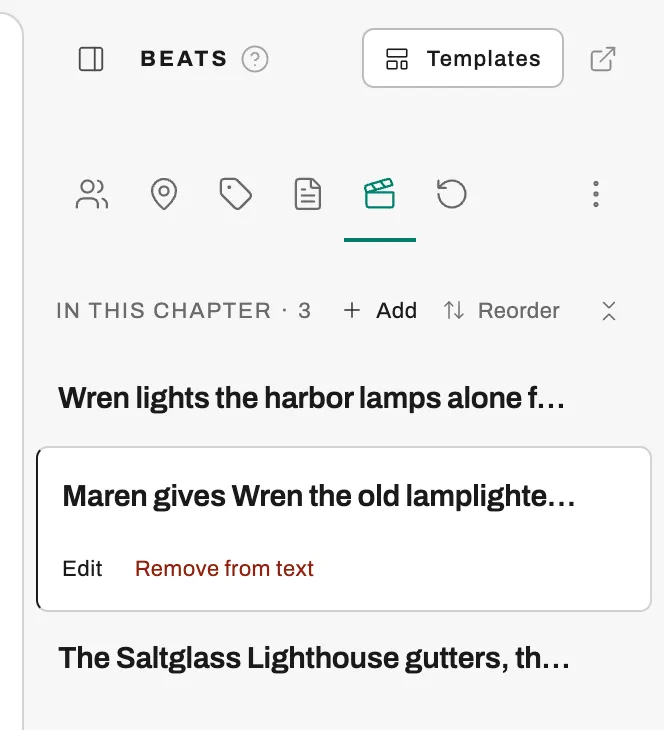
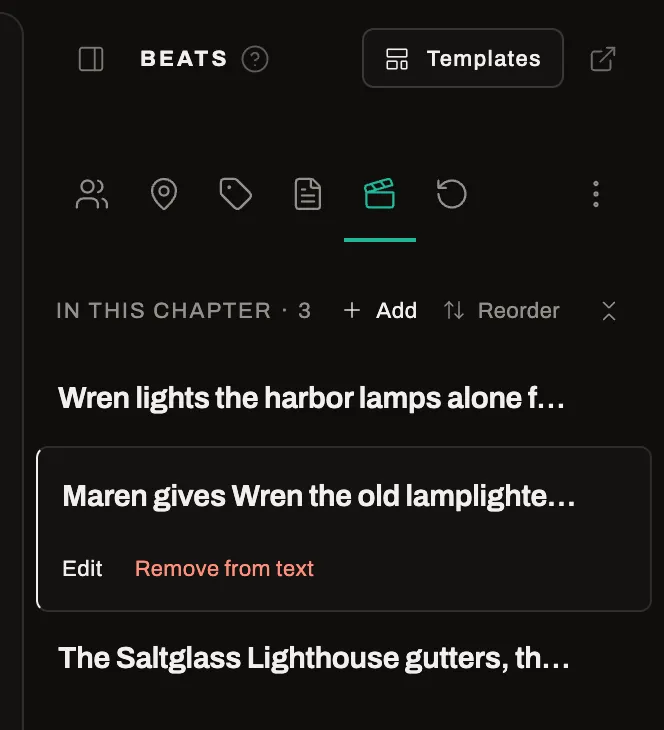
- Add puts a new beat’s bar where the cursor is in the chapter, or at the end of the chapter when the cursor is somewhere else.
- Edit, under a chosen beat, opens the same box as on the Chapter beats page.
- Remove from text takes the beat’s bar out of the chapter. The beat stays in the list, marked Not in text.
- The bin, which shows when you point at a beat, deletes the beat and its bar at once, with no Undo. Your text stays.
- The two arrows at the end of the row fold every bar to its first line, and open them again.
- The arrow at the top right of the panel opens the Chapter beats page on this chapter’s set.
- The question mark beside the panel’s name opens a short summary.
Place or move a beat
A beat marked Not in text has no bar in the chapter yet.
- Click in the chapter where the beat belongs.
- In the panel, press the beat.
- Press Place at cursor.
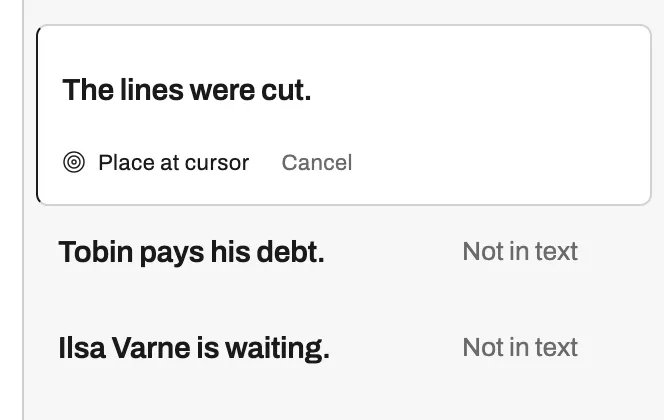
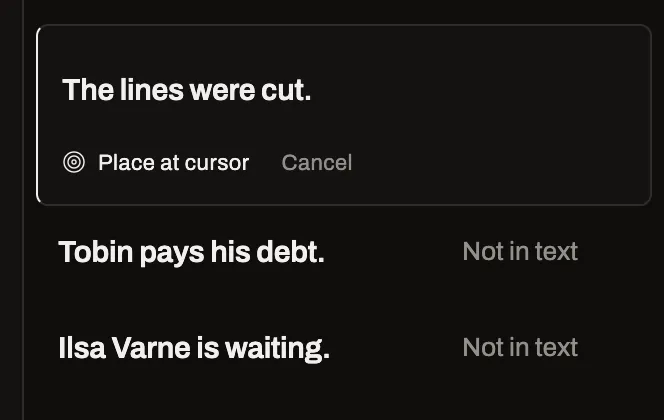
To move a beat that is already in the text, press it, press Remove from text, and then place it again.
Reorder beats in the panel
- Press Reorder.
- Drag the beats by the six dots.
- Press Save.
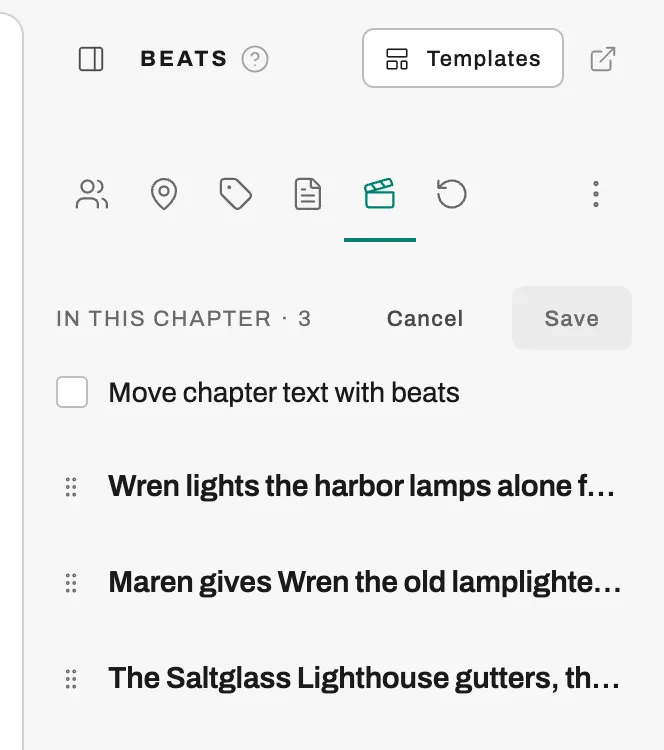
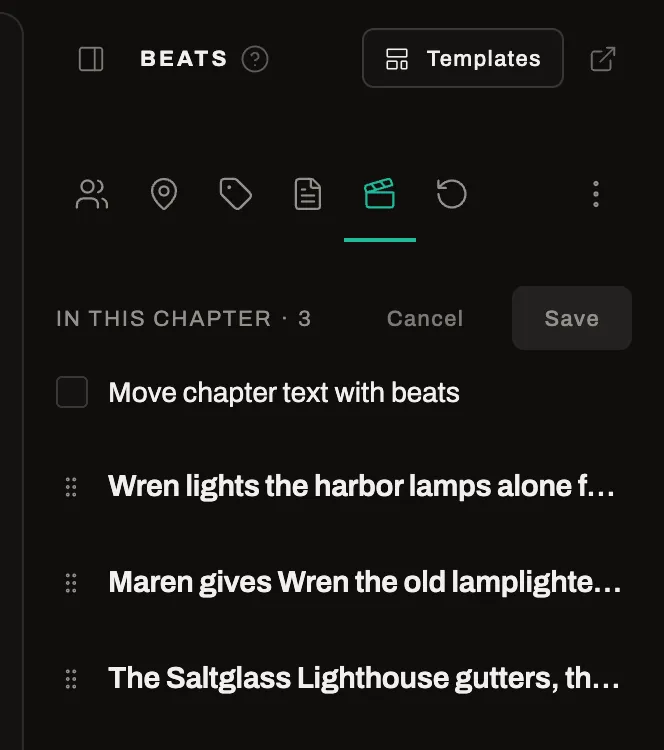
While you reorder, the panel shows a checkbox, Move chapter text with beats. Unticked, the bars change places and your text stays where it is. Ticked, each beat takes its part of the chapter with it.
Start from a template
Templates, at the top of the panel, adds the events of a story structure to the chapter as beats. The three built-in templates are the Outline’s.
- Press Templates.
- Press a template’s card.
- Press Apply.
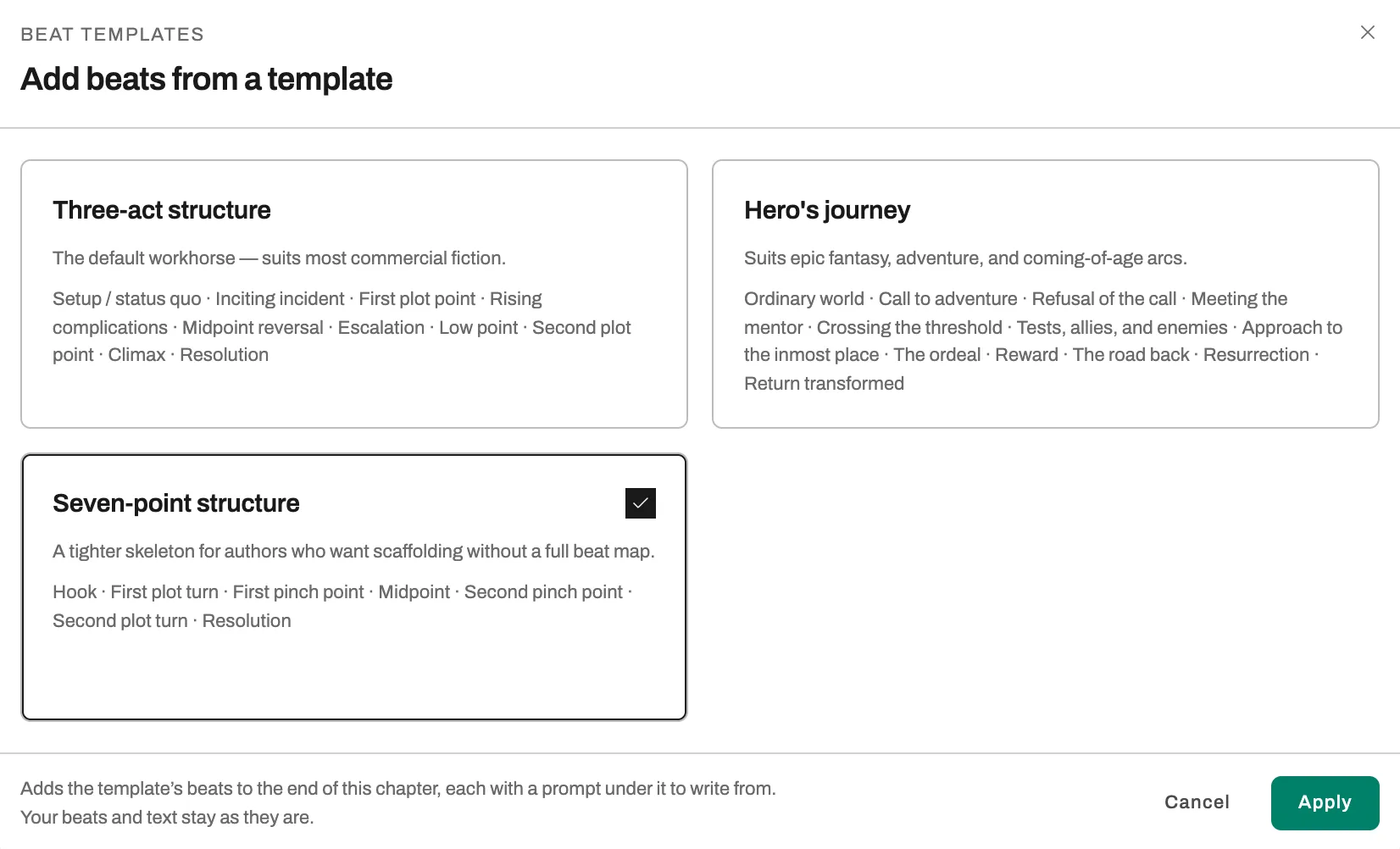
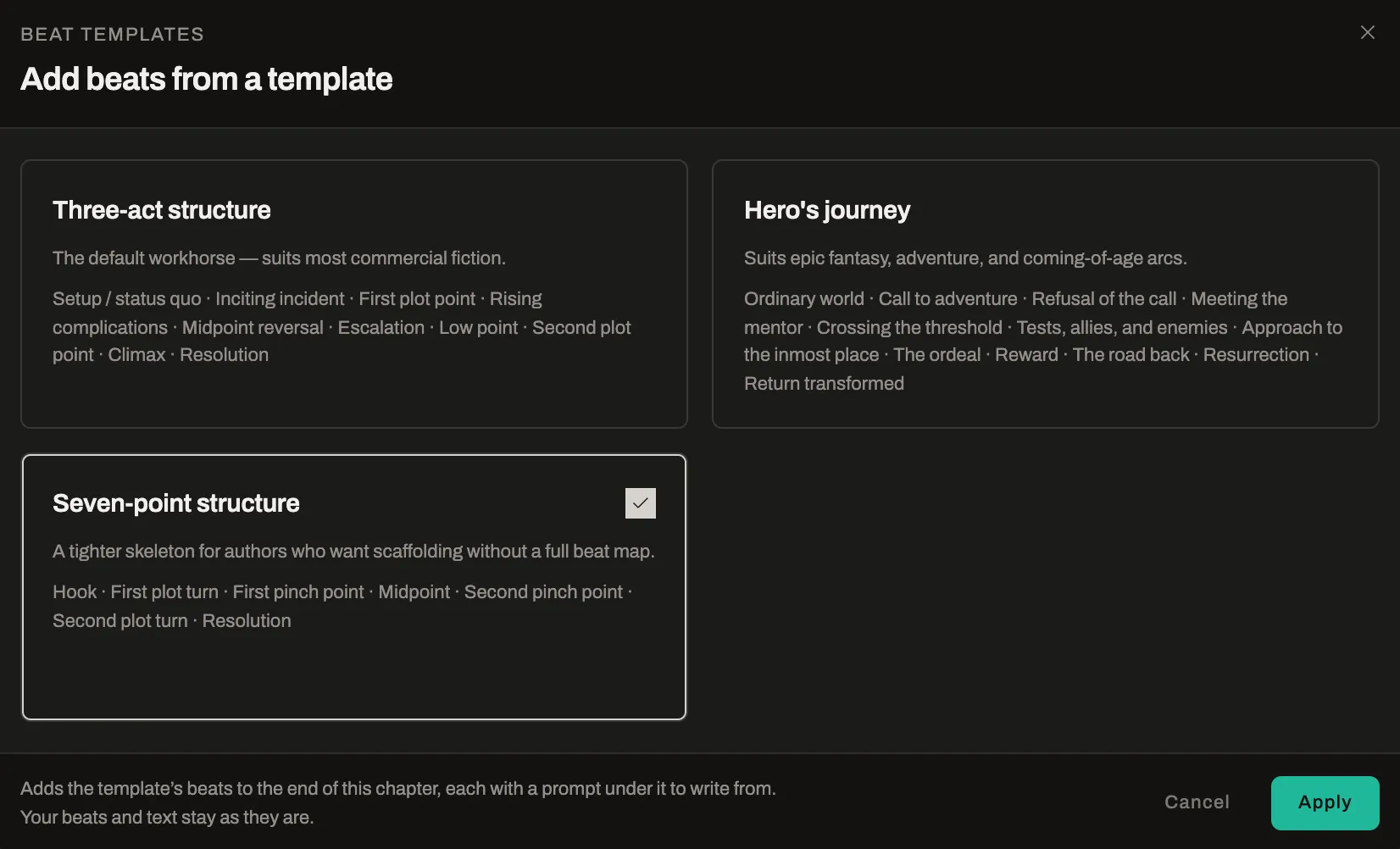
The template’s beats are added after the ones the chapter has. Nothing is replaced. Under each new bar is a one-line prompt for that part of the story.
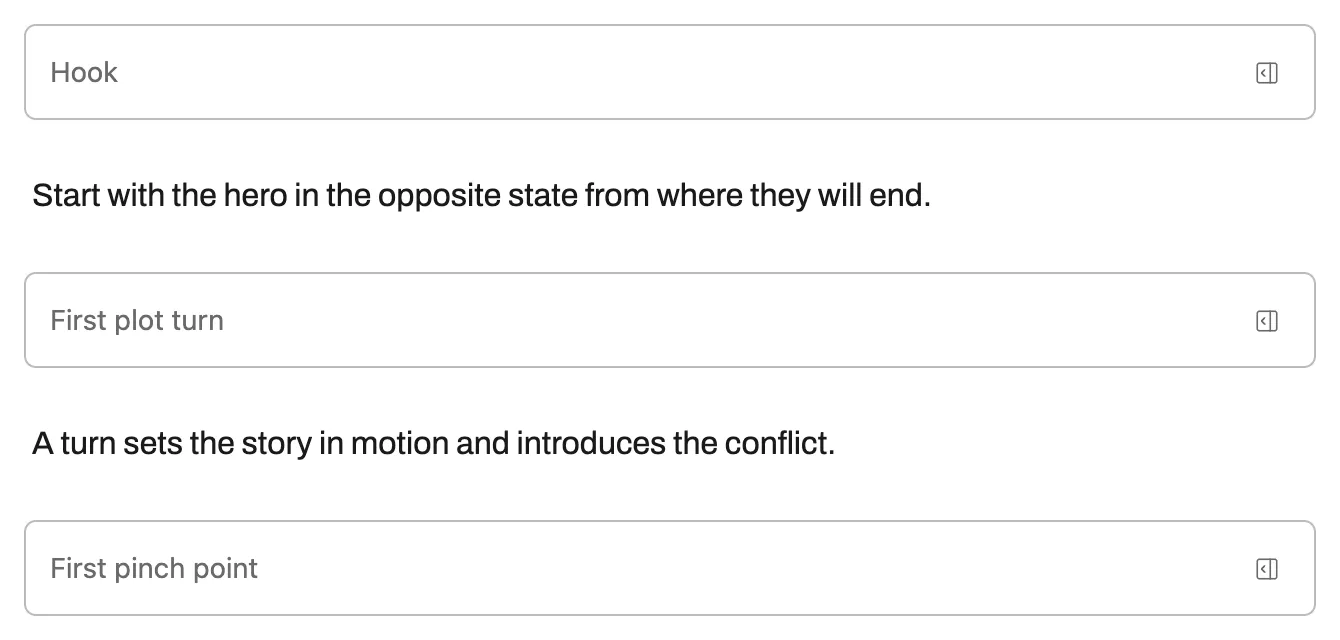
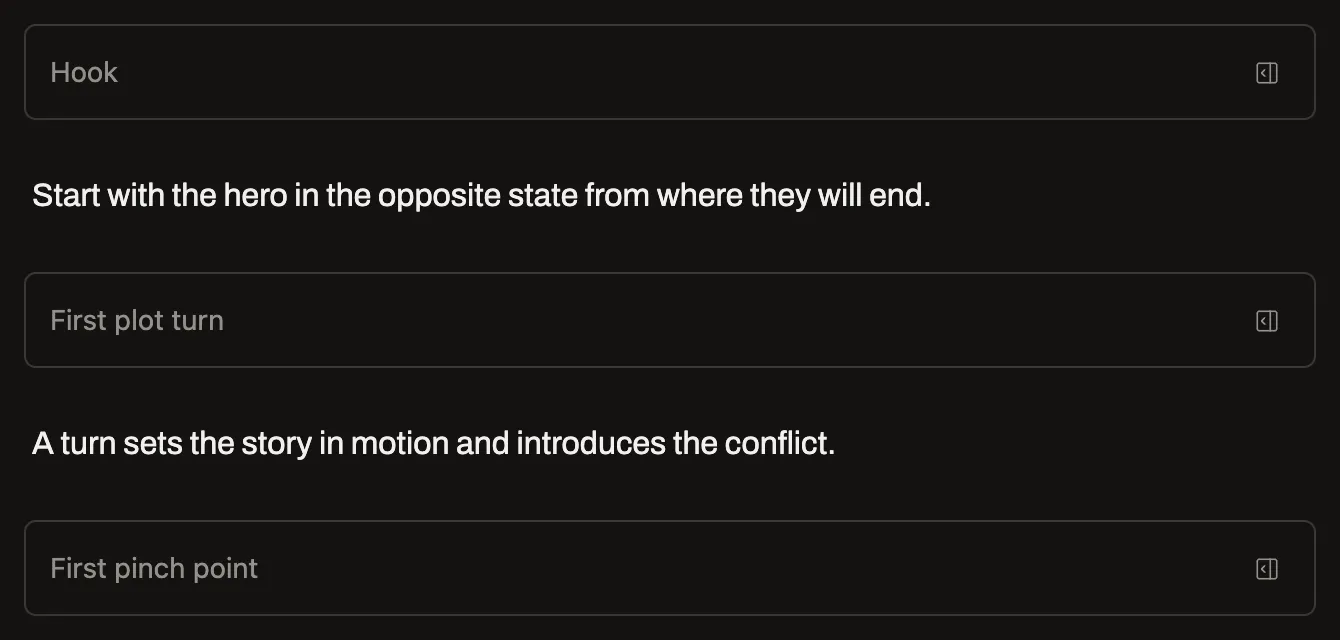
The prompts are ordinary chapter text. They count as words and they go into your book when you export it, so write over each one or delete it.
Templates you saved on the Outline are in the dialog too. They need Pro, and add beats without prompts.
Draft from a beat with AI
The AI tools are a Pro feature, and they are off until you turn AI on with the AI button in the chapter’s toolbar. With AI on:
- A sparkle beside Reorder in the panel opens Draft all chapter content and Suggest steps between beats.
- A sparkle on each bar opens Draft chapter content and Suggest steps for that beat. The beat needs some text first.
Drafted text is added at the end of the beat’s part of the chapter and waits for you to accept, retry or discard it. Suggested steps show under the beat in its bar and are never put in the chapter. Set up AI and describe your style in the Prose builder covers connecting AI and what each request sends.
Who sees your beats
Only you.
- Beats and their bars are left out of the Kindle, Print and DOCX files you export.
- Editors and beta readers you invite do not see them. See What your readers and editors see.
Free and Pro
Chapter beats, the Beats tab and the built-in templates are on both plans. Templates you saved yourself and the AI tools need Pro.
When there is no connection
The side panel closes while you are offline, and the Beats tab with it. You can go on writing the chapter. On the Chapter beats page, the buttons that change anything are dimmed until you are online again.
Related
- Outline your book in threads and events: the whole story on one page, and the templates beats share with it.
- Find your way around a book: the side panel, its tabs and how to fold it.
- Write in the chapter editor: the chapter the bars sit in.
- Organize your book with chapters and parts: the chapters a set links to, and how to move or delete them.
- Free and Pro: how the two plans differ: what each plan includes.