DocsSeries
Group your books into a series
ProUpdated
A series is a group of your books that share what they have in common: one cast, one set of places, the same copyright page and author bio, and an outline that runs across the books. You start one from the dashboard, and it gets a row there with its books side by side.
Series are a Pro feature.
What the books of a series share
- Characters and locations. Each has one profile, used by every book you put them in. See Share characters and locations across a series.
- Four book pages. The series keeps its own Copyright, Dedication, About the author and Acknowledgments, which you can copy into each book. See Share Credit and book pages across a series.
- Credit. The author’s and the publisher’s details, kept once for the title page of every book. See Share Credit and book pages across a series.
- An outline for the whole series. It sits above each book’s own outline. See Plan the whole series on the series outline.
- Saved themes, saved outline templates and series images. A theme or an outline template you save in one book is offered in the others, and an image can be shared with the series.
Each book still has its own chapters, its own title page and its own number in the series.
A book that is in no series is listed under Standalone on the dashboard. Its Characters and Locations pages still say that they live with the series. For a single book that changes nothing.
Step 1: Start a series
- Open the dashboard. From inside a book, press the Gnarlywog logo at the top of the sidebar.
- Press New series, at the top right, between Import EPUB and New book.
The series is made at once and opens, with nothing to fill in first.
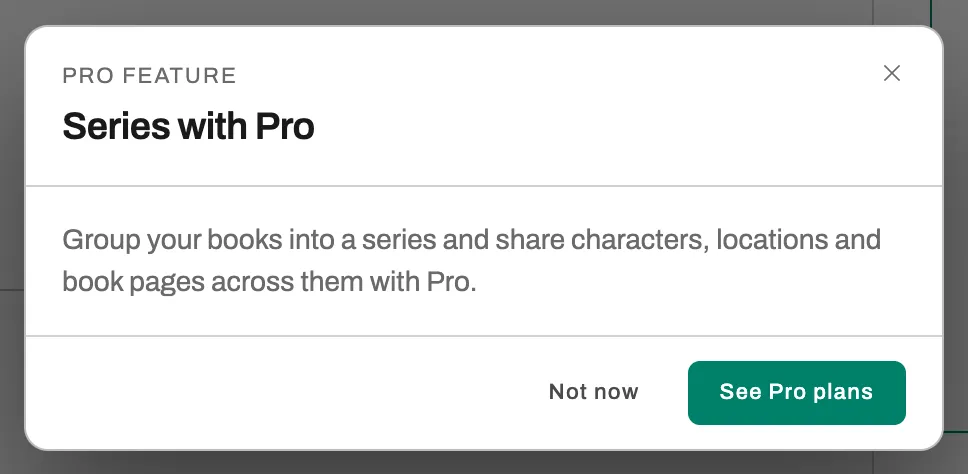
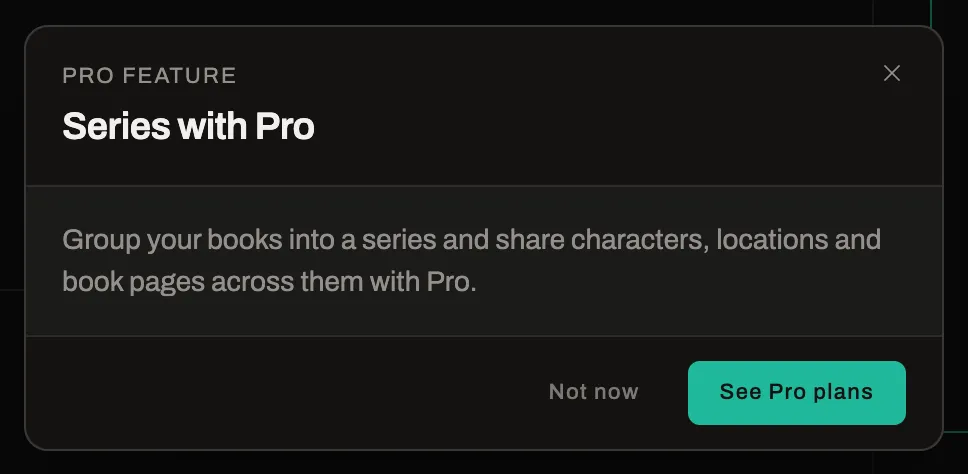
On the Free plan the button looks the same, and pressing it opens a box headed Series with Pro instead. See Pro plans shows the plans and Not now closes the box. Add to series… in a book’s menu opens the same box. Free and Pro: how the two plans differ covers the rest.
Step 2: Name it
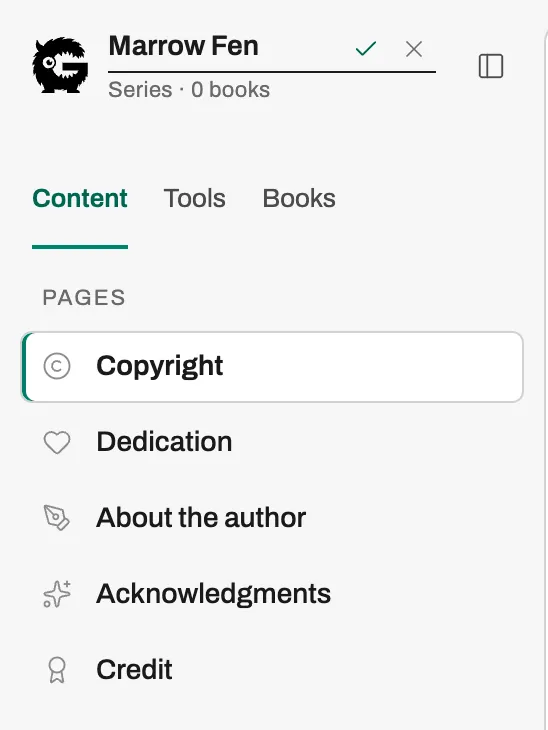
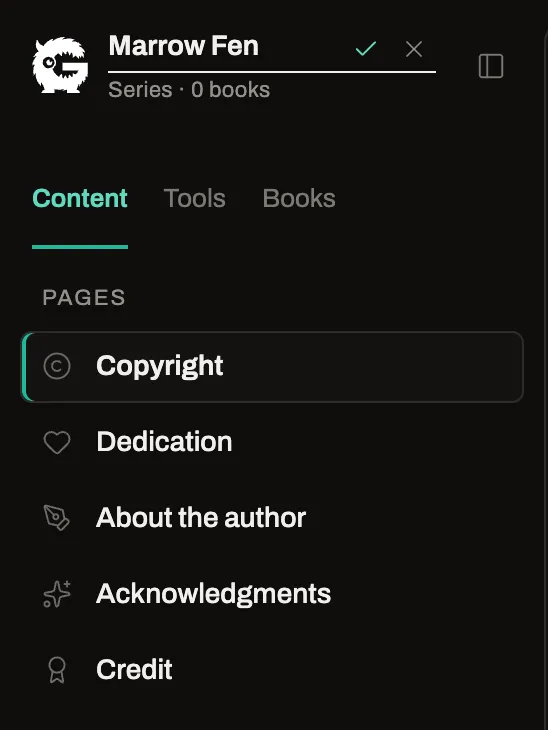
A new series opens with its name box ready, at the top of the sidebar. The grey words Untitled series in it are only a prompt.
- Type the name. It can be up to 200 characters.
- Press Enter, or the tick at the end of the box. The cross beside the tick leaves the name as it was.
If you leave without typing a name, the series is called Untitled series. To change a name later, press the pencil beside it. Every book in the series shows the new name on its Title page and prints it in its exports.
Find your way around a series
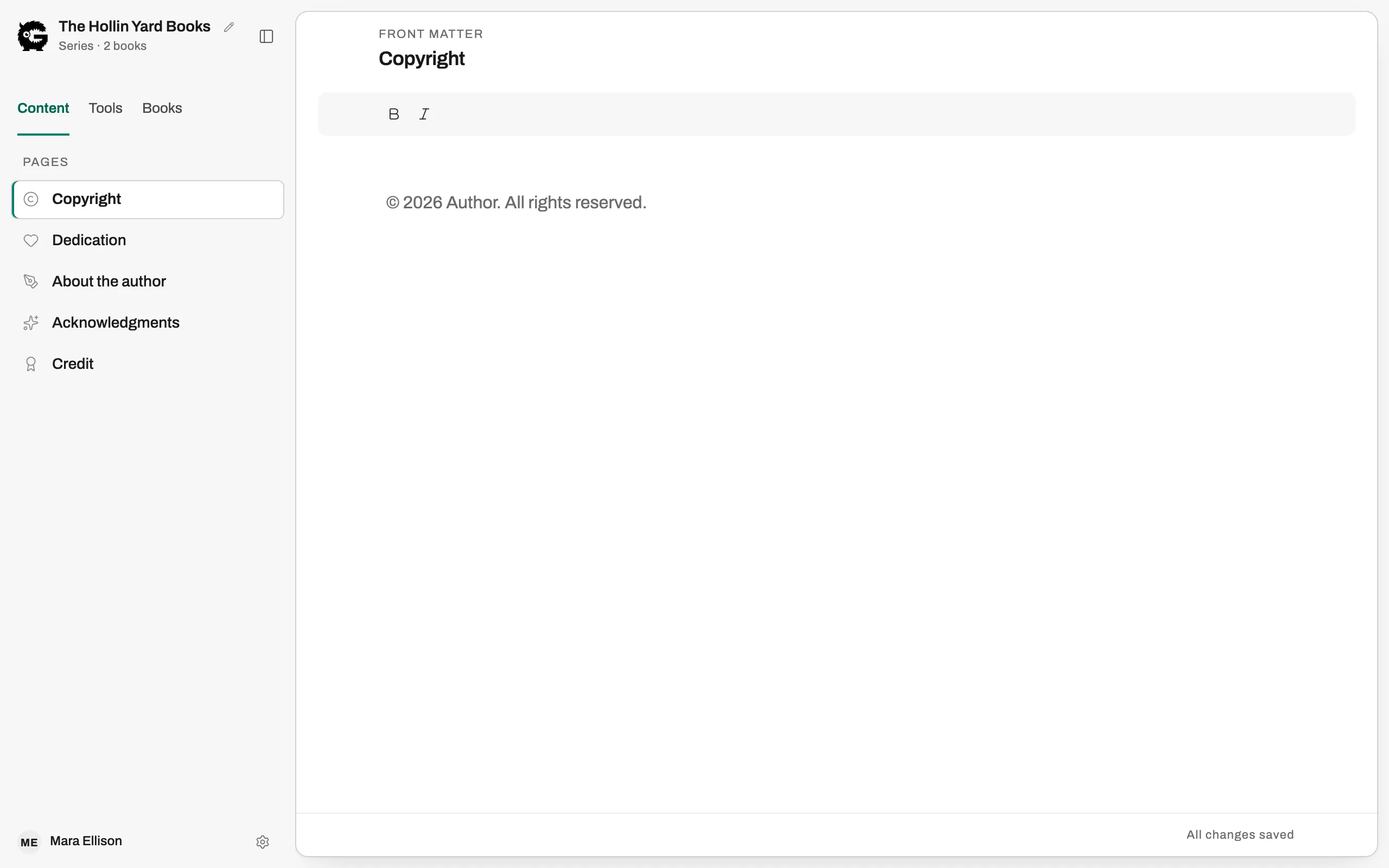
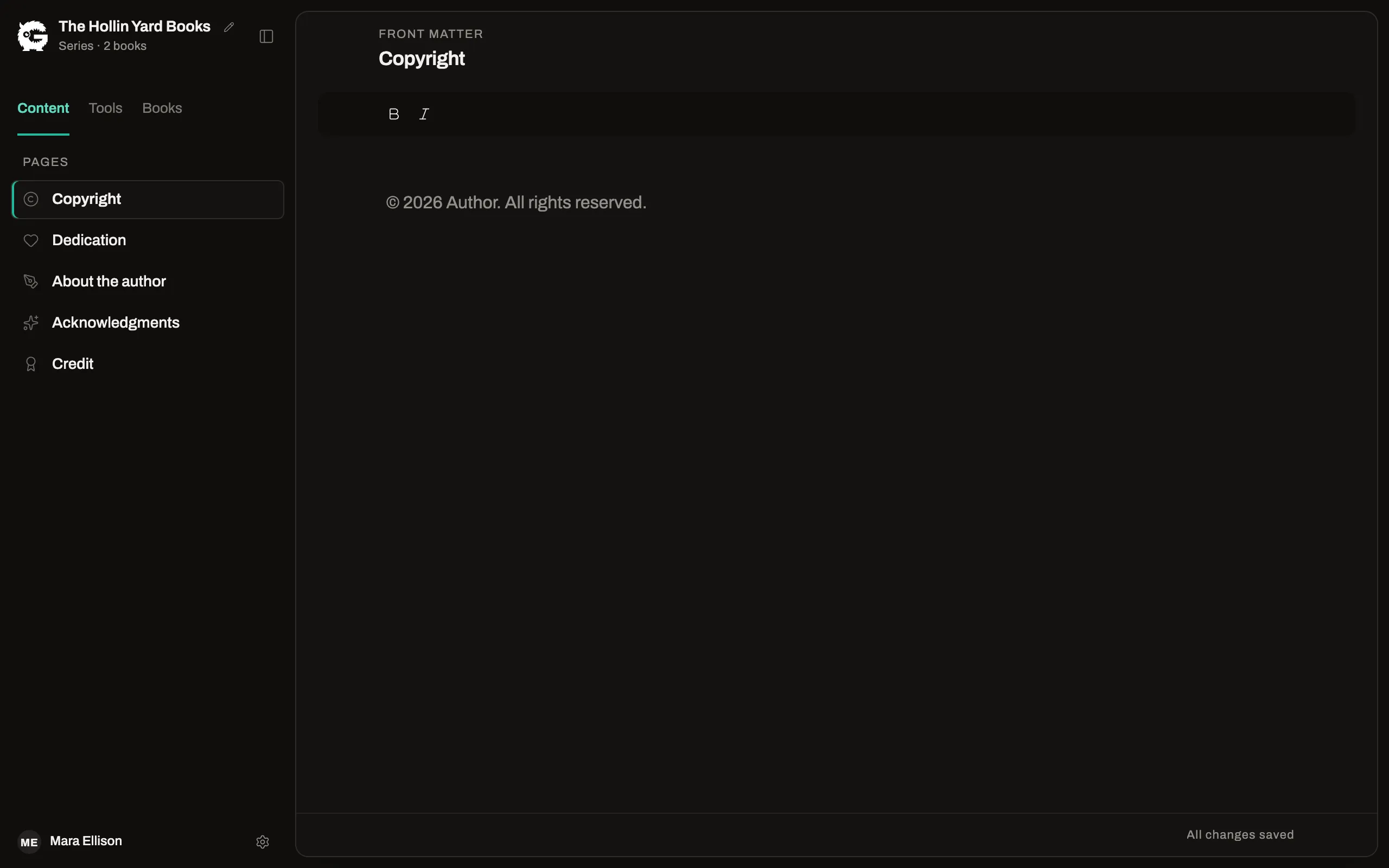
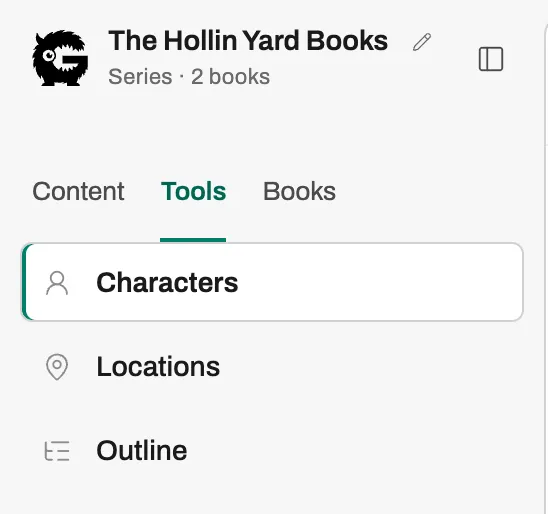
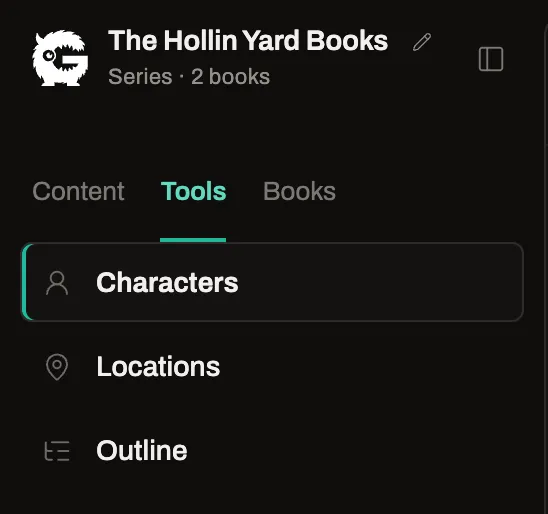
A series has a sidebar of its own, like a book’s. The name is at the top, over a line such as “Series · 2 books”. Under it are three tabs.
- Content lists the series’ pages: Copyright, Dedication, About the author and Acknowledgments, then Credit. The four pages are written the way a book’s are; see Write your book’s copyright page. What you write here is the series’ copy, not any book’s.
- Tools has Characters, Locations and Outline.
- Books has one page, Books, with a card for each book in the series.
The gear at the foot of the sidebar opens the series’ Settings. The Gnarlywog logo at the top takes you back to the dashboard.
On a tablet or a phone a series opens with its pages and Settings only. See Write on a tablet or phone.
The series on the dashboard
Each series has a row of its own, above Standalone. The row is headed with the series’ name and the number of books in it. The books’ cards are under it, in the order of their numbers, and a book with no number yet comes after the numbered ones.
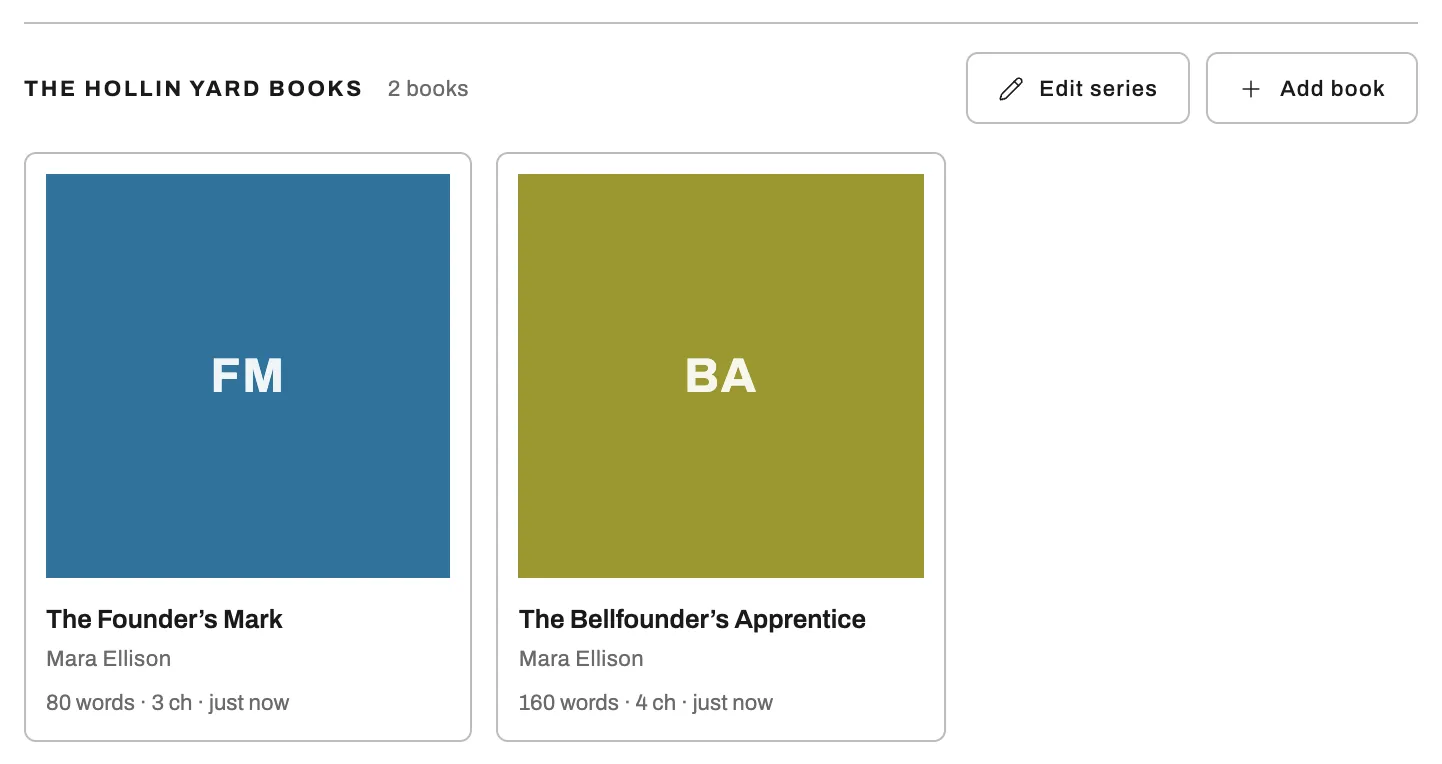
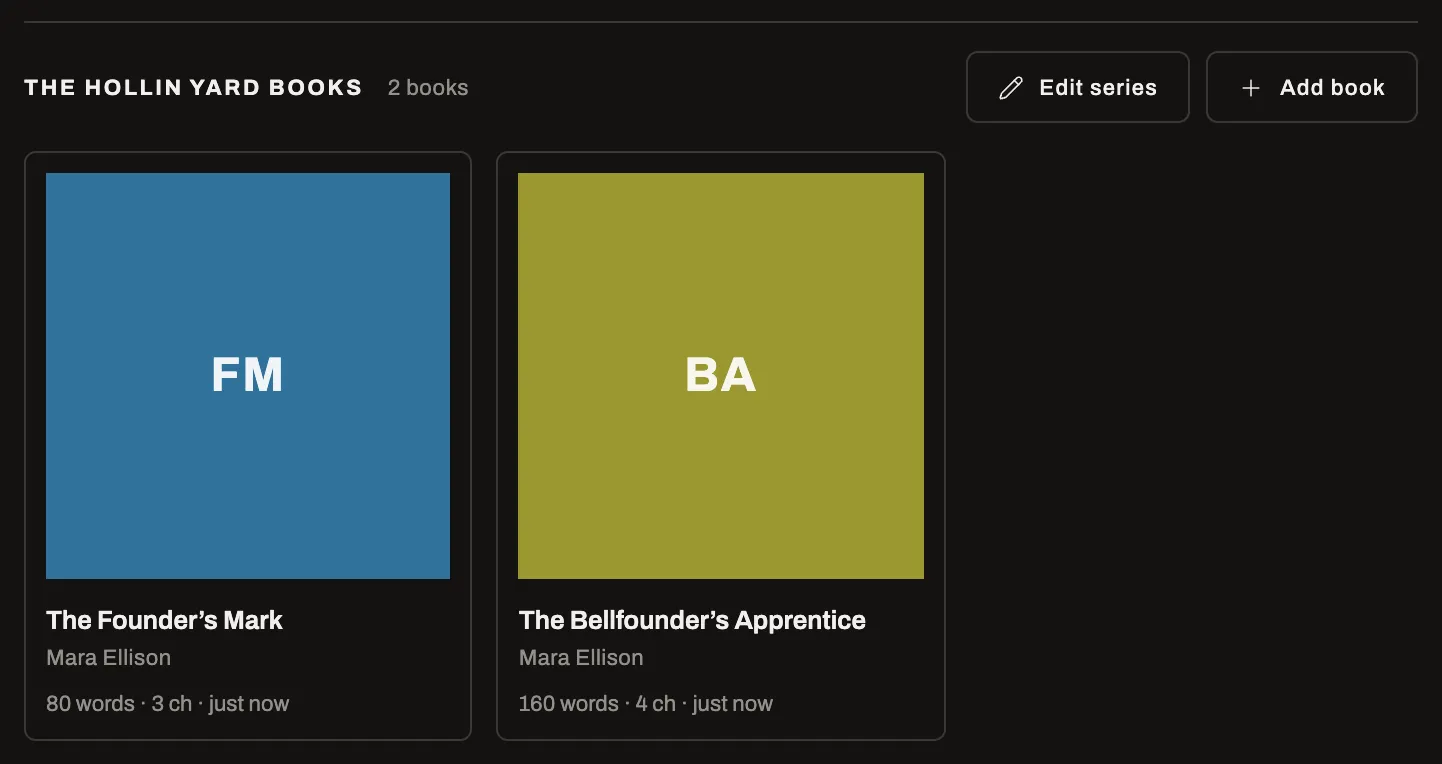
- Edit series opens the series.
- Add book starts a new book inside it.
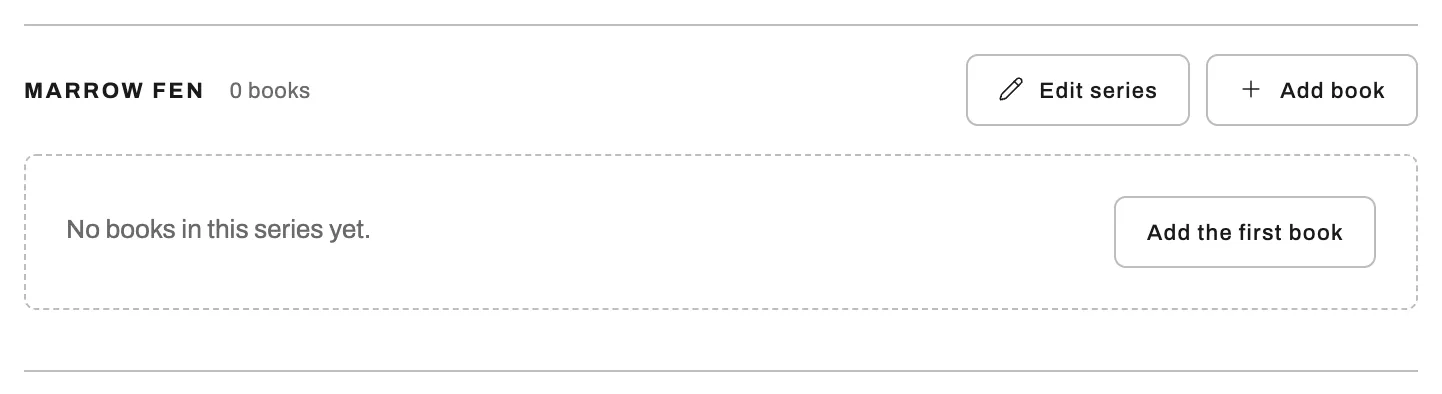
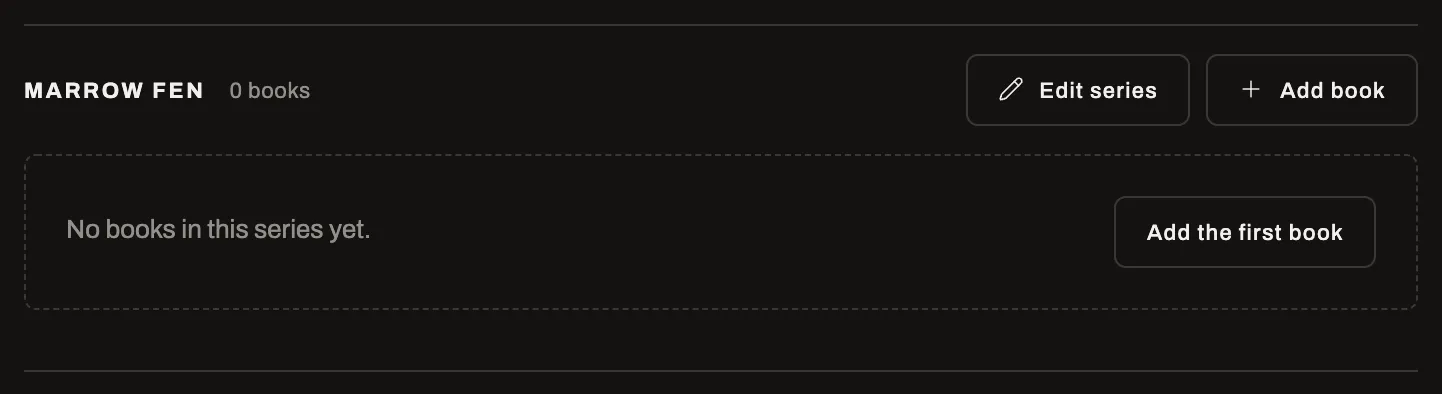
A series with no book yet shows the line “No books in this series yet.” and one button, Add the first book.
Once you have a series, the count beside Library names both, such as “6 books · 2 series”.
You can also open a series from one of its books: on the book’s Title page, press Edit series beside the series’ name. See Fill in your book’s title page.
Delete a series
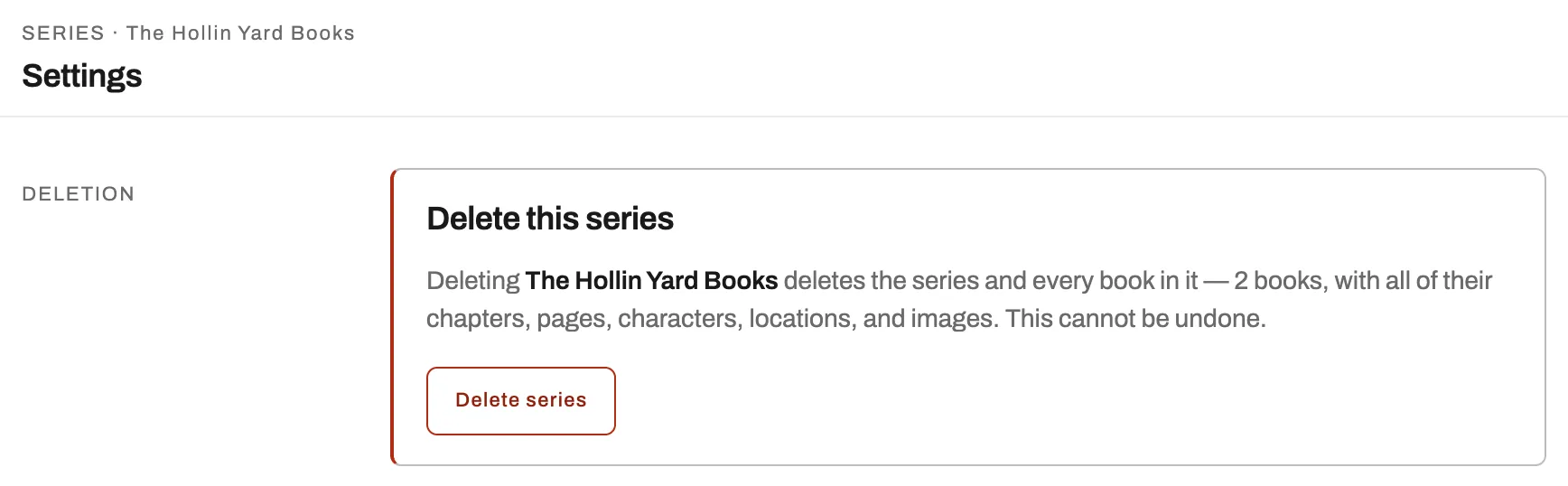
Deleting a series deletes the books in it, with their chapters, pages, characters, locations and images. It cannot be undone. To keep a book, take it out of the series first, as Add, move and order the books in a series shows.
- Open the series and press the gear at the foot of the sidebar.
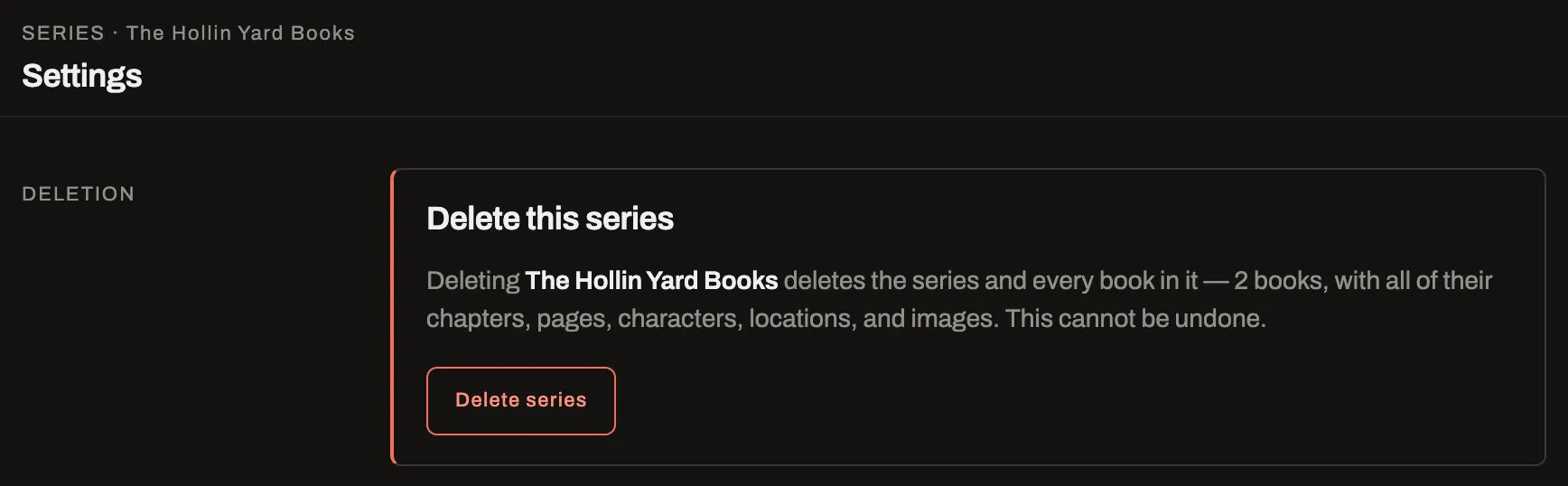
- Read the box under Deletion. It names the series and says how many books go with it.
- Press Delete series.
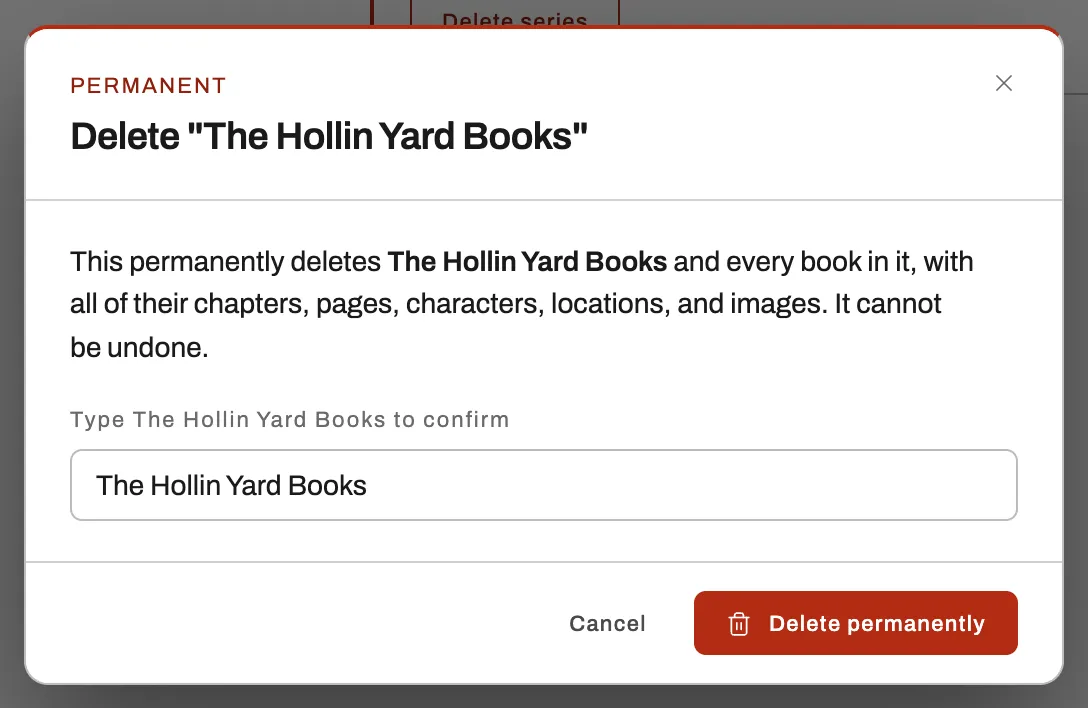
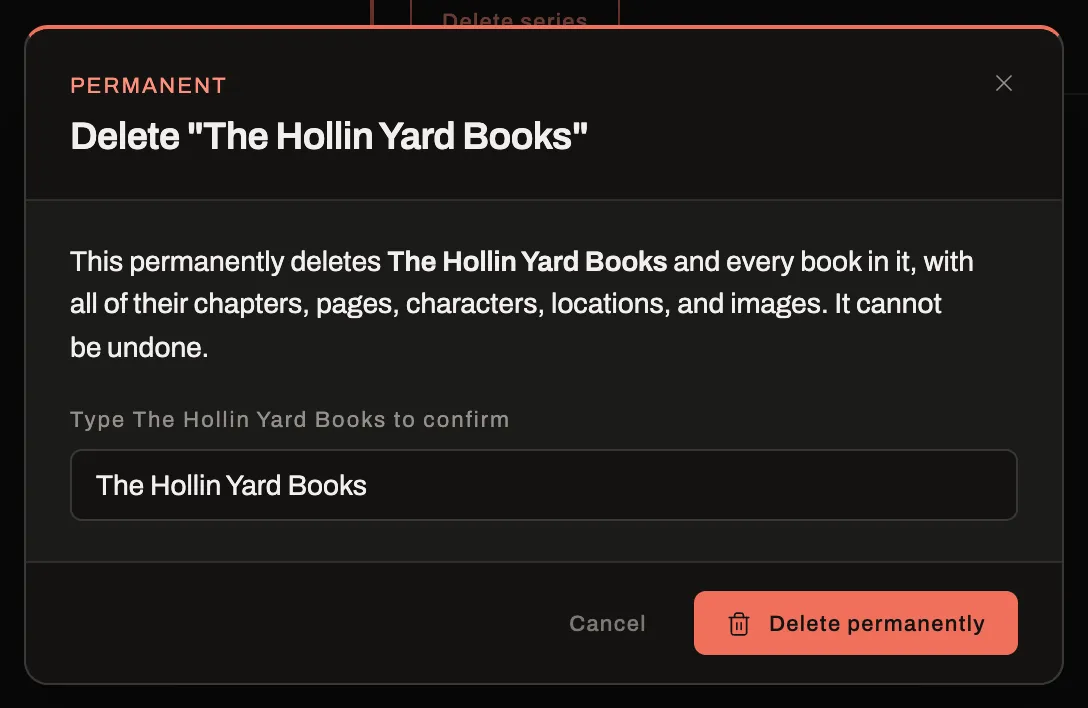
- In the dialog, type the series’ name exactly as it is shown.
- Press Delete permanently. It stays dimmed until the name matches.
You land on the dashboard, with the message “Series deleted”, and the series’ row and its books are gone. A series with no books says so in the box, and deleting it removes only the series.
If Pro ends
Your series and everything in them are kept, and each series becomes read-only. A bar across the top of the series says so, with an Upgrade button. You can read every page, but you cannot save a change, move a book in or out, or copy a page into a book. Delete series still works. Free and Pro: how the two plans differ says what happens to the books themselves.
Related
- Add, move and order the books in a series: start a book in a series, move one in or out, number the books and copy the shared pages.
- Share characters and locations across a series: one cast and one set of places for every book.
- Share Credit and book pages across a series: the author and publisher details and the four pages a series keeps.
- Plan the whole series on the series outline: one outline for the story that runs across the books.
- Free and Pro: how the two plans differ: what Pro adds, series included.
- Create a book: the other ways to start a book.
- Fill in your book’s title page: where a book shows its series and its number.