DocsCollaboration
What your readers and editors see
ProUpdated
When you invite a beta reader or an editor, they work in a view of your book made for that job, in an account of their own. This page shows what you are sending them into, so you can tell them what to expect. Your own side of it is in Invite beta readers and read their feedback and Work with an editor.
How they get in
- Gnarlywog emails the invitation to the address you typed.
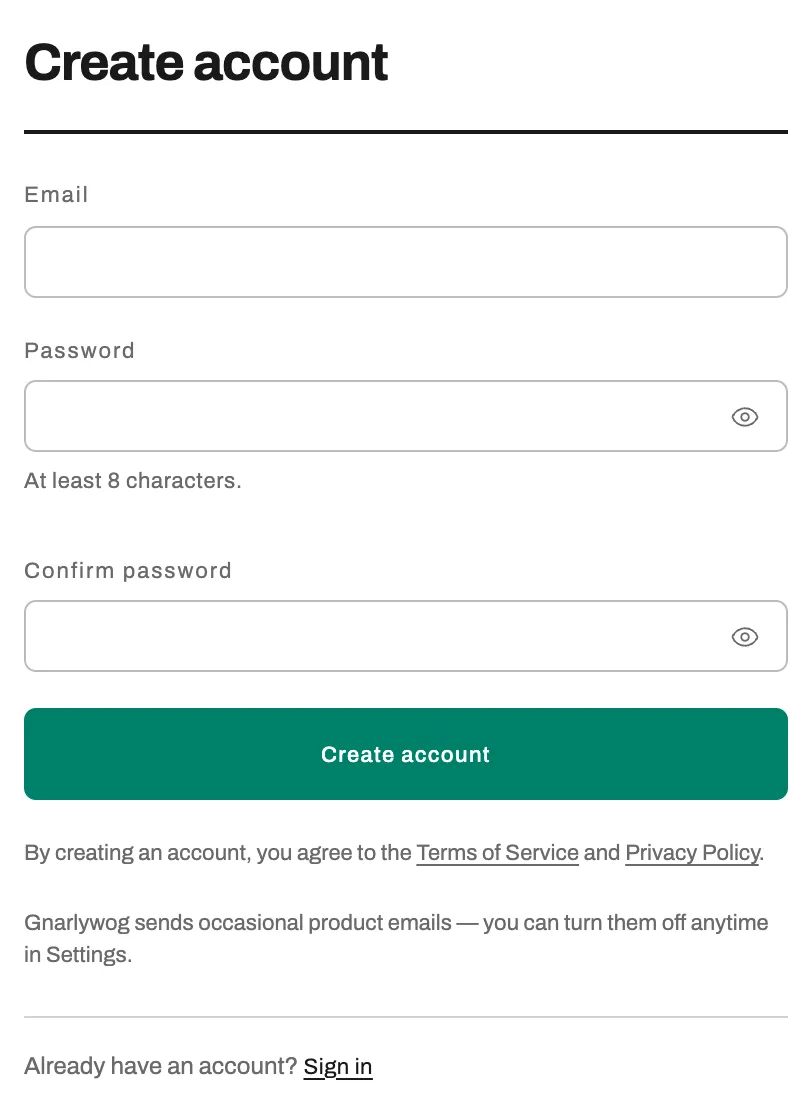
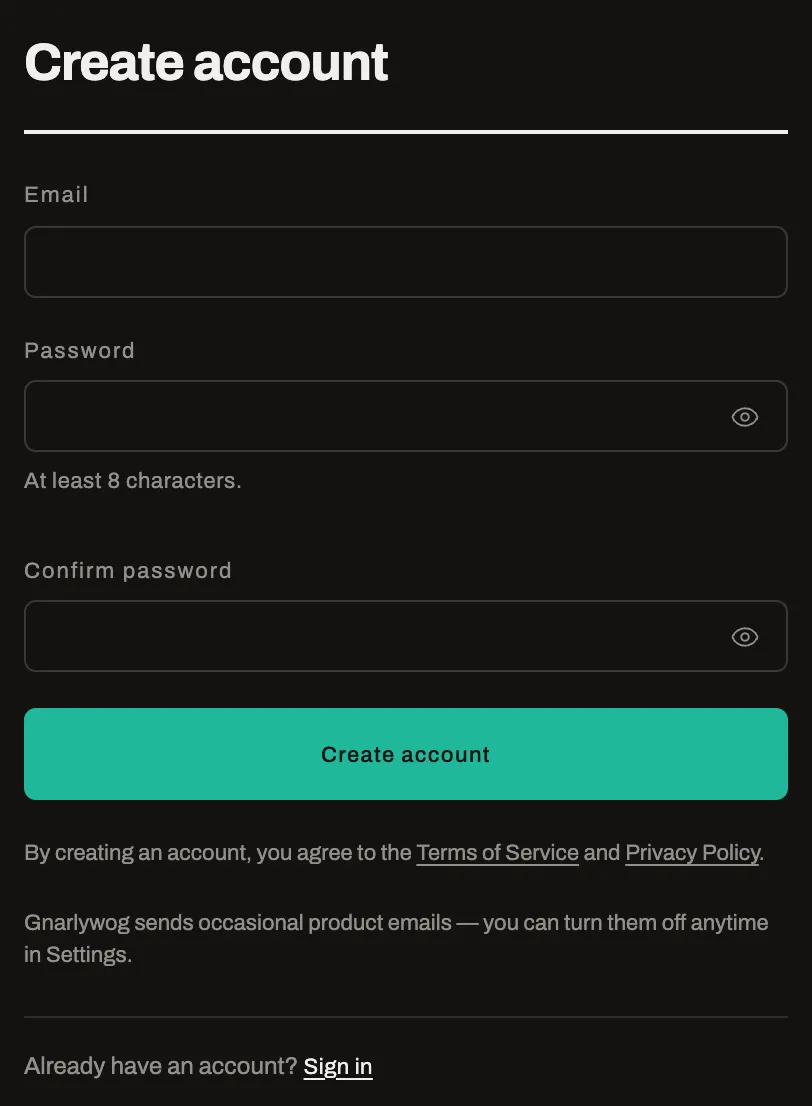
- They press the link in it. It opens Sign in if that address already has a Gnarlywog account, and Create account if it does not.
- They sign in, or make an account with an email address, a password and the password again. A new account has to confirm its address from an email before your book shows.
- Your book is on their dashboard.
- The account has to be in the address you invited. Signed in with any other address, they do not see the book. If they use a different address, remove them and invite that one.
- An invite waits 7 days. After that it shows as Expired in your list, and you send a new one from the three dots at the end of their row.
- The account is an ordinary free Gnarlywog account. They can start a book of their own in it, and they pay nothing to read or edit yours.
- A link to your book opened by someone who is not signed in shows Sign in.
- You see them by their email address. If they set a display name on their account, you see that instead, and your list of readers or editors shows the address under it. See Set your display name.
A reader’s dashboard
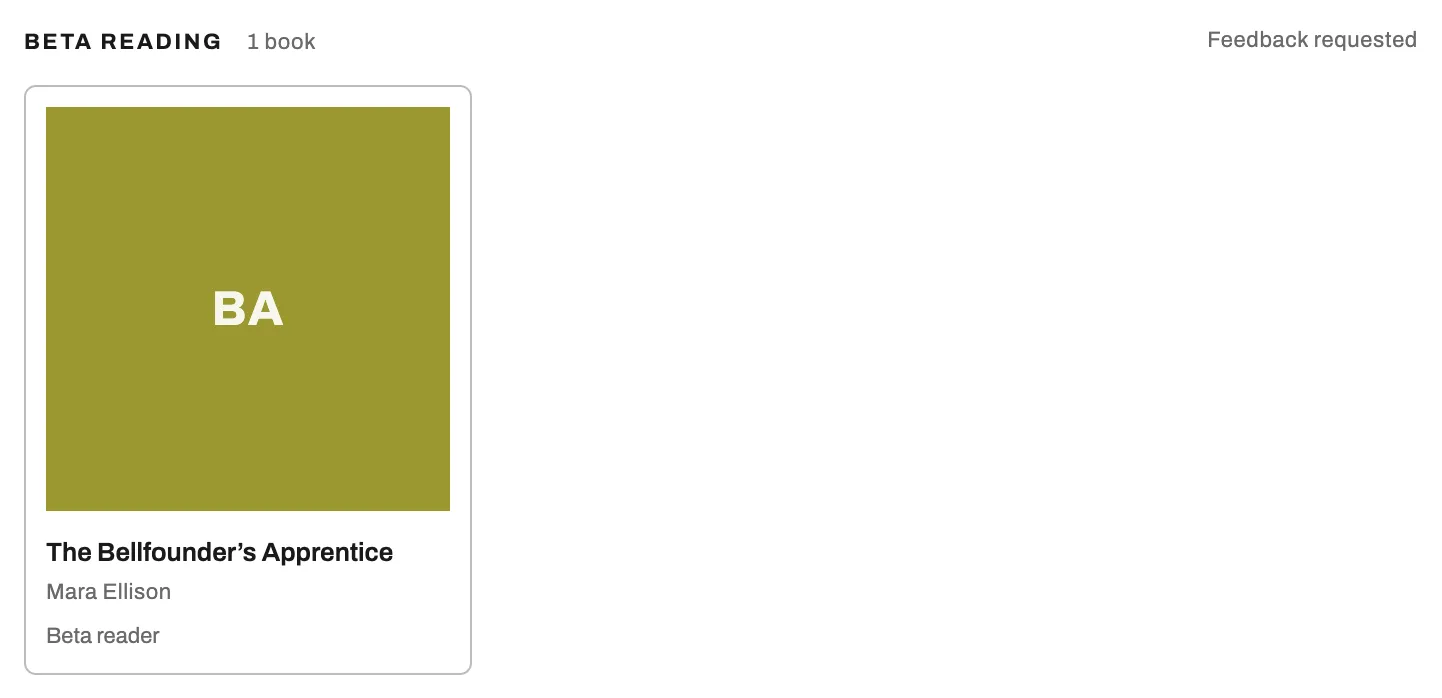
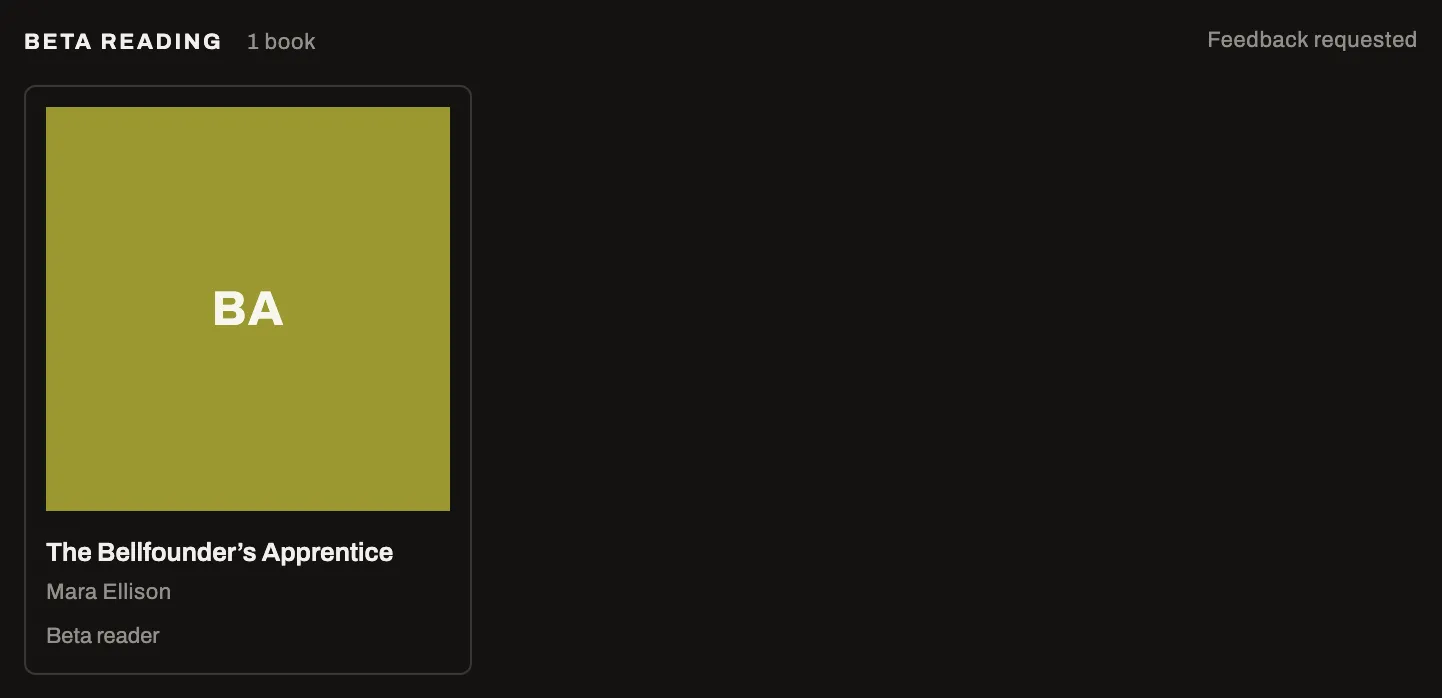
A reader finds your book under Beta reading, with your name as author and Beta reader under it. The cover is your book’s cover, or its initials until it has one.
What a reader sees
Pressing the book opens it in a reading view: the book’s name, your name, which chapter they are in and how far through it, and the chapter set like a page of a book. There is nothing to type in and no way to change your text.
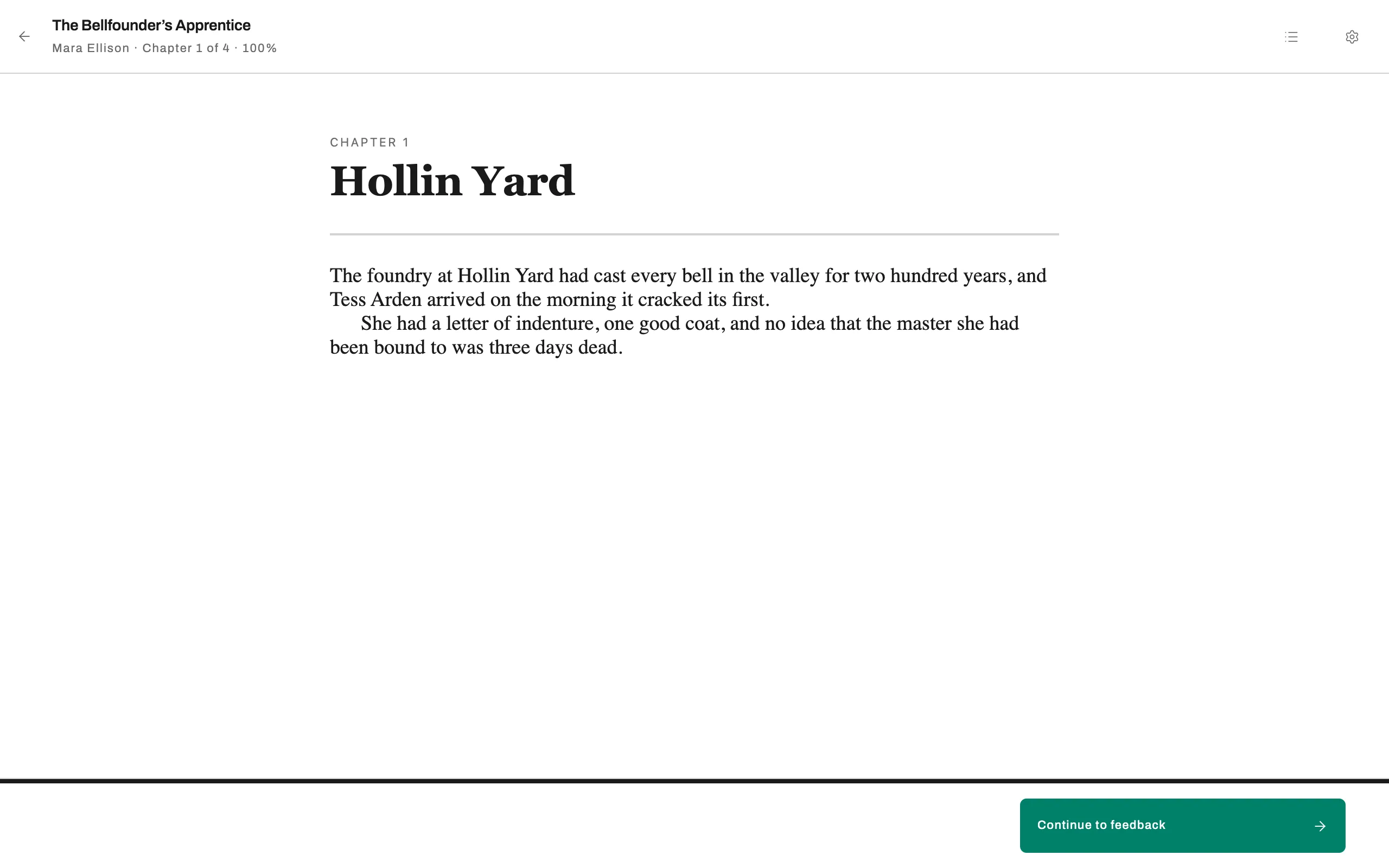
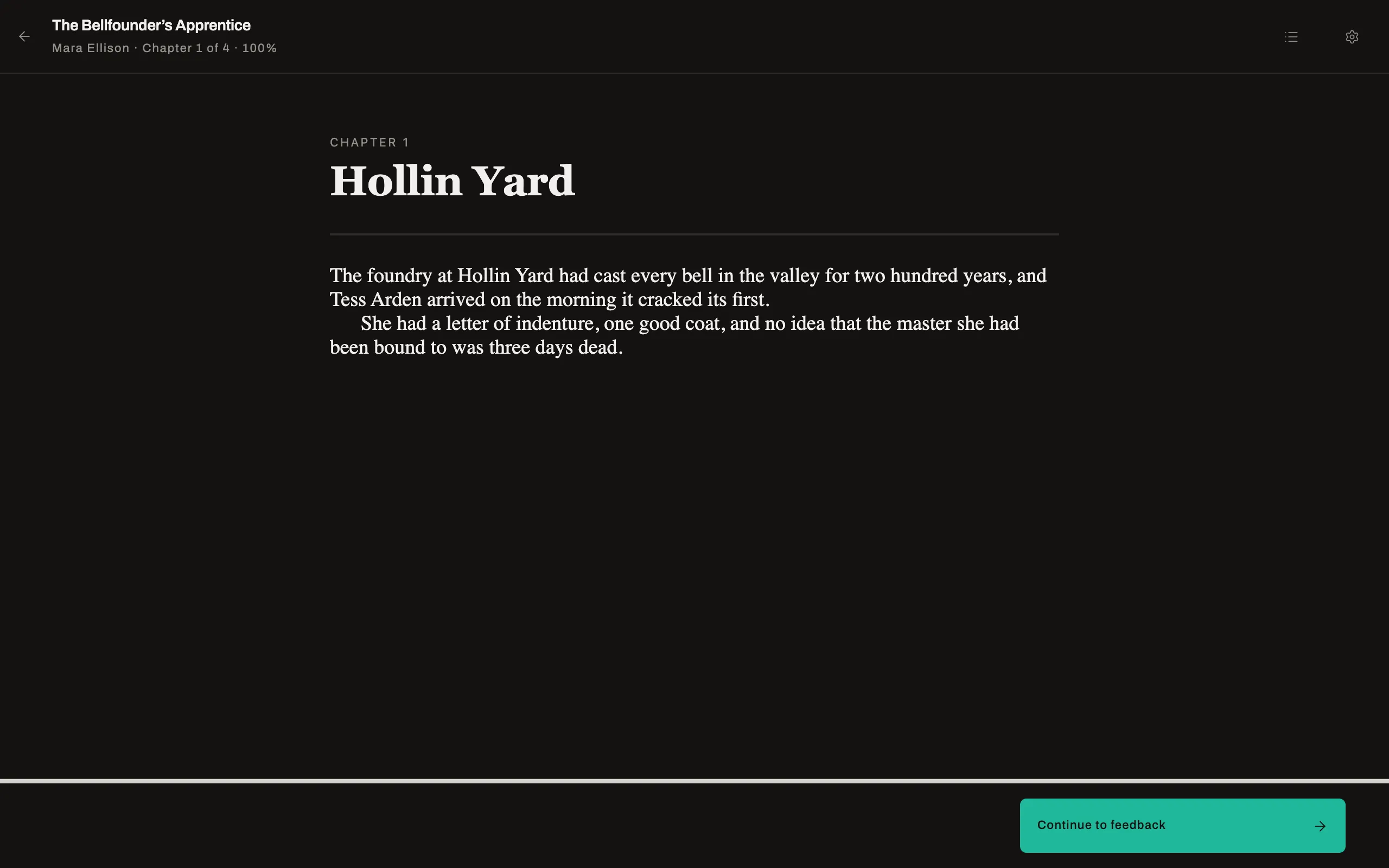
- The arrow at the top left goes back to their dashboard. The book reopens where they left off.
- The list icon, Chapters, lists the book’s chapters. Each shows how much of it they have read, a tick once its questions are answered, or a lock if it is not open to them yet.
- The gear opens their own reading settings.
- Continue to feedback, at the foot, opens your questions for the chapter. It is greyed out until they have read to the end of the chapter.
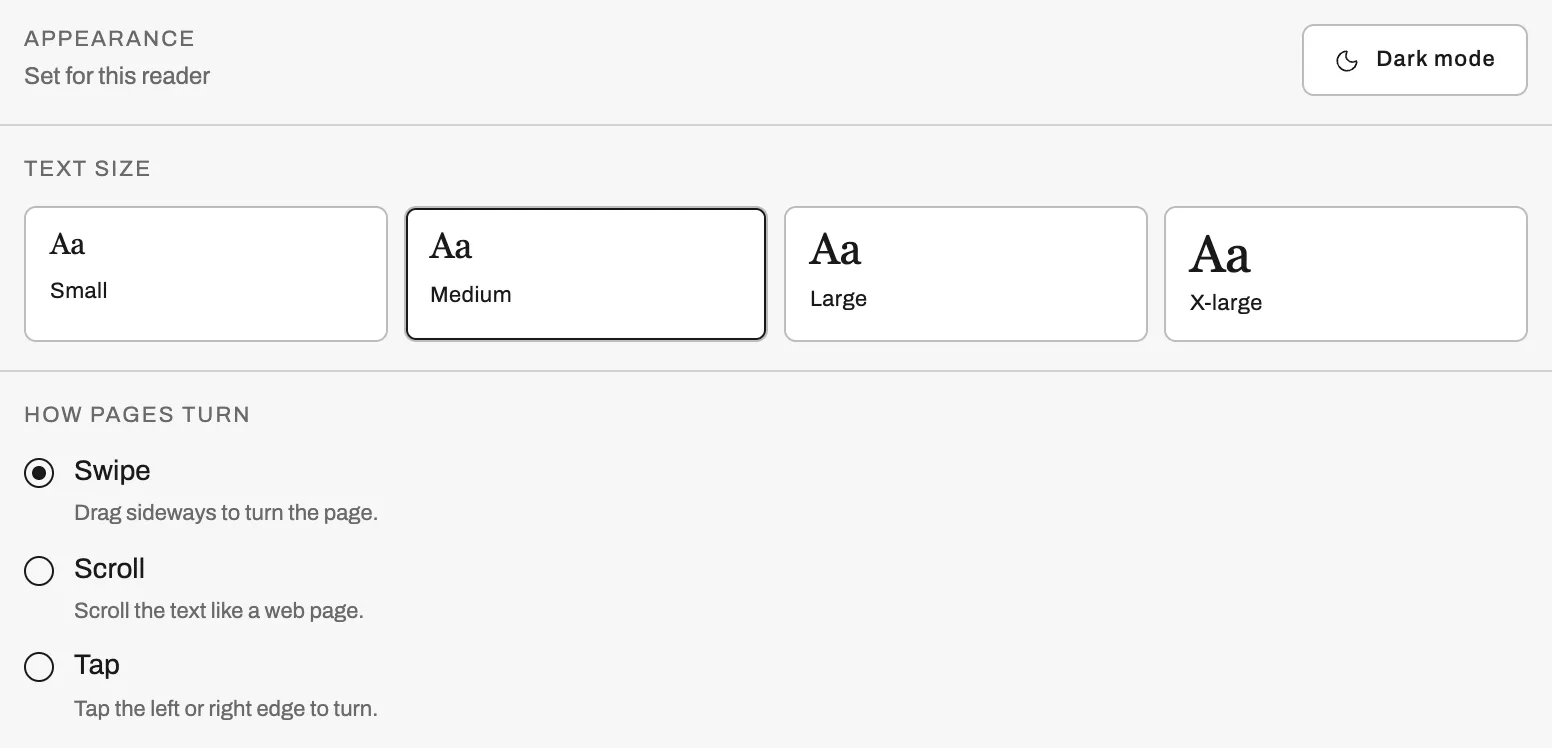
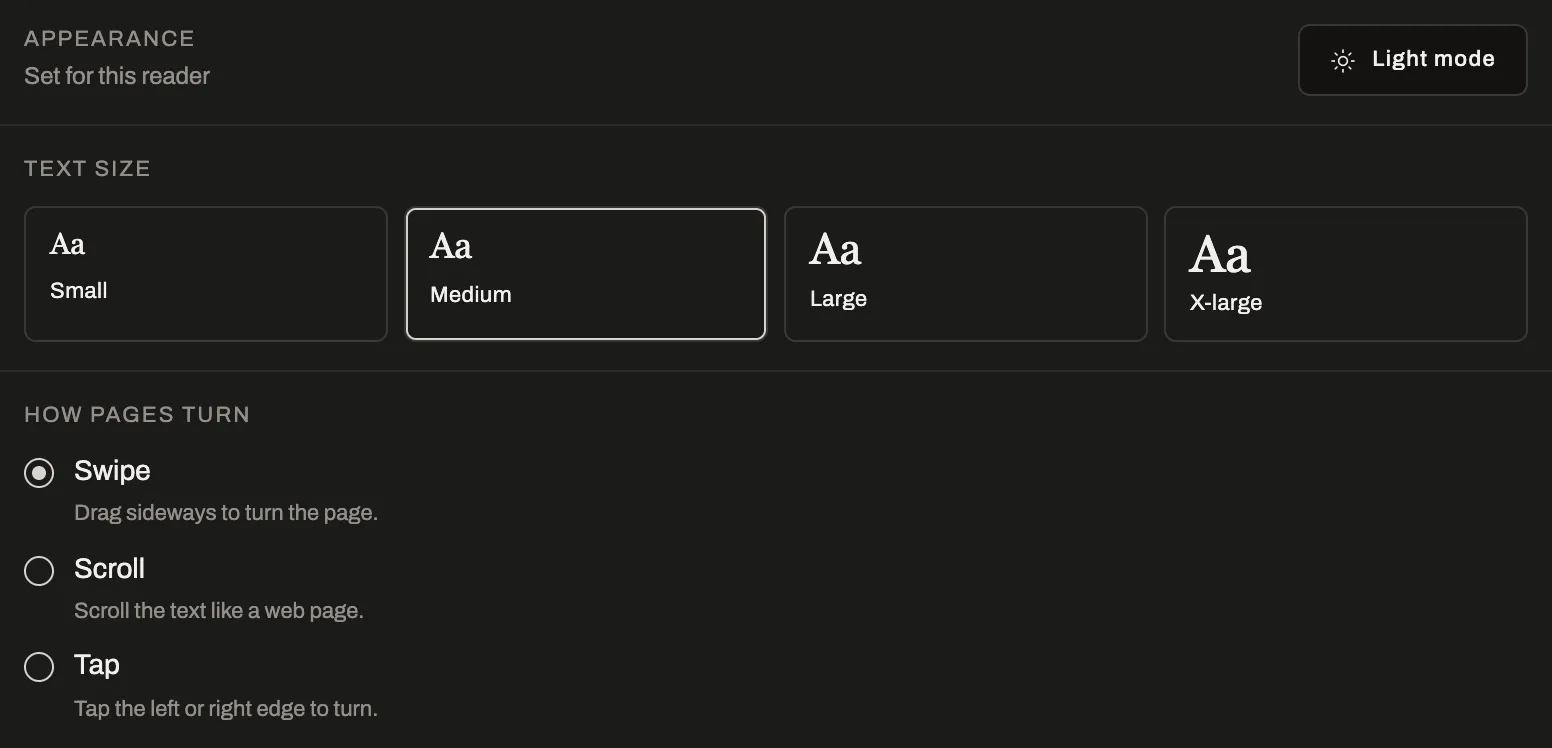
The reading settings belong to the reader and are remembered for them: a button that switches between light and dark, four sizes under Text size, and under How pages turn a choice of Swipe, Scroll or Tap.
At the end of each chapter the reader answers your feedback form and presses Submit & continue, which opens the next chapter. Every question has to be answered before the form can be sent. After the last chapter they get your end-of-book form, if you wrote one, and then a closing screen. Both articles show the reader’s screens:
- Write the feedback form your beta readers answer: the form at the end of a chapter, and the list of chapters with its locks.
- Ask readers about the whole book: the last form and the closing screen.
A reader sees the chapters of the book and its parts as headings in the list of chapters. They do not see your Title page, Copyright page or the other book pages.
An editor’s dashboard
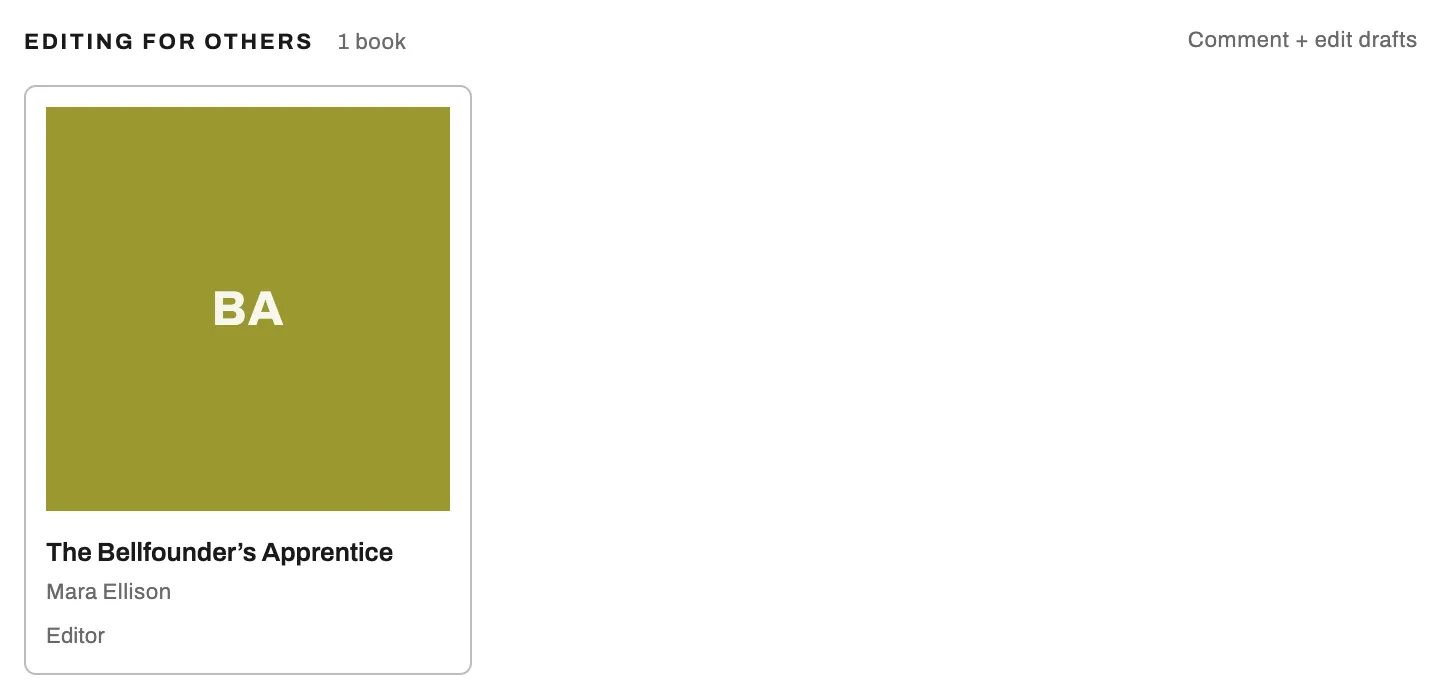
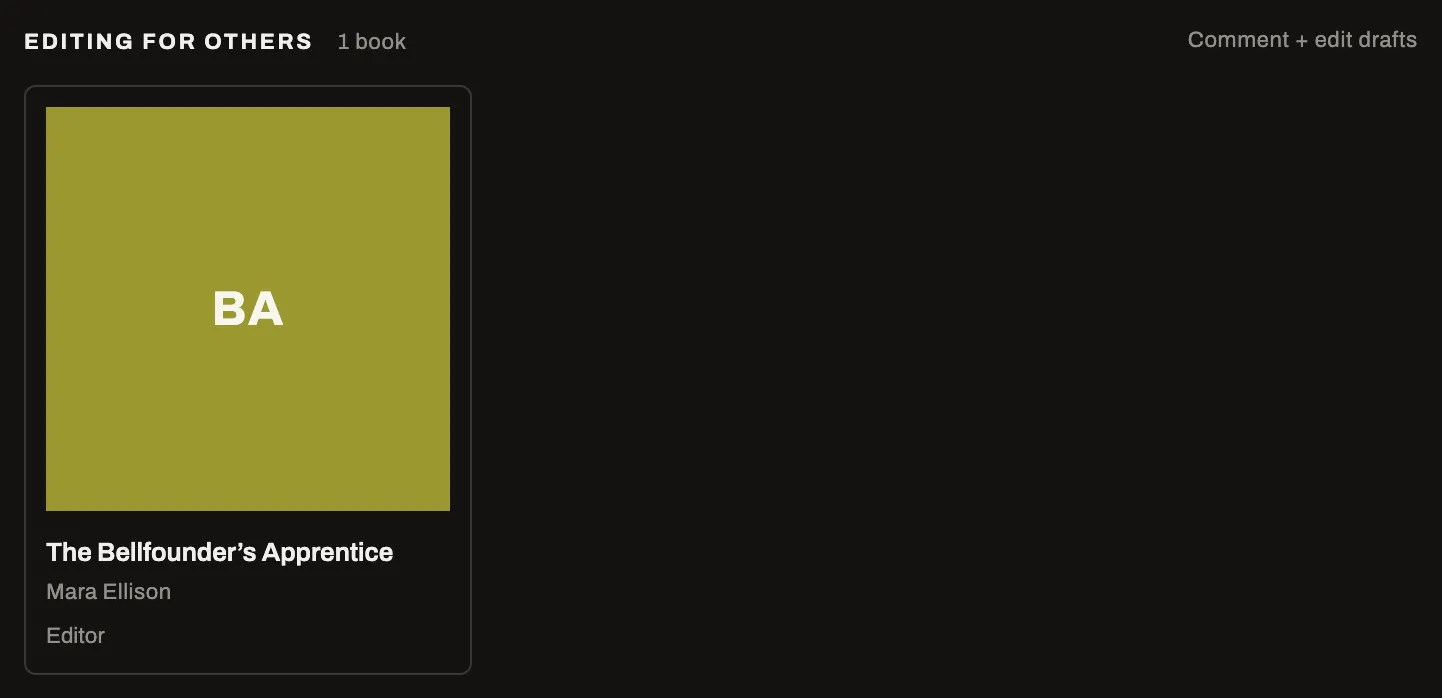
An editor finds your book under Editing for others, with Editor under your name.
What an editor sees
Pressing the book opens it with three parts: a list of what they can open on the left, the text in the middle, and an Edits panel on the right.
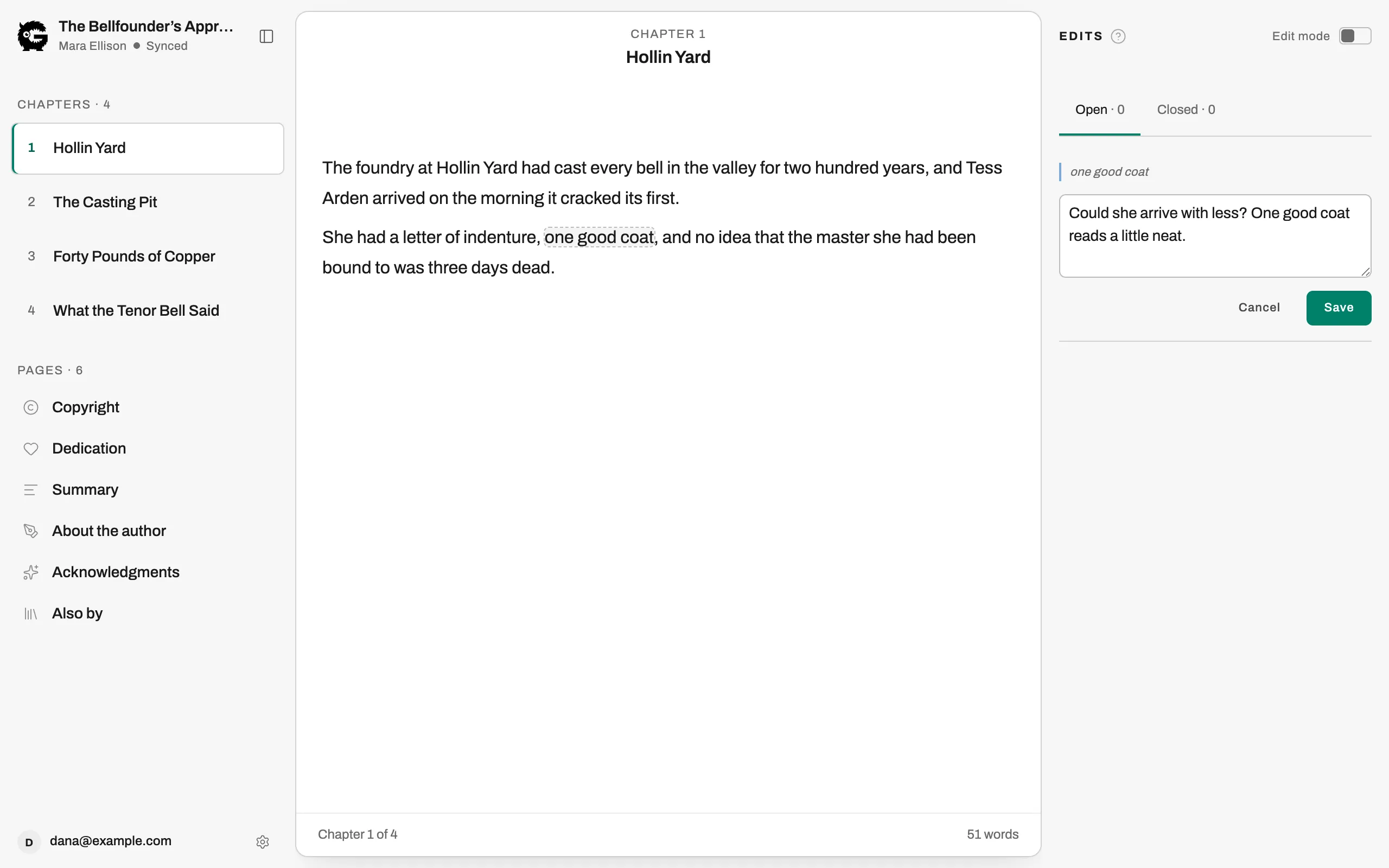
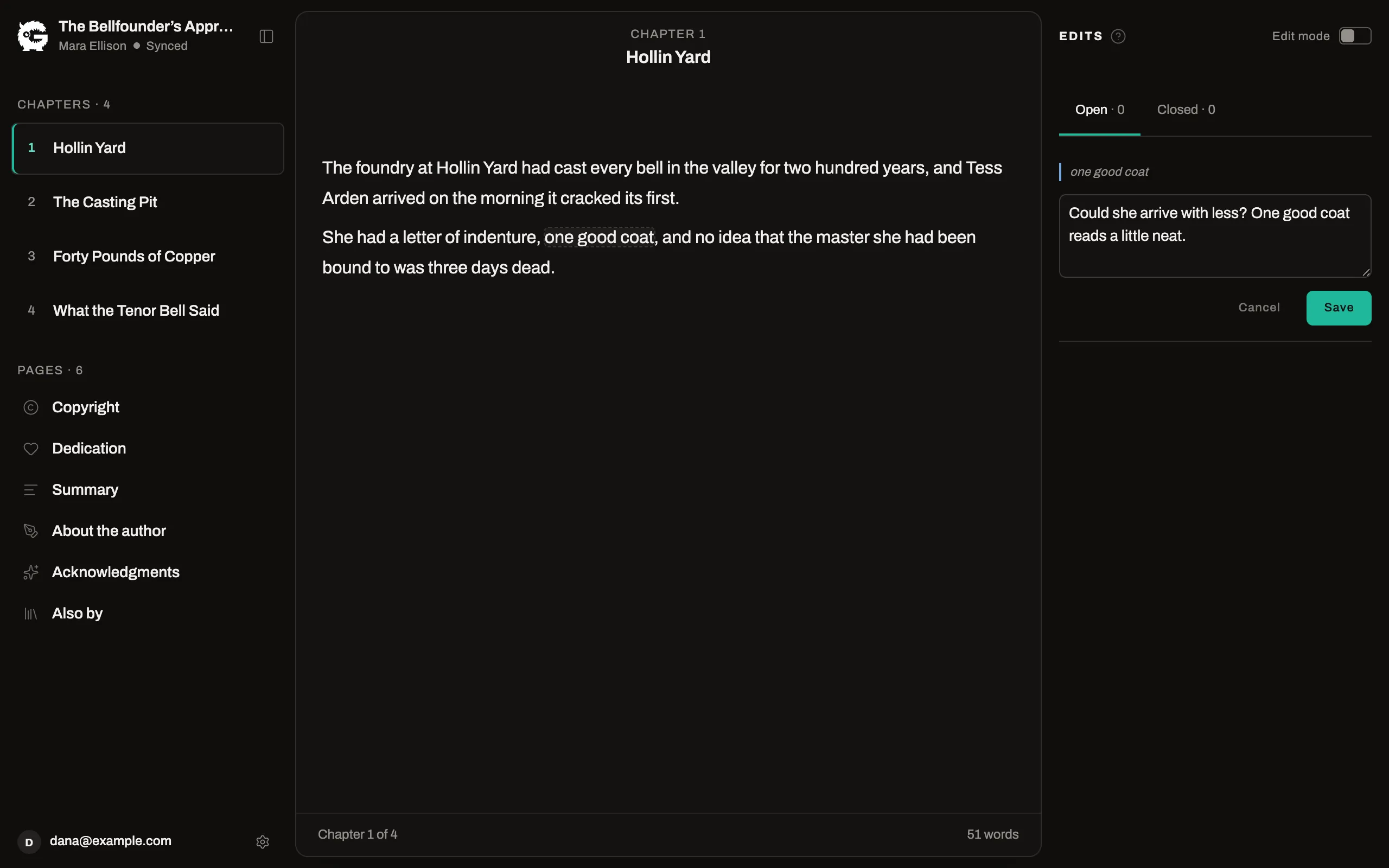
- The list. Every chapter and part of the book, and under Pages its Copyright, Dedication, Summary, About the author, Acknowledgments and Also by pages. The Title page is not there.
- The text. They read it as you wrote it. They cannot type in it unless they turn on Edit mode.
- The Edits panel. Their comments, under Open and Closed. A help icon beside Edits explains the panel to them.
Comments
To comment, an editor selects a passage. The passage appears in the panel over a box to type in, with Cancel and Save. The saved comment is listed under Open, and its passage stays highlighted in the text.
An editor sees their own comments, not another editor’s, and none of your readers’ answers.
When you reply, a mark appears beside that chapter or page in their list. They open the comment to read the thread and can reply in turn.
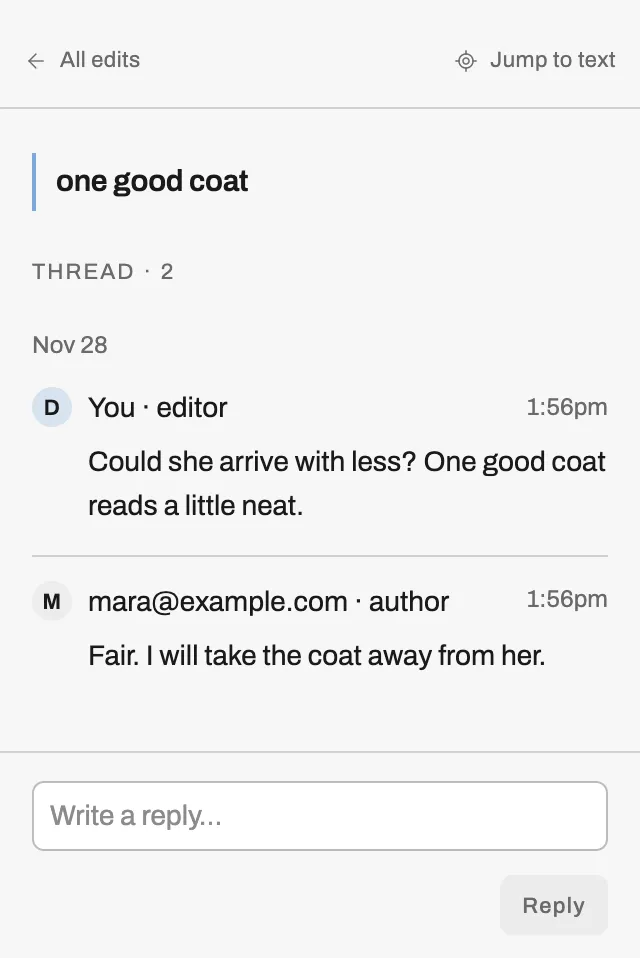
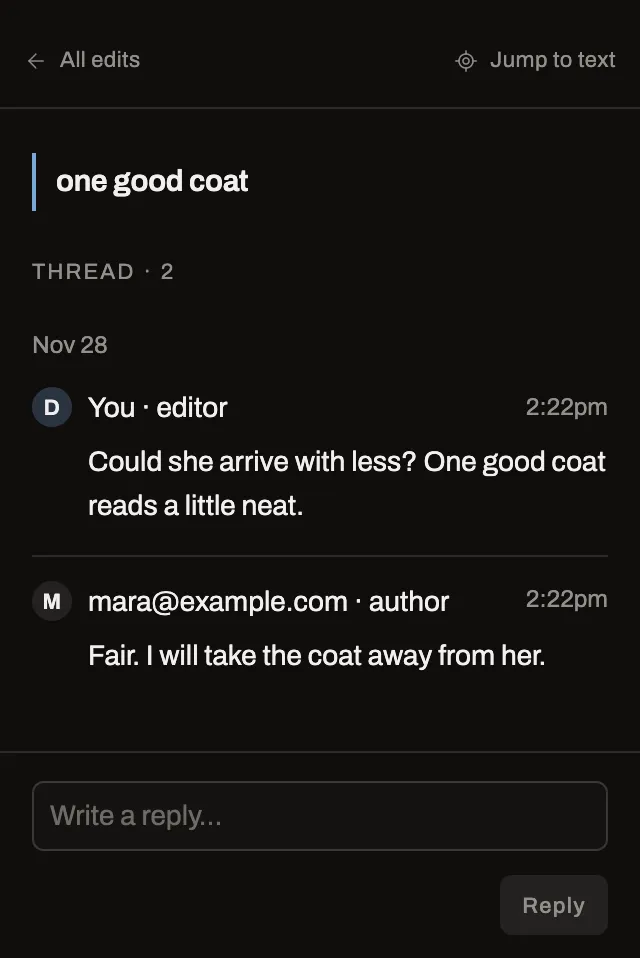
- The editor has no Resolve or Ignore. Only you close a comment.
- A comment you closed moves to their Closed tab and reads “Resolved by the author” or “Ignored by the author”, with the date.
- You are named by your email address.
Edit mode
To change a chapter’s text, the editor turns on the Edit mode switch at the top of the panel. Pages and parts have no switch.
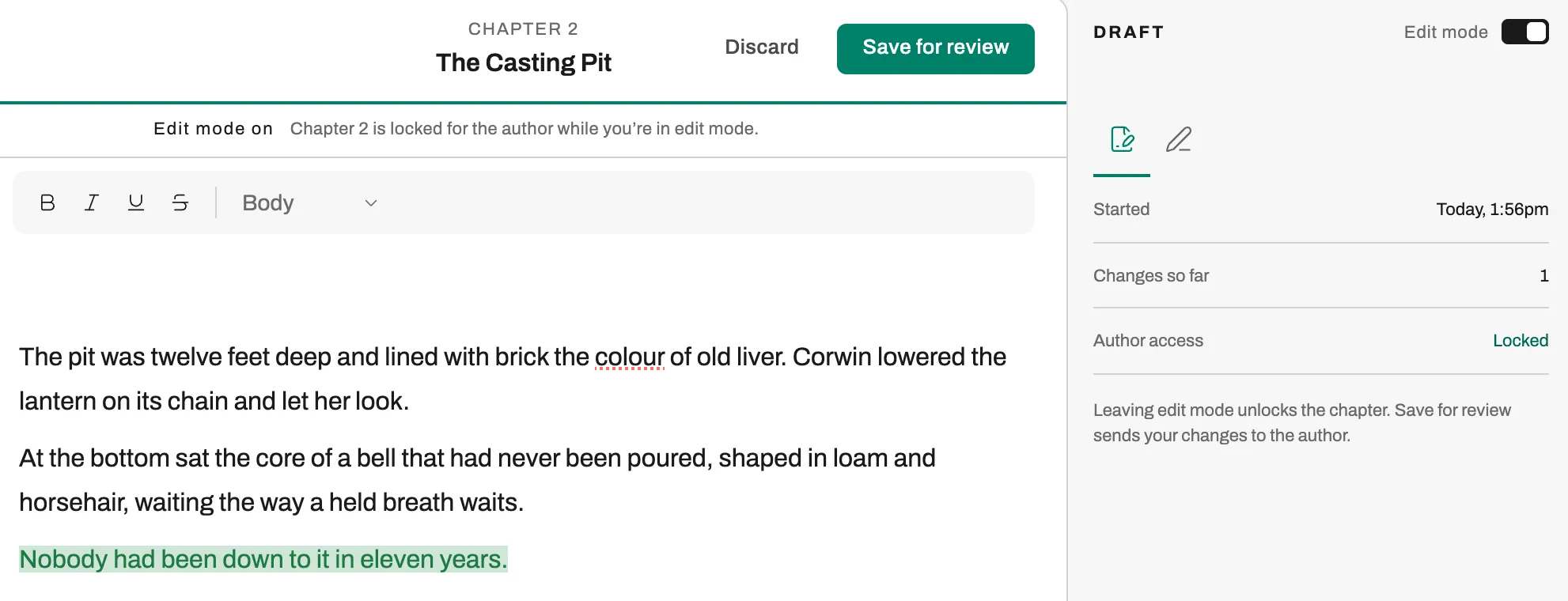
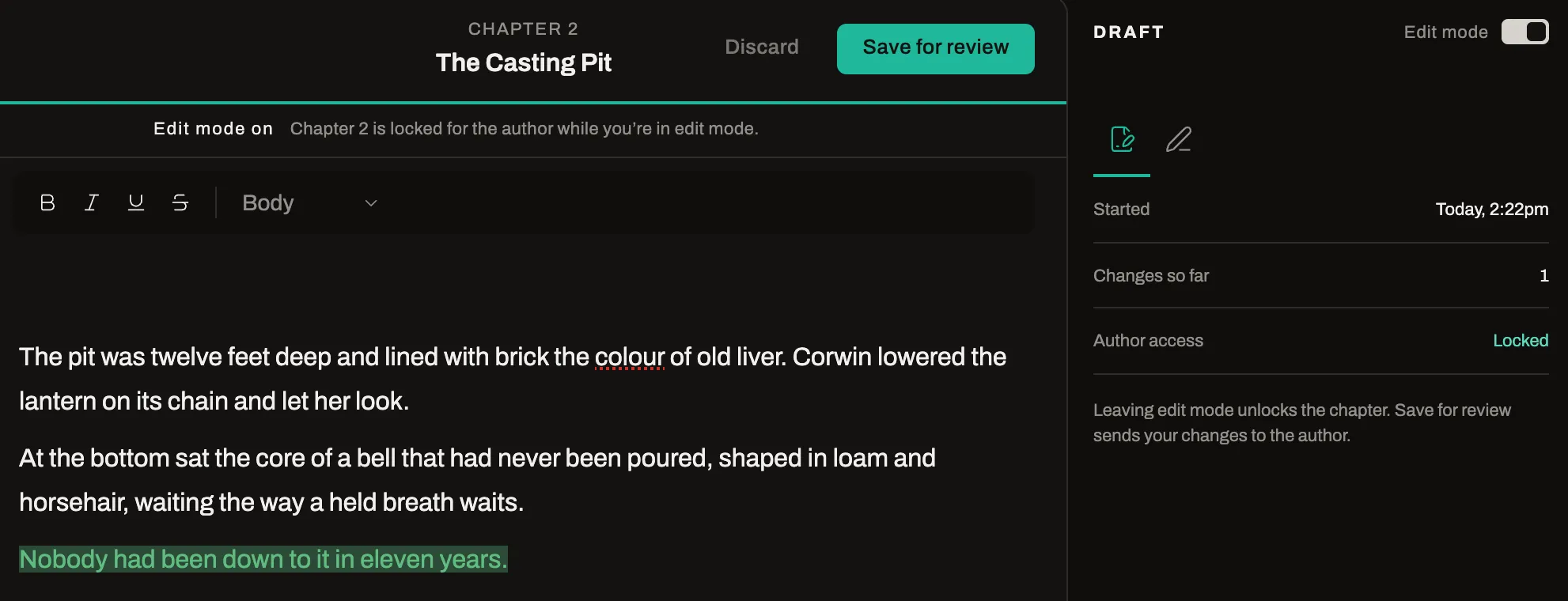
- The chapter locks for you, and a bar tells the editor so.
- They can type, delete, and use bold, italic, underline, strikethrough and headings. What they add shows in green.
- The panel gains a Draft tab with when they started, how many changes they have made, and how long before the chapter is released, if you set that rule.
- Comments are paused on that chapter while Edit mode is on.
- Their chapter is marked Your draft in their list.
They finish in one of two ways. Save for review sends you the changes. Discard throws them away, after asking. Either one unlocks the chapter for you. If they turn the switch off with changes made, they are asked which they want:
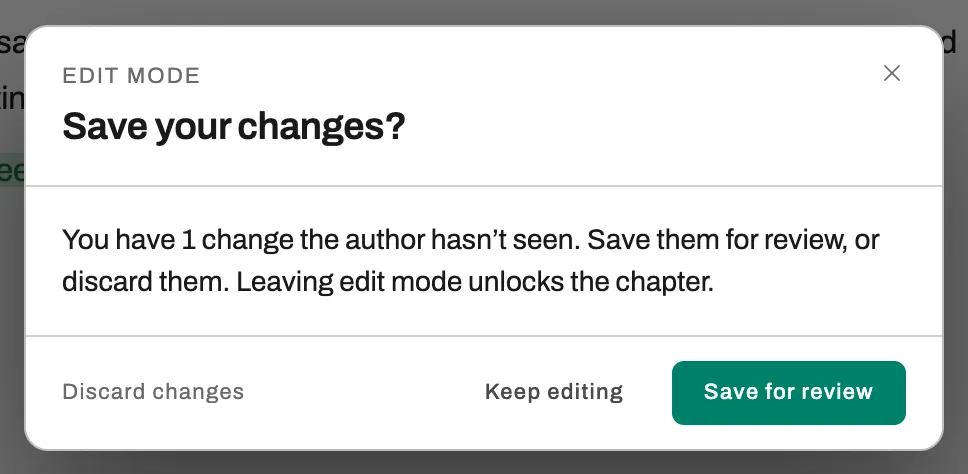
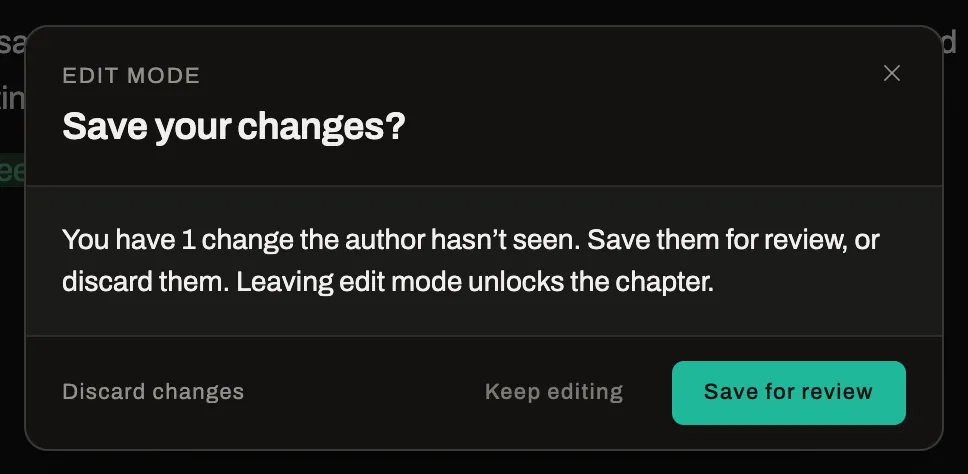
What an editor cannot do with Edit mode:
- Work on a second chapter while one is in Edit mode, unless you turn on Allow editing multiple chapters at once. The switch is greyed out, with “Save or discard your other changes first”.
- Start again on a chapter whose changes you have not finished reviewing. The switch reads “Waiting for the author’s review”.
- Edit a chapter another editor has in Edit mode.
- Change anything in your chapter directly. Their changes reach it only when you accept them.
If you unlock a chapter yourself, the editor’s changes so far are sent to you and they are told so, by email and on screen. The screen tells them the next time they open the chapter, come back to the window, or press Save for review or Discard.
What neither of them sees
A reader’s view and an editor’s view are the whole of what each can reach. Neither one has your sidebar, so neither can open:
- Your notes, tags, beats and the side panel’s other tabs.
- The outline, the whiteboard, your characters and locations, and the other tools.
- Kindle, Print, DOCX and anything else under Export. They cannot download the book.
- Revisions, the Users pages and the book’s settings.
- Your other books. They see only the books you ticked for them.
Opening the address of one of your own pages sends them back to their dashboard with “You do not have access to this page.”
Readers and editors do not see each other either. A reader sees only their own answers, and never the tags you put on them. An editor sees only their own comments and their own changes.
If your Pro plan ends
Readers and editors work under your plan, not their own. If your Pro plan ends, they can still open and read the book, but a reader can no longer send answers and an editor can no longer comment or use Edit mode. Free and Pro covers what else changes.
After you remove them
When you remove a reader or an editor, or clear a book in Manage access, the book is closed to them at once.
- The book is gone from their dashboard the next time it loads.
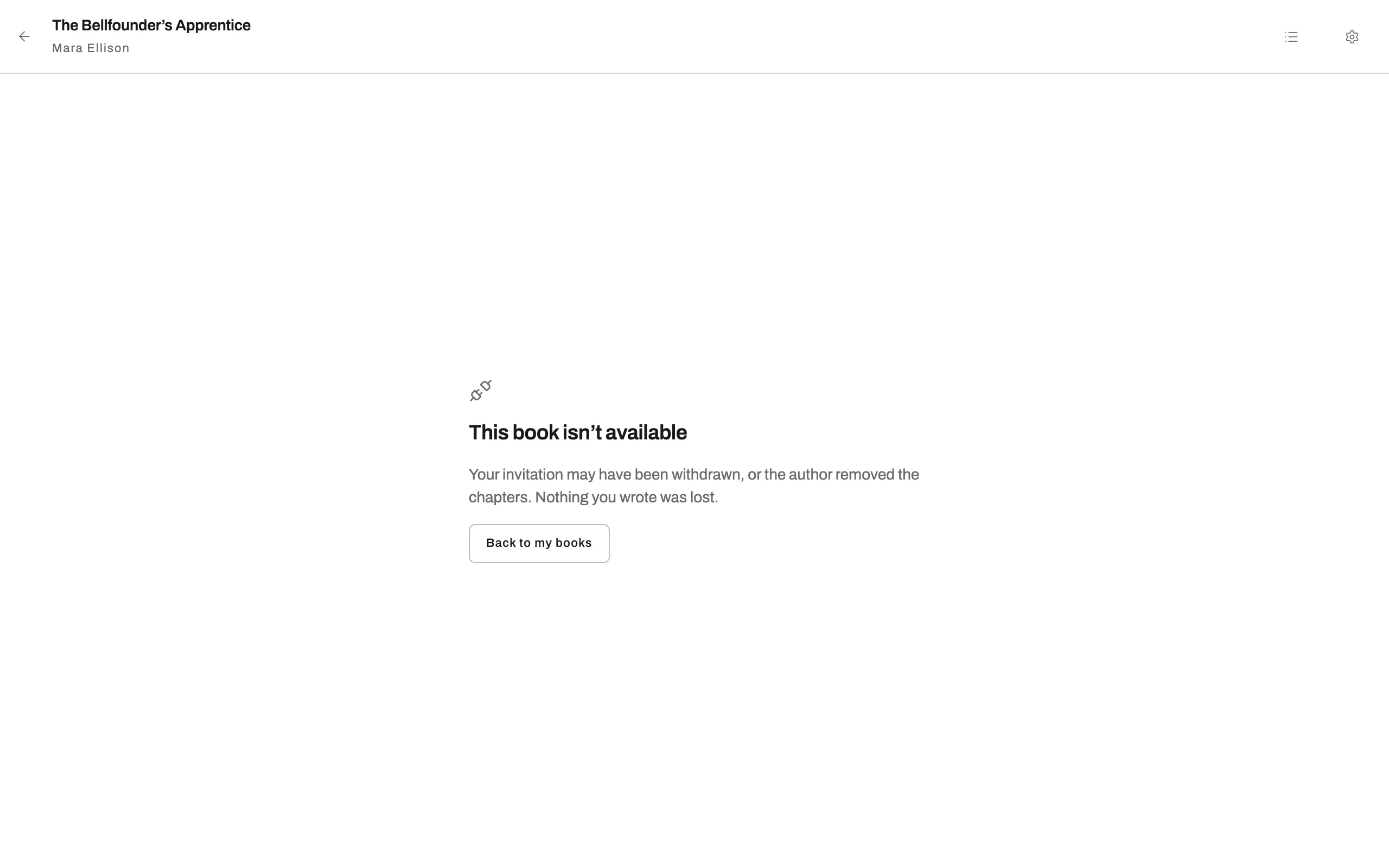
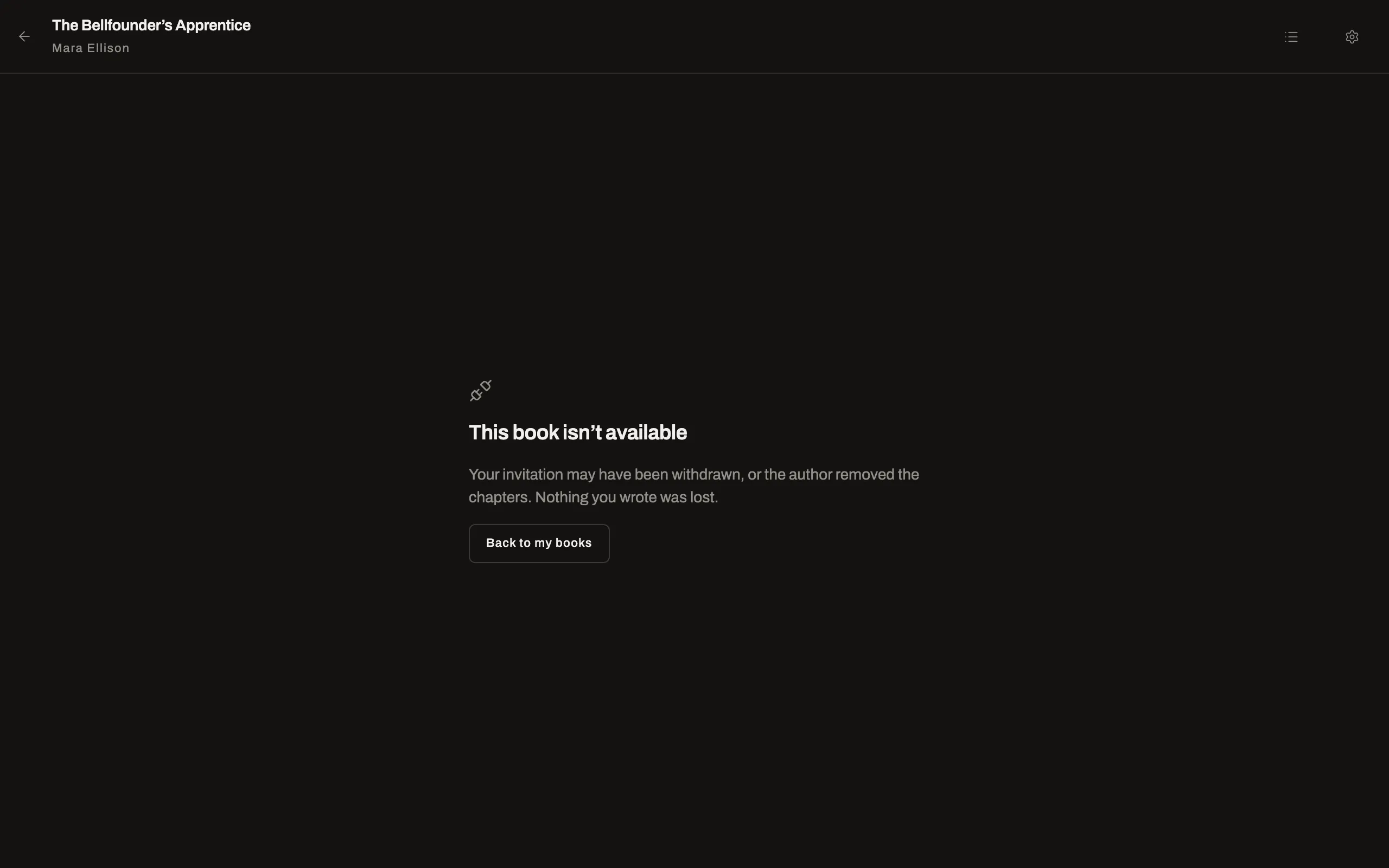
- If they have the book open, the next thing they do tells them it is no longer there. An editor in Edit mode is taken out of it at their next save and sent back to their dashboard; any chapter they had in Edit mode comes to you for review. A reader sees this:
- They are not sent an email saying so.
- With no other book shared with them, their dashboard is that of a new account, offering to start a book.
- What they gave you stays with you: a reader’s answers, an editor’s comments and the changes you accepted.
The two author-side articles cover removing someone, including what happens to a chapter an editor has in Edit mode.
Related
- Invite beta readers and read their feedback: inviting a reader, their progress and answers, and removing them.
- Write the feedback form your beta readers answer: the questions a reader meets at the end of each chapter.
- Ask readers about the whole book: the questions a reader meets at the end of the book.
- Work with an editor: inviting an editor, answering comments and reviewing their changes.
- Free and Pro: what Pro adds, readers and editors included.