DocsImport and files
Import from Google Drive
Updated
If your manuscript lives in Google Drive, you do not have to download it first. From Google Drive on the Import page fetches the files you pick, and they are split into chapters for review like any other file. Nothing reaches your book until you press Add to book.
Importing Word files and Google Docs from Drive is on every plan. Importing an EPUB from Drive is part of EPUB import, which is a Pro feature.
Step 1: Press From Google Drive
- Open the book you want to import into.
- In the sidebar, choose Tools, then Import under Files.
- Press From Google Drive. It is the second button, beside Upload files.


Once the page has a file on it, the button moves to the top of the page, beside Add files. Files from Drive and files from your computer can go into the same import.


Step 2: Sign in to Google and allow access
Google opens its own window for this step. It is Google’s screen, not Gnarlywog’s, so it is not pictured here.
- Choose your Google account, and sign in if Google asks.
- Read what Google asks you to allow, then continue.
Google asks you to let Gnarlywog use the Drive files you choose with it. Google may word this broadly, as seeing and changing those files. Gnarlywog only downloads a copy of each file you pick in the next step. It does not change or delete anything in your Drive, and it cannot see your other files.
If your browser blocks pop-up windows, allow them for Gnarlywog and press the button again. While Google’s window is open, the buttons on the Import page cannot be pressed.
Step 3: Pick your files
Google’s file picker opens next. It lists your folders, your Word files and your Google Docs.
- Find your manuscript. You can pick several files at once.
- Confirm your choice in the picker.
- Wait while the files are fetched and read.
Other kinds of file are not listed, including Markdown files. To import Markdown, download the file and use Upload files. If you close the picker without choosing, nothing is added.
A Google Doc is turned into a Word file by Google on the way in, so it follows the same rules as a Word file: chapters split at each Heading 1.
Step 4: Review the chapters and add them
Each file appears under Source files with the label DRIVE, and its chapters appear under Chapters. A Google Doc’s name ends in .docx. From here the steps are the same as for a file from your computer: choose Book or Single, rename, reorder or leave out chapters, then press Add to book.
Import a Word manuscript walks through those steps with pictures, from its Step 3 onward.
Import an EPUB from Google Drive
The Import EPUB page has the same button. It is a Pro feature, and it makes a new book.
- On your dashboard, press Import EPUB.
- Press From Google Drive, then sign in and allow access as above.
- Pick one EPUB. The picker lists only EPUB files, and you can pick one at a time.
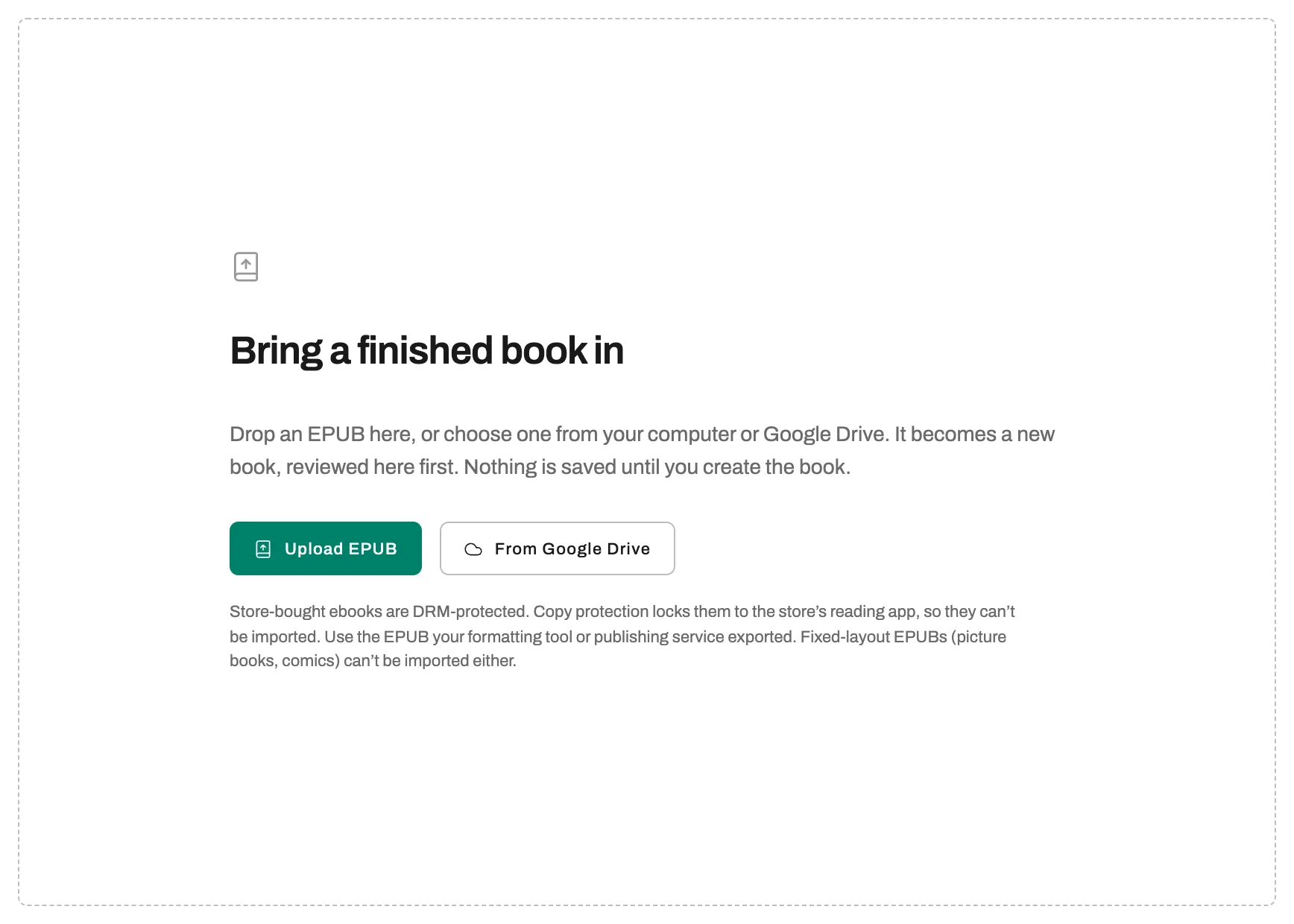
An EPUB from Drive can be up to 25 MB. For a larger one, download it and use Upload EPUB, which takes up to 150 MB. The review that follows is the same either way: see Import an EPUB as a new book.
If something goes wrong
A message appears at the corner of the page:
- “The Google sign-in window was closed before finishing.” You closed Google’s window, or it never opened. Press the button again. If nothing opened, allow pop-ups first.
- “Could not load Google Drive. Check your connection and try again.” Google’s part of the page did not load. A browser extension that blocks Google can also cause this.
- “Selected files exceed the 100 MB import limit.” The files you picked add up to more than 100 MB. None are added. Pick fewer at a time.
- “Could not import from Google Drive. Try again.” Anything else.
- “This EPUB is over 25 MB — download it and import it from your computer.” On the Import EPUB page only.
- “Could not fetch that file from Google Drive. Try again.” On the Import EPUB page only.
On the Import page, a single file that could not be fetched, or is over 25 MB, is listed under Source files with the label SKIPPED and adds no chapters. The other files you picked are still read. Hover over the label, or open the file’s row, to see why:
- “This file is over 25 MB — download it and import it from your computer.”
- “Could not fetch this file from Google Drive. Try again.”
What Gnarlywog keeps
- The chapters you add to your book, like any import.
- Not your Google sign-in. The access Google grants is used once to fetch your files and is not stored, which is why Google’s window opens again each time you press the button.
- Nothing else from your Drive.
You can remove Gnarlywog from the connected apps in your Google Account at any time.
Related
- Import a Word manuscript: the review and Add to book steps in full.
- Import a Markdown manuscript: Markdown files come from your computer.
- Import an EPUB as a new book: the review an EPUB gets, and what cannot be imported.
- Free and Pro: what each plan includes.