DocsBook pages
Fill in your book's title page
Updated
Book pages are the pages around your chapters: the title page, the copyright page, a dedication and so on. Every book has seven of them, listed under Pages in the sidebar, below your chapters. This article covers the first one.
The Title page holds the facts about your book: its title, your name, its place in a series, the publisher and the ISBN. Gnarlywog builds the printed title page from them, and uses the title and author everywhere else the book is named.
Open the Title page
- Open the book from the dashboard.
- In the sidebar, choose Content.
- Under Pages, below the chapter list, press Title page. Scroll the sidebar if you cannot see it.
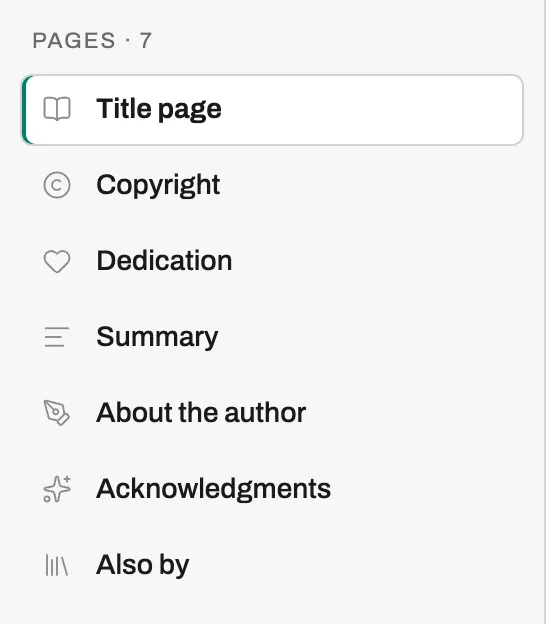
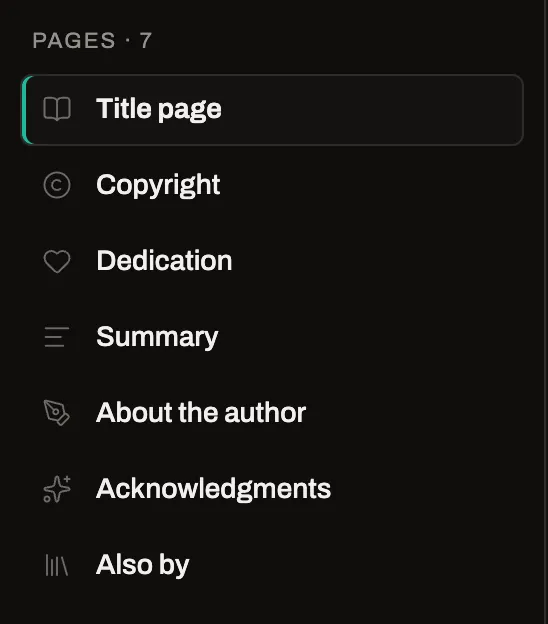
A book you have just made with New book opens on this page by itself. Create a book walks through naming a new book here.
What is on the page
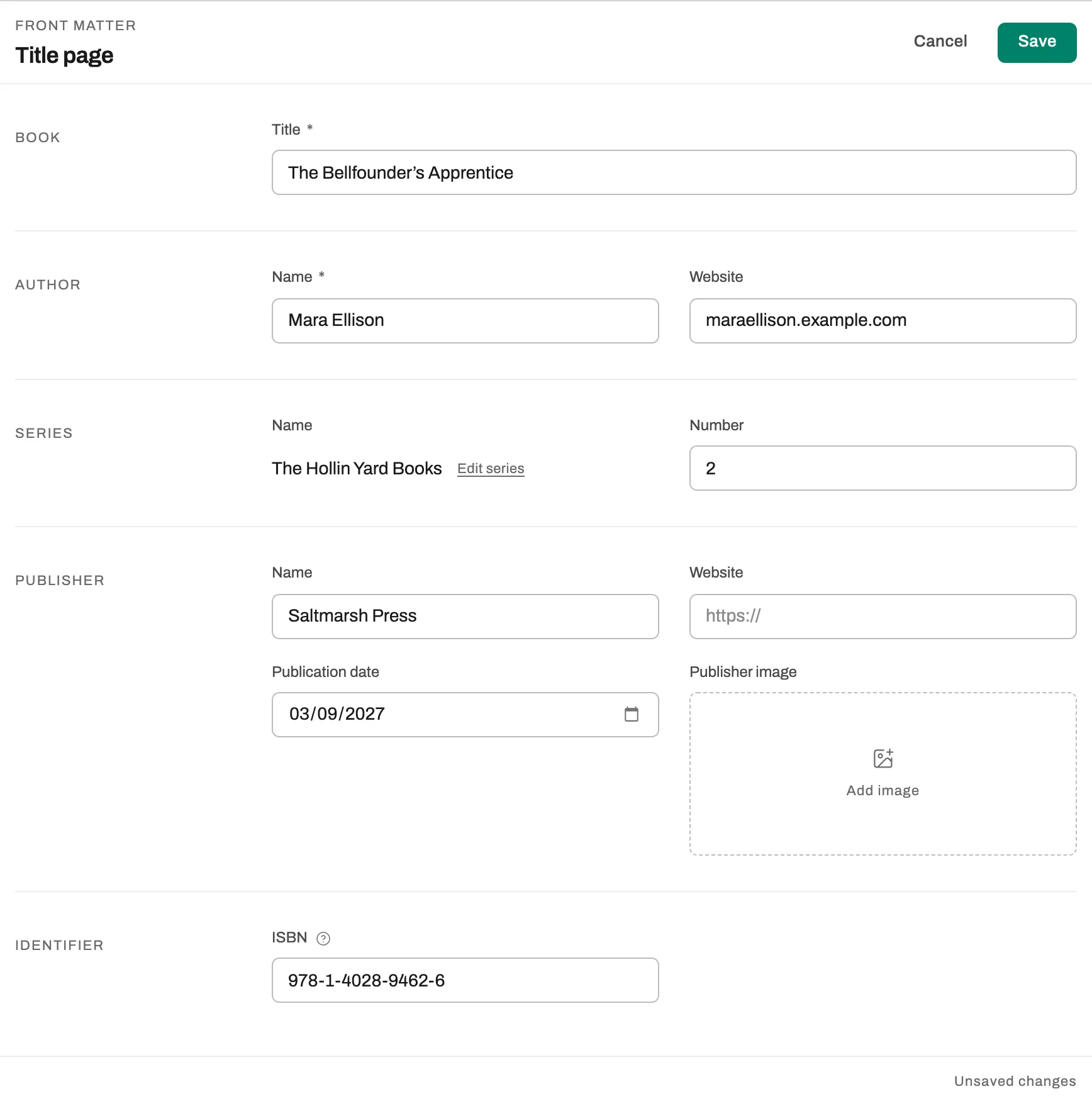
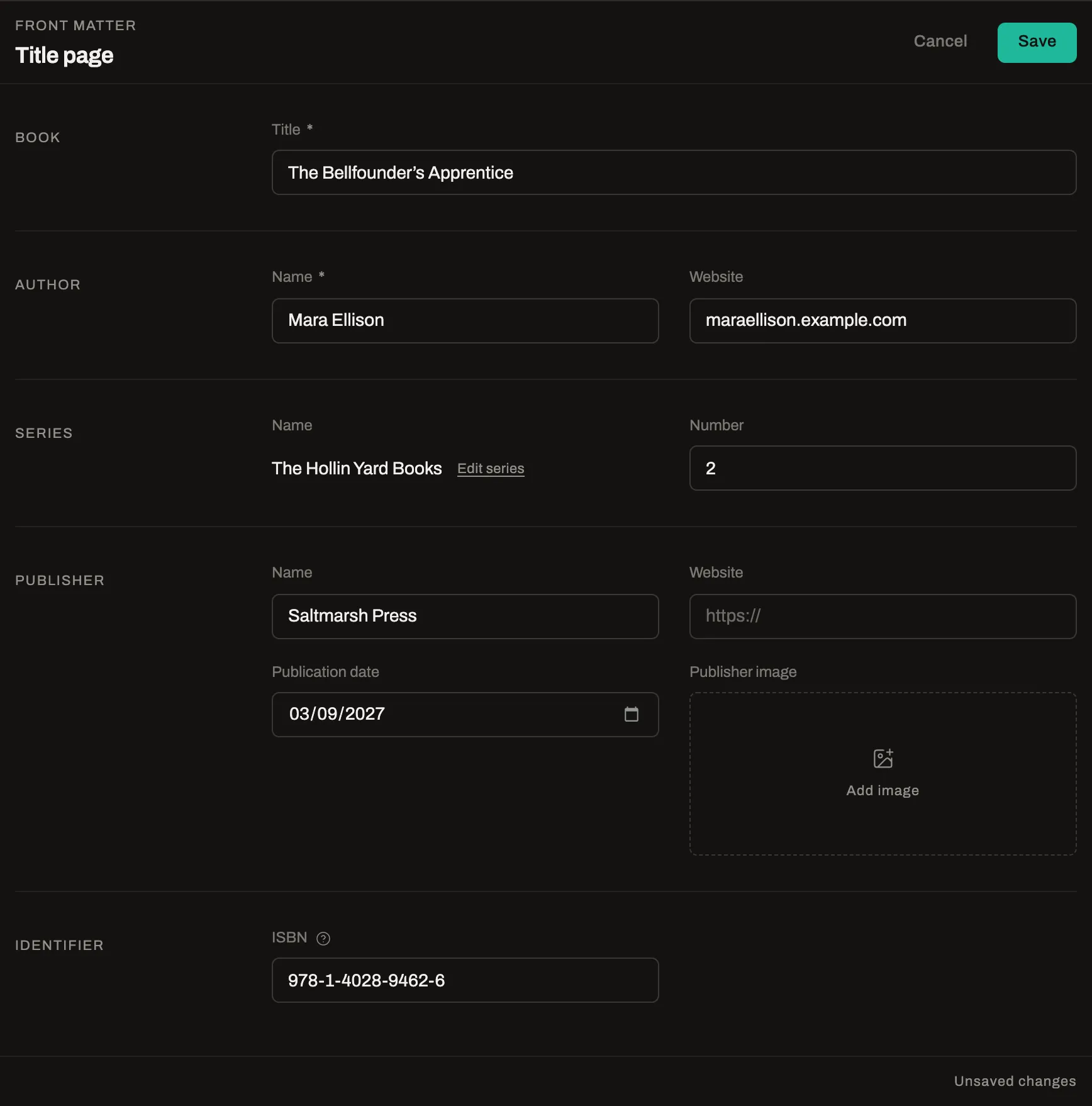
The page is a form in five sections. Only the two boxes marked with a star have to be filled in.
- Book. The Title of the book. A new book is called “Untitled book” until you change it.
- Author. The Name you write under, and your Website if you want it printed under your name. A new book starts with “Author Name” here, so replace it.
- Series. The Name of the series, and the book’s Number in it. This section is only there when the book belongs to a series, which is a Pro feature. The name cannot be changed here, because every book in the series shares it: press Edit series beside it to open the series. Number is this book’s own, and must be a whole number above 0. See Group your books into a series and Add, move and order the books in a series.
- Publisher. The publisher’s Name and Website, the Publication date, and a Publisher image such as a logo. Press Add image to pick a picture you have already uploaded or to upload a new one.
- Identifier. The book’s ISBN.
A website can be typed with or without https:// in front.
Save your changes
- Change any box. Cancel and Save appear at the top right, and the bottom right corner of the page reads Unsaved changes.
- Press Save. The two buttons go away and the corner reads All changes saved.
To undo what you have typed since the last save, press Cancel instead. Every box goes back to what it held.
The page does not save by itself. If you open a chapter or another page before you press Save, a dialog asks Discard changes? first. Keep editing takes you back to the page with your changes; Discard drops them and goes on.
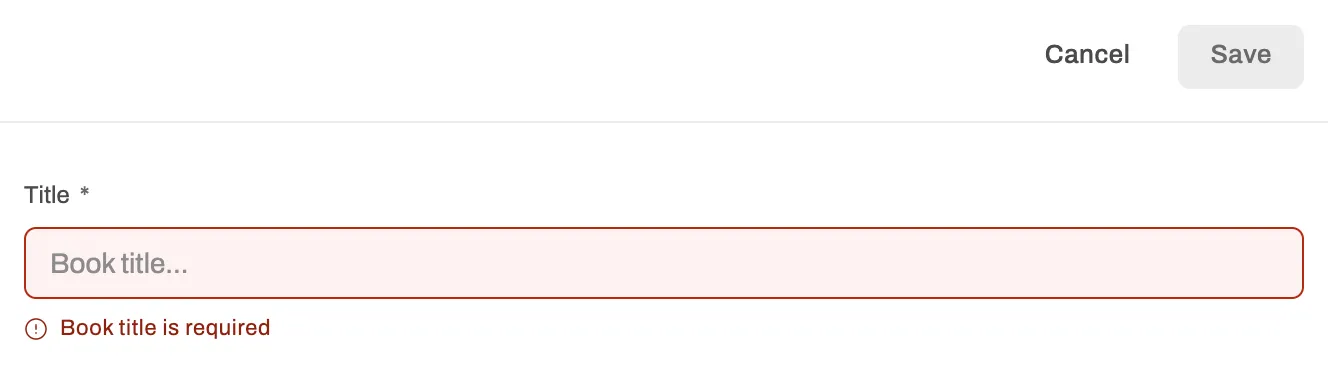
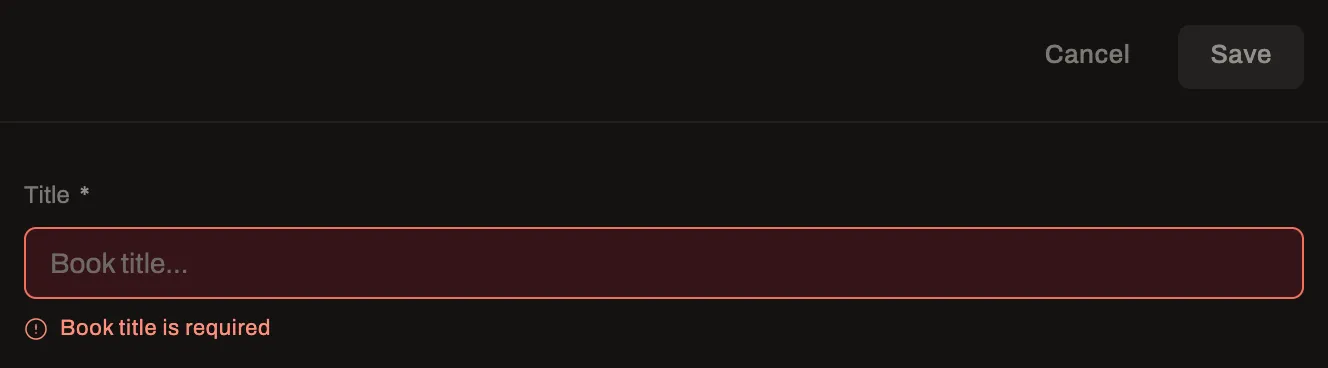
Save is dimmed while something on the page needs fixing. The box with the problem turns red and says why underneath:
- “Book title is required” or “Author is required” when one of the two starred boxes is empty.
- “Author website must be a web address, like example.com”, or the same for the publisher, when a website is not a web address.
- “Series number must be a whole number above 0” when Number holds anything else.
Where the title and author show up
Once saved, the title and your name replace the old ones everywhere the book is named:
- At the top of the sidebar, in every part of the book.
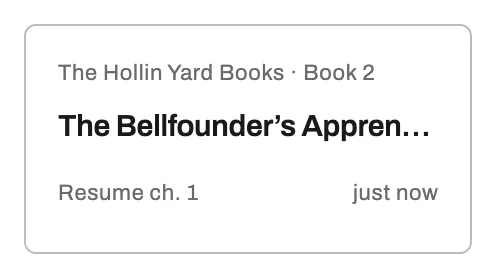
- On the book’s card on the dashboard. For a book in a series, the card under Continue writing also shows the series and the number, such as “The Hollin Yard Books · Book 2”.
- In the file name suggested at the top of the Kindle, Print and DOCX pages under Export, which starts as your name, a dash and the title.

The title page in your finished book
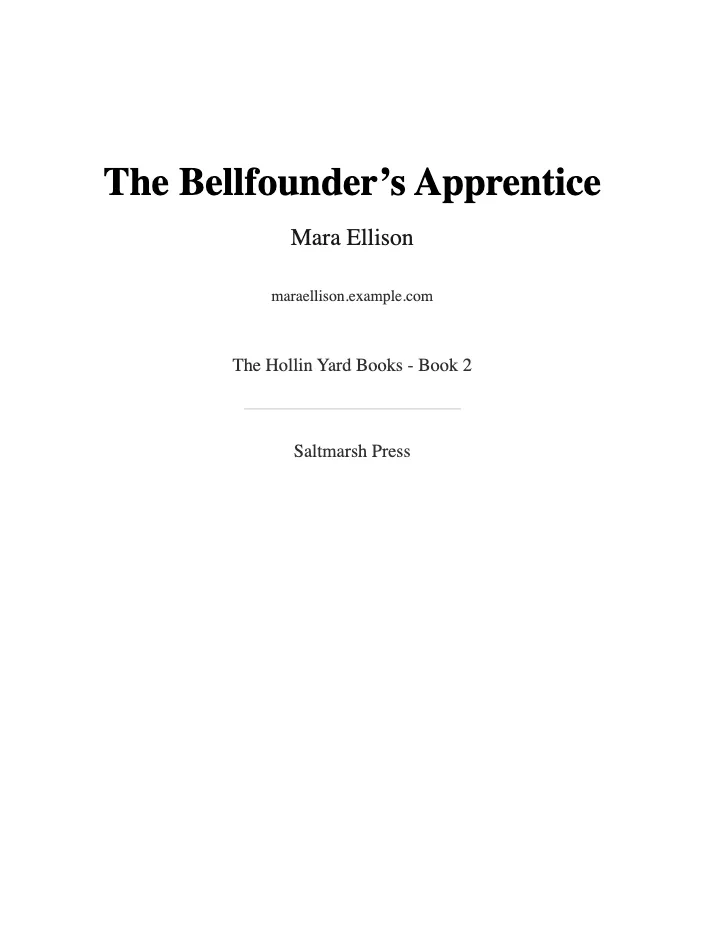
When you export the book, its title page is made from this form. From top to bottom it has the title, your name, your website, the series with the book’s number, a short line, then the publisher’s name, website and image. A box you left empty leaves no gap.
The other boxes are used elsewhere. The ISBN is printed on the copyright page and stored in the Kindle file’s details. The Publication date is stored in the Kindle file’s details and is not printed on the title page.
Each export treats the page a little differently. All three are under Export in the sidebar.
- Kindle always includes the title page. There is no switch for it.
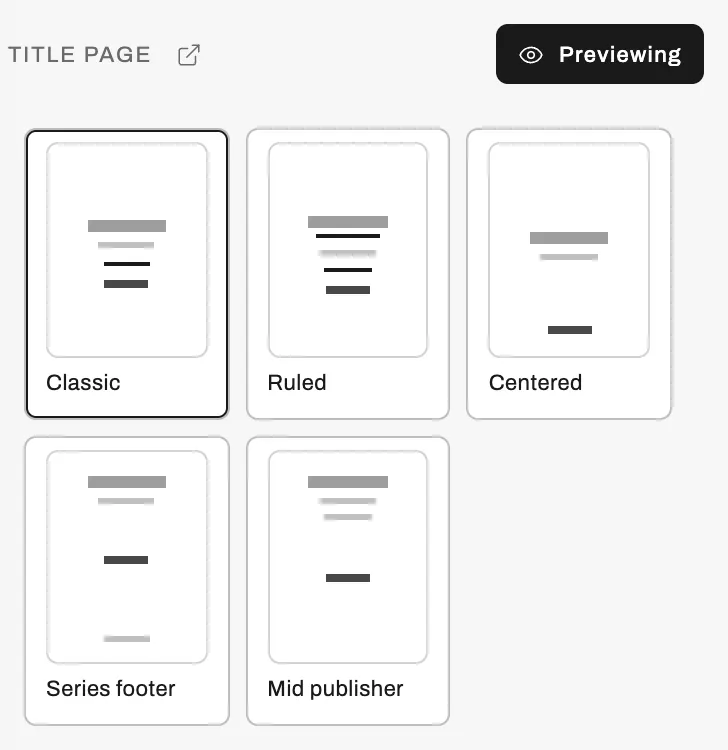
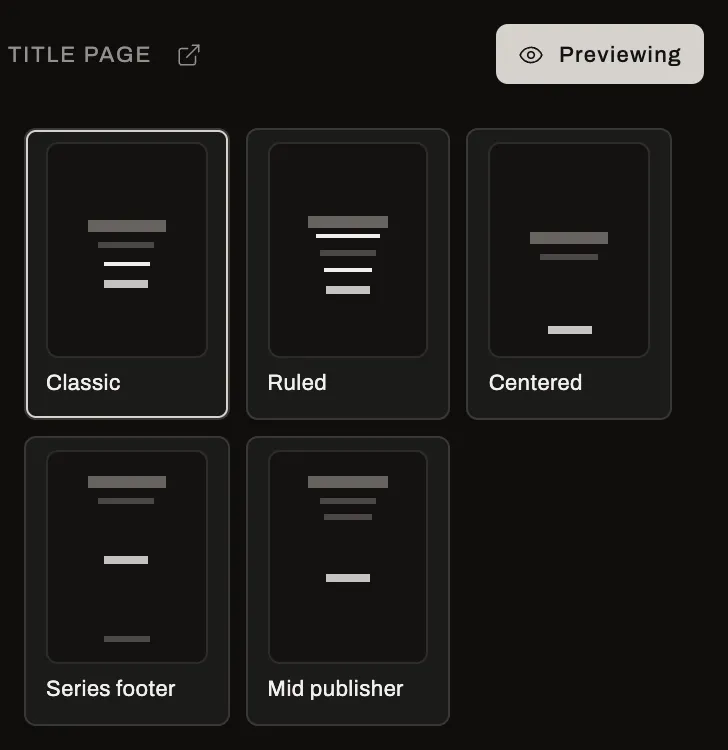
- Print always includes it too, and lets you choose how it is arranged. Open the Pages tab of the panel on the right and pick one of the five under Title page: Classic, Ruled, Centered, Series footer or Mid publisher.
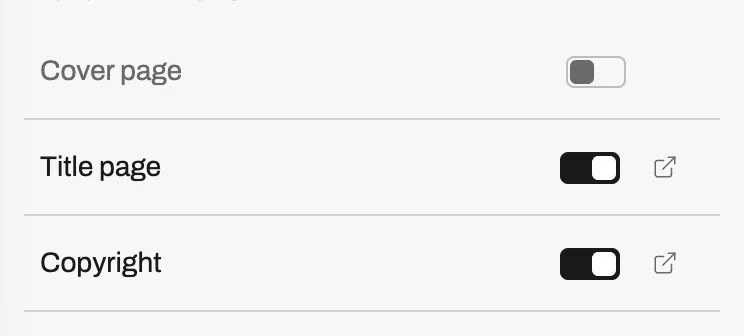
- DOCX is the one export where you can leave the title page out. Open the Review tab of the panel on the right and turn off the Title page switch under Included pages. A DOCX title page does not show the publisher image.
When there is no connection
The Title page needs a connection. While you are offline its row under Pages is dimmed, and if the connection drops while the page is open you are moved to a chapter. Keep writing without a connection has the rest.
Related
- Create a book: start a book and give it its title and author.
- Find your way around a book: the sidebar, its Content tab and the Pages list.
- Open a book’s settings and delete a book: what a book’s Settings page holds, which is not its title or author.
- Free and Pro: how the two plans differ: what Pro adds, series included.
- Add, move and order the books in a series: putting a book in a series and numbering the books.
- Share Credit and book pages across a series: one set of author and publisher details for every book in a series.
- Write your book’s copyright page: the page after this one, which prints the ISBN you enter here.
- The other book pages: Dedication, Summary, About the author, Acknowledgments and Also by.
- Export your book for Kindle and Export your book as a print-ready PDF: the files the title page is printed in.