DocsSeries
Share characters and locations across a series
ProUpdated
In a series, a character or a location is made once and used in as many of the books as you like. The series has a page for each, Series characters and Series locations, that lists them all and shows which books each is in. Series are a Pro feature; Group your books into a series covers starting one.
Step 1: Open Series characters
- Open the series: press Edit series on its row of the dashboard.
- Press the Tools tab in the sidebar. Characters opens first. Locations is the row under it.
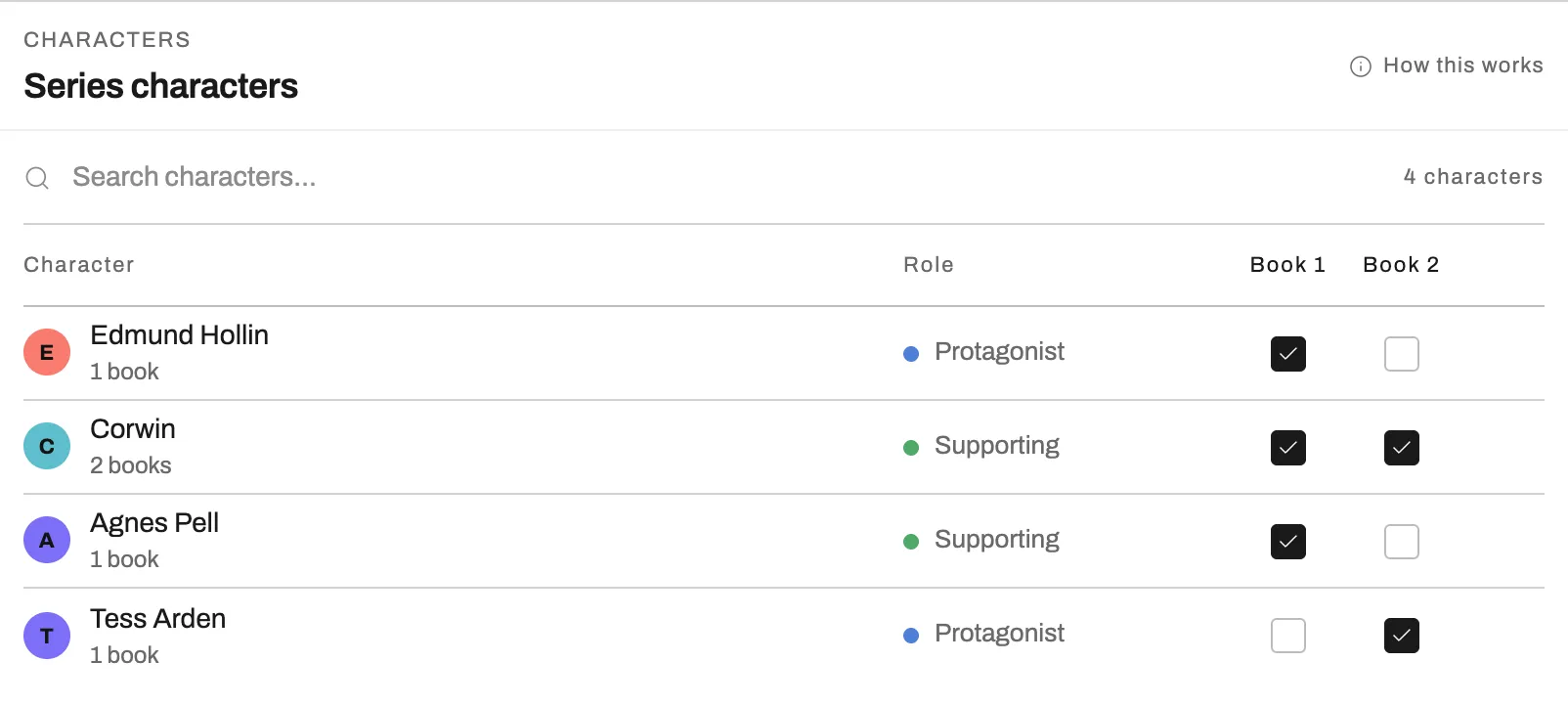
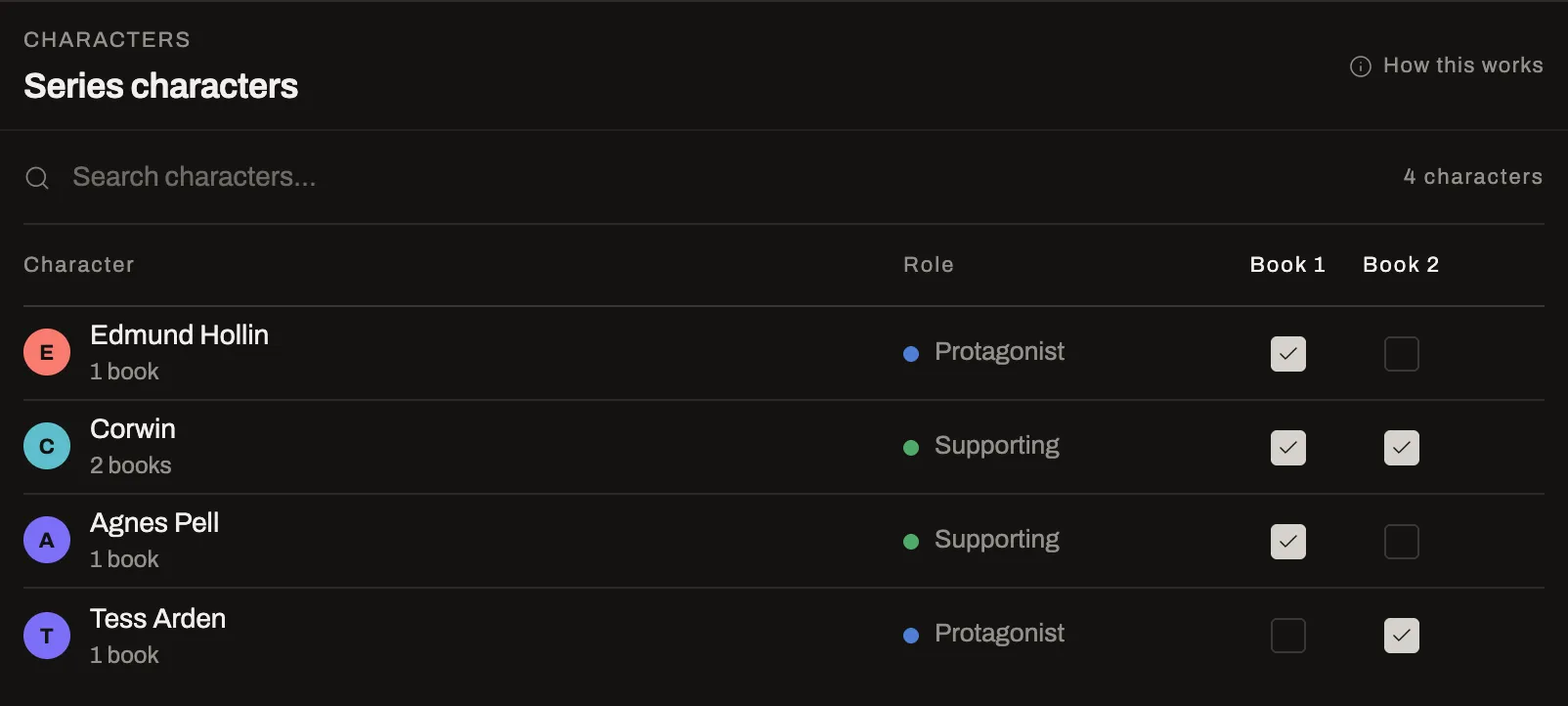
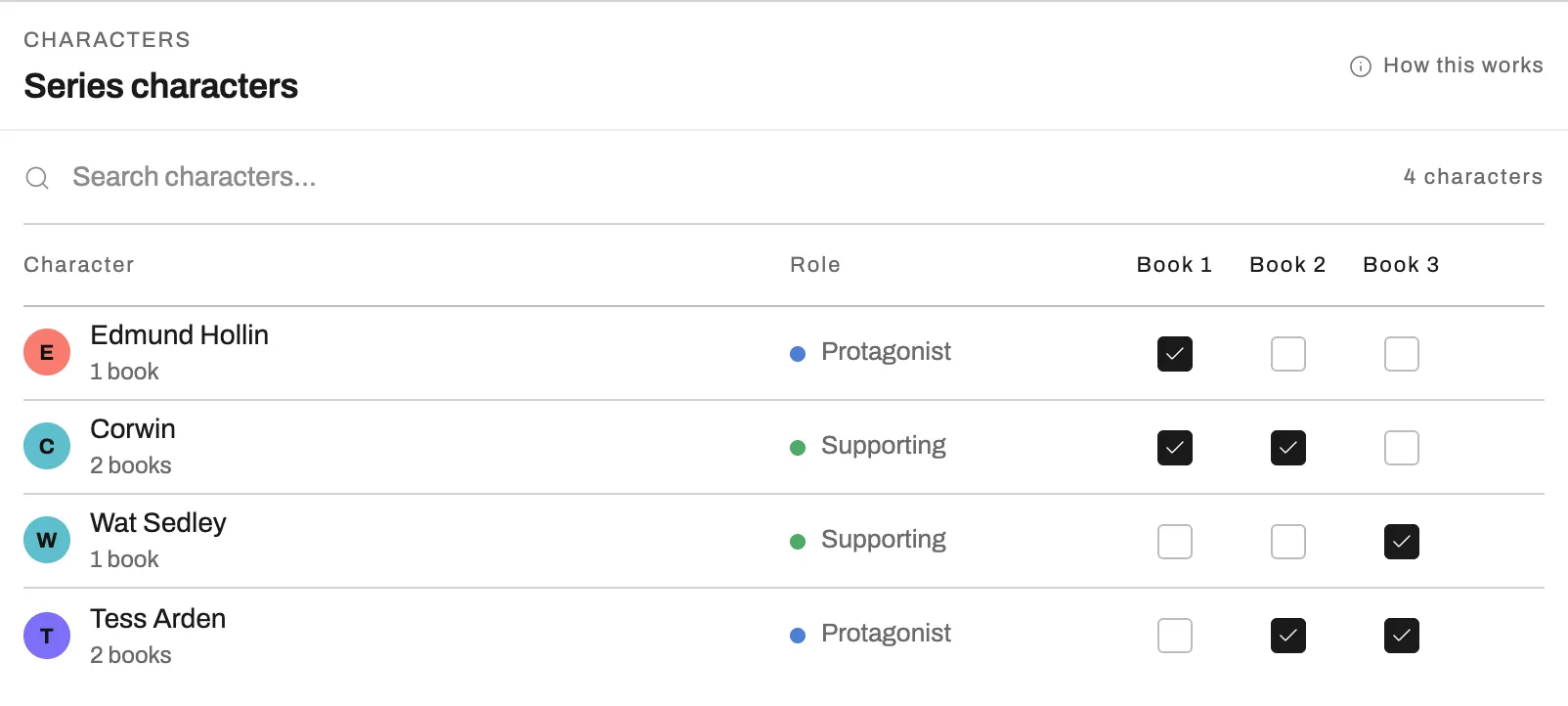
Each row is one character, with their role and, under the name, how many books they are in. Each book of the series has a column, headed Book 1, Book 2 and so on in the series’ order. Point at a heading to see the book’s title. A ticked square means the character is in that book.
The search box narrows the table by name, and the count beside it changes to “Showing 1 of 4”.
You cannot make a character on this page. Make them in a book, as Keep a profile for each character shows, and they join the series when you save.
Step 2: Put a character in another book
- Find the character’s row.
- Press the empty square under the book.
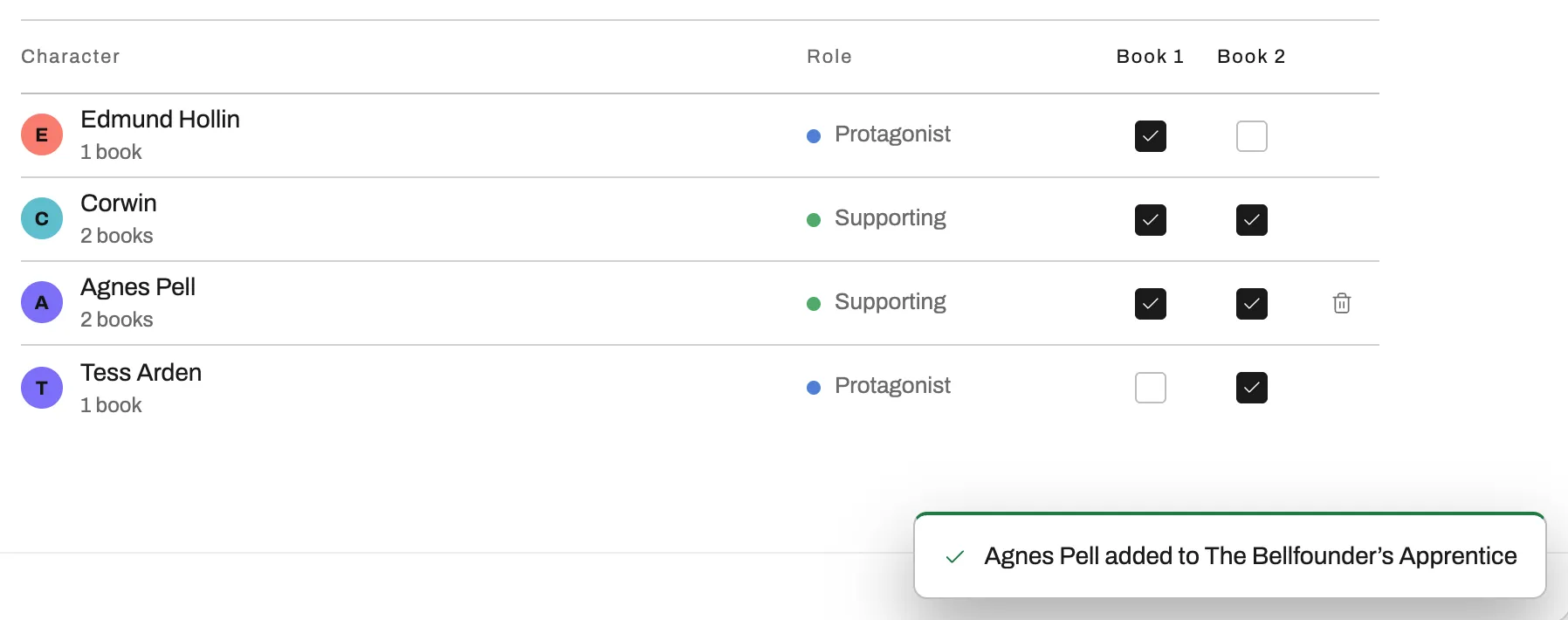
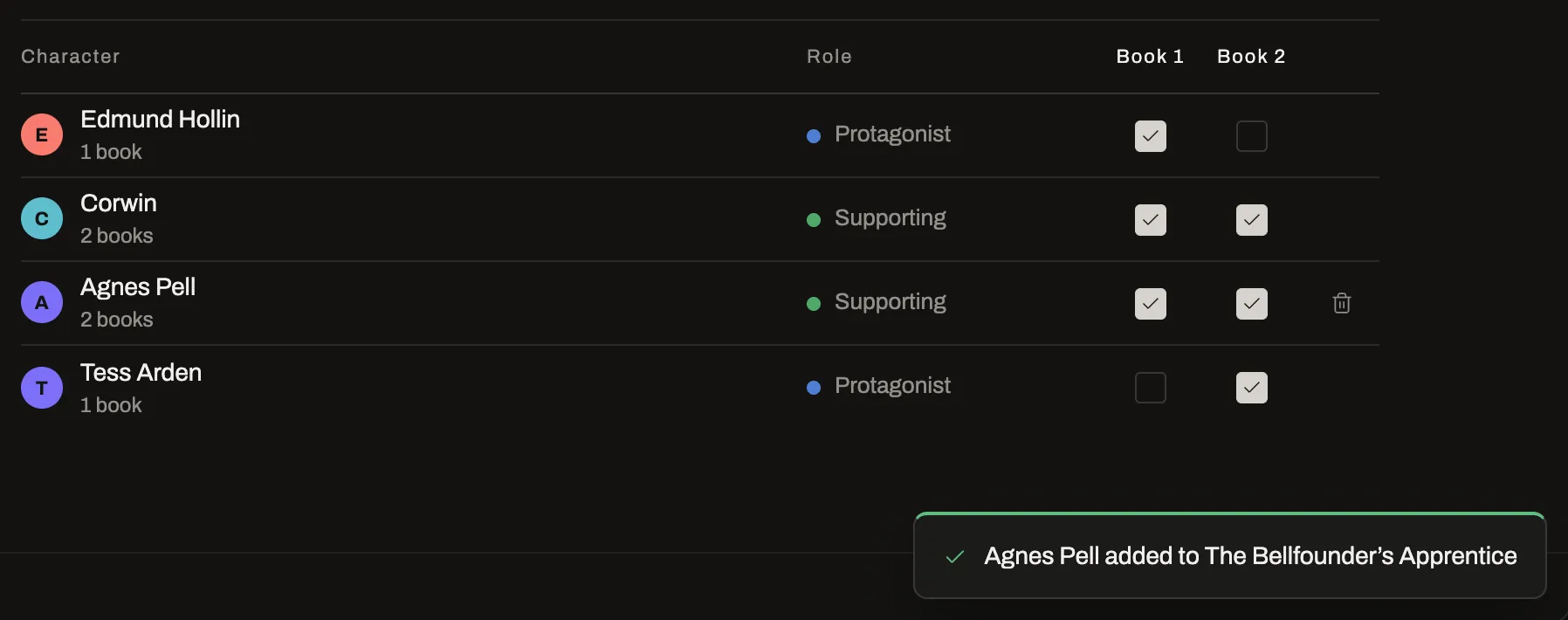
The square is ticked at once, and a message at the foot of the window names the character and the book. There is nothing to save.
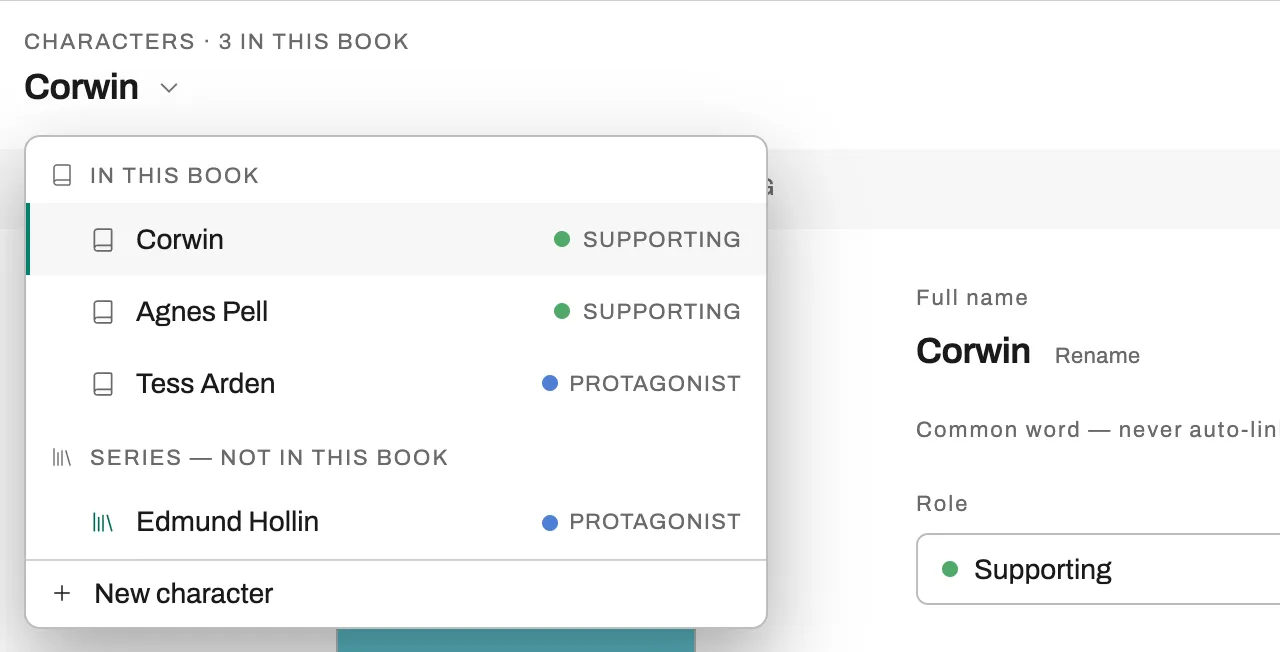
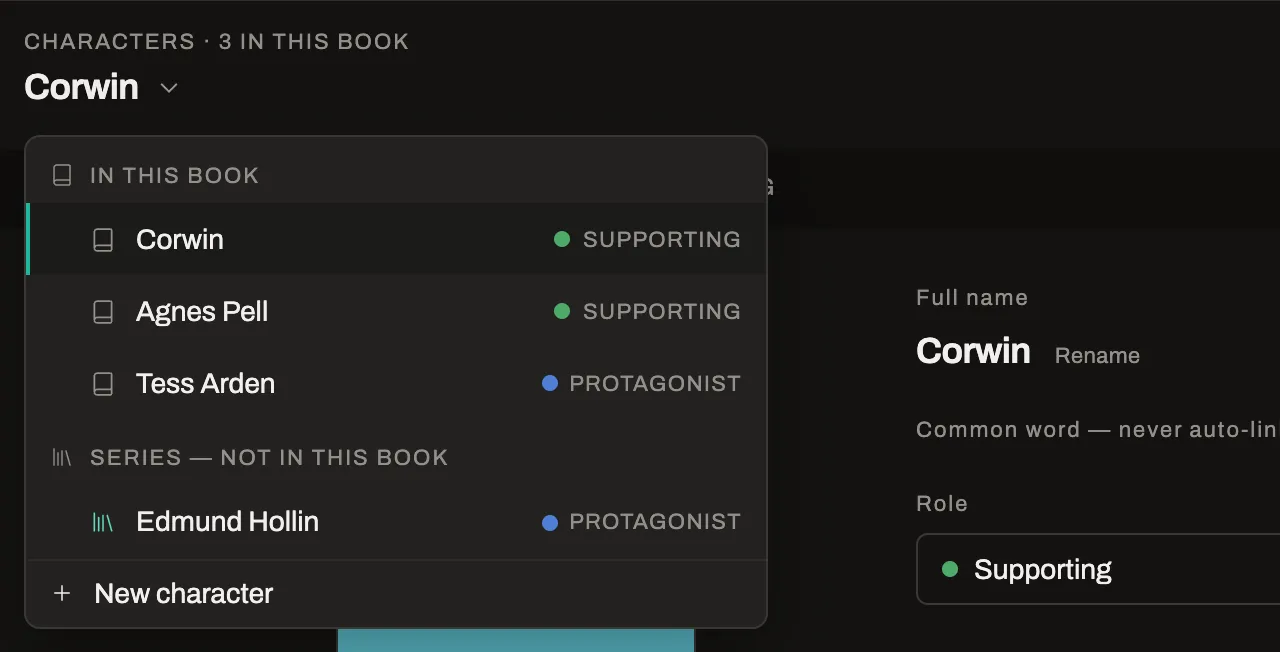
You can do the same from inside the book. On the book’s Characters page, press the name at the top. The series’ characters who are not in this book are listed under Series — not in this book, and pressing one adds them.
To open a character’s profile from the series’ table, press their name. It opens in the first book they are in. A character who is in no book cannot be opened until you tick a book for them.
What is shared and what belongs to one book
A character in two books is one character, not two copies.
- Shared by every book: everything on the Profile tab, the picture, and the Relationships tab. Change it in one book and it has changed in all of them. The foot of the page says so: “Series record · Edits apply everywhere”.
- Renaming reaches every book too. The Rename dialog says “This renames” and the name “in every book of the series”, and each book’s chapters follow, as Link names in your chapters to characters and locations explains.
- This book only: the chapters on the Occurrence tab, which are the chapters of the book you opened the character from. The Notes tab and the LitRPG tab show that book’s notes and that book’s system.
Locations work the same way.
Take a character out of a book
Press their ticked square on Series characters. The square clears and a message says they were removed from that book. This is the same as Remove from this book on the character’s own page: they leave that book’s list and chapters, their profile is kept, and the other books are untouched. Tick the square again to put them back.
Series locations
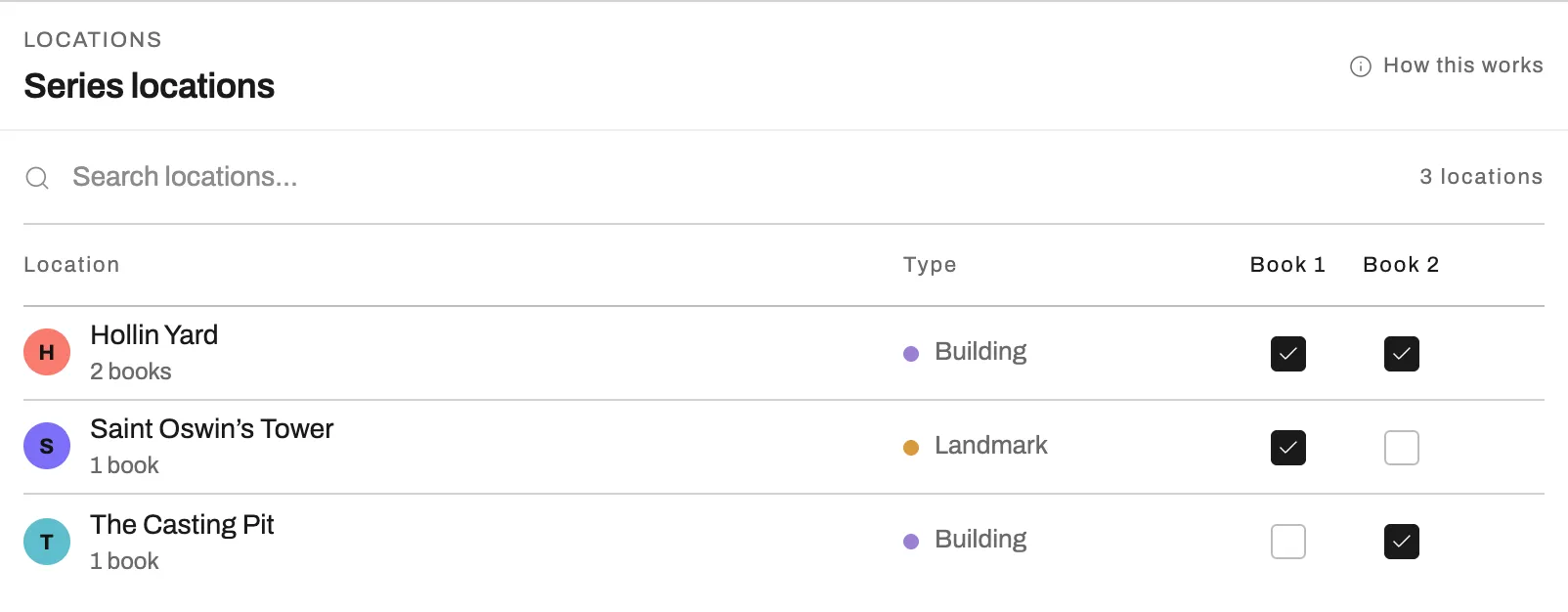
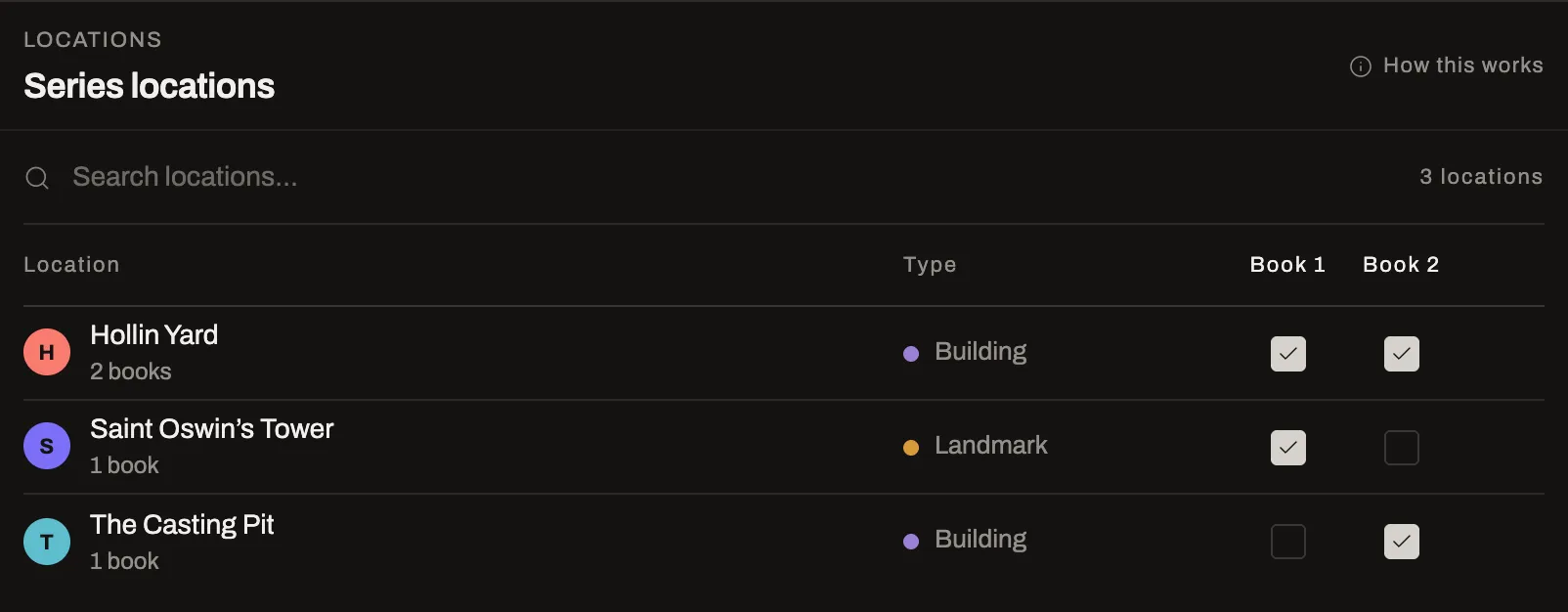
Locations, on the Tools tab, is the same table for places. The second column is the place’s Type.
Delete a character or a location for good
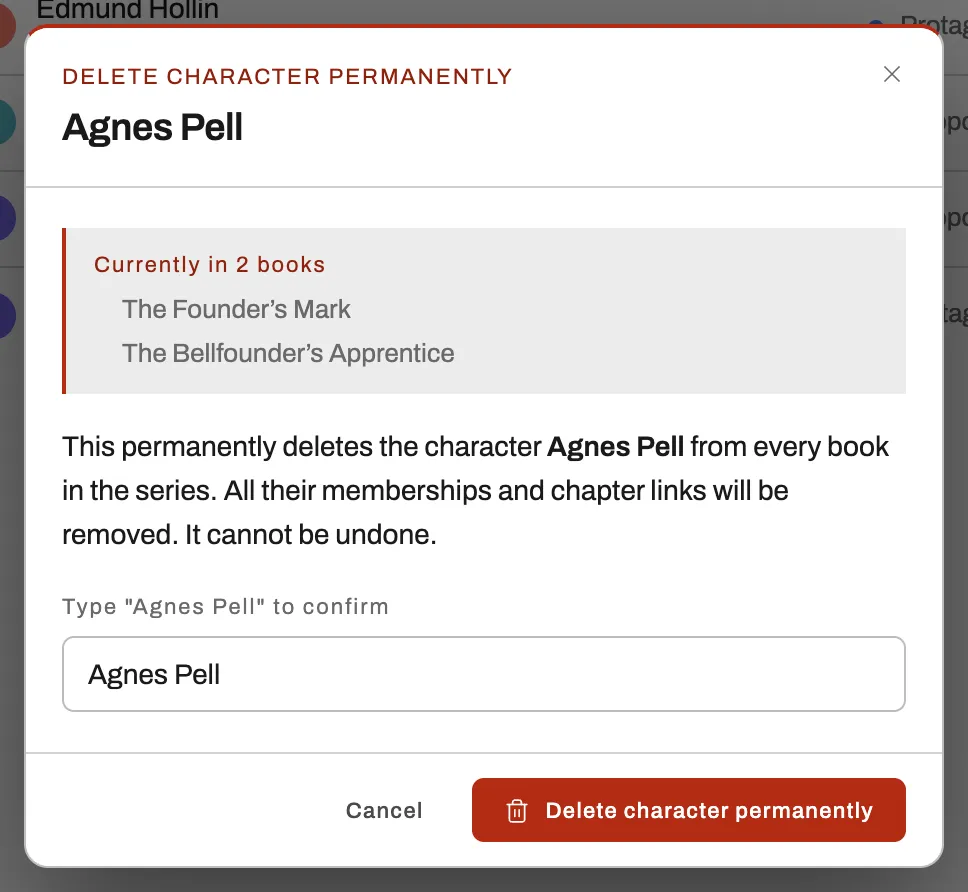
Deleting removes them from every book in the series, with their profile. It cannot be undone. Where a chapter’s text named them, the words stay.
- Point at the row. A bin shows at its right end.
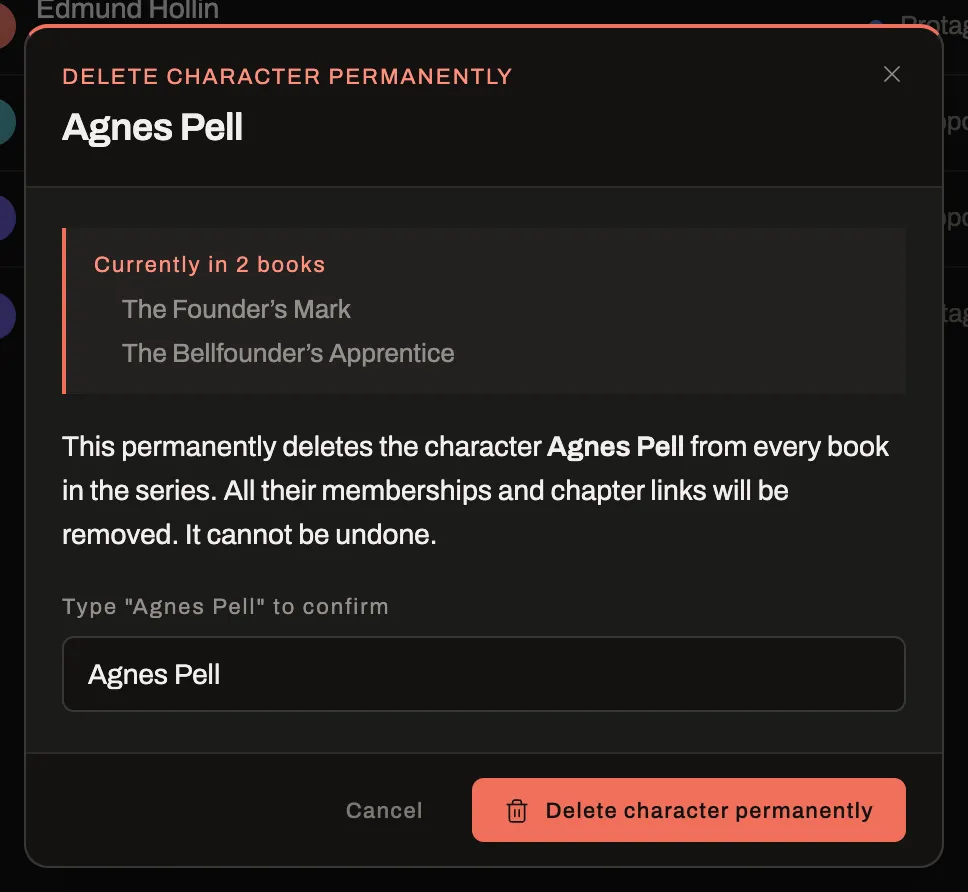
- Press the bin. The dialog lists the books they are in.
- Type the name exactly as shown.
- Press Delete character permanently, or Delete location permanently. It stays dimmed until the name matches.
When a book joins the series
A book you move into a series brings its characters and locations with it, and they join the series’ lists. Add, move and order the books in a series shows how to move one.
Watch for names that repeat. If the book has a character with the same name as one already in the series, the two are merged into one. Capitals make no difference. The series’ profile is kept, and what the book had written on its own profile for that name is discarded. The same goes for locations.
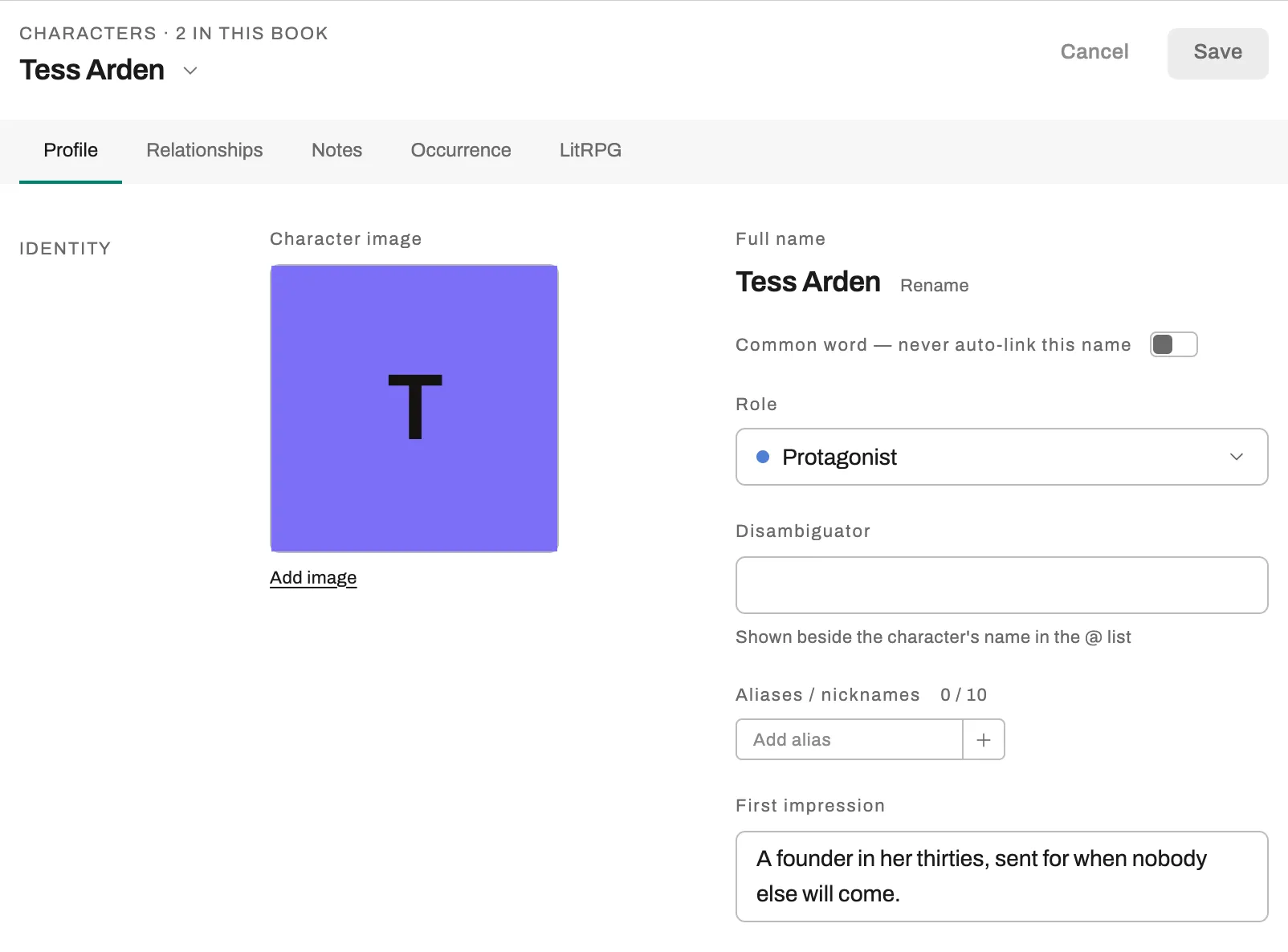
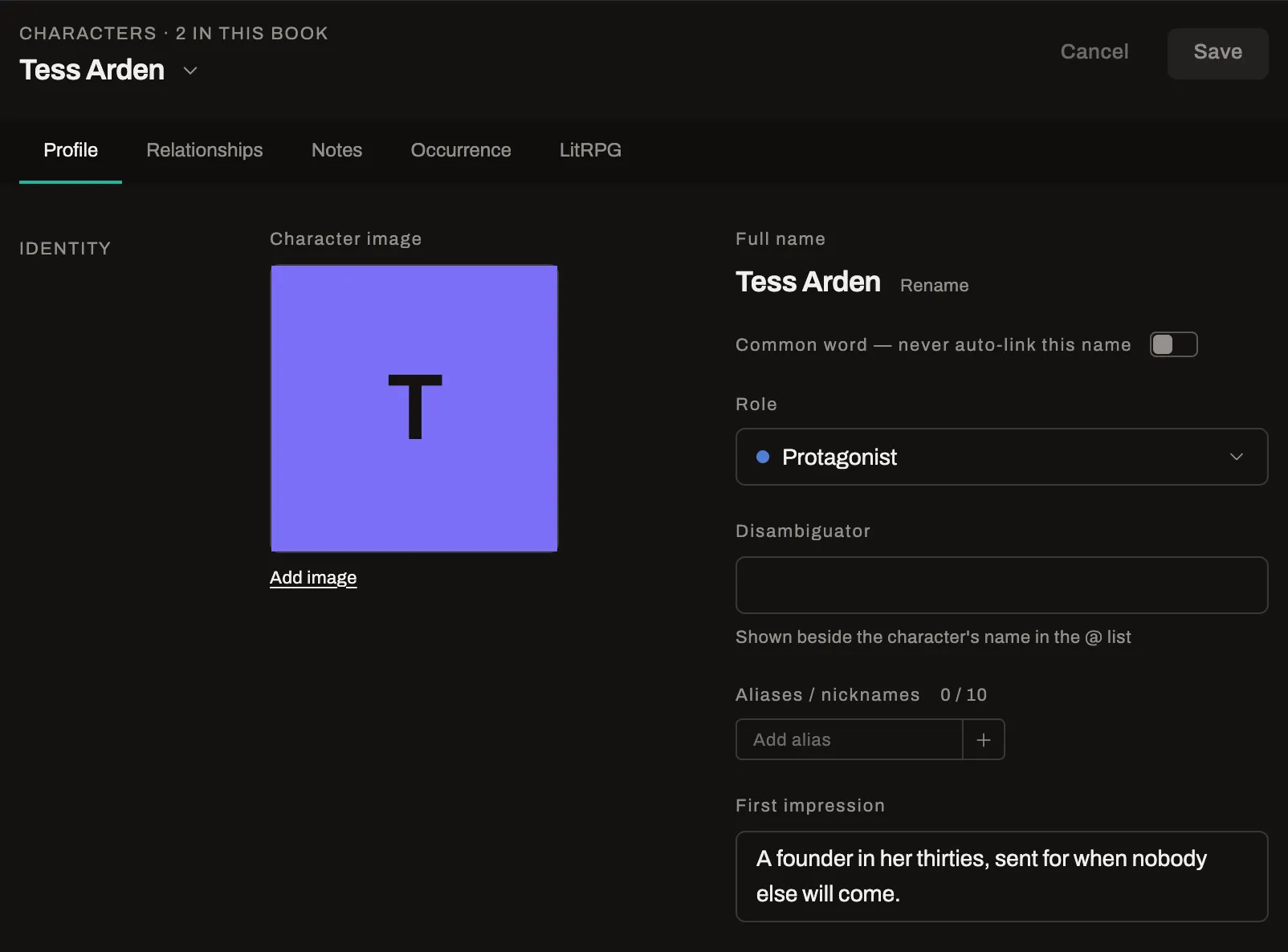
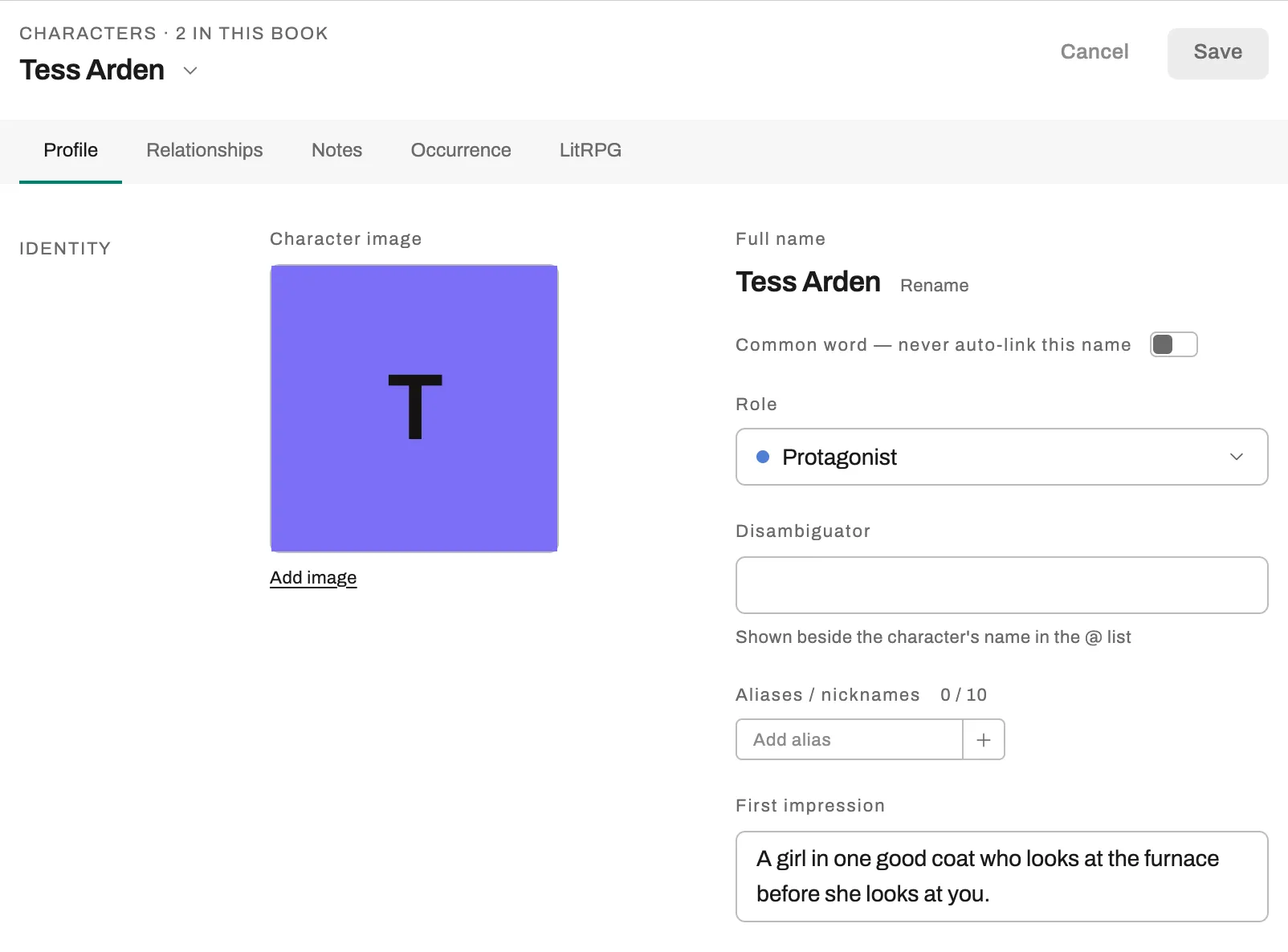
Here a standalone book has its own Tess Arden, with her own first impression.
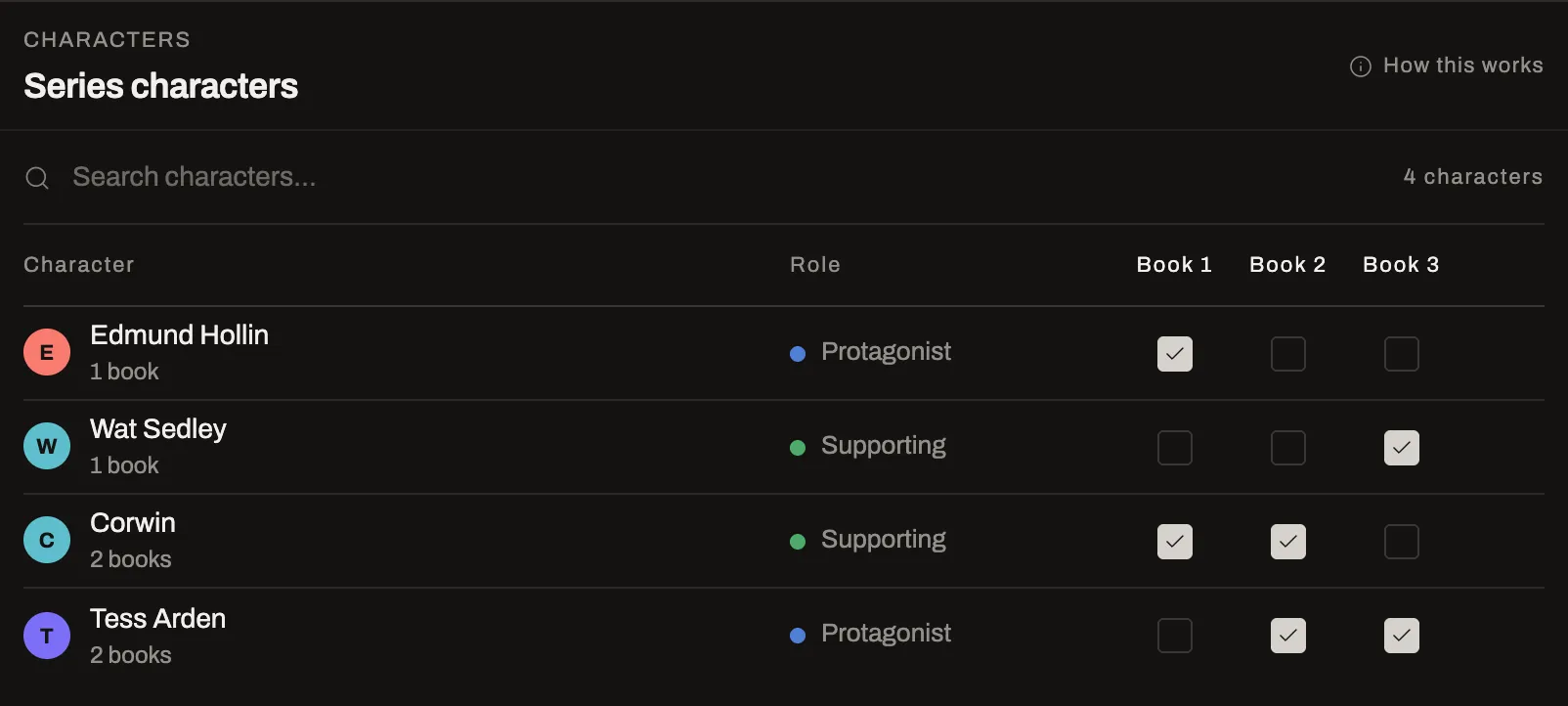
After the book joins, the series has one Tess Arden, in two books. The book’s other character, Wat Sedley, came along as he was. The joined book is the new column, Book 3.
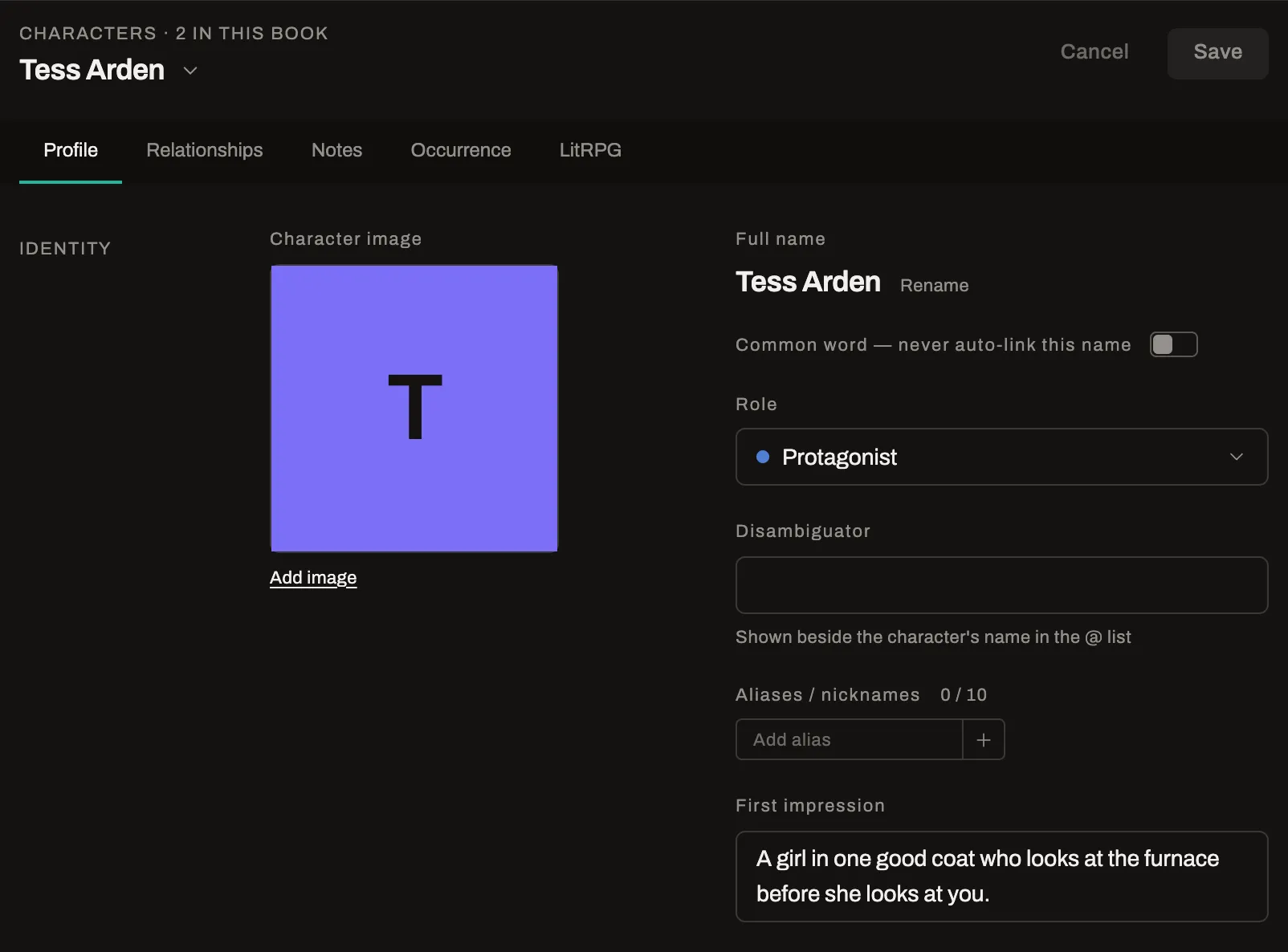
In the joined book, her page now shows the series’ wording. The book’s chapters, relationships and outline rows that named its own Tess Arden name the series’ one.
If the two are different people, or you want to keep what the book says, rename one of them before you move the book. If they are the same person, copy anything worth keeping out of the book’s profile first.
When a book leaves the series
A book you take out keeps its characters and locations as copies of its own, with their profiles as they stood. The series keeps the originals. From then on a change in one does not reach the other.
A character who was only in that book stays in the series’ table with no squares ticked. Delete them there if the series no longer needs them.
Related
- Keep a profile for each character: making a character and everything on their page.
- Keep a profile for each location: the same for places.
- Link names in your chapters to characters and locations: how names in your text follow a rename.
- Add, move and order the books in a series: moving a book in or out.
- Group your books into a series: what a series is and how to start one.
- Plan the whole series on the series outline: threads you can link to any character or location in the series.