DocsImport and files
Import a Markdown manuscript
Updated
If you write in Markdown, the Import page brings your files into a book as chapters. Each file is split into chapters on the page first so you can check them. Nothing reaches your book until you press Add to book.
You need one or more .md or .markdown files.
Step 1: Open the Import page
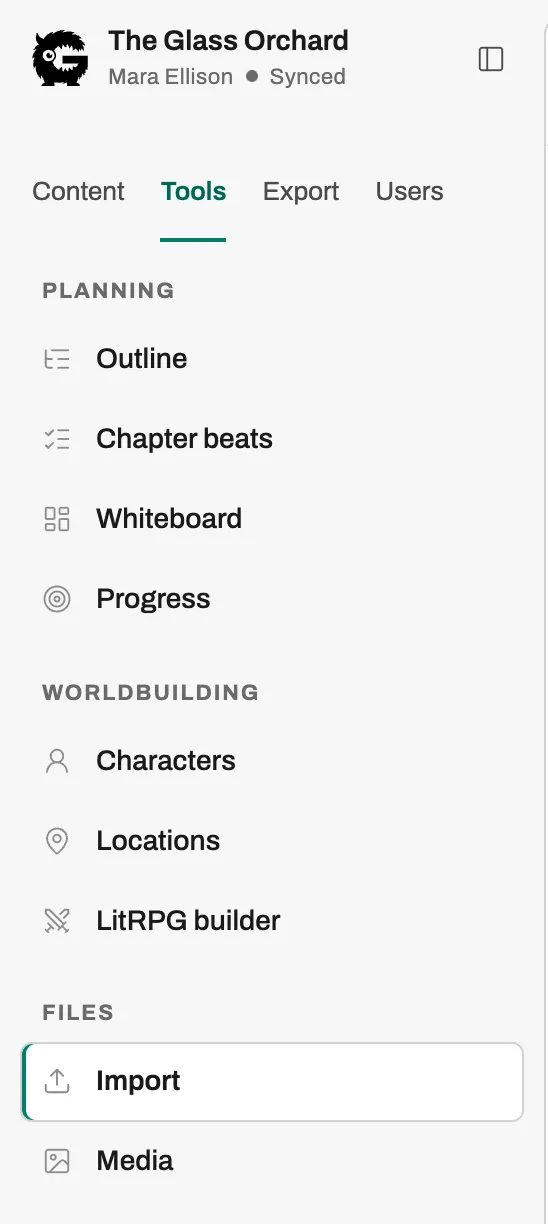
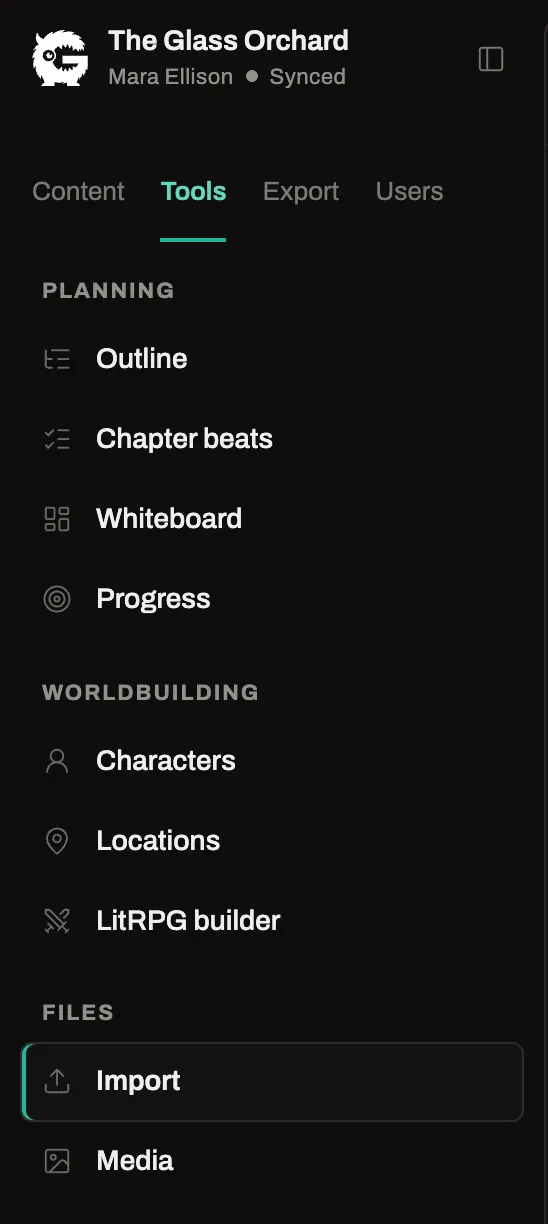
- Open the book you want to import into.
- In the sidebar, choose Tools.
- Under Files, choose Import.
Step 2: Upload your files
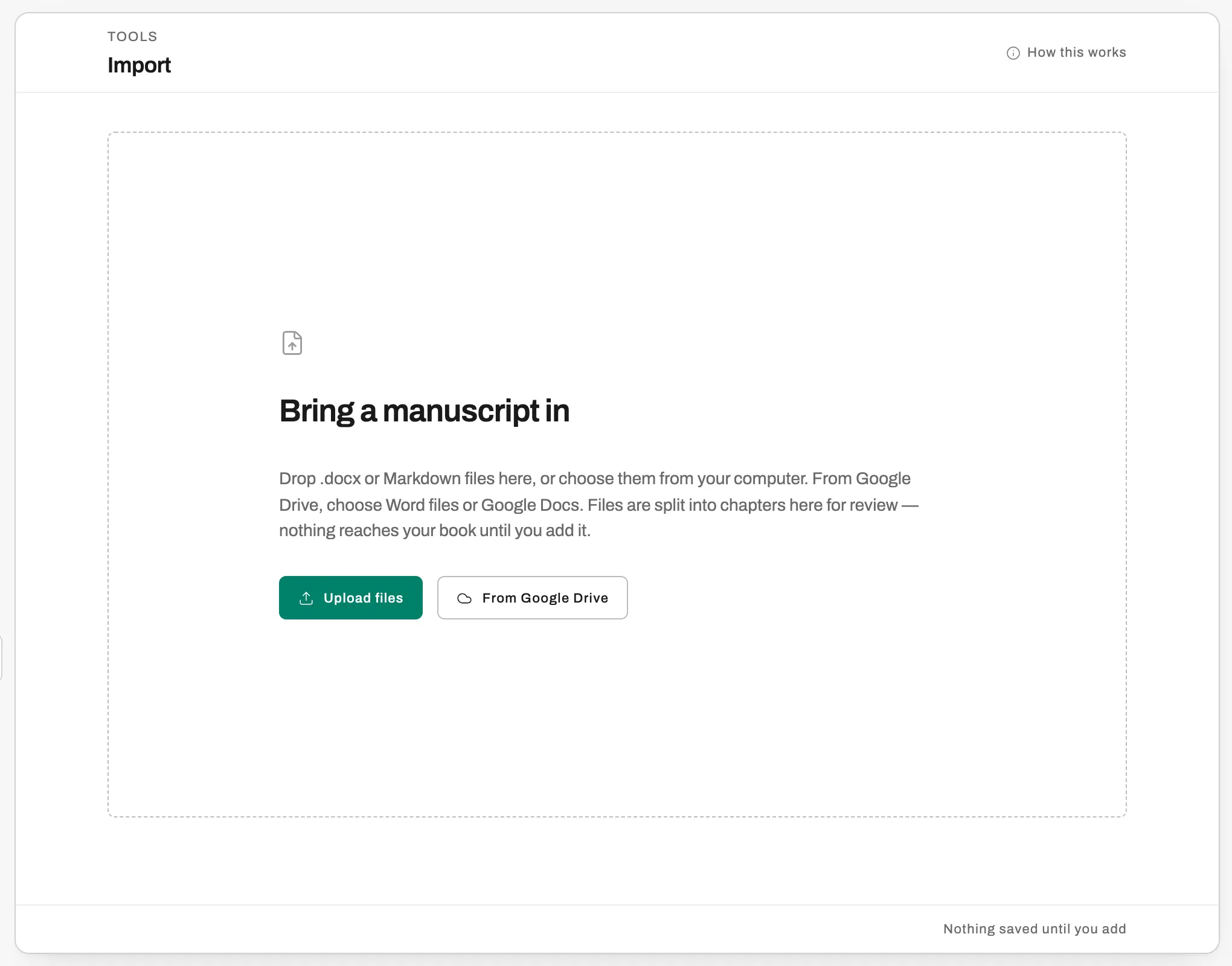
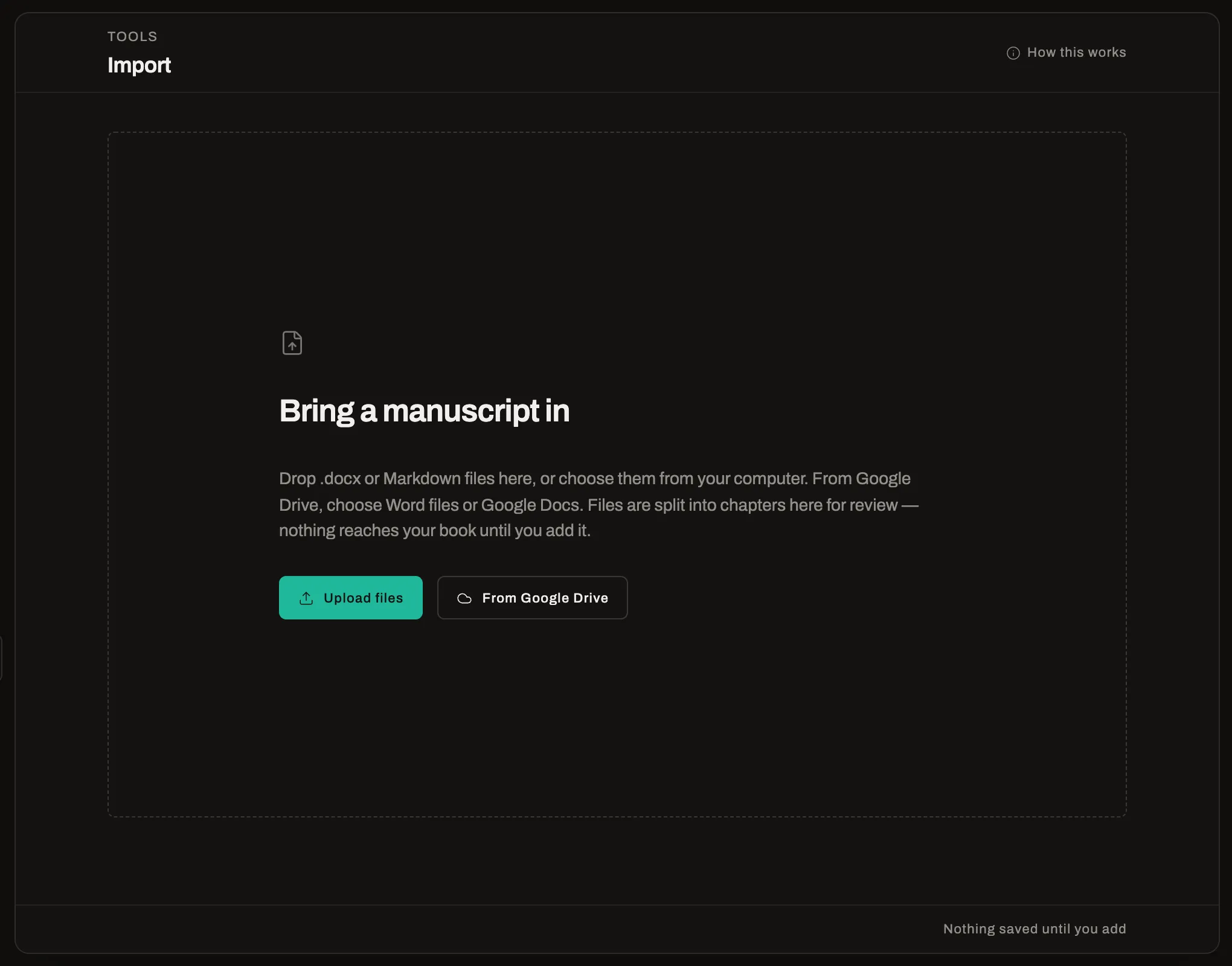
- Press Upload files.
- Pick your Markdown files. You can pick several at once, or drop the files anywhere on the page instead.
- Wait while the files are read.
Your files appear under Source files, and the chapters found in them appear under Chapters. The strip at the top counts the chapters, words and files you are about to add.
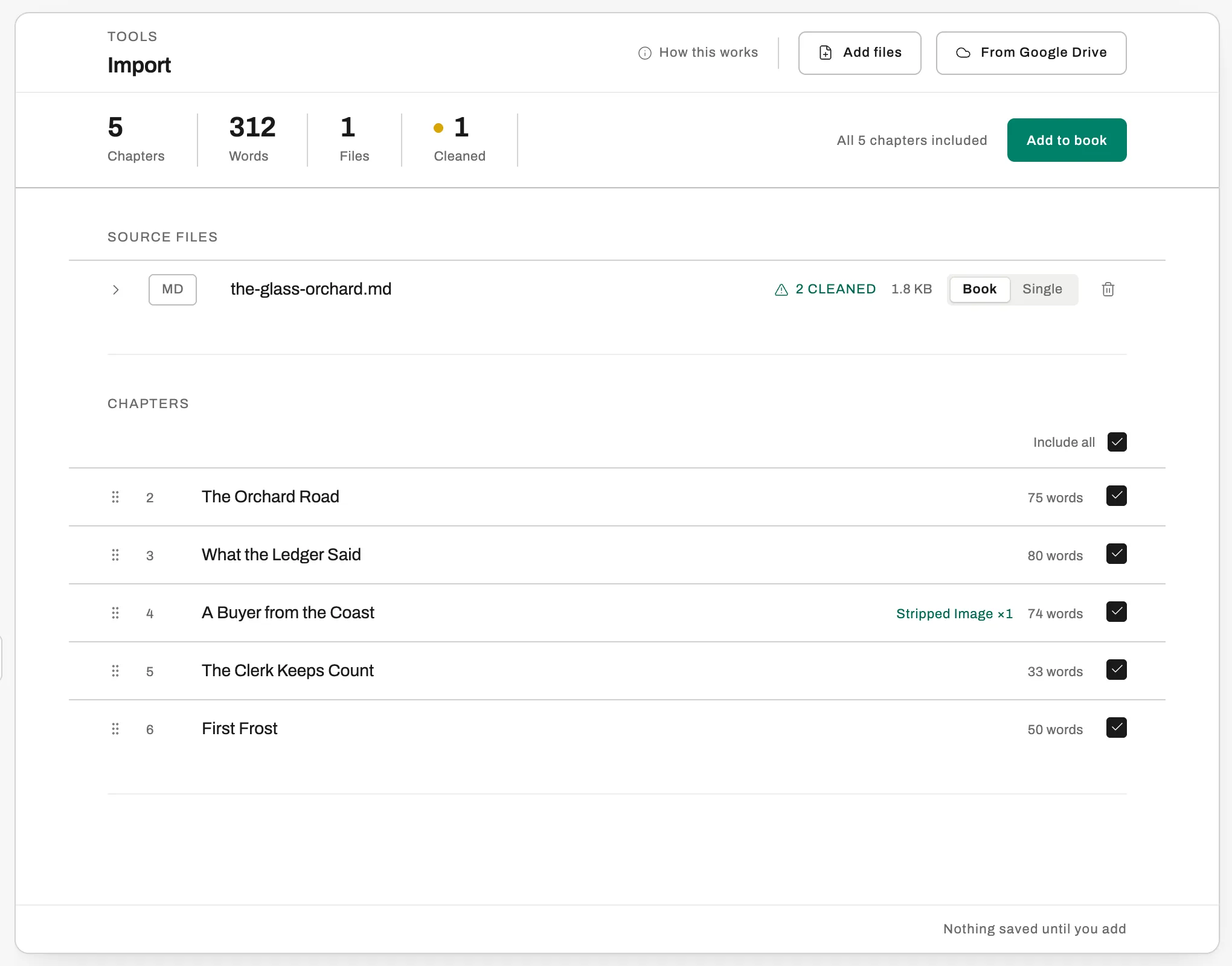
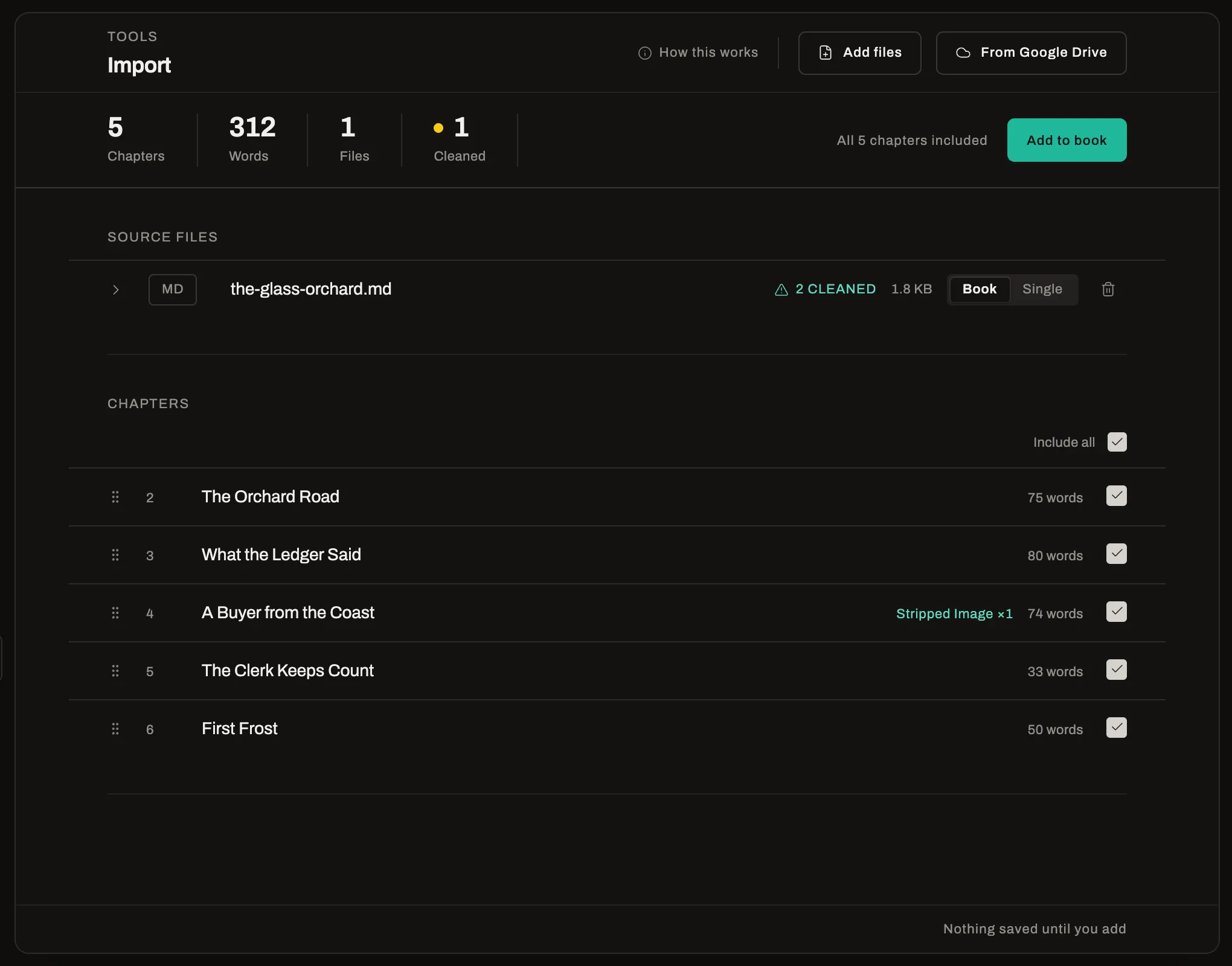
To bring in more files, press Add files at the top of the page.
Step 3: Choose how each file is split
Each file has a Book or Single switch on its row.
- Book splits the file into chapters at each top-level heading (
# Title). If the file has none, it splits at each second-level heading (## Title). A section with no heading is titled with its chapter number. - Single imports the whole file as one chapter. Use it when you keep one chapter per file.
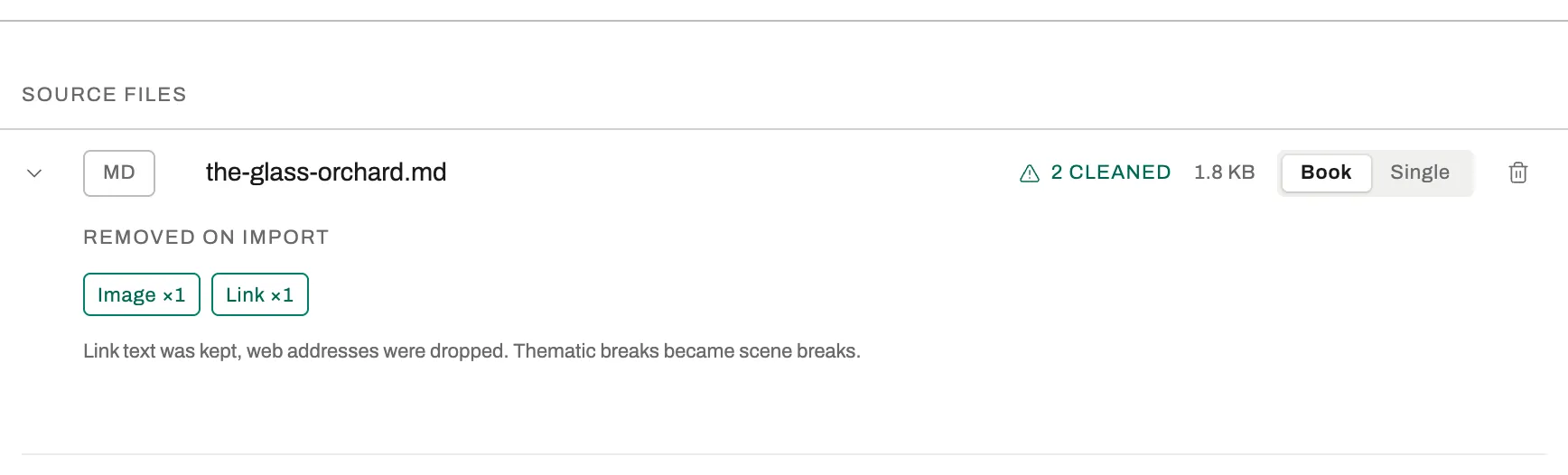
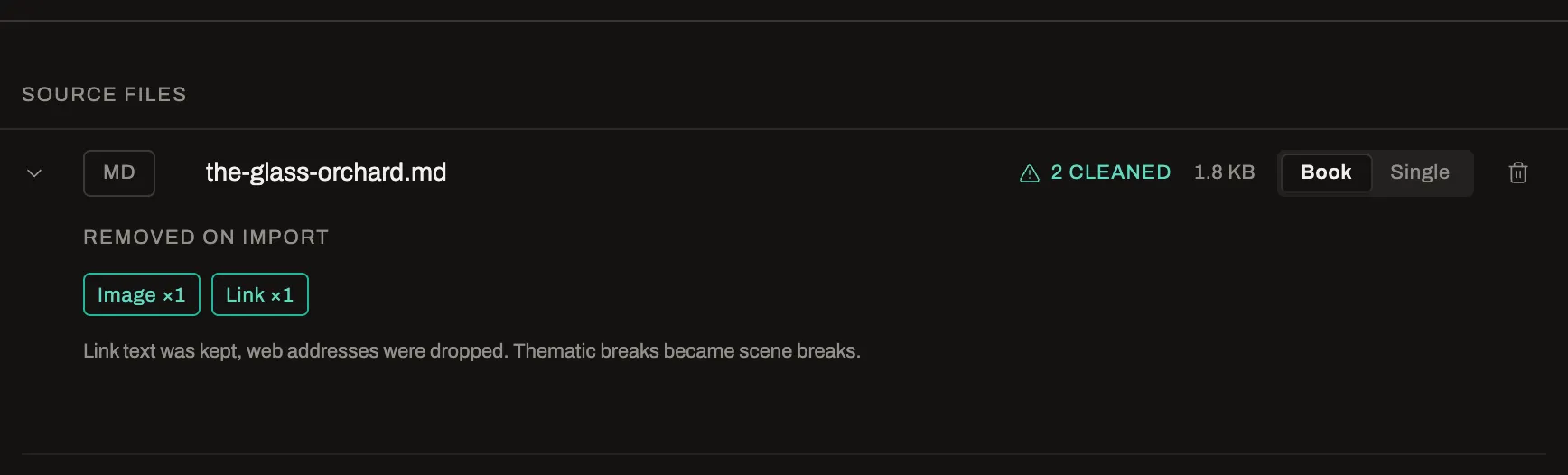
Press the arrow at the start of a file’s row to see what was removed from it. Here is what happens to Markdown on import:
- Headings, lists and blockquotes are kept.
- A thematic break (
***or---) becomes a scene break. - A front-matter block at the top of the file is removed.
- Links keep their words but not their web address.
- Images, tables, footnotes, code blocks and raw HTML are removed. Add images afterwards from Media.
The Cleaned count at the top shows how many things were removed in all.
Step 4: Review the chapters
Before anything is saved you can change the list under Chapters:
- Rename a chapter: click its title and type a new one.
- Reorder chapters: drag a chapter by the handle at the start of its row.
- Leave a chapter out: clear the checkbox at the end of its row. A chapter you leave out takes no chapter number. Include all turns every chapter on or off.
- Remove a file: press the trash button on the file’s row. Its chapters leave the list.
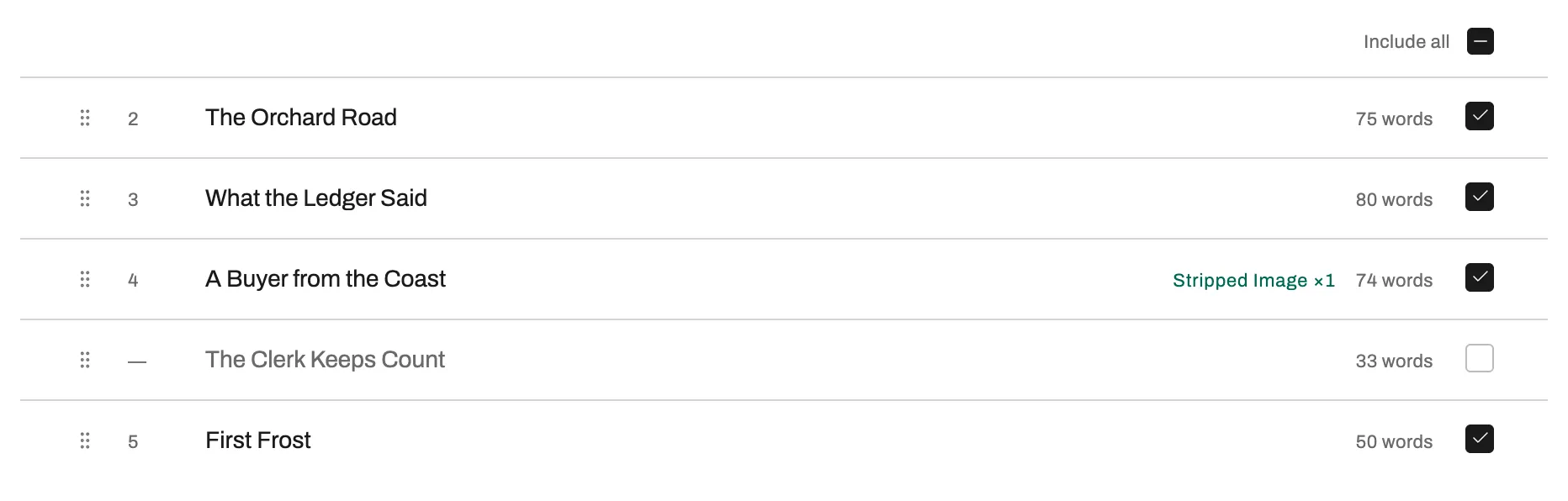
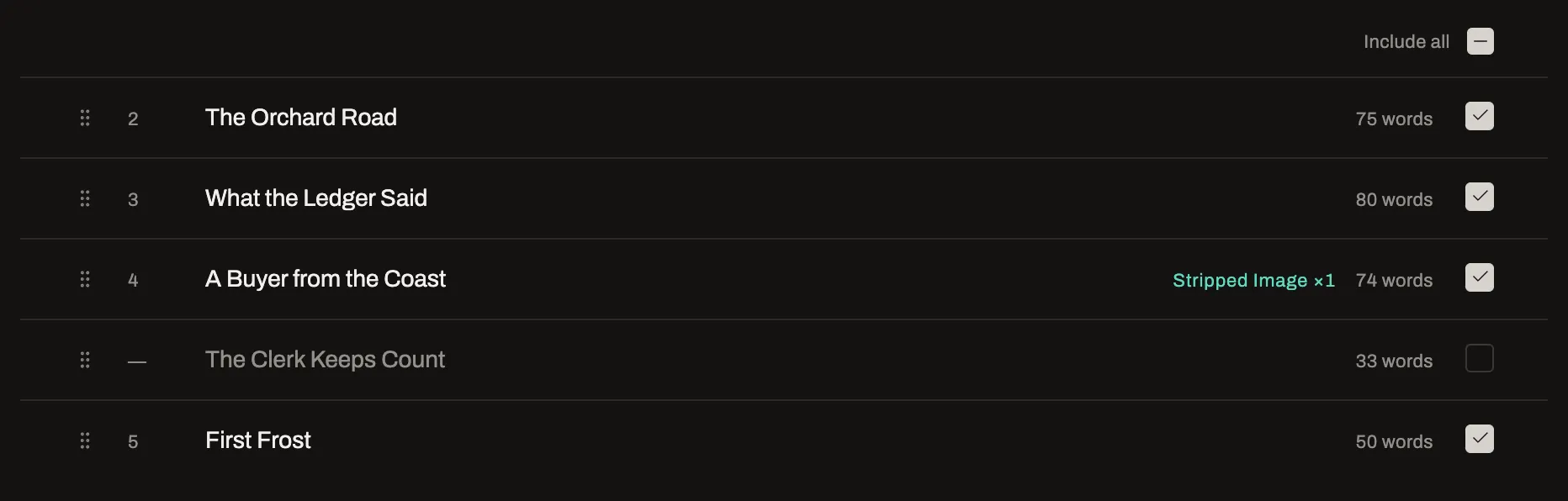
A chapter whose title matches one already in your book, or another one in this import, is marked with a warning so you can spot an accidental double import. You can still add it.
Step 5: Add the chapters to your book
- Check the count beside the button, for example “4 of 5 chapters included”.
- Press Add to book.


The new chapters are added after the chapters your book already has, in the order shown. To see them, choose Content in the sidebar.
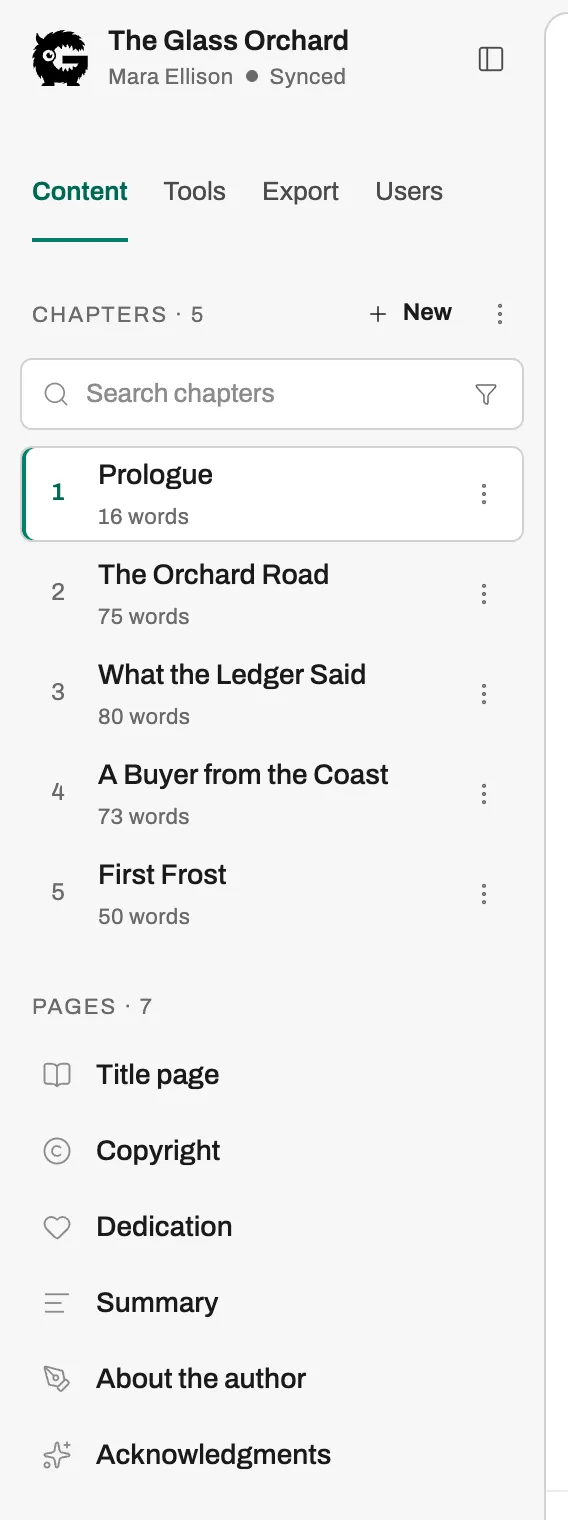

If a chapter could not be added, it is listed on the Import page with the reason, and everything else is still added. Fix the file and import that chapter again.
For a reminder of these rules while you work, press How this works at the top of the Import page.
Related
- Import a Word manuscript: the same steps for
.docxfiles. - Import from Google Drive: From Google Drive on the same page takes Word files and Google Docs. Markdown files come from your computer.
- Manage your book’s images in Media: add the images an import leaves out.