DocsSeries
Add, move and order the books in a series
ProUpdated
A series holds as many books as you like. You put books into it from the dashboard, and you order them and keep their shared pages in step on the series’ Books page. Series are a Pro feature; Group your books into a series covers starting one.
Start a new book in a series
- Open the dashboard and find the series’ row.
- Press Add book, at the right end of the row’s heading. In a series with no books, Add the first book does the same.


The new book opens on its Title page. It already has a Series section with the series’ name, and its Number is empty.
- Type the book’s title and your name, and its Number if you know it.
- Press Save.


The rest of the Title page is covered in Fill in your book’s title page.
Move a book you already have into a series
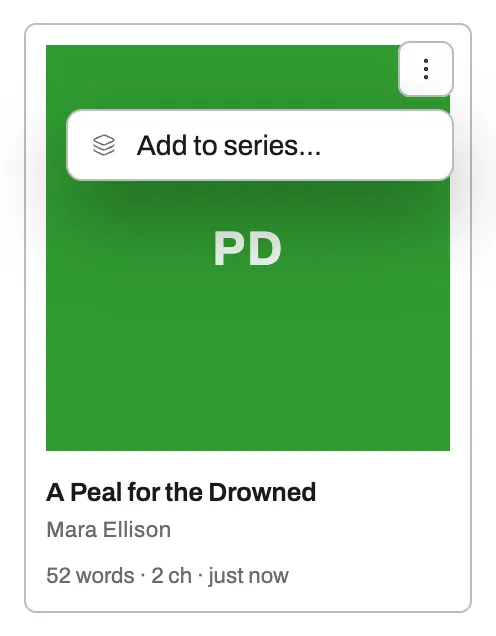
- On the dashboard, point at the book’s card under Standalone. A button with three dots shows at the top right of the cover.
- Press the three dots, then Add to series….

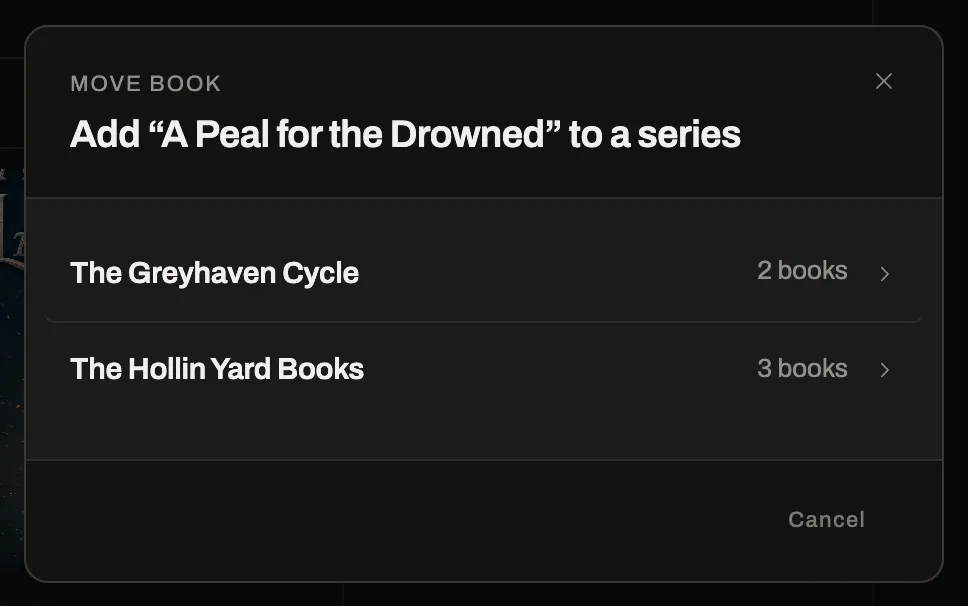
- In the dialog, press the series you want. Each is listed with the number of books in it.
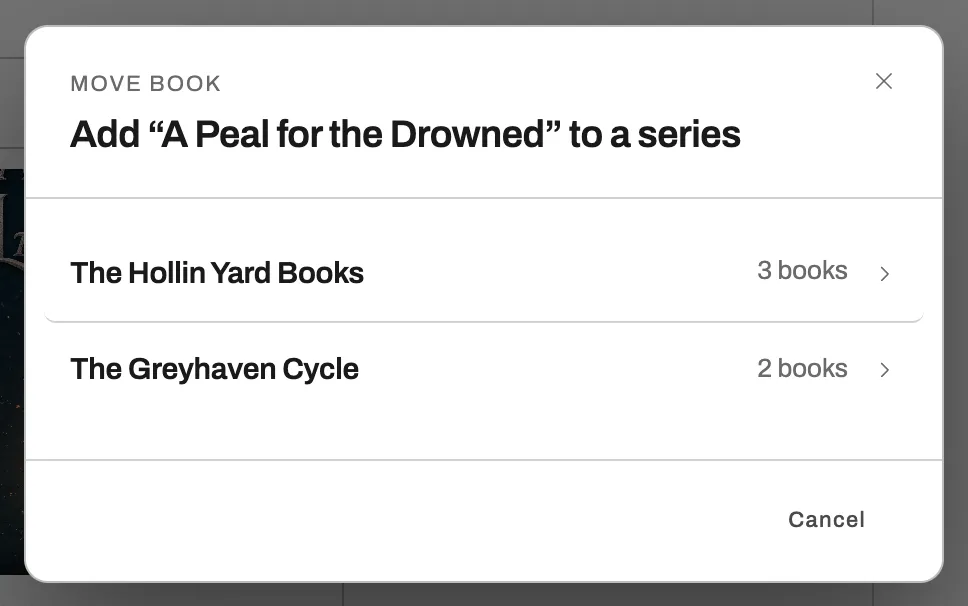
The book moves at once, and a message at the foot of the window says “Added to” and the series’ name. If you have no series yet, the dialog asks for a Series name instead, and Create and add makes the series and puts the book in it.
From inside a series that has no books, Add book on its Books page lists your standalone books and does the same thing.
What comes with the book:
- Its chapters, pages, cover and settings, unchanged.
- Its characters and locations, which join the series’ own. One with the same name as a series character or location is merged into it. Read Share characters and locations across a series before you move a book whose names repeat.
- The outline templates and themes you saved in it, and its series images.
The book arrives with no Number. It sits after the numbered books until you give it one, as the next part shows.
Number and order the books
- Open the series: press Edit series on its row of the dashboard.
- Press the Books tab in the sidebar.
Each book has a card, headed Book 1, Book 2 and so on, with its title, your name and a list of five pages. Pressing a title opens that book.
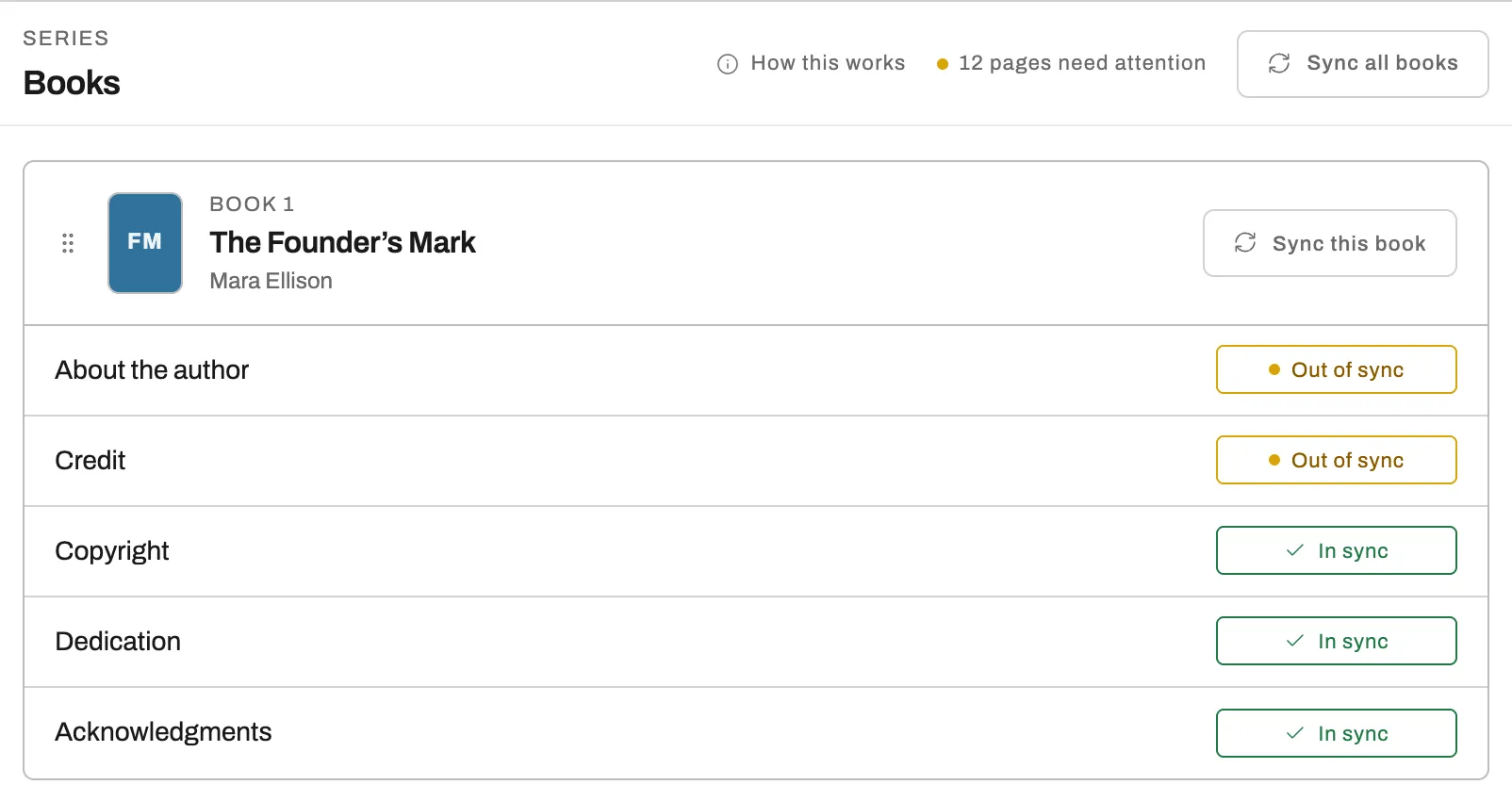
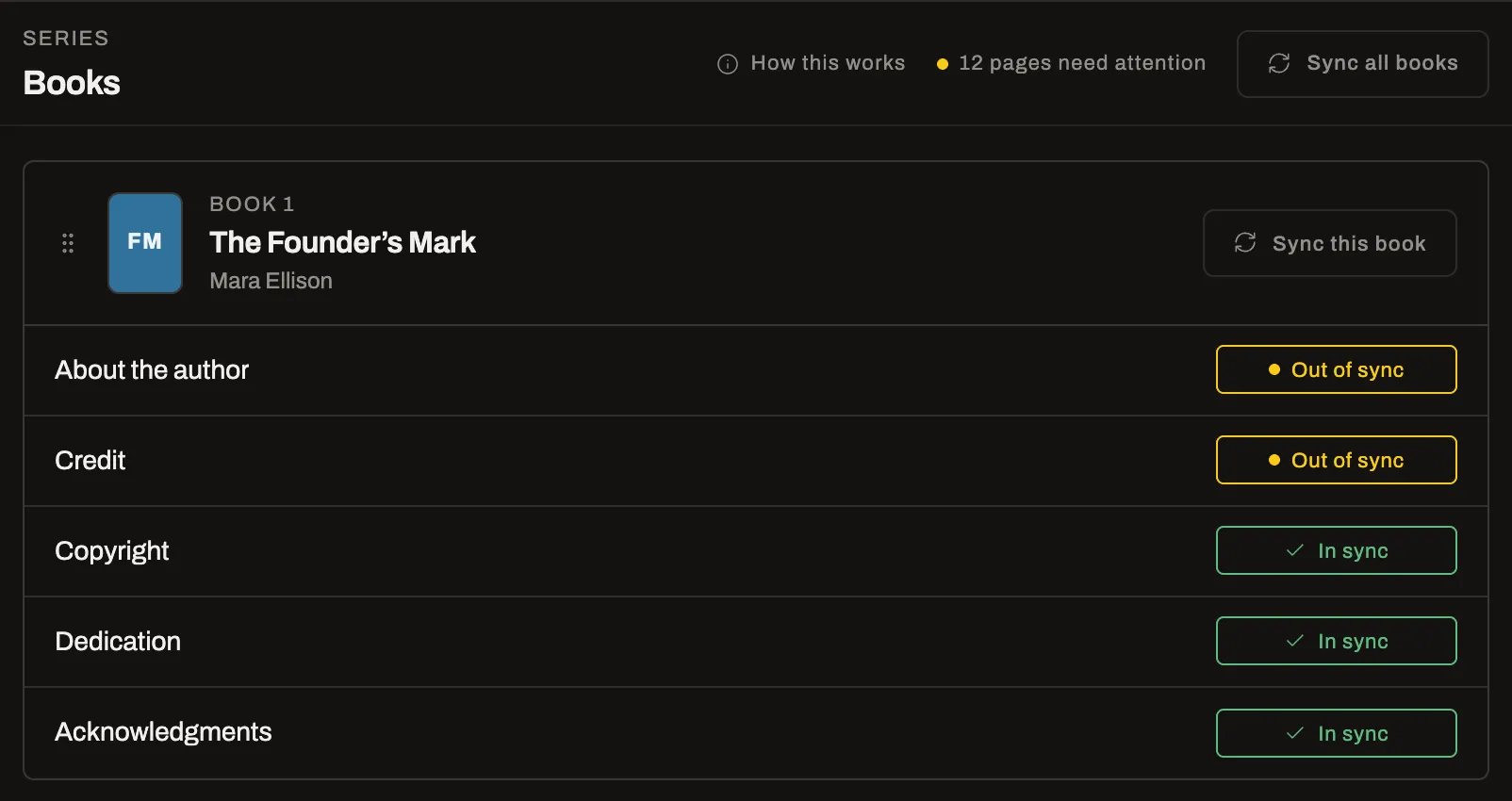
- Drag a card by the grip of dots at its left end, and drop it where the book belongs.
Every book in the series is then numbered by its place: the first card is 1, the second is 2. That number is written into each book’s Number, the one its title page and spine print.


The Book 1, Book 2 headings on this page only count the cards. Until you drag a card, a book you added keeps an empty Number and prints none, whatever its card is headed. You can also type a book’s Number yourself on its Title page. Typing it there changes that book only, and two books can hold the same number.
Keep the shared pages in step
The series keeps its own Copyright, Dedication, About the author and Acknowledgments, written on the series’ Content tab, and a Credit. Each book has its own copy of all five. Nothing is copied by itself: a book’s page changes only when you sync it.
Each row on a book’s card is one page, with a button that says how the book’s copy compares with the series’ copy. Rows that need a look come first.
| Button | What it means |
|---|---|
| In sync | This book matches the series. |
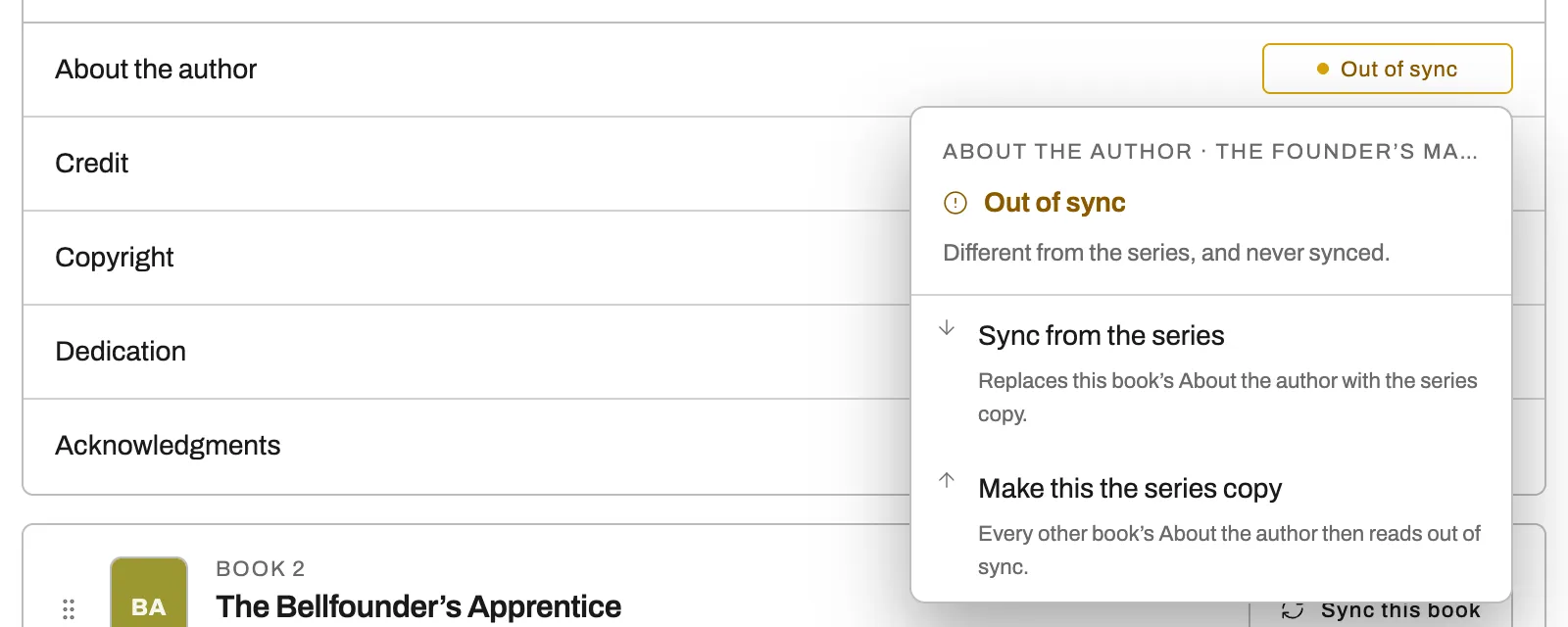
| Out of sync | Different from the series, and never synced. |
| Series updated | The series copy changed after this book last synced. |
| Customized | This book was edited on purpose and no longer matches. |
| No series page | The series has nothing of this kind to copy yet. |
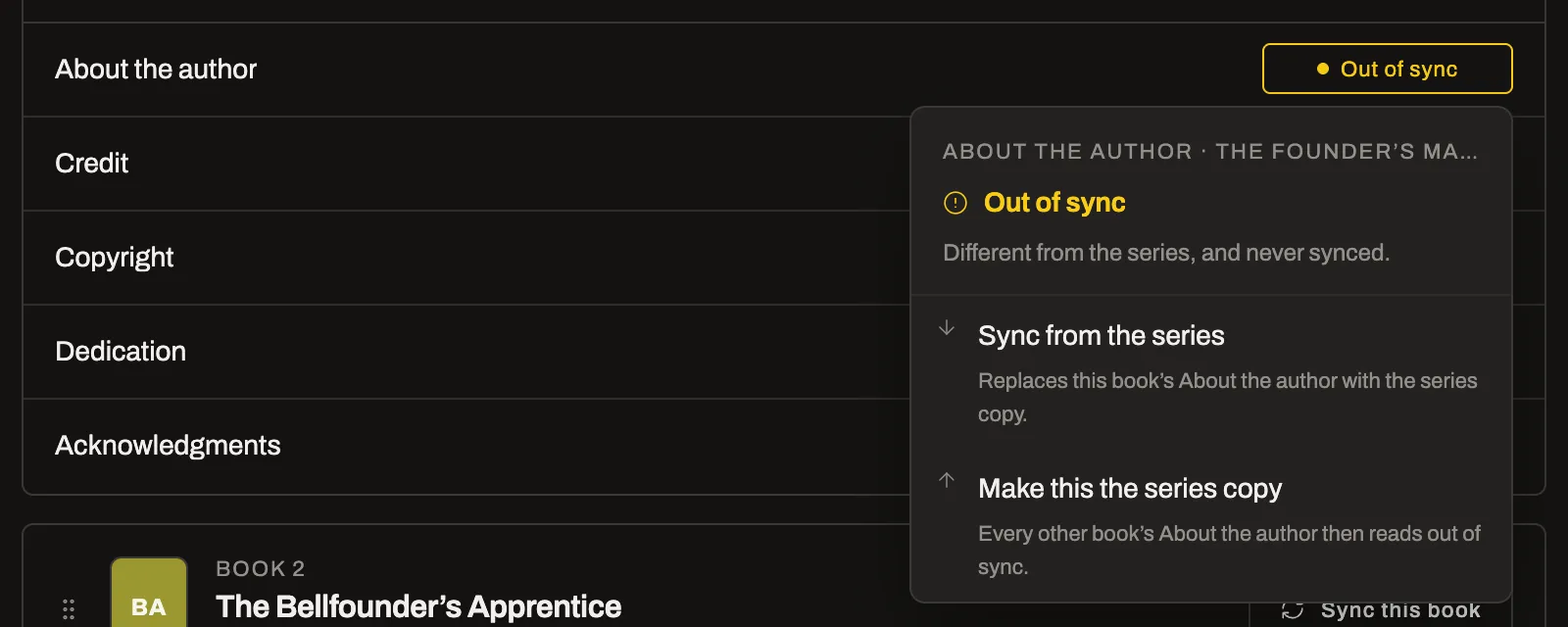
Press a page’s button to choose what to do:
- Sync from the series replaces this book’s page with the series’ copy.
- Make this the series copy does the reverse: this book’s page becomes the one the series keeps. Every other book’s page then reads out of sync until you sync it.
- On the Credit row the second choice is Edit on Series › Credit, because Credit is written once for the whole series.
Sync from the series is greyed out while the series’ own copy of that page is empty, and its line reads “The series copy is empty.” An empty series page is never copied over a book’s page, so write the series’ pages first. For Credit, the series’ author name is what counts.
Point at a row and an arrow shows beside the page’s name. It opens that page of the book in a new tab.
To bring a whole book into line, press Sync this book on its card.
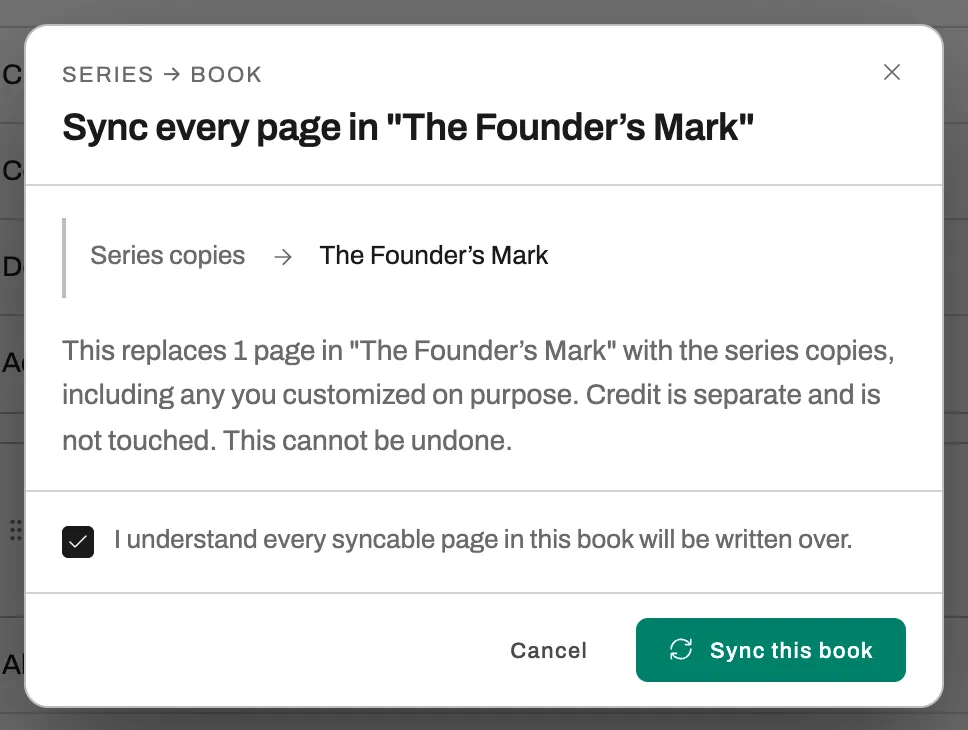
- Read the dialog. It says how many pages will be replaced, and that pages you changed on purpose are replaced too. Credit is left alone, and so is any page whose series copy is empty.
- Tick I understand every syncable page in this book will be written over.
- Press Sync this book.

The book’s rows turn to In sync. Sync all books, at the top of the page, does this for every book in the series at once, Credit included, after the same kind of dialog. It also skips a page whose series copy is empty. When every page that needs a look has an empty series copy, Sync this book or Sync all books is greyed out. A sync cannot be undone.
The line beside Sync all books counts the pages that need a look, and reads “Every book matches” when none do. How this works, beside it, sums the page up.
Take a book out of a series
- On the dashboard, point at the book’s card in the series’ row and press the three dots.
- Press Remove from series.

Nothing asks you to confirm. The book moves to Standalone at once, and a message says “Removed from” and the series’ name.
- The book keeps its chapters, pages and cover.
- It keeps its characters and locations, as copies of its own. The series keeps the originals too, even one that was only in this book. That one stays in the series’ list, in no book, until you delete it there.
- It keeps a copy of the series’ saved themes.
- Its Number is cleared, and its Title page loses the Series section.
- Outline templates saved in the series stay with the series.
- The books left behind keep the numbers they had. Drag a card on the Books page to number them again.
To move a book from one series to another, remove it from the first, then add it to the second.
Related
- Group your books into a series: what a series is, starting one, and deleting one.
- Share characters and locations across a series: what happens to a book’s cast when it joins or leaves.
- Fill in your book’s title page: the Series section and where the number prints.
- Share Credit and book pages across a series: writing the series’ Credit and its four pages, and what each sync replaces.
- Write your book’s copyright page: one of the four pages a series can share.
- Create a book: starting a book that is in no series.