DocsCollaboration
Invite beta readers and read their feedback
ProUpdated
A beta reader reads your book in a reading view of their own, with their own account, and answers your questions at the end of each chapter. You invite them from the Beta readers page of a book, and their progress and answers come back to the same page. Beta readers are a Pro feature. See Free and Pro.
Step 1: Open the Beta readers page
- Open the book you want read.
- In the sidebar, choose Users.
- Choose Beta readers.
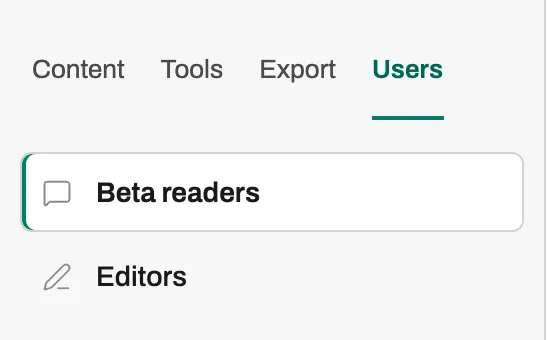
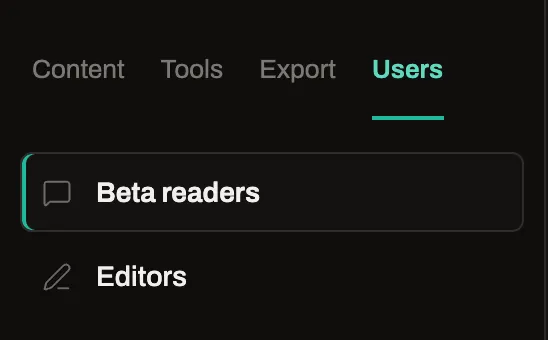
The page has three tabs. People is the list of your readers. Feedback form and End-of-book form hold the questions they answer.
The list on People belongs to your account, not to this book. A reader you invited to another book is listed here too, with the number of books they can read under Books.
Step 2: Save a feedback question first
A reader answers your feedback form at the end of every chapter, so a book needs at least one saved question before it can take readers. Until it has one, Invite beta reader is greyed out and a line under the tabs says “Add a feedback question before inviting beta readers.”


- Press Open feedback form, or choose the Feedback form tab.
- Write and save your questions. Write the feedback form takes you through it.
- Choose People to come back.
Step 3: Invite a reader
- Press Invite beta reader.
- Type the reader’s address under Email address.
- Under Books this person can access, tick each book they should read. The book you are in is first in the list and already ticked; your other books follow by title. You need at least one.
- Press Send invite.
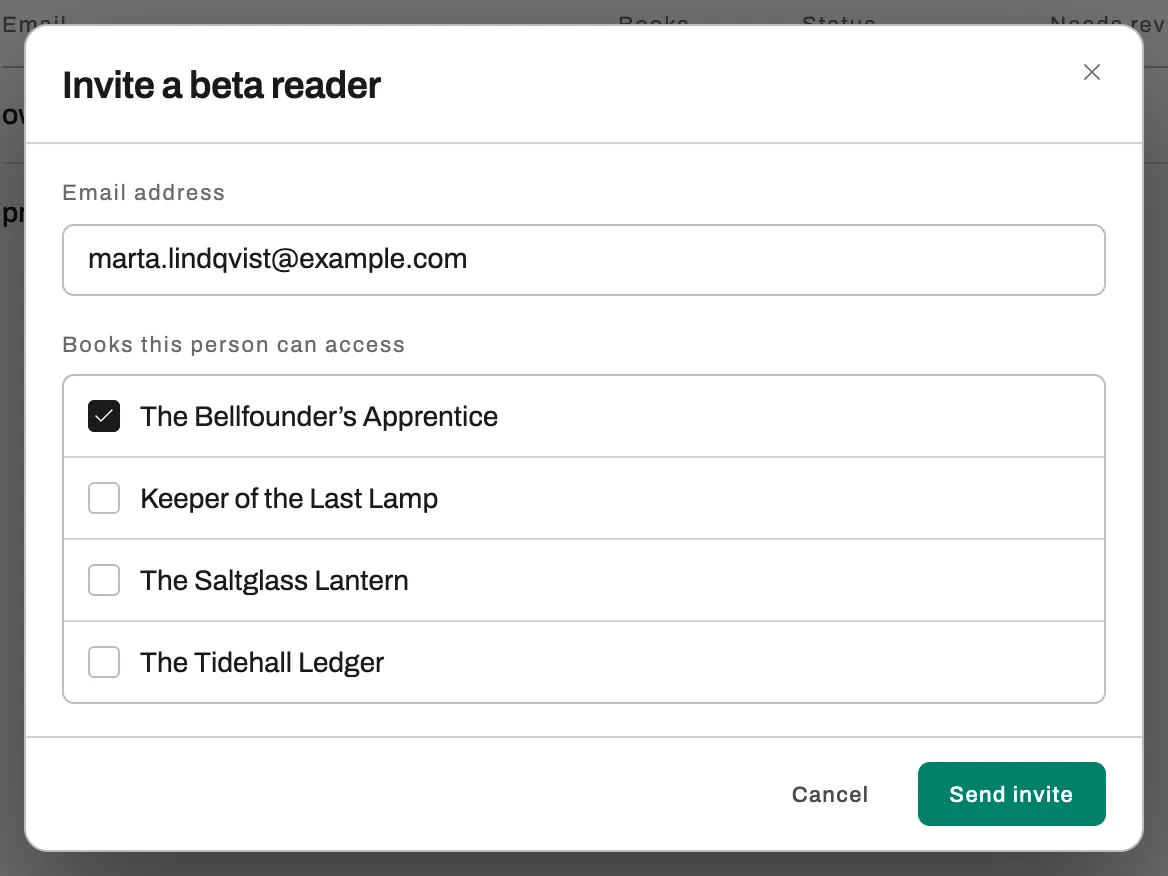
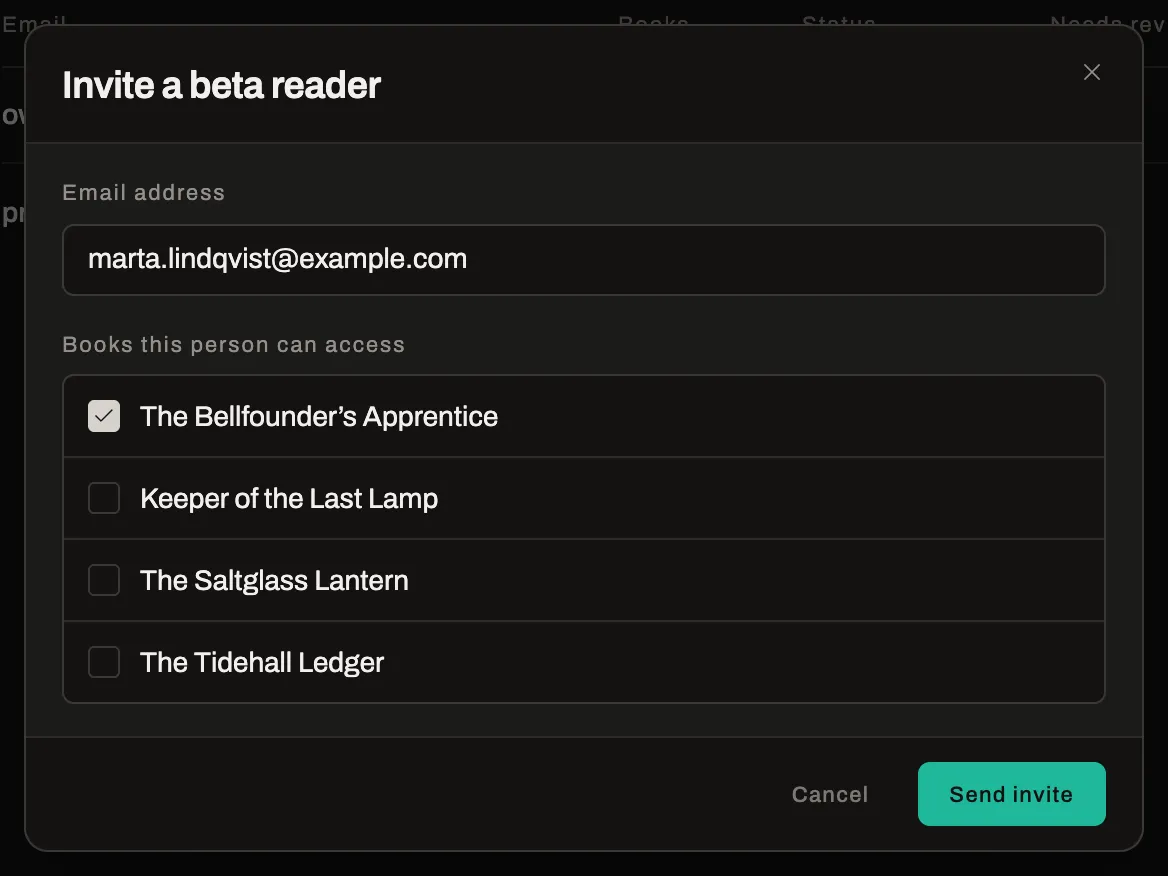
A notice confirms “Invite sent to” and the address, and the reader appears at the top of the list as Pending.


Gnarlywog emails the reader an invitation with a link to sign in, or to create an account if they do not have one. Access goes with the address: the reader has to sign in with the address you invited. Once they do, the book is on their dashboard and their row turns Active.
A reader gets every chapter of each book you tick. You cannot hand out single chapters. Whether they have to answer one chapter’s questions before the next opens is a switch on the feedback form.
Gnarlywog sets no limit on the number of readers you invite.
What the list tells you
| Column | What it shows |
|---|---|
| Status | Pending: invited, not signed in yet. Active: has signed in and can read. Expired: the invite was not taken up within 7 days. |
| Needs review | A dot: the reader has answers you have not tagged. A tick: every answer is tagged. A dash: no answers yet. |
| Invited / active | When you sent the invite, then how long the reader has been active. |
- An Undeliverable label beside an address means the invitation email bounced or was marked as spam. Check the address for typos.
- Press Email, Status, Needs review or Invited / active to sort by that column.
- Type in Search beta readers by name or email to find one reader.
Resend an invite, or change a reader’s books
Press the three dots at the end of a reader’s row.


- Manage access opens the same dialog with the address fixed. Tick or clear books and press Save changes. A book you clear is closed to the reader, and the answers they gave on it are kept. To move a reader to a different address, remove them and invite the new address.
- Resend invite sends the invitation again and gives it another 7 days. It is there while the reader is Pending, and you can use it once a minute. On an expired invite it reads Send new invite.
- Revoke removes the reader. See the last section.
Step 4: See how far a reader has got
When a reader has sent answers, a dot shows under Needs review.


- Press the reader’s row. A pending reader has no page yet, so their row opens Manage access instead.
- Read down the table. It has a row for each chapter, under an Overall row for the end-of-book form.
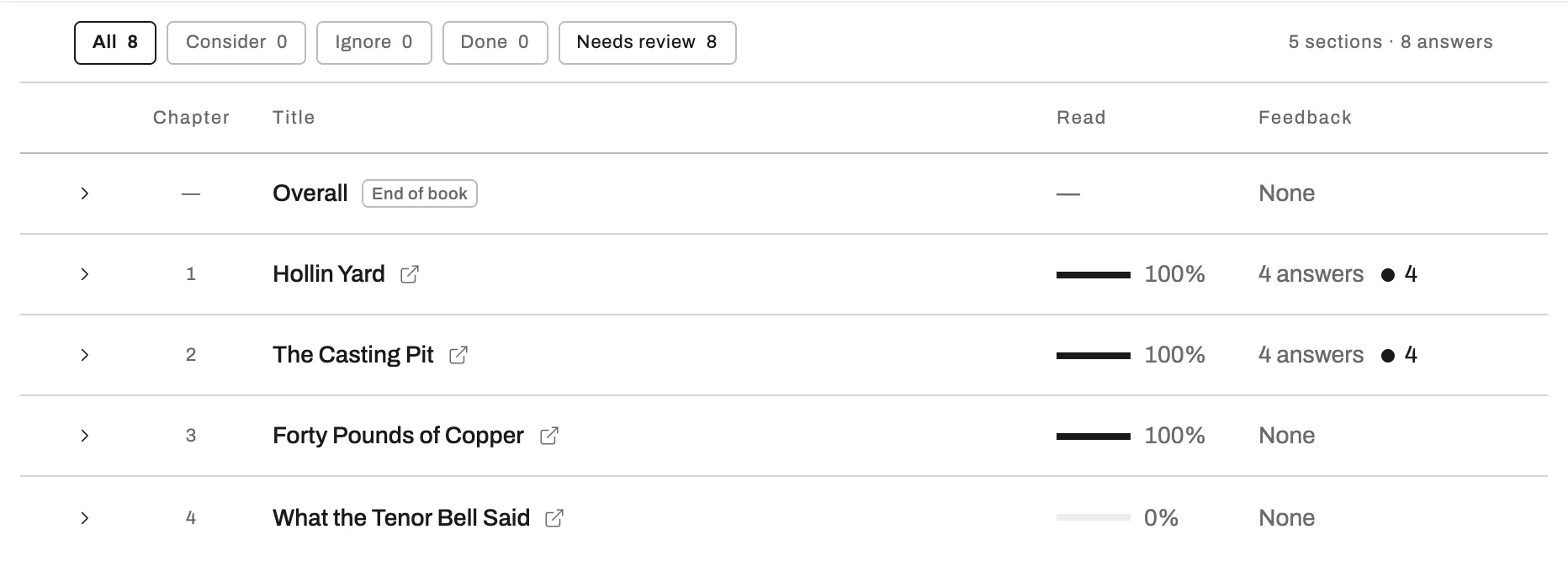
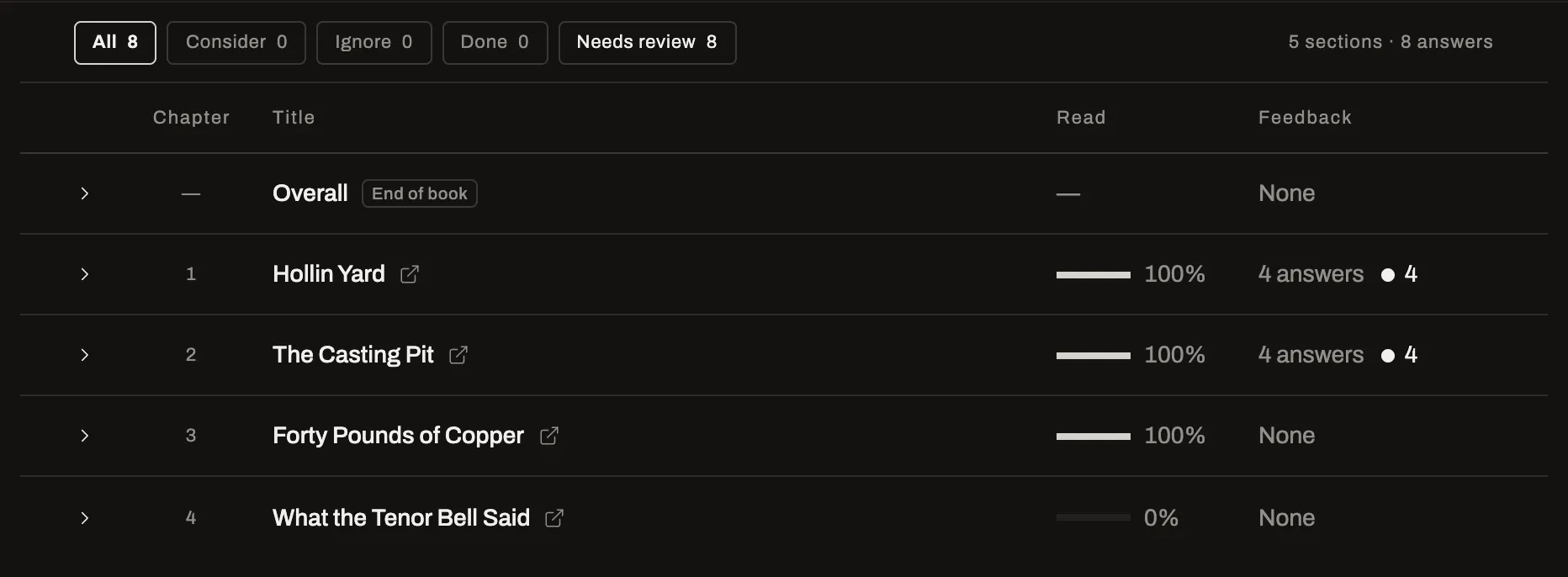
- Read is how much of the chapter the reader has read.
- Feedback counts the answers they gave for the chapter. The dot and number after it count the answers you have not tagged.
- The small arrow after a chapter’s title opens that chapter in a new tab.
- Hold the pointer over the i beside the reader’s address for their progress through the whole book, when they last read, and their totals.
A reader who has set a display name on their account is listed by it, with their email address under it. A reader with no display name is listed by their email address.
Step 5: Read and tag the answers
- Press a chapter’s row to open it. Each question is shown with the reader’s answer under it.
- Under an answer, press Consider, Ignore or Done to tag it. Press the same tag again to clear it.
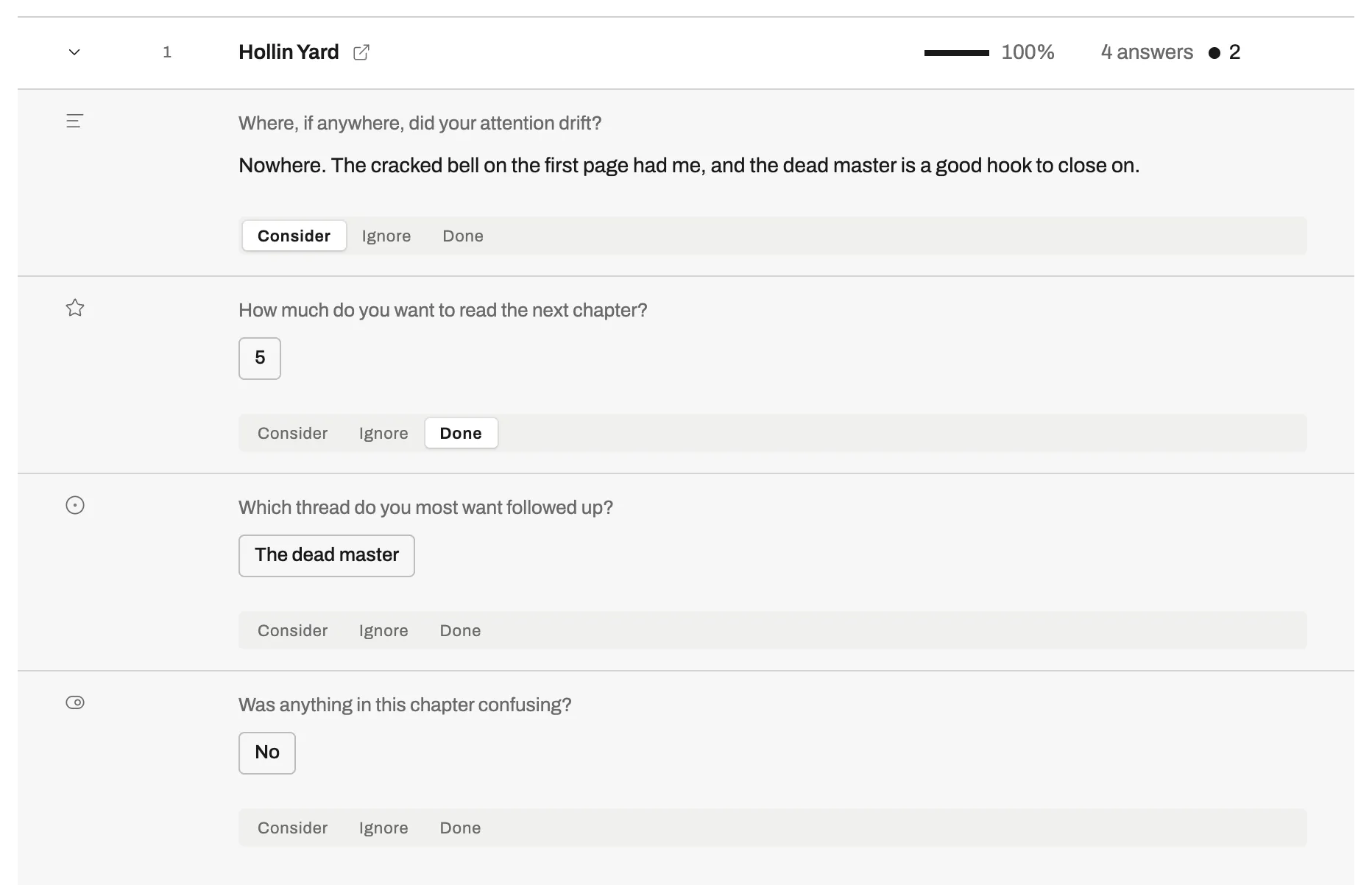
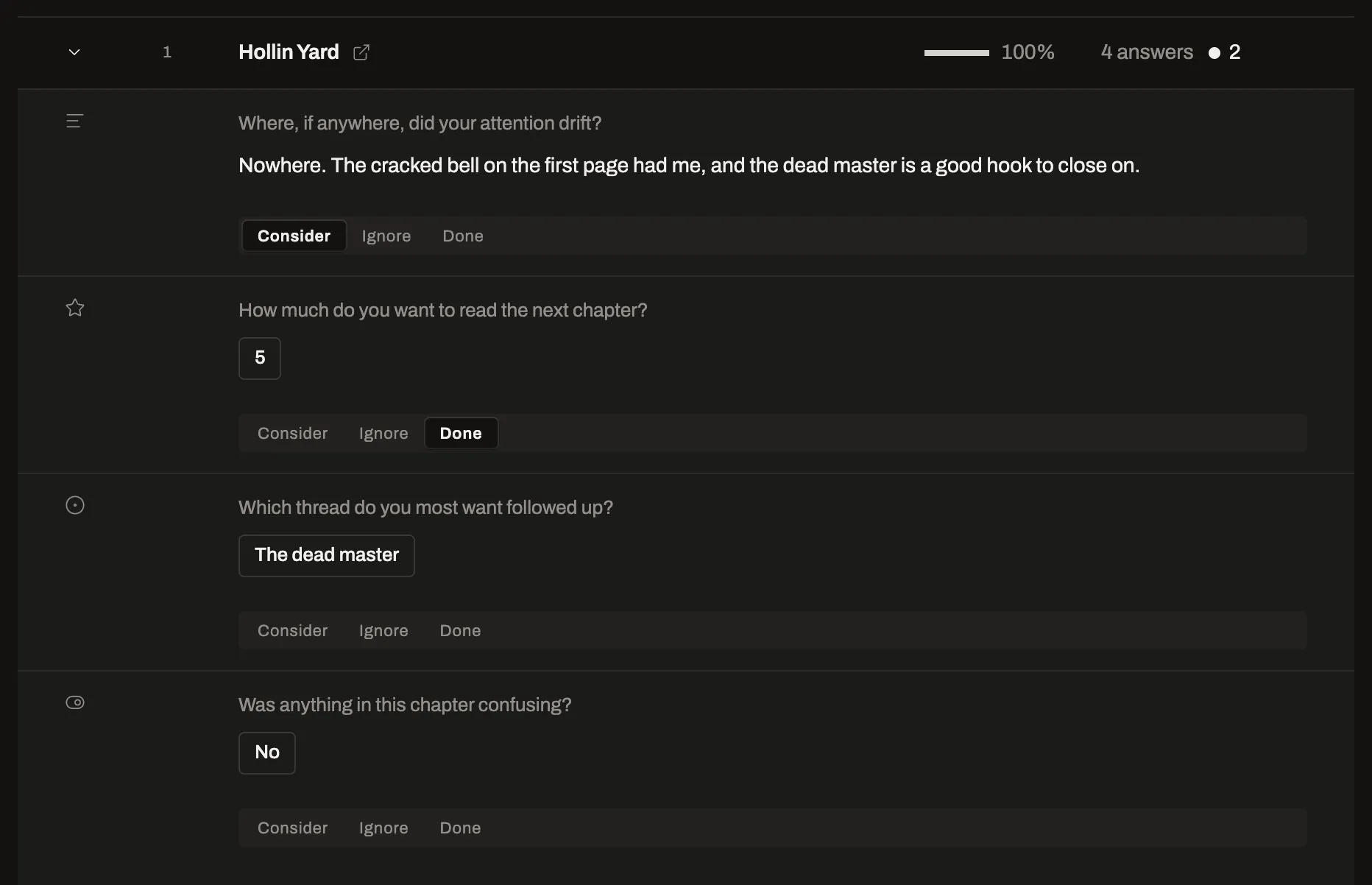
A tag is saved as soon as you press it. Tags are yours alone: the reader never sees them.
In a wide window the table has a Triage column. Hold the pointer over a chapter’s row there and its own Consider, Ignore and Done appear. They tag every answer in the chapter that has no tag yet.
To see only the answers with one tag, press a button above the table. Needs review shows the answers with no tag.
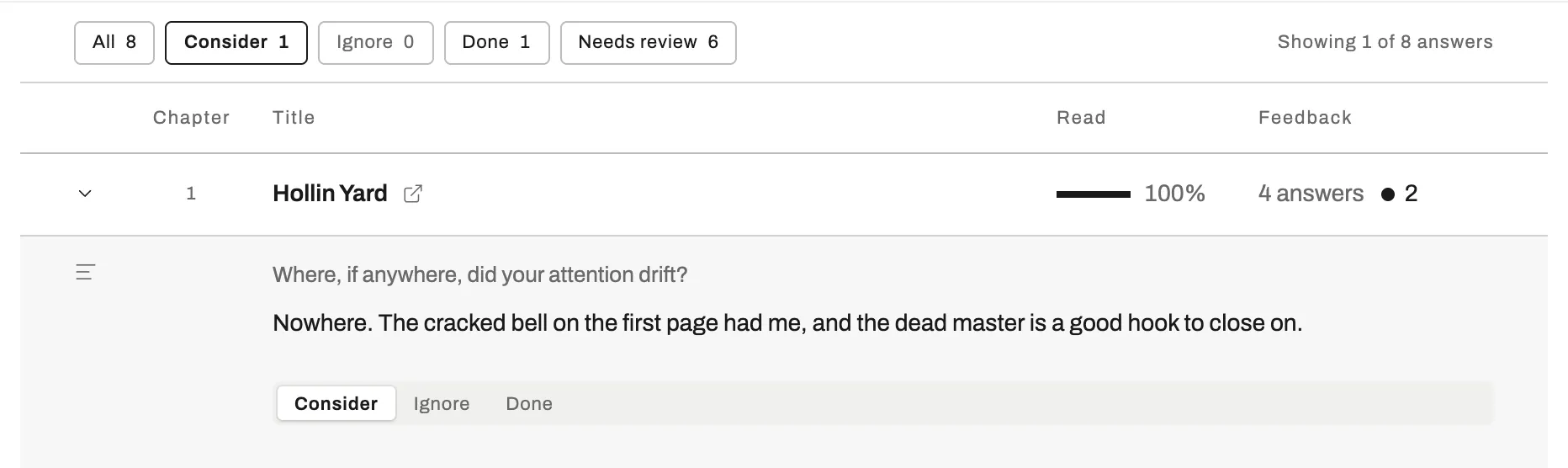
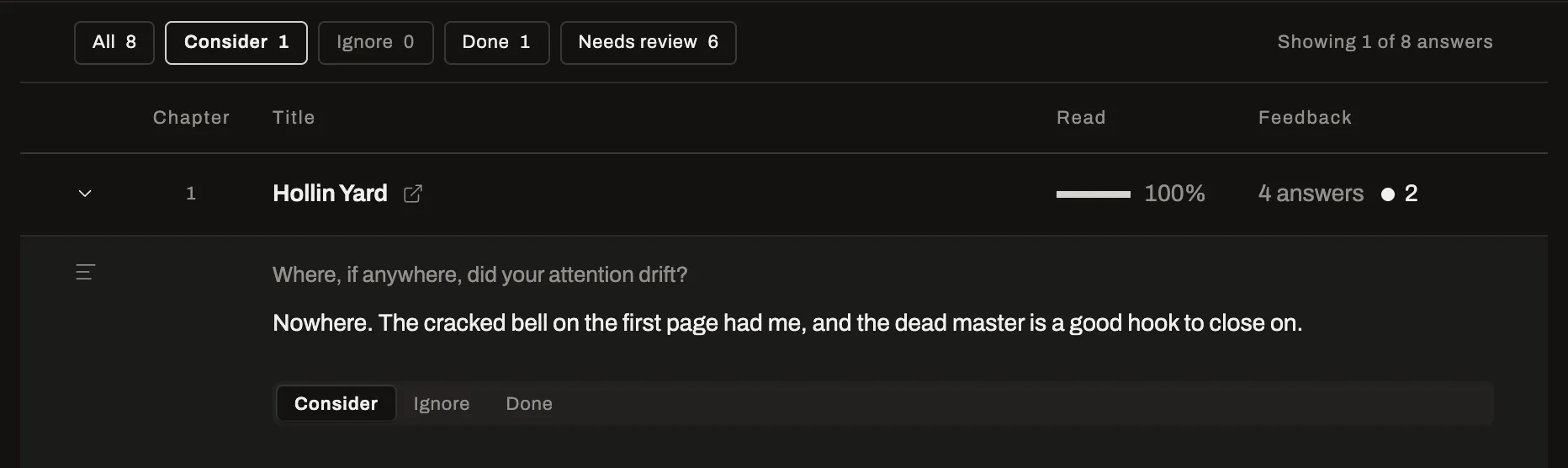
This page shows one reader. To read every reader’s answers to a chapter side by side, open the chapter and use the Feedback panel. Write the feedback form covers it.
Remove a reader
- On People, press the three dots at the end of the reader’s row.
- Press Revoke.
- Read the dialog, then press Revoke access.
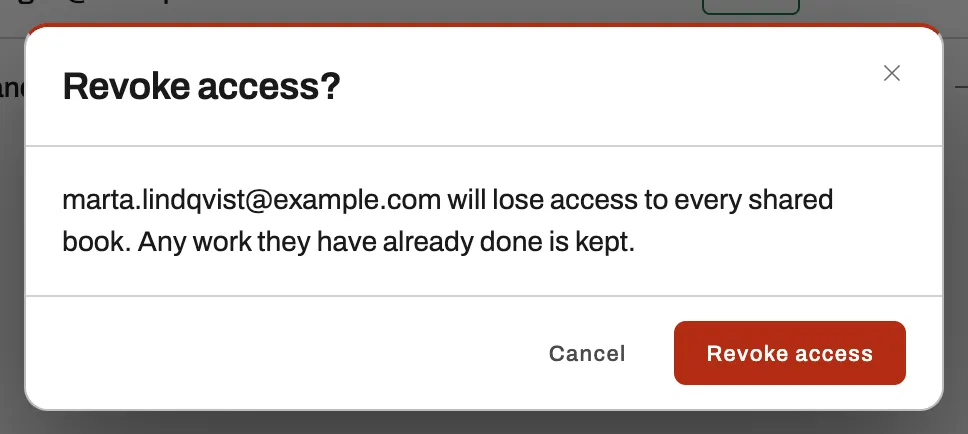
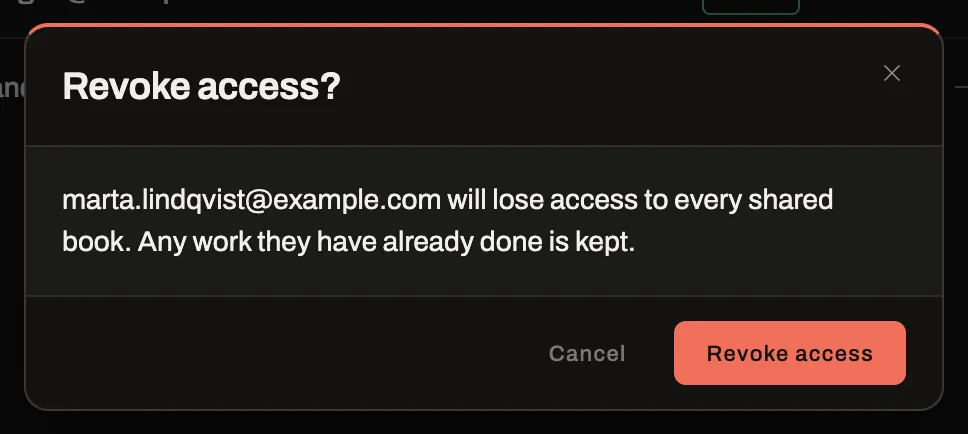
Removing a reader takes away every book you shared with them, not only the one you are in. To close one book and leave the others, use Manage access.
- The books leave the reader’s dashboard and they can no longer open them.
- Their row leaves your list, and their page goes with it.
- The answers they gave are kept. You still see them in the Feedback panel of each chapter.
- Their place in the book is not kept.
For a reader who is still Pending, the dialog is titled “Cancel invite?” and its button is Cancel invite. The link in their email stops working. You can invite them again at any time.
What the reader’s side looks like is covered in What your readers and editors see.
Related
- Write the feedback form: the questions a reader answers after each chapter, and the Feedback panel.
- Ask readers about the whole book: the questions behind the Overall row.
- Work with an editor: the other people you can invite from Users.
- What your readers and editors see: the book from your reader’s side.
- Find your way around a book: the sidebar’s Users tab.
- Free and Pro: what Pro adds, beta readers included.