DocsGetting started
Open a book's settings and delete a book
Updated
Every book has a Settings page of its own, opened from the gear at the bottom of the book’s sidebar. It holds one thing: deleting the book. This page shows how to get there, how to delete a book, and where to find the settings that are kept somewhere else.
Open the book’s settings
- Open the book from the dashboard.
- Press the gear at the bottom of the sidebar, at the far end of the row with your name.


The gear is there on every page of the book, and stays at the bottom when the sidebar is folded to a strip. Find your way around a book shows the whole sidebar.
Your name, beside the gear, opens a menu that also has a Settings entry. That one is for your account. The gear is for this book.
While you are offline the gear is dimmed, and pointing at it says “Unavailable offline”. If you lose your connection with Settings open, you are moved to a chapter.
What is on the page
The top of the page shows the book’s name over the word Settings, so you can check you are in the right book. Under it is one section, Deletion, with a box titled Delete this book.
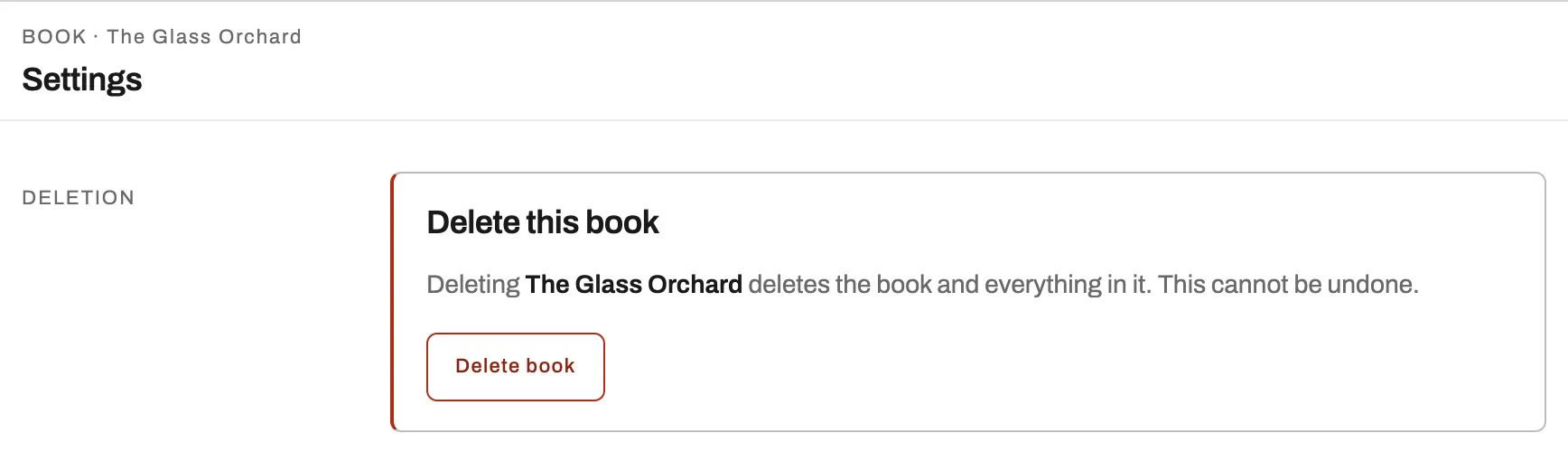
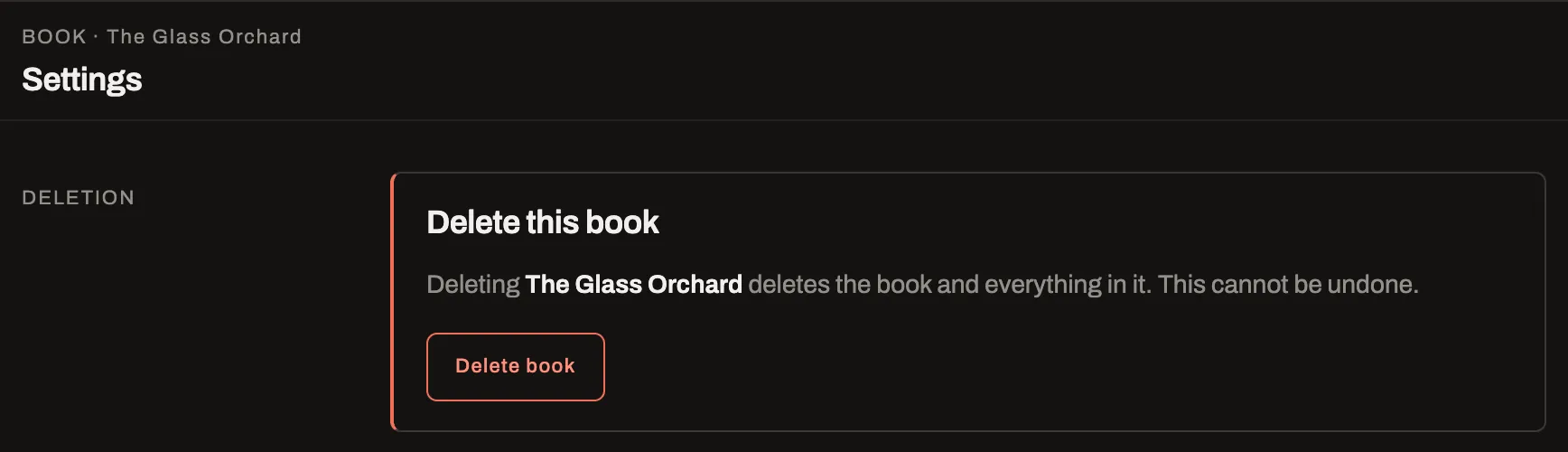
There is nothing here to save. The page has no side panel.
Delete the book
Deleting removes the book and everything in it, and it cannot be undone. The dashboard has no delete button, so this page is where it is done.
- In the Delete this book box, check that the name in bold is the book you mean.
- Press Delete book. A dialog opens. Nothing is deleted yet.
- Type the book’s title in the box under “Type … to confirm”. It has to match the title shown, capital letters included.
- Press Delete permanently, at the bottom right of the dialog. It stays dimmed until the title matches.
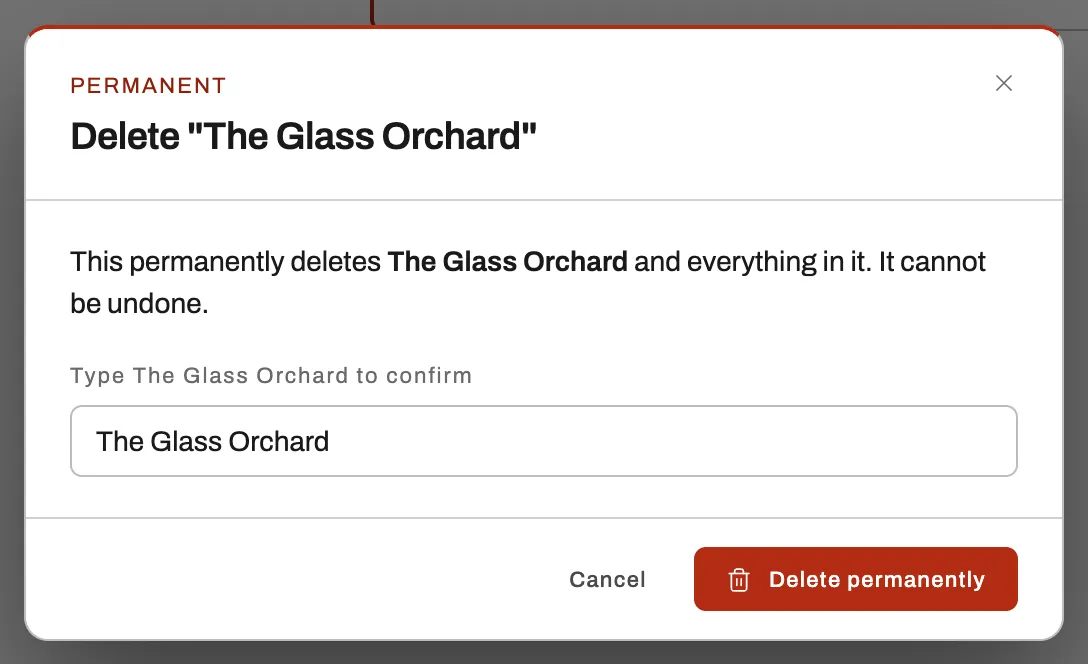
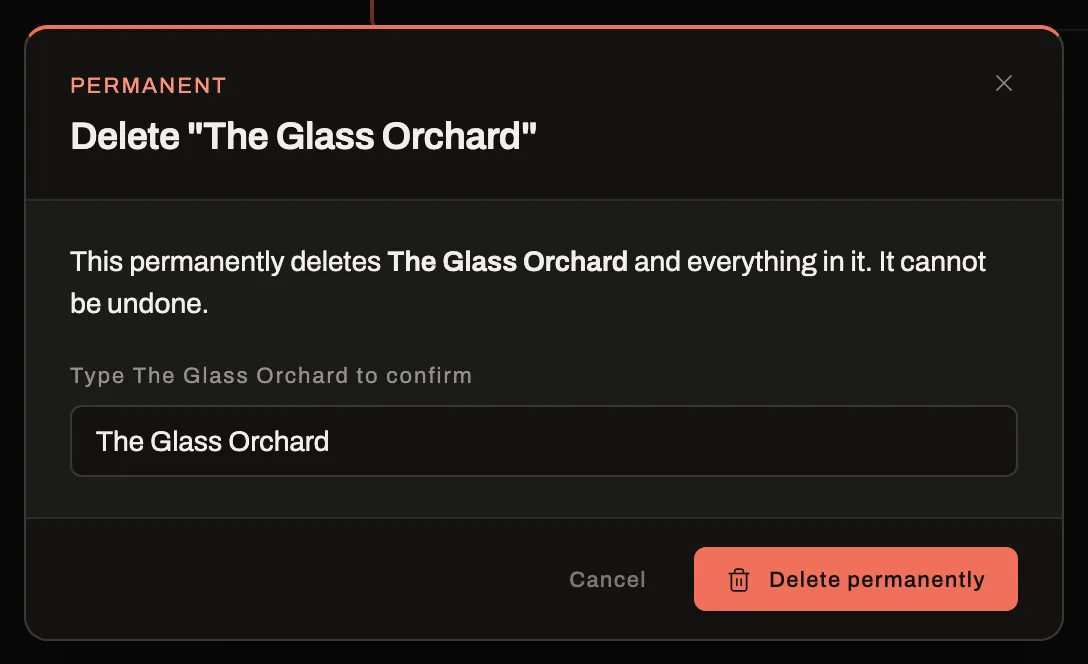
The book is deleted and you are back on the dashboard, where a notice reads “Book deleted” and its card is gone.
To change your mind, press Cancel or the cross at the top right of the dialog. The book is left as it was.
Two things to know:
- If the book is part of a series, the series and its other books stay.
- On the Free plan, deleting your book frees your one book, so you can start another with New book.
Settings that are somewhere else
Most of what you might look for under a book’s settings is kept on the page it belongs to:
- The book’s title and author: in the sidebar, choose Content, then Title page under Pages. Create a book shows it.
- Your account: press your name at the bottom of the sidebar, then Settings. See Change your email and account settings.
- Which tabs the side panel shows: the three dots at the top of the side panel. See Find your way around a book.
Related
- Find your way around a book: the sidebar, the gear and the account menu in full.
- Explore Gnarlywog with a sample book: create a sample book, then delete it when you are done.
- Create a book: start a new book and give it its title and author.
- Delete your account: delete your whole account and every book in it.