DocsCollaboration
Work with an editor
ProUpdated
An editor works on your book from their own account. They leave comments on your text, which you answer in the Edits panel, and they can change a chapter in a copy of their own, which you go through change by change. You invite them from the Editors page of a book. Editors are a Pro feature. See Free and Pro.
Invite an editor
- Open the book you want edited.
- In the sidebar, choose Users, then Editors.
- Press Invite editor.
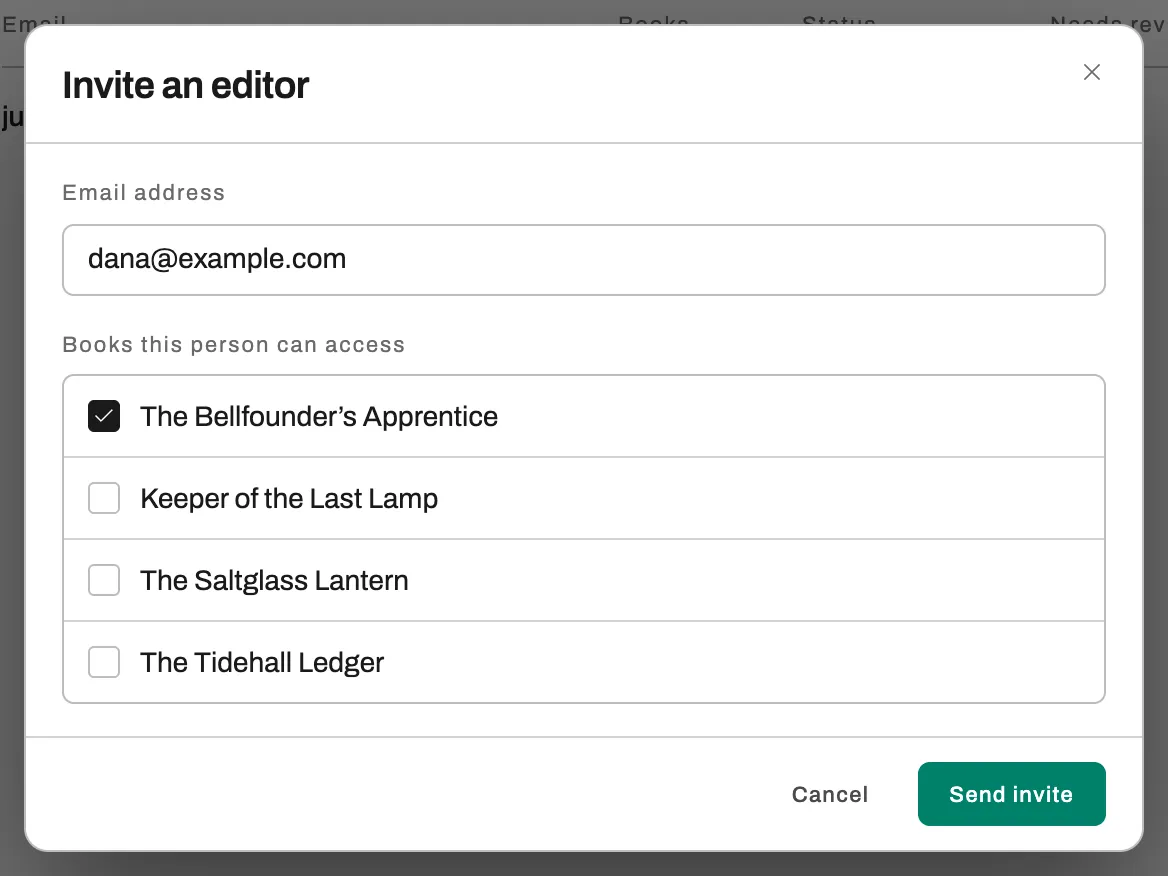
- Type the editor’s address under Email address.
- Under Books this person can access, tick each book they should work on. The book you are in is first in the list and already ticked; your other books follow by title. You need at least one.
- Press Send invite.
A notice confirms “Invite sent to” and the address, and the editor appears at the top of the list as Pending.


Gnarlywog emails the editor an invitation with a link to sign in, or to create an account if they do not have one. Access goes with the address: the editor has to sign in with the address you invited. Once they do, the book is on their dashboard and their row turns Active.
The list on People belongs to your account, not to this book. An editor you invited to another book is listed here too.
What the list tells you
The Editors page is built like the Beta readers page, and works the same way.
| Column | What it shows |
|---|---|
| Status | Pending: invited, not signed in yet. Active: has signed in and can work. Expired: the invite was not taken up within 7 days. |
| Needs review | A dot: the editor has comments on this book that are still open. A tick: every comment is closed. A dash: no comments yet. |
| Invited / active | When you sent the invite, then how long the editor has been active. |


The three dots at the end of a row hold Manage access, Resend invite while the editor is pending, and Revoke. Pressing the row itself opens Manage access. Invite beta readers and read their feedback covers resending an invite, the Undeliverable label, sorting and searching. An editor who has set a display name on their account is listed by it, with their email address under it. Removing an editor is the last section here.
What your editor can do
There are no roles to choose between. Every editor you invite can do both of these, on every book you ticked:
- Comment. They select a passage and write a note about it. Your text does not change.
- Change the text. They turn on Edit mode in a chapter and rewrite it in a copy of their own, called a draft. Your chapter does not change until you accept their changes.
An editor gets every chapter and part of the book, and its Copyright, Dedication, Summary, About the author, Acknowledgments and Also by pages. They do not get the Title page. They can comment on a chapter, a part or a page, and use Edit mode on chapters only.
What your readers and editors see shows the book from their side.
Read and answer comments
A chapter with a comment you have not read has a small pen after its word count in the chapter list under Content. Gnarlywog does not email you about a comment.
- Press the chapter.
- Open the side panel and choose the Edits tab, the pen. If the tab is not in the row, press the three dots at the end of the row and turn Edits on under Panels. Find your way around a book shows that menu.
- Read the list under Open. Each row quotes the passage, then gives the comment and who wrote it.
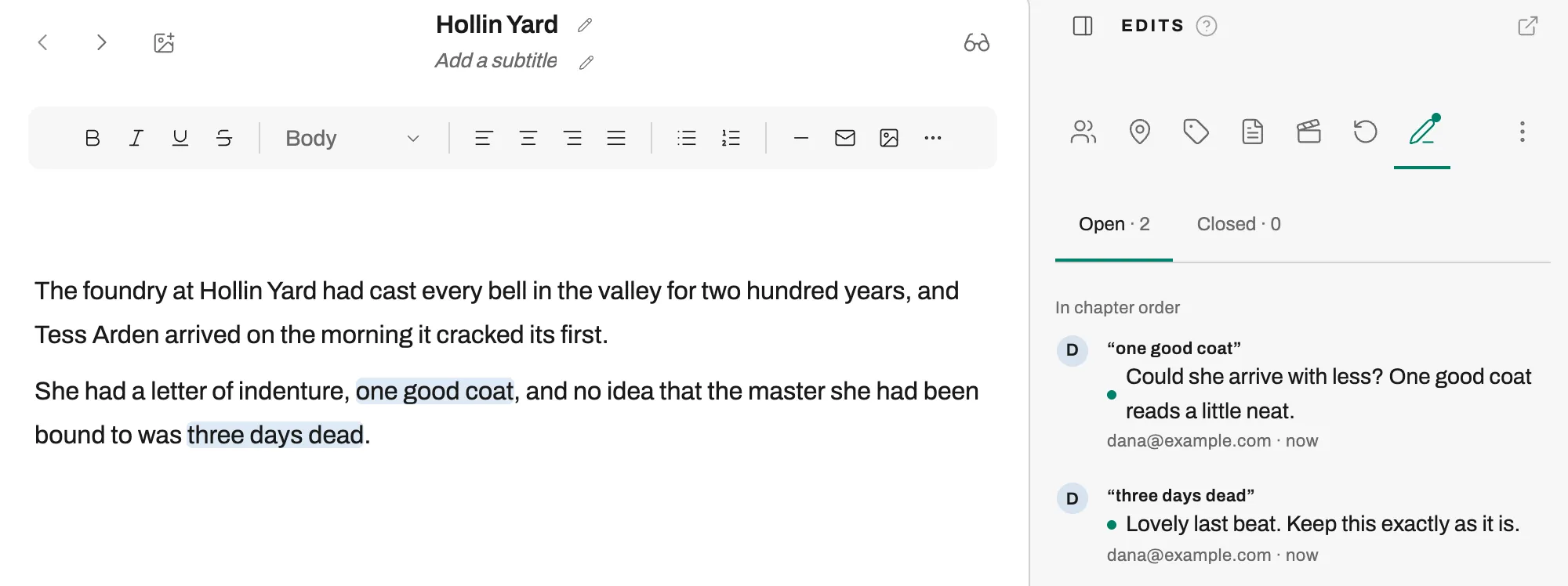
- The passages commented on are highlighted in the chapter. The list is in the order they come in the text.
- A dot before a comment means you have not opened it yet.
- The panel names an editor by the display name they set on their account, or by their email address if they have not set one.
- With more than one editor on the book, an All editors control beside the tabs narrows the list to one of them.
To answer a comment:
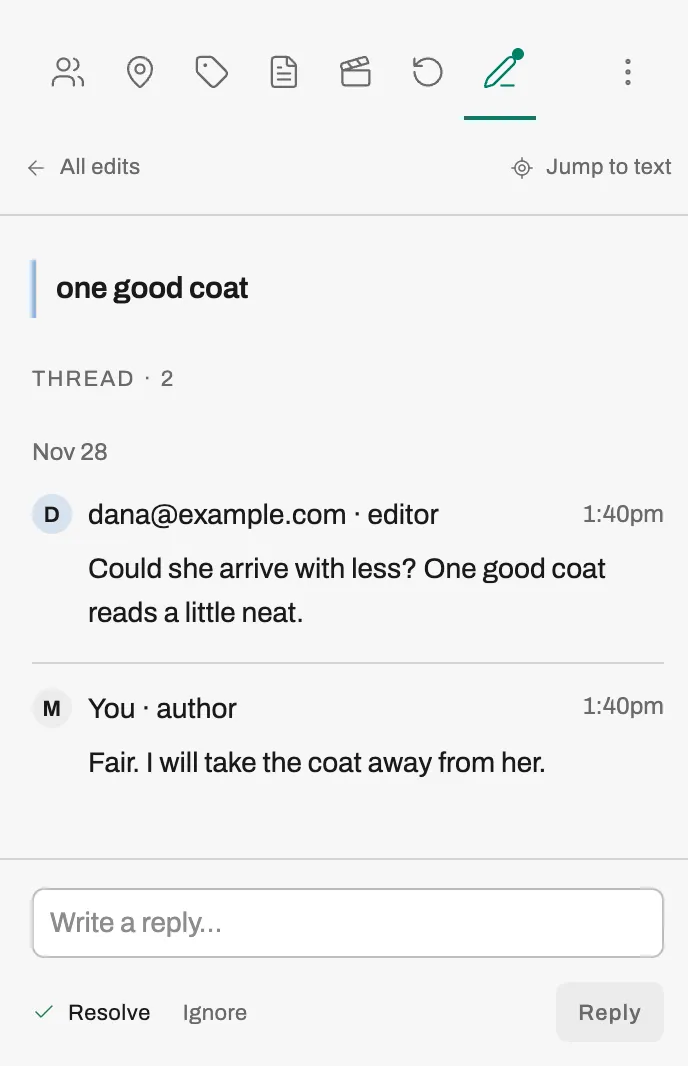
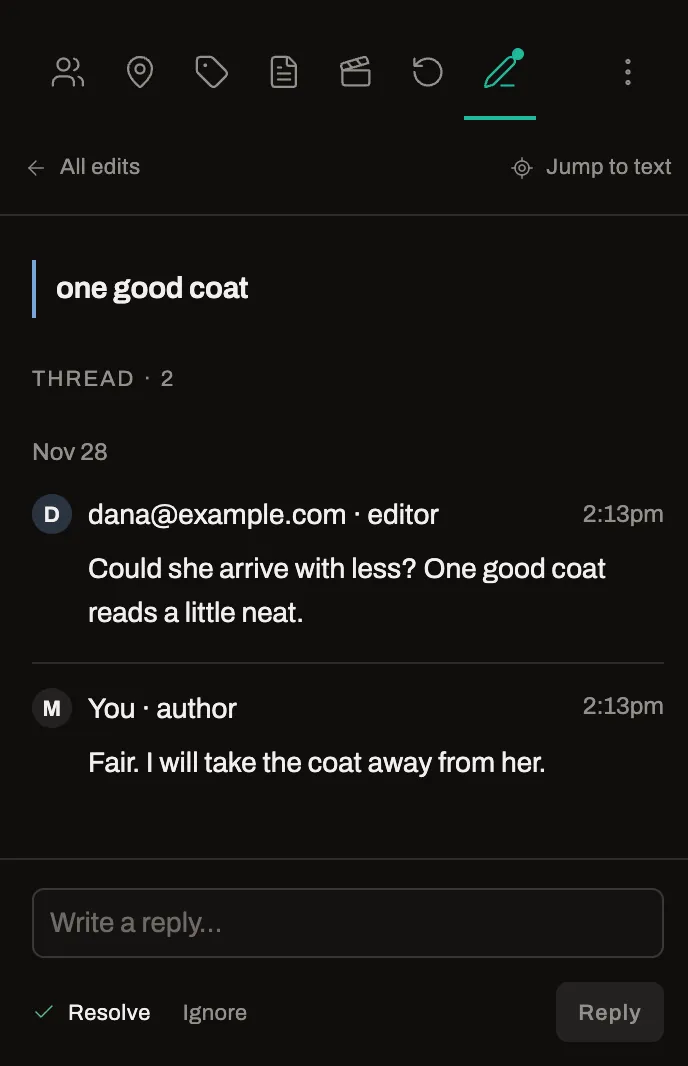
- Press its row. The comment opens on its own, as a thread.
- Press Jump to text if you want to find the passage in the chapter.
- Type under the thread and press Reply. Your editor sees your reply the next time they open the book, and can answer it.
- Press Resolve when you have dealt with the comment, or Ignore when you will not act on it. Either one closes it.
- Press All edits to go back to the list.
In the list, holding the pointer over a row shows Resolve at its end, to close a comment without opening it.
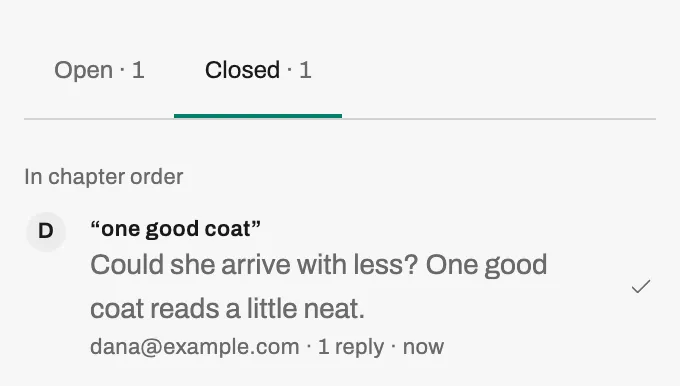
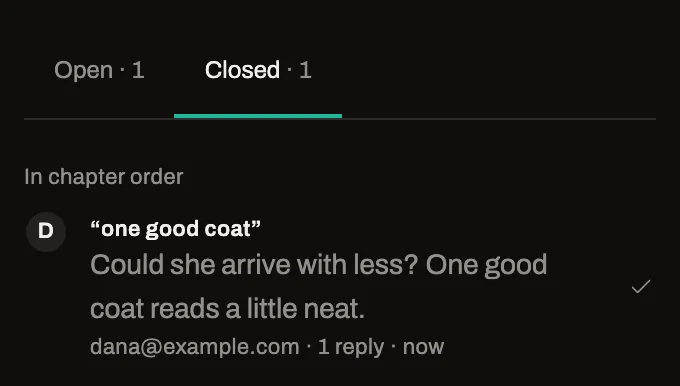
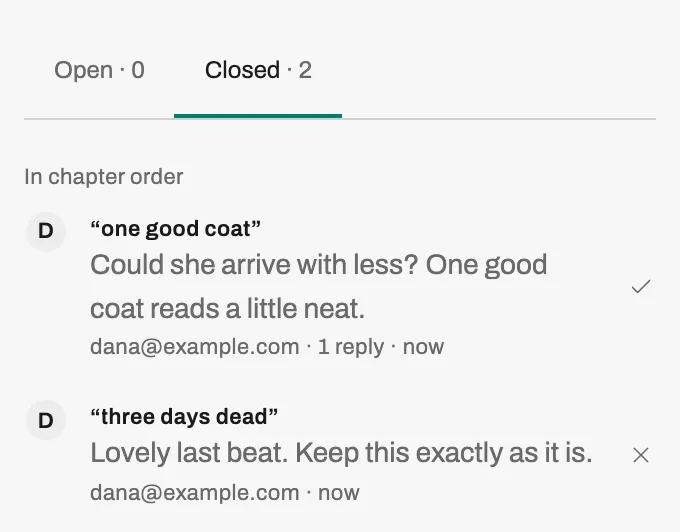
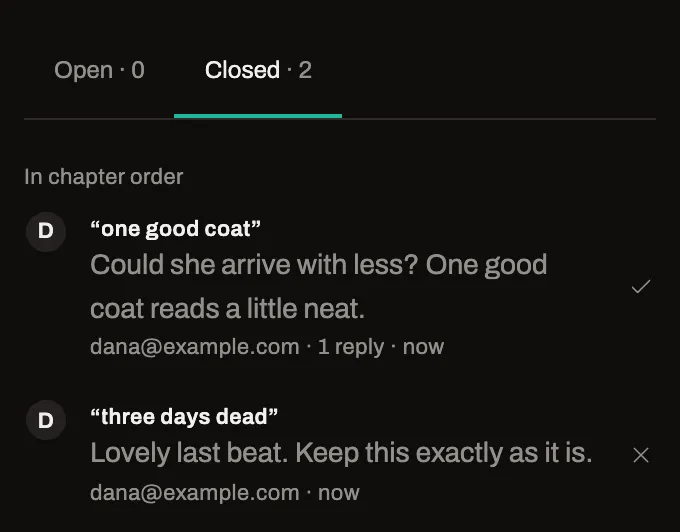
A closed comment moves to the Closed tab and its highlight leaves the chapter. Its row has a tick if you resolved it and a cross if you ignored it. Your editor sees which you chose. To bring one back, open it and press Reopen.
When your editor changes the text
A draft is an editor’s own copy of one of your chapters. Your editor changes the text in their copy, and when they hand it back you go through the changes and accept or reject each one.
You do not start, name or delete a draft. Your editor starts it, and it is gone once you have decided its last change. A chapter has one draft at a time.
This is what your editor does:
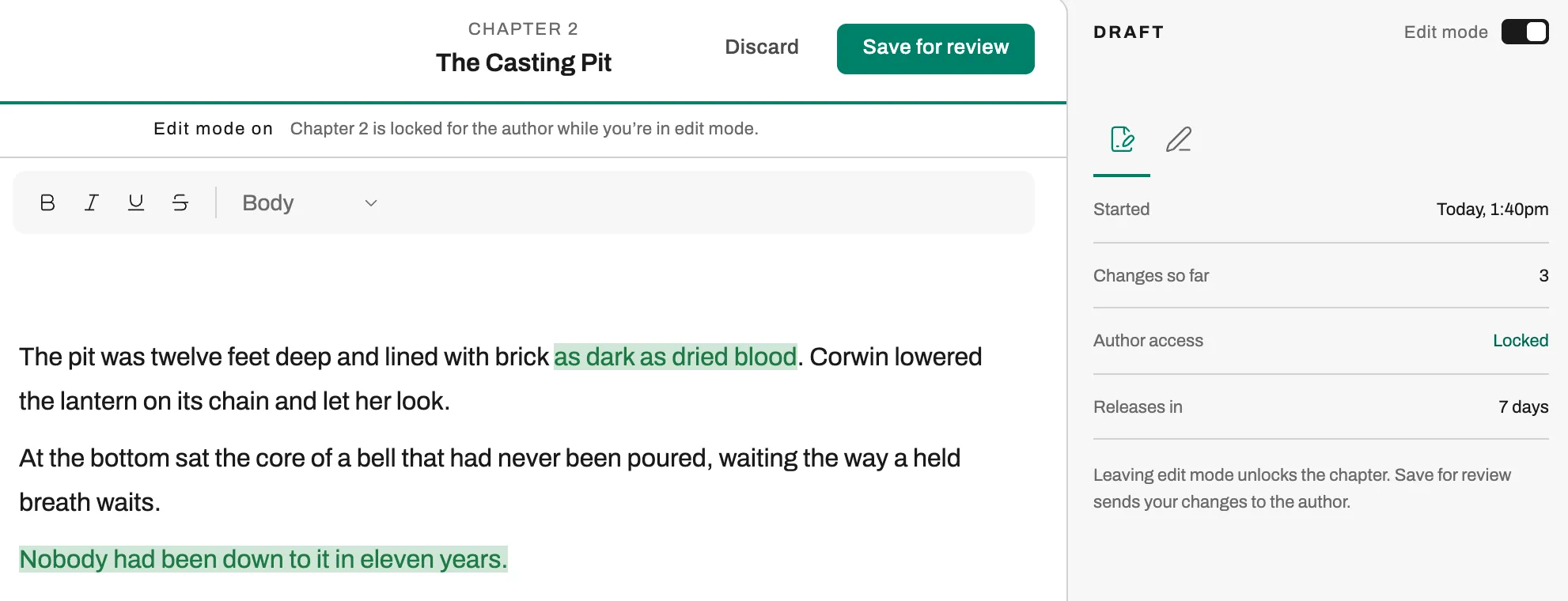
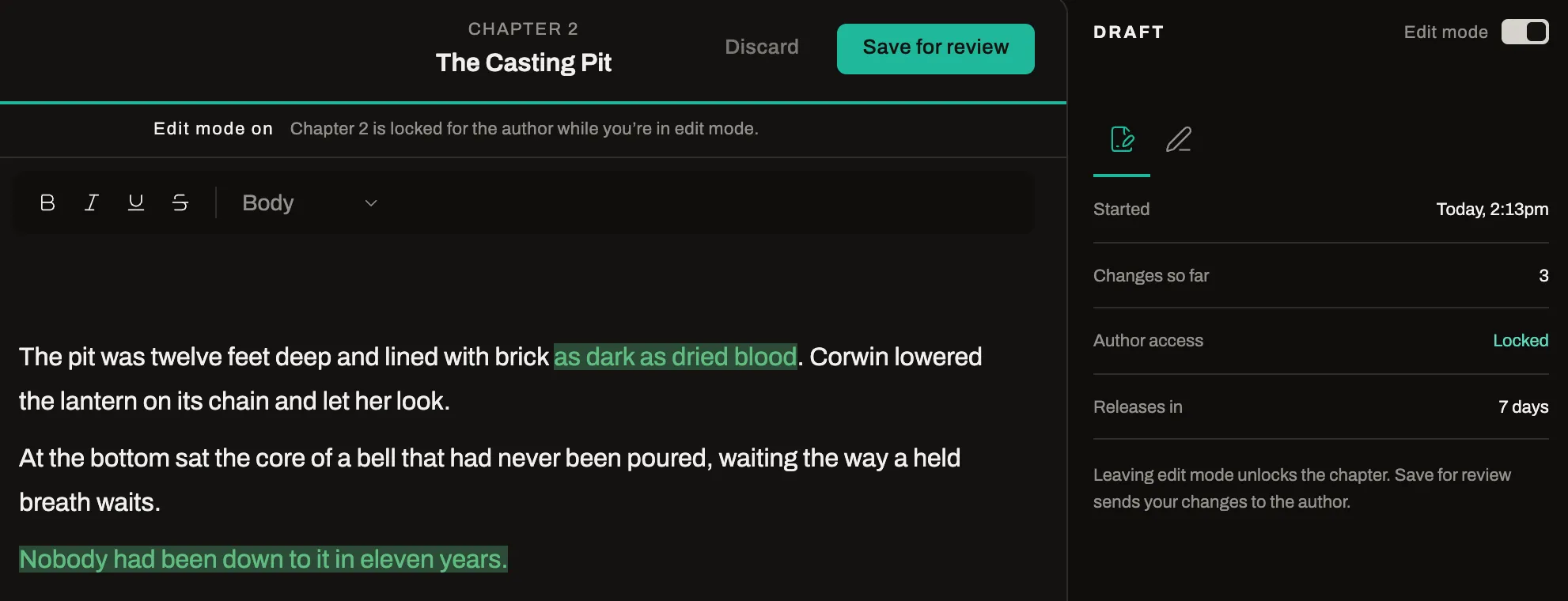
- They open a chapter and turn on the Edit mode switch. That starts the draft and locks the chapter for you.
- They change the text. What they add is highlighted in green as they type.
- They press Save for review to send you the changes, or Discard to throw the draft away. Either one unlocks the chapter.
When a chapter is locked
While an editor has a draft of a chapter open, you cannot open or change that chapter. In the chapter list under Content, its row is dimmed and has a small lock after the word count.
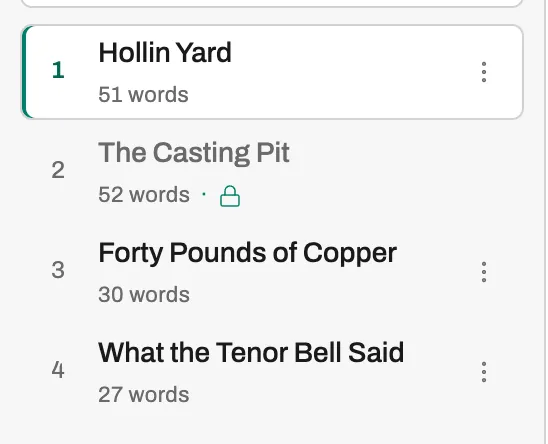
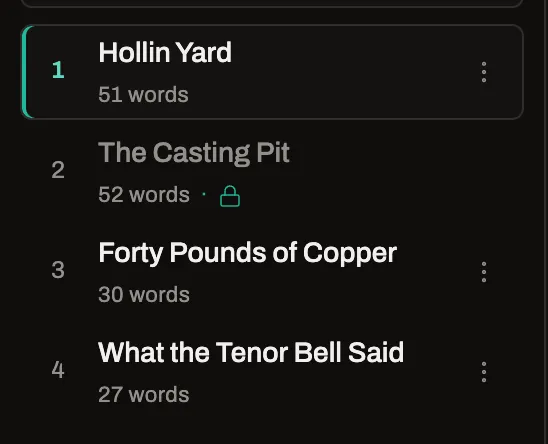
Hold the pointer over the row to see who has it and for how long, with a Manage locks link.
If you land on a locked chapter anyway, Gnarlywog opens the first chapter that is not locked and tells you so at the bottom of the screen. Gnarlywog names an editor by their display name, or by their email address if they have not set one.


The notice stays until you press Dismiss or Manage locks, or until the chapter is unlocked.
If every chapter in the book is locked, you see “Every chapter is with your editors.” in place of a chapter, with Manage locks and Back to books.
Review the changes
When your editor saves a draft for review, the lock in the chapter list turns into a pen, the same pen a comment gets. Hold the pointer over the pen to see how many changes are waiting. Gnarlywog also emails you.
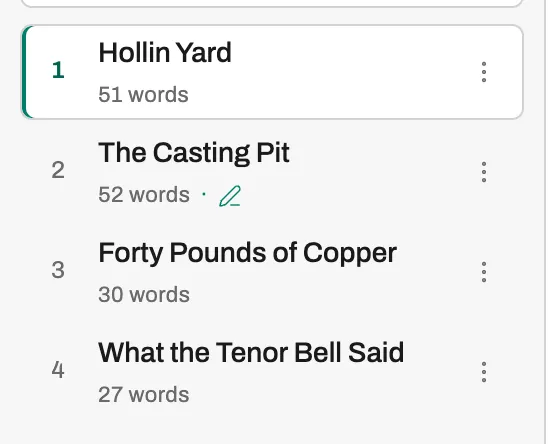
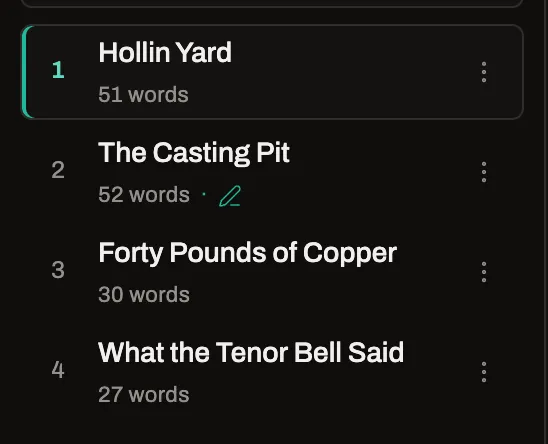
- Under Content, press the chapter with the pen.
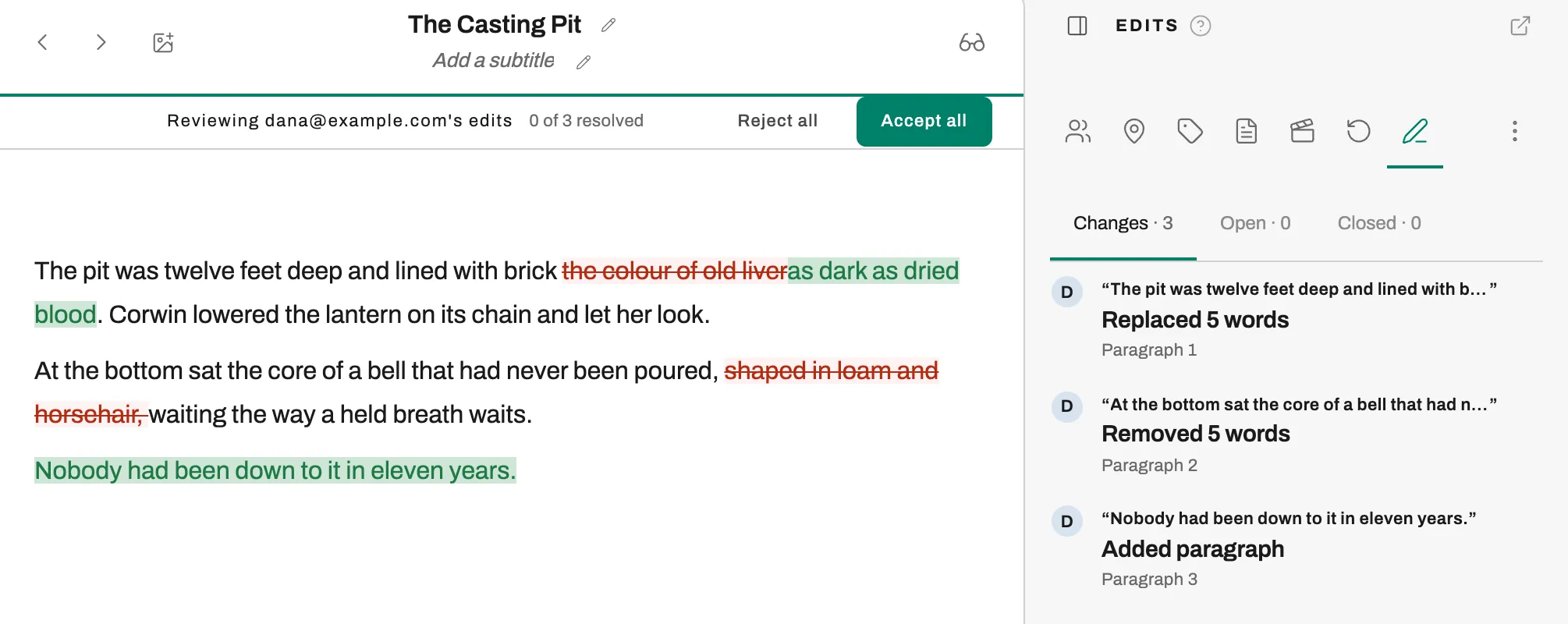
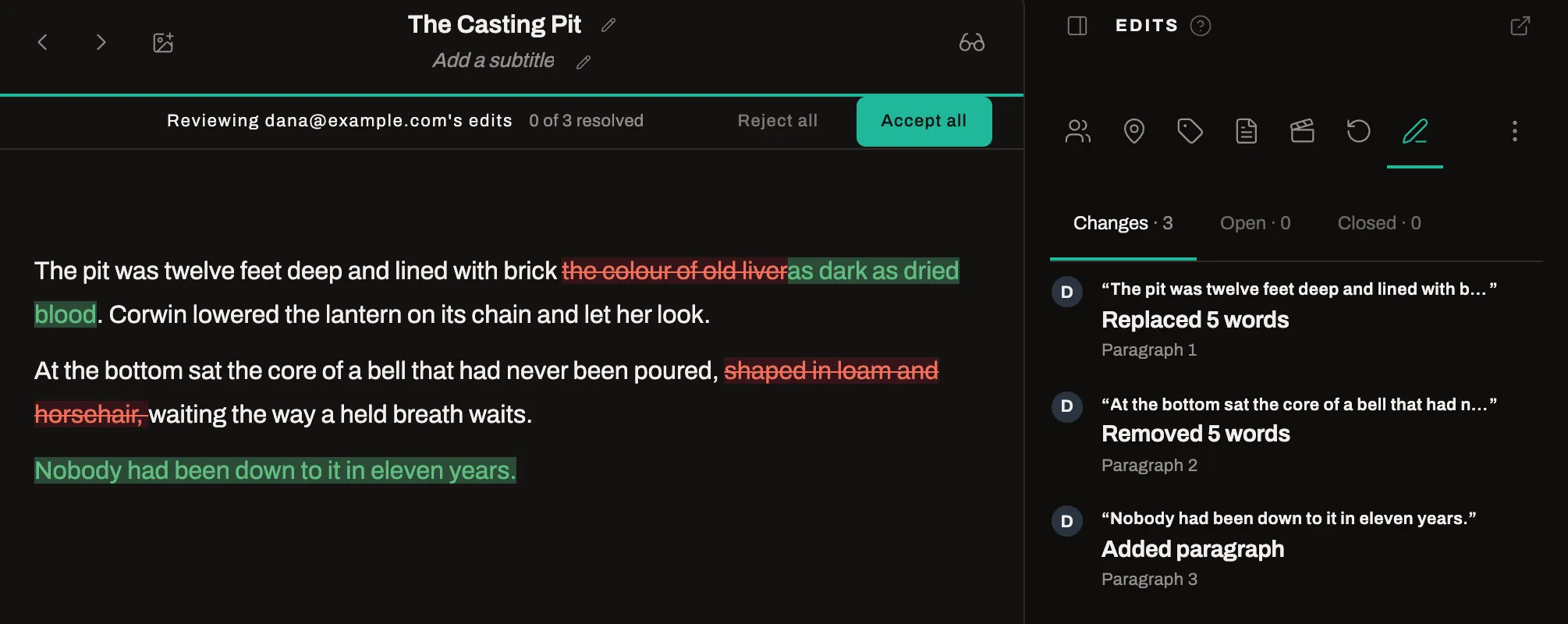
- Read the chapter. Words your editor added are highlighted in green. Words they took out are in red with a line through them.
- Look at the side panel. It has opened on Edits, at the Changes tab, with one row for each change.
While a review is open you cannot type in the chapter, and the toolbar is gone. The chapter is yours to edit again as soon as every change is decided.
Each row quotes the start of the passage, says what changed, such as “Replaced 5 words”, and gives the paragraph. Changes are counted by paragraph: everything your editor did in one paragraph is one change.
The Open and Closed tabs beside Changes hold the chapter’s comments. They are dimmed until the review is finished.
Accept or reject a change
There are two ways to decide a change.
From the list. Hold the pointer over a row. A green tick and a red cross appear at its end: the tick is Accept, the cross is Reject.
From the change itself:
- Press a row. The change opens on its own, with its before and after.
- Press Jump to text if you want to find it in the chapter.
- Press Accept or Reject under the change.
- Press All edits to go back to the list.
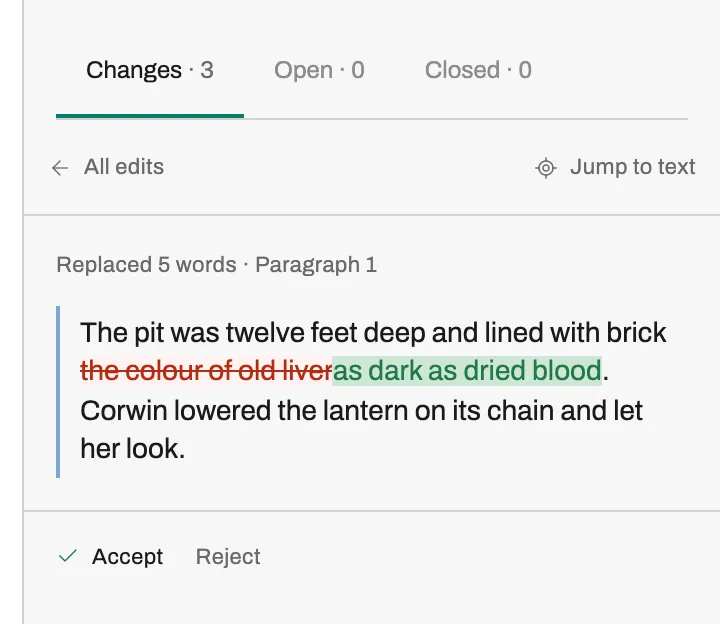
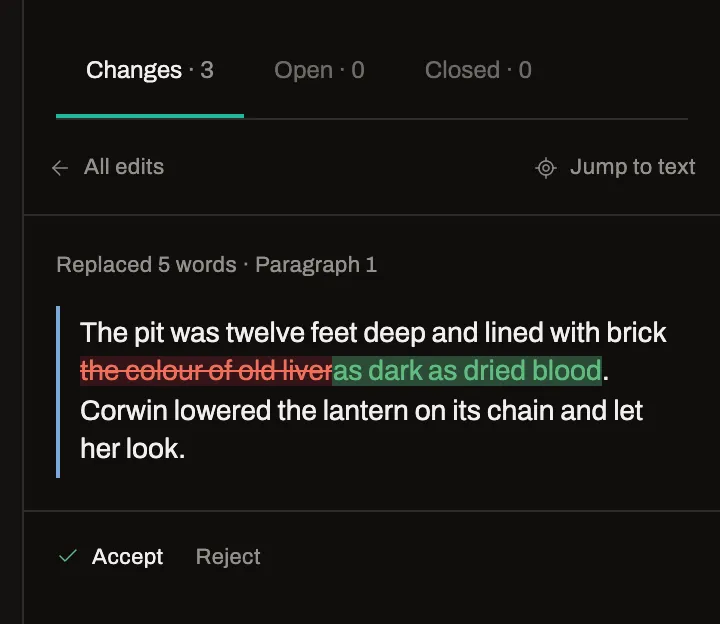
A change you accept shows in the chapter as the new wording. A change you reject shows as your original. In the list, a decided row turns grey, with a tick or a cross at its end.
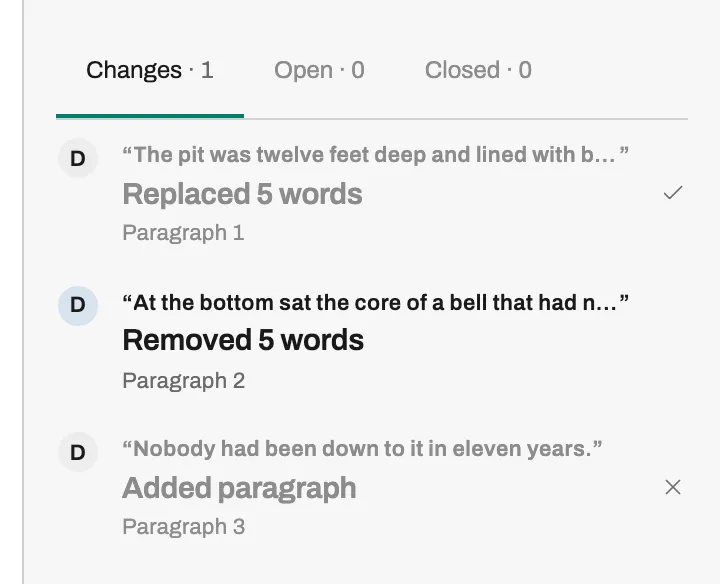
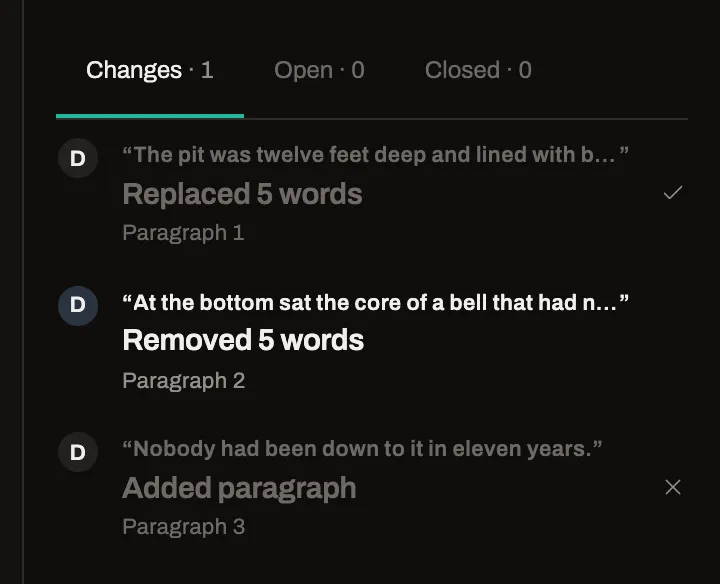
To change your mind, press a grey row and then Reopen. You can do that until the review ends.
Finish the review
The bar above the chapter counts how far you are, such as “2 of 3 resolved”.


- Accept all accepts every change you have not decided yet. A notice, “All changes accepted”, offers Undo for 5 seconds; the decision is sent when it closes.
- Reject all rejects every change you have not decided yet. It asks first, in a dialog titled “Reject all changes?”: press Reject all there to go ahead.
Neither touches a change you have already decided.
The review ends by itself at your last decision. There is nothing more to press, and after that a decision cannot be reopened. When it ends:
- The changes you accepted are in your chapter. The ones you rejected are gone, and so is the draft.
- The toolbar comes back and you can write in the chapter again.
- If you accepted anything, the chapter’s Revisions gets one entry, named “Accepted edits from” and your editor. See Save and compare earlier versions of a chapter.
- Your editor can start a new draft of the chapter.
See who has a chapter, and unlock it
- In the sidebar, choose Users, then Editors.
- Choose the Settings tab. Manage locks, wherever you see it, opens the same page.
- Look under Active editor drafts. Each draft has a row with its chapter, its editor, how long the chapter has been locked and how many changes the draft holds so far.
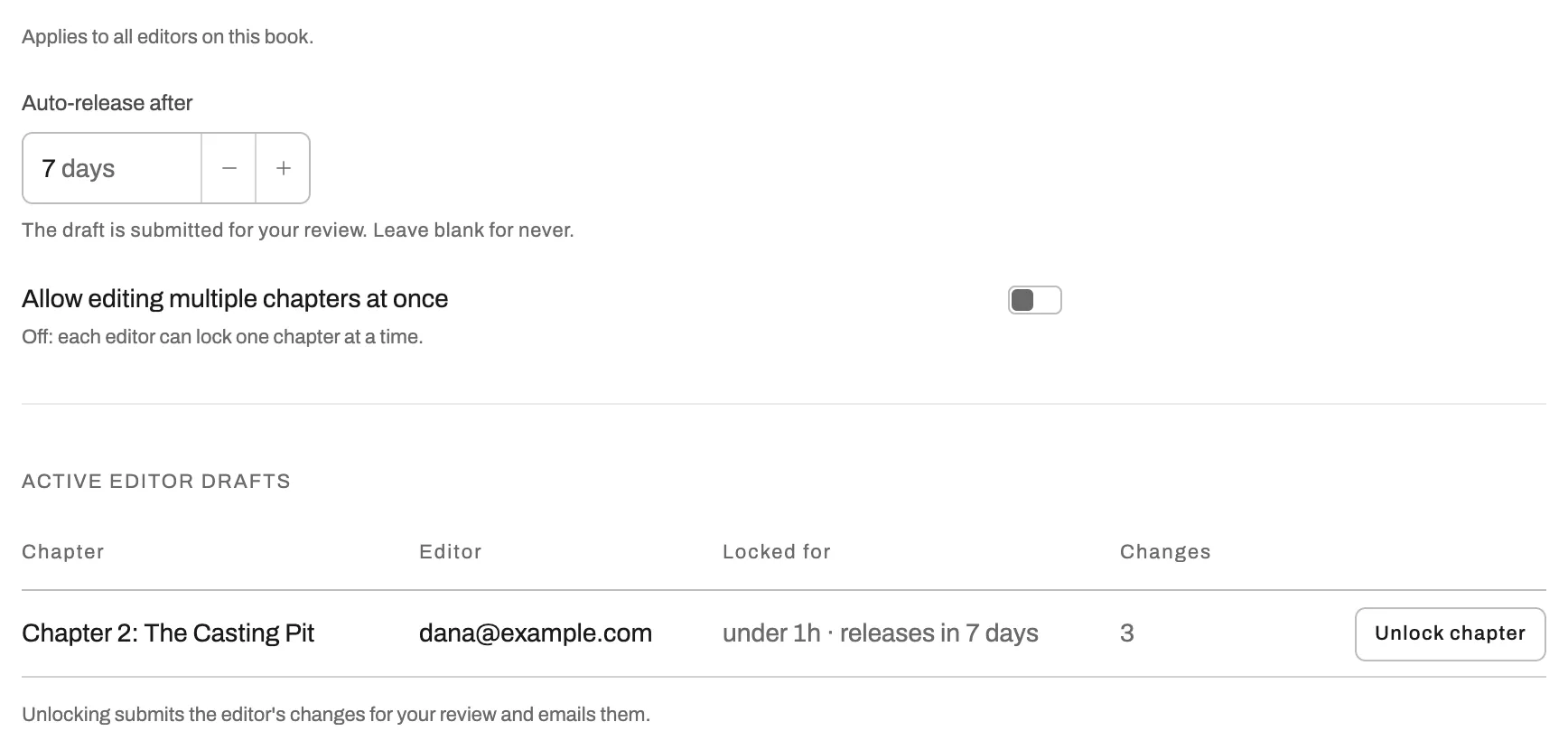
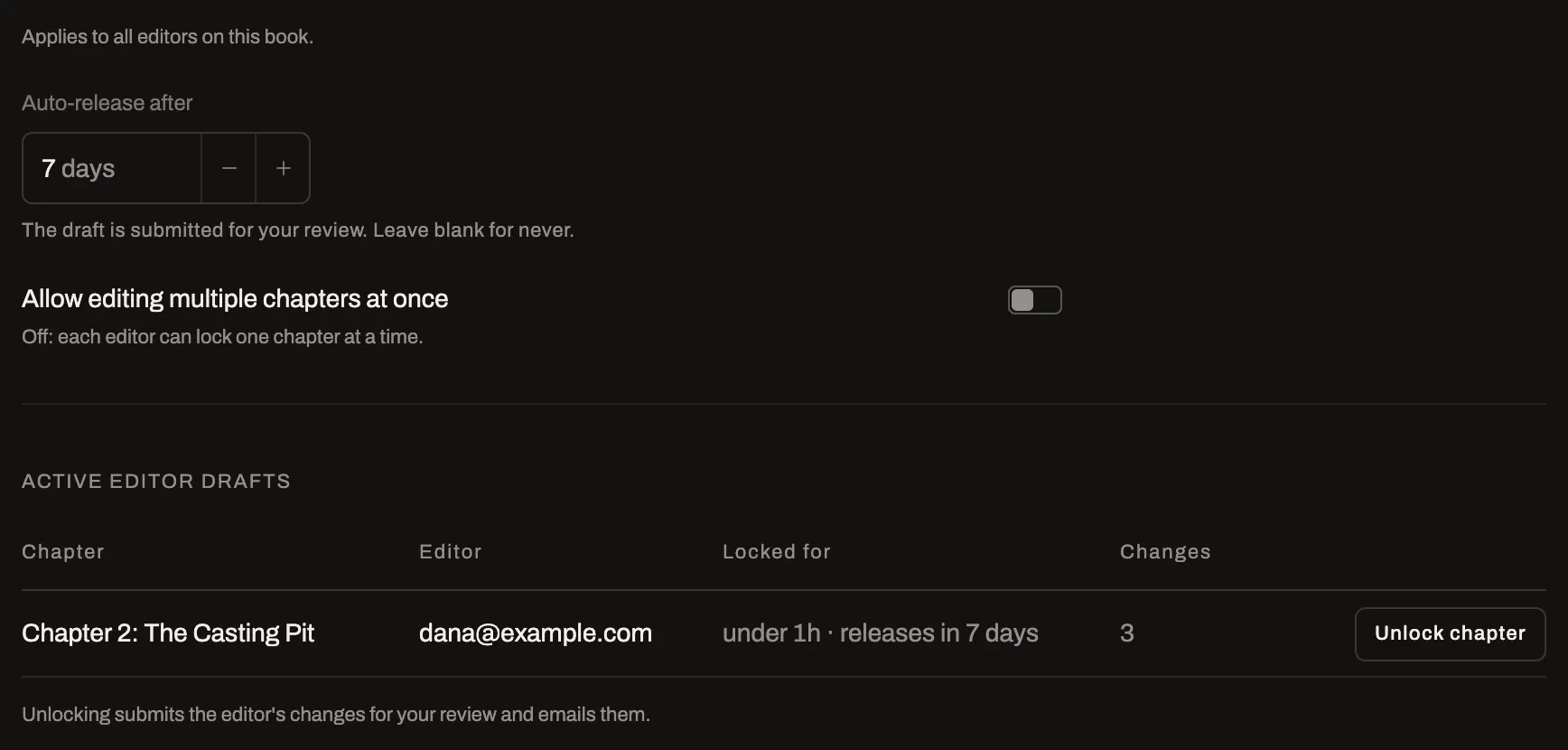
To take a chapter back without waiting for your editor:
- Press Unlock chapter at the end of the draft’s row.
- Read the dialog. It says how many changes will come to you.
- Press Unlock chapter again.
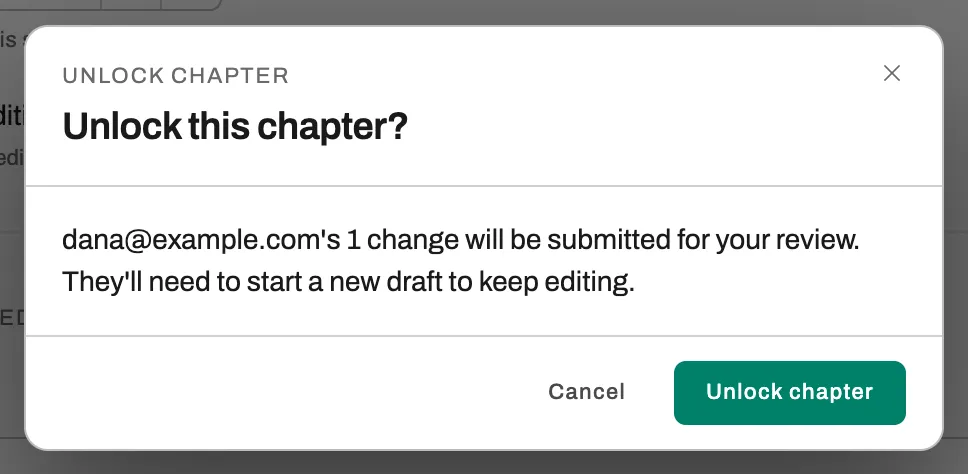
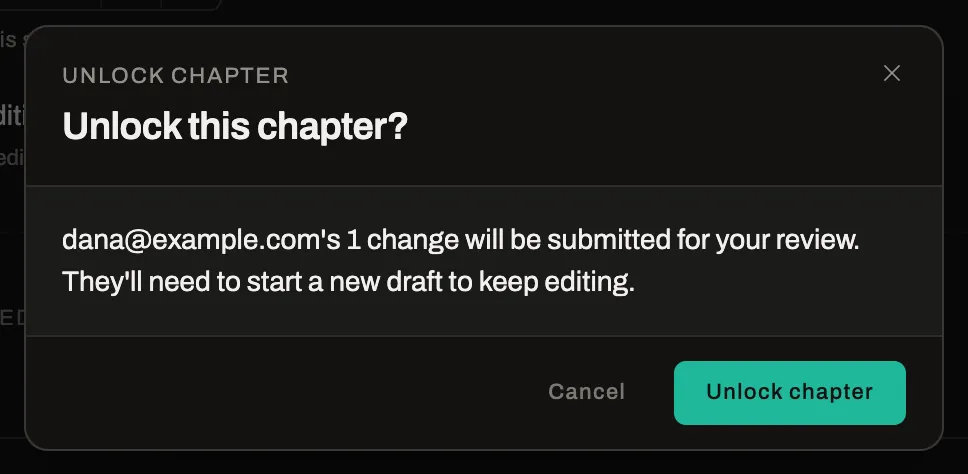
Unlocking does not throw your editor’s work away. Their changes so far come to you for review, exactly as if they had pressed Save for review, and the row reads In review until you have decided them. If they had not changed anything yet, the chapter just unlocks. Your editor is sent an email, and has to start a new draft to carry on.
If your Pro plan ends while a chapter is locked, you can still unlock it and finish a review.
Set the rules for drafts
Two rules sit at the top of the same Settings tab. They apply to every editor on this book, and a change is saved as soon as you make it.
- Auto-release after: a number of days, from 1 to 365. A draft that has been open that long is submitted for your review by itself, so a chapter cannot stay locked for good. Leave the box empty for never, which is how a book starts. While this is set, Locked for also shows how long each draft has left.
- Allow editing multiple chapters at once: a switch, off to begin with. While it is off, each editor can lock one chapter at a time. Turn it on to let an editor have drafts of several chapters open together.
Comments on a book page
An editor can comment on the Copyright, Dedication, Summary, About the author and Acknowledgments pages too. A page with a comment you have not read has the same small pen at the end of its row in the Pages list.
- Under Content, press the page.
- Press the narrow strip at the right edge of the page. The Edits panel opens.
- Read, reply to and close the comments exactly as you do in a chapter.
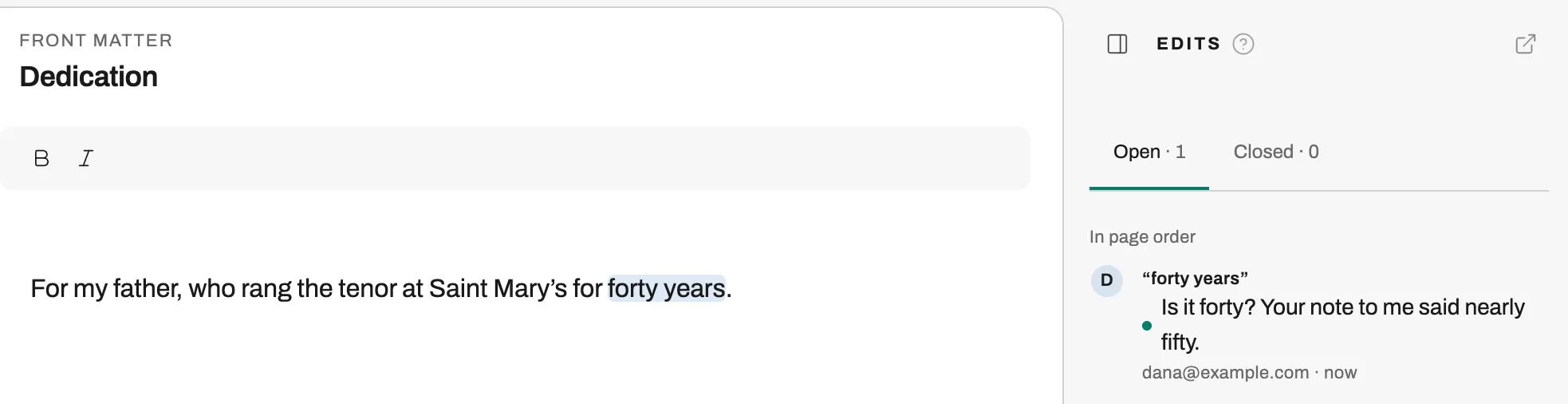
The arrow at the top right of the panel opens the Editors page. An editor cannot change the text of a page: Edit mode is for chapters.
Change an editor’s books, or remove them
To close one book to an editor and leave the others:
- On the Editors page, press the editor’s row.
- Clear the book under Books this person can access.
- Read the warning under the list. Any chapter the editor has in Edit mode in that book is unlocked, and the changes they made so far come to you for review.
- Press Save changes.
To remove an editor from every book you shared with them:
- Press the three dots at the end of the editor’s row.
- Press Revoke.
- Read the dialog, then press Revoke access.
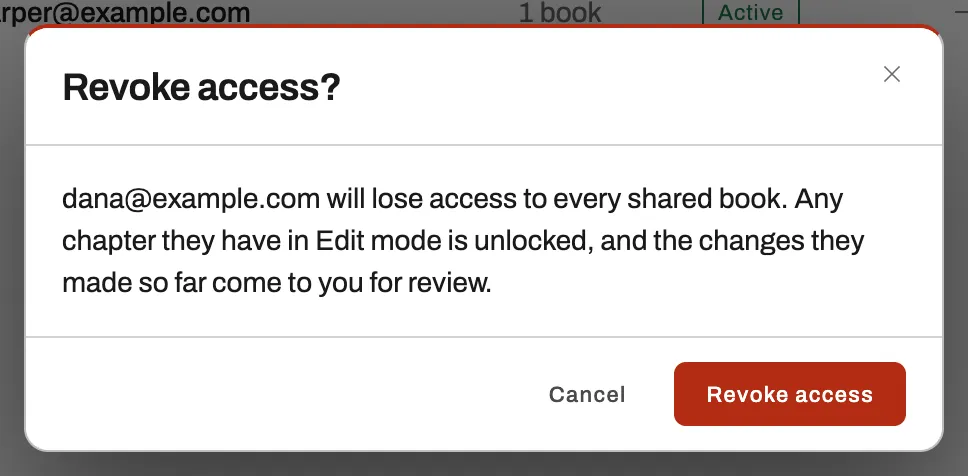
When you remove an editor:
- The books leave their dashboard and they can no longer open them.
- Their row leaves your list.
- Their comments and your replies stay in the Edits panel, still signed with their name.
- The changes of theirs that you accepted stay in your chapters.
A chapter the editor had in Edit mode is unlocked. Their changes so far come to you for review, as if you had pressed Unlock chapter, and the draft’s row under Active editor drafts on the Settings tab reads In review. The editor is not emailed.


Open the chapter to accept or reject the changes, as described above. The chapter is yours to edit again once you have decided them. If the editor had not changed anything yet, the chapter just unlocks.
If the editor still has the chapter open in Edit mode, their next save takes them out of it and back to their dashboard.
For an editor who is still Pending, the dialog is titled “Cancel invite?” and its button is Cancel invite. The link in their email stops working.
You can invite the same address again at any time.
Related
- What your readers and editors see: the book from your editor’s side.
- Invite beta readers and read their feedback: the other people you can invite from Users, on a page built the same way.
- Save and compare earlier versions of a chapter: where an “Accepted edits from” entry is kept.
- Write in the chapter editor: the editor you get back when a review ends.
- Organize your book with chapters and parts: the chapter list where the lock and the pen show.
- Write your book’s copyright page: the book pages an editor can comment on.
- Find your way around a book: the sidebar’s Users tab and the side panel.
- Free and Pro: what Pro adds, editors and their drafts included.