DocsPlanning
Set a writing goal and track your progress
Updated
The Progress page, under Tools, is where you give a book a writing goal: how many words to write, by when, and how many a day. Once a goal is set, the page shows whether you are on pace, the book’s sidebar shows today’s words, and the dashboard shows your streak, your writing days and each book’s deadline.
Open the Progress page
- Open a book.
- In the sidebar, press Tools.
- Under Planning, press Progress.
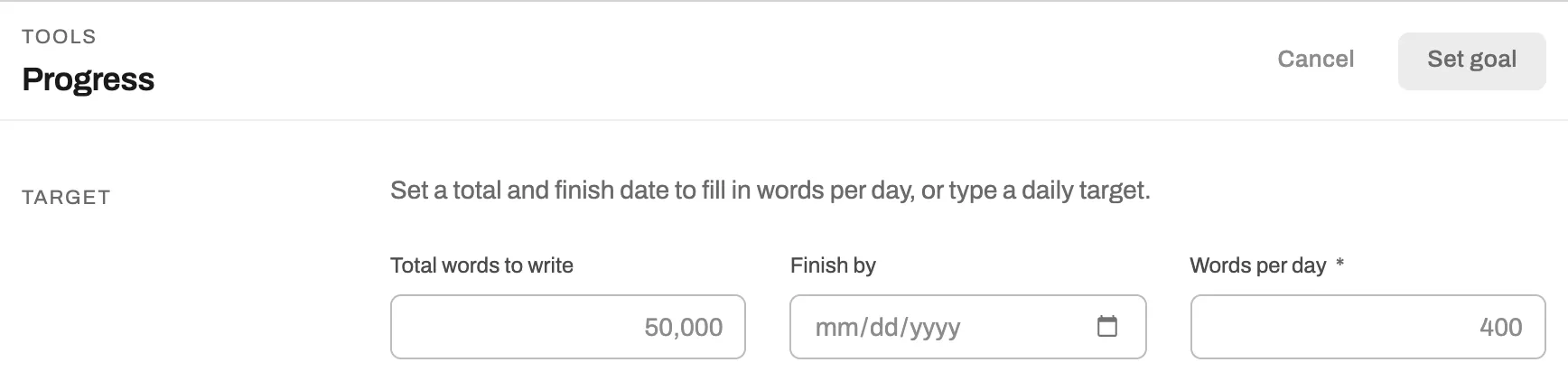
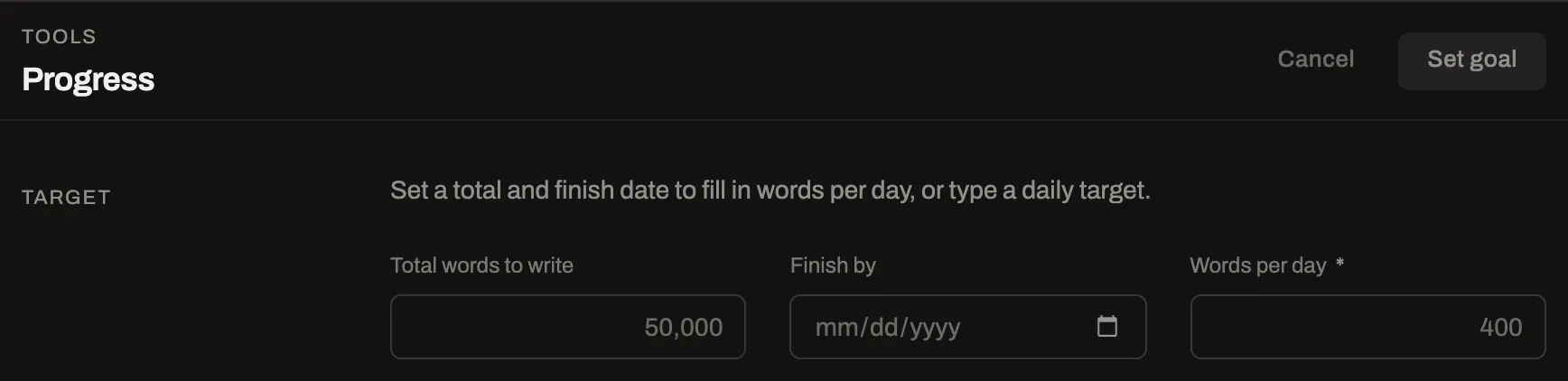
A book with no goal has three boxes under Target and a dimmed Set goal button. The foot of the page reads Nothing saved until you set a goal.
Set a goal
- In Total words to write, type how many words you want to add from today. This is new writing, on top of what the book already has.
- In Finish by, choose the date. The calendar starts at today.
- Check Words per day. The page fills it in from the other two boxes: the words still to write, divided by the days left. Type over it if you want a different daily target.
- Press Set goal.
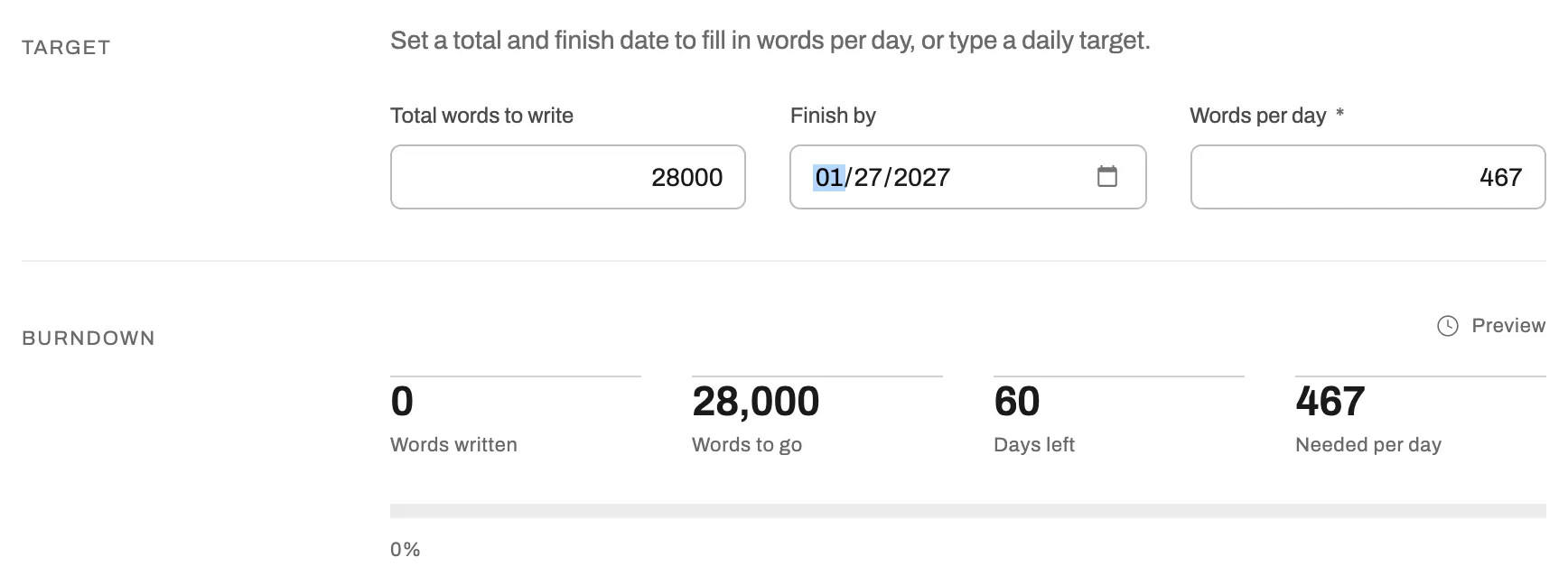
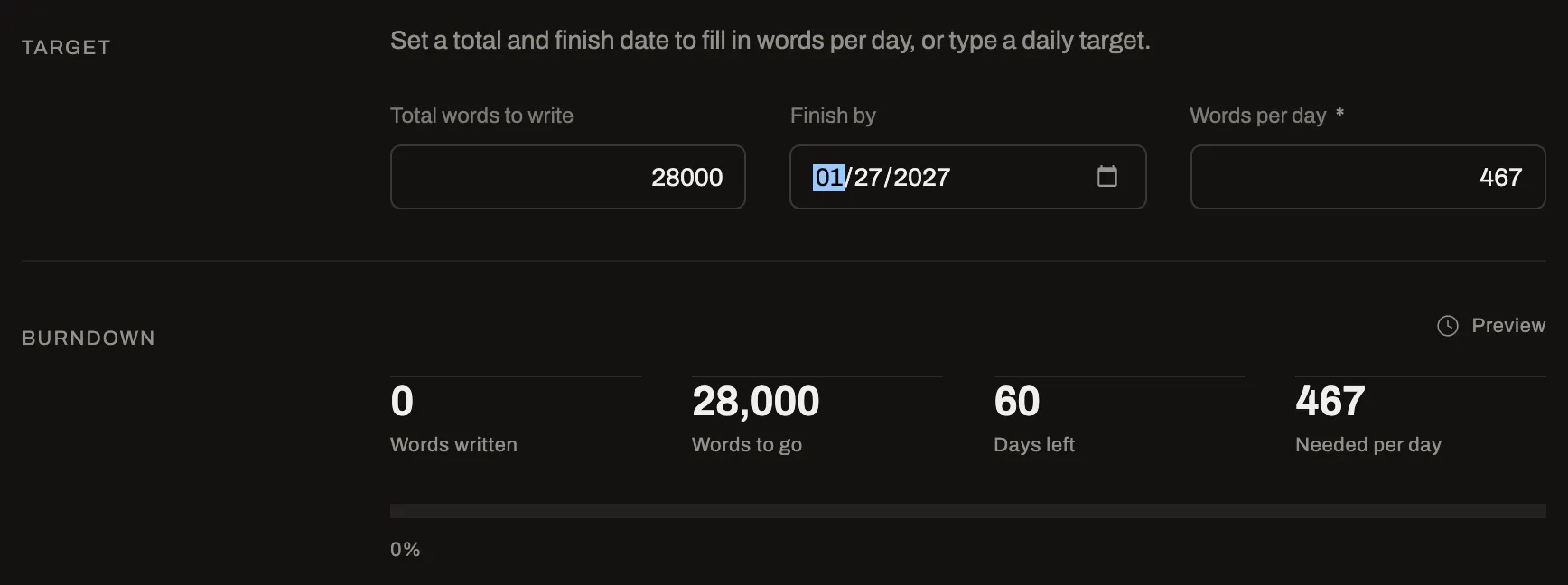
As soon as the total and the date are in, a Burndown section appears, marked Preview, so you can see what the goal asks of you before you save it.
Words per day is the only box that has to be filled in, and it must be a whole number above 0. If you only want a daily target, leave the other two empty. A goal with no total or no date has no burndown and no deadline on the dashboard.
A short message, “Writing goal saved”, confirms the save, and the button becomes Save goal.
Read the burndown
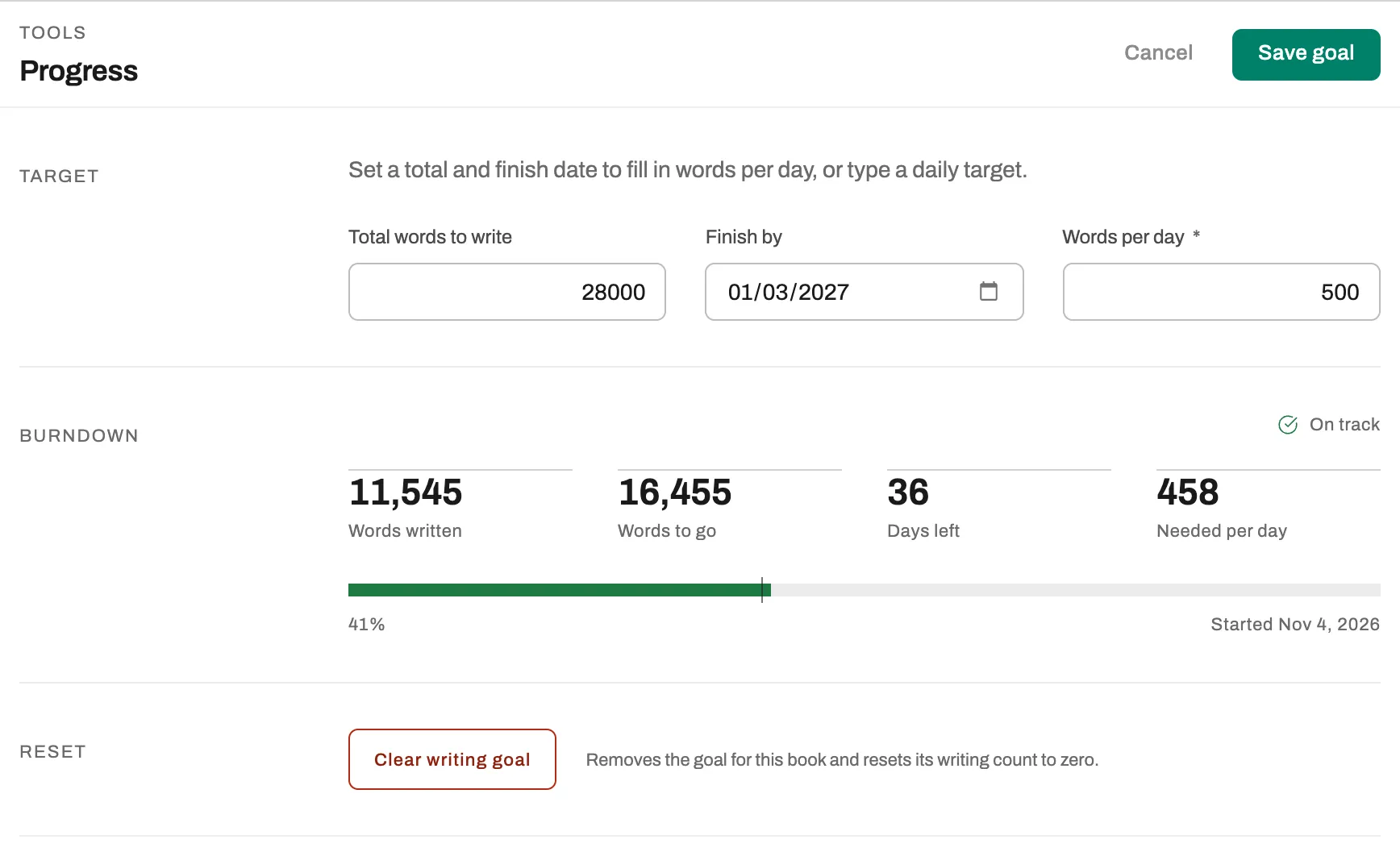
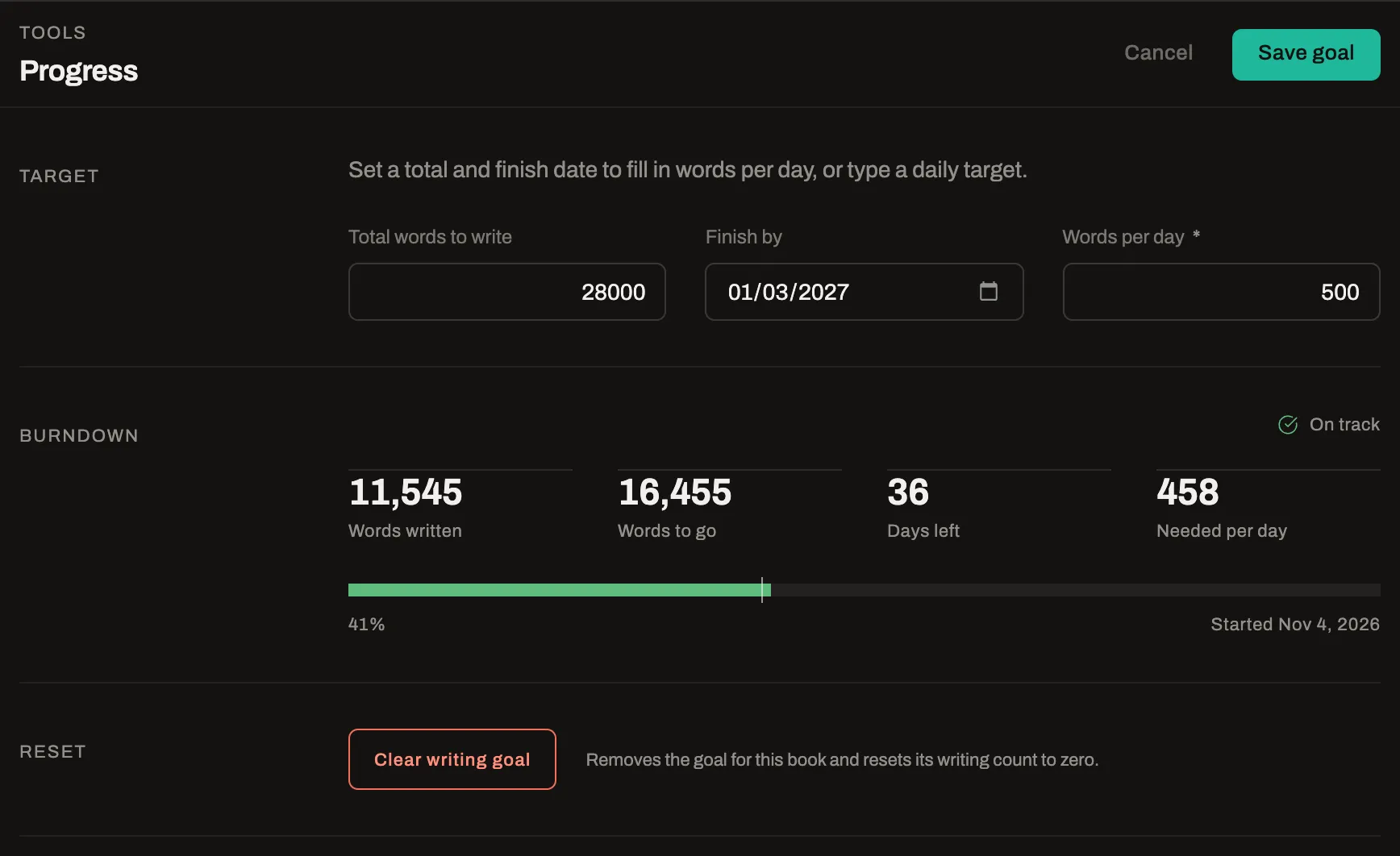
- Words written is how much the book has grown since you set the goal.
- Words to go is what is left of the total.
- Days left is the days until Finish by.
- Needed per day is the words to go divided by the days left. It changes color when it is more than your Words per day.
- The bar fills as you write. The small upright mark on it is where you should be today. Under the bar are the percentage and the day the goal started.
The label at the top right of the section says where you stand:
- On track: you are at or past the mark.
- Behind pace: you are short of the mark.
- Past deadline: the date has gone by and the total is not written.
- Goal complete: you have written the total.
What counts
- The words in your chapters count. Book pages such as the dedication or the copyright page do not.
- Words written follows the size of the book. If you cut 300 words, it goes down by 300. It never goes below 0.
- Today’s count, the streak and the activity grid follow your own writing and cutting in the chapters, day by day. A day you cut more than you wrote shows as 0.
- A day runs from midnight to midnight where you are, by your device’s time zone.
Change a goal
- Change any of the three boxes. The burndown redraws at once, and the foot of the page reads Unsaved changes.
- Press Save goal. Cancel puts the saved goal back.
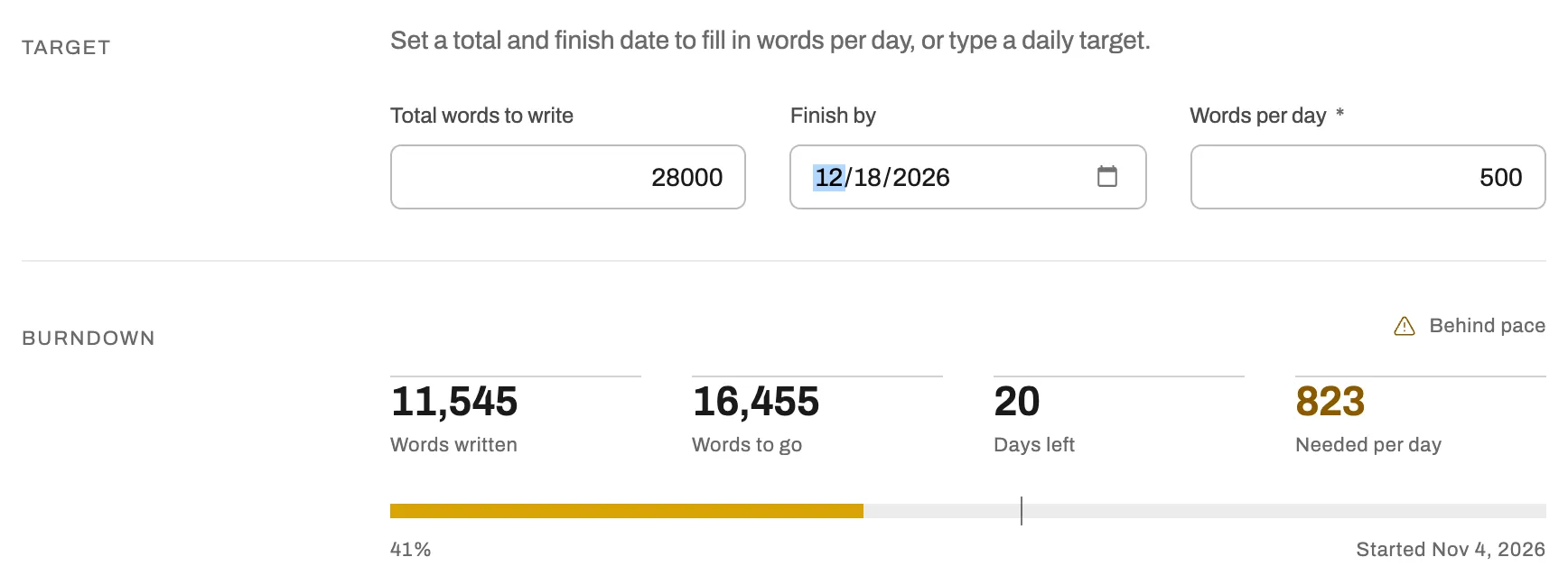
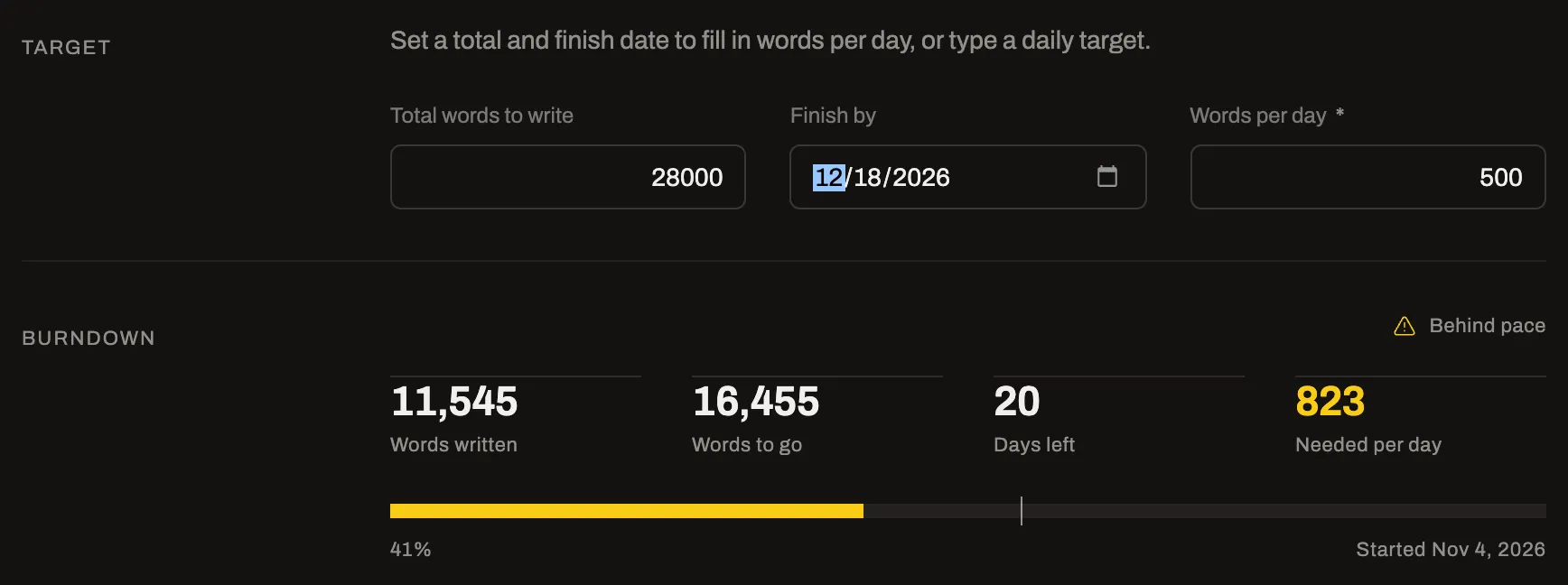
Two things to know before you save:
- Changing the total or the date fills in Words per day again only while the box is empty or still holds the number the page filled in. A number you typed yourself stays, as in the picture: the box keeps 500 while the burndown says 823 are needed. Type the number you want.
- Saving a change keeps the goal’s start day and the words written so far. To start counting from zero, clear the goal and set a new one.
Today’s words, in the book
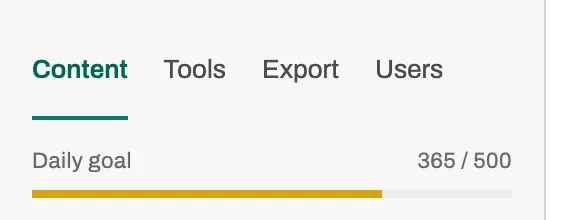
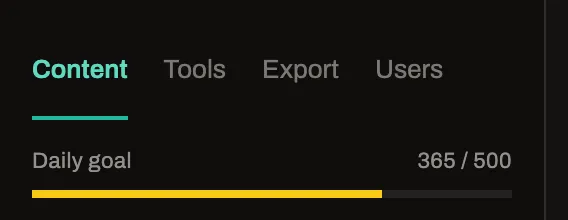
With a goal set, the book’s sidebar shows Daily goal under the Content tab: today’s words for this book, your daily target, and a bar.
Your progress on the dashboard
The right side of the dashboard has a Writing progress column. It adds up every book that has a goal.
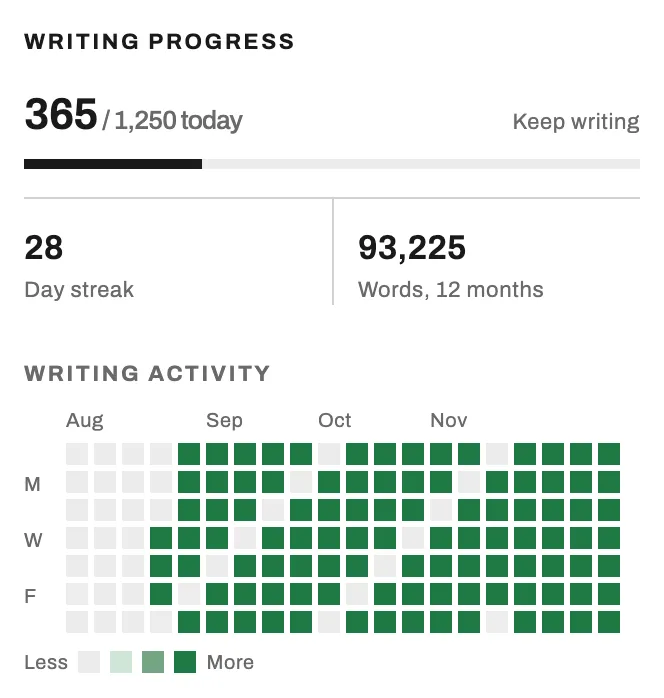
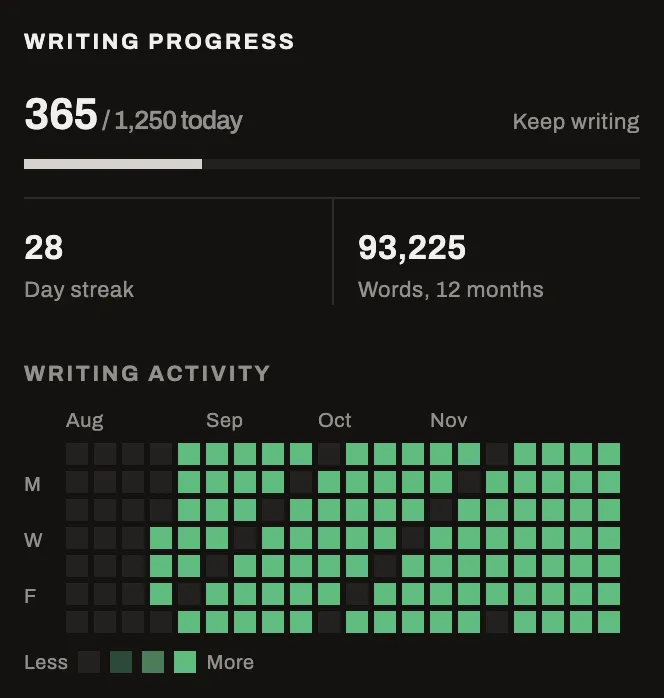
- Today. Your words today in all your books, against all their daily targets added together. The label reads Keep writing until you get there, then Daily goal met.
- Day streak. How many days in a row you have written, in all your books. If you have not written yet today, it counts back from yesterday, so a streak still alive keeps its length until the day is over.
- Words, 12 months. Everything you wrote in the last year.
- Writing activity. One square for each day of the last twenty weeks. A darker square is a bigger day. Point at a square for its date and word count.
Under Deadlines there is a card for each book that has a total and a finish date.
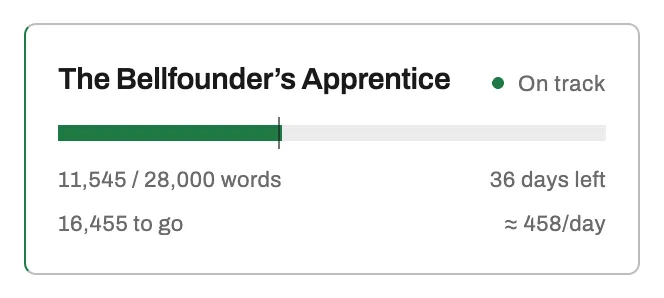
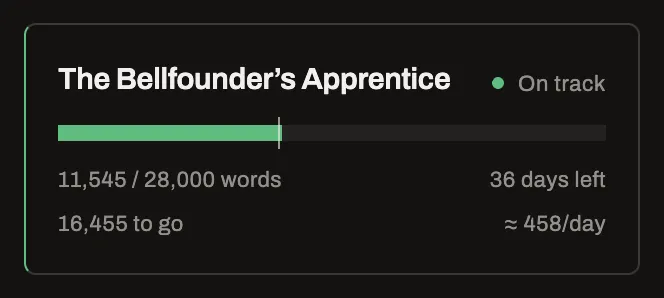
Press the book’s name on the card to open its Progress page (on a tablet or phone the name is not a link). The same book’s card under Continue writing has a thin bar showing how far through the total you are.
If no book has a goal, the column reads No writing goal set. Choose a book under Set a goal for and press Set a daily goal to open that book’s Progress page.
Clear a goal
- On the Progress page, press Clear writing goal, under Reset.
- Press Clear goal to confirm.
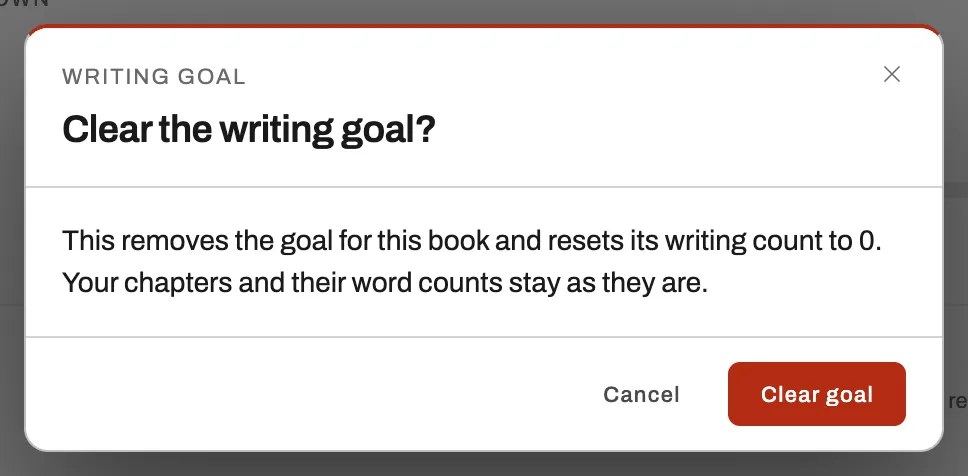
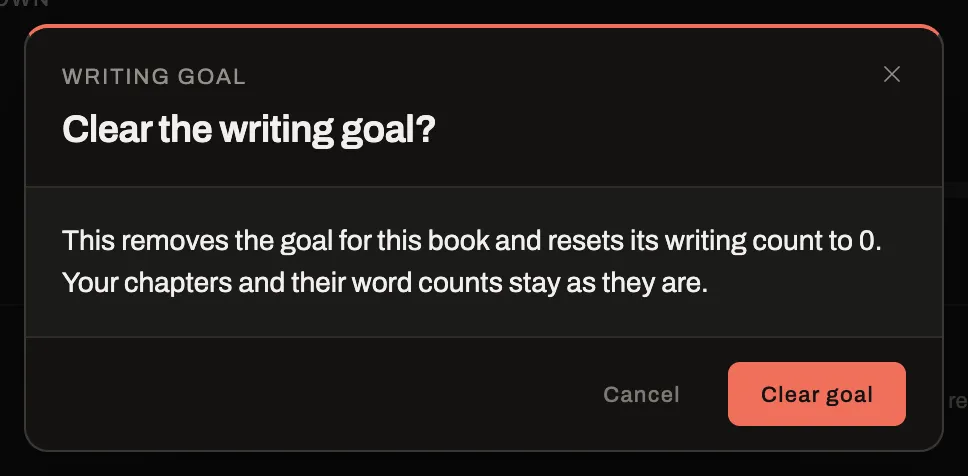
Your chapters are not touched. What goes is the goal and this book’s record of writing days: its squares leave the activity grid, and its days no longer count toward your streak or your 12-month total. This cannot be undone.
Free and Pro
Writing goals are on both plans.
On a tablet or phone
The Progress page is for a desktop. On a tablet or phone you can see the Writing progress column on the dashboard, but you cannot open a book’s Progress page.
Related
- Outline your book in threads and events: plan what the words will be.
- Plan a chapter in beats: break a chapter down before you write it.
- Plan on the Whiteboard: an open board for the rest of your planning.
- Write in the chapter editor: where the words are written and counted.
- Write on a tablet or phone: what is left for a desktop.