DocsGetting started
Explore Gnarlywog with a sample book
Updated
A sample book is a short, finished story called The Saltglass Lantern, already set up with chapters, characters, places and a plan. Create one from the dashboard to see how the parts of a book fit together before you start your own.
Step 1: Open the list of samples
- Open the dashboard. From inside a book, press the Gnarlywog logo at the top of the sidebar.
- Press the arrow at the end of the green New book button, at the top right.
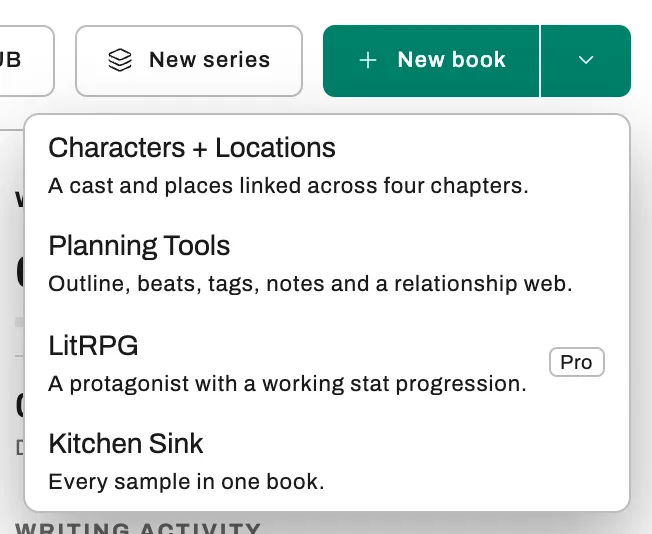
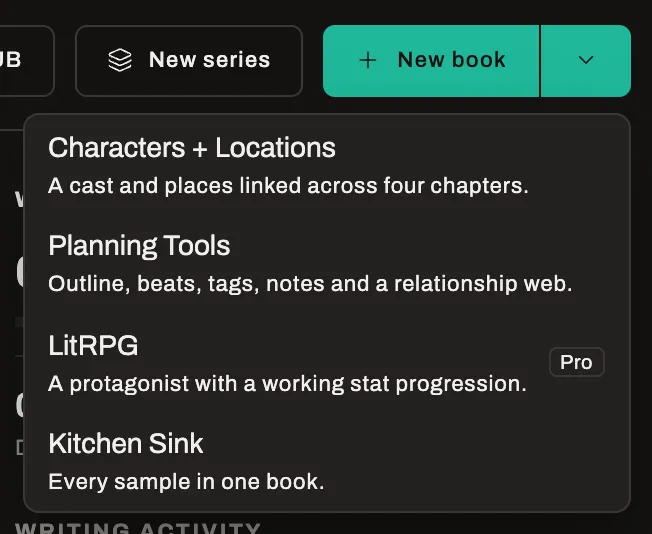
The list shows four samples. Pressing New book itself, not the arrow, creates an empty book instead.
Step 2: Pick a sample
Every sample tells the same story in the same four chapters. They differ in how much is set up around it:
- Characters + Locations: four characters and three places, each linked to the chapters they appear in.
- Planning Tools: the same characters and places, plus an outline of the story, beats, tags, a note on the chapter The Last Lamp and, on Pro, a relationship web of the cast on the whiteboard.
- LitRPG: one character, Wren Calloway, with a class, stats and quests in the LitRPG builder, and stat blocks in two of the chapters. This sample is a Pro feature.
- Kitchen Sink: everything from the other three in one book.
Press a sample to create it. The book is created straight away and opens on its first chapter, Start Here.
On the Free plan:
- Planning Tools and Kitchen Sink leave out their Pro parts, the whiteboard and LitRPG. Point at either one in the list and a note says so.
- Pressing LitRPG offers Pro instead of creating a book.
- A sample counts as your one book. If you already have a book, pressing a sample offers Pro instead.
Step 3: Read Start Here
- Read the list in Start Here. It names a few things to try, in order, and only things this sample has.
- Press The Last Lamp in the sidebar to open the first chapter of the story.
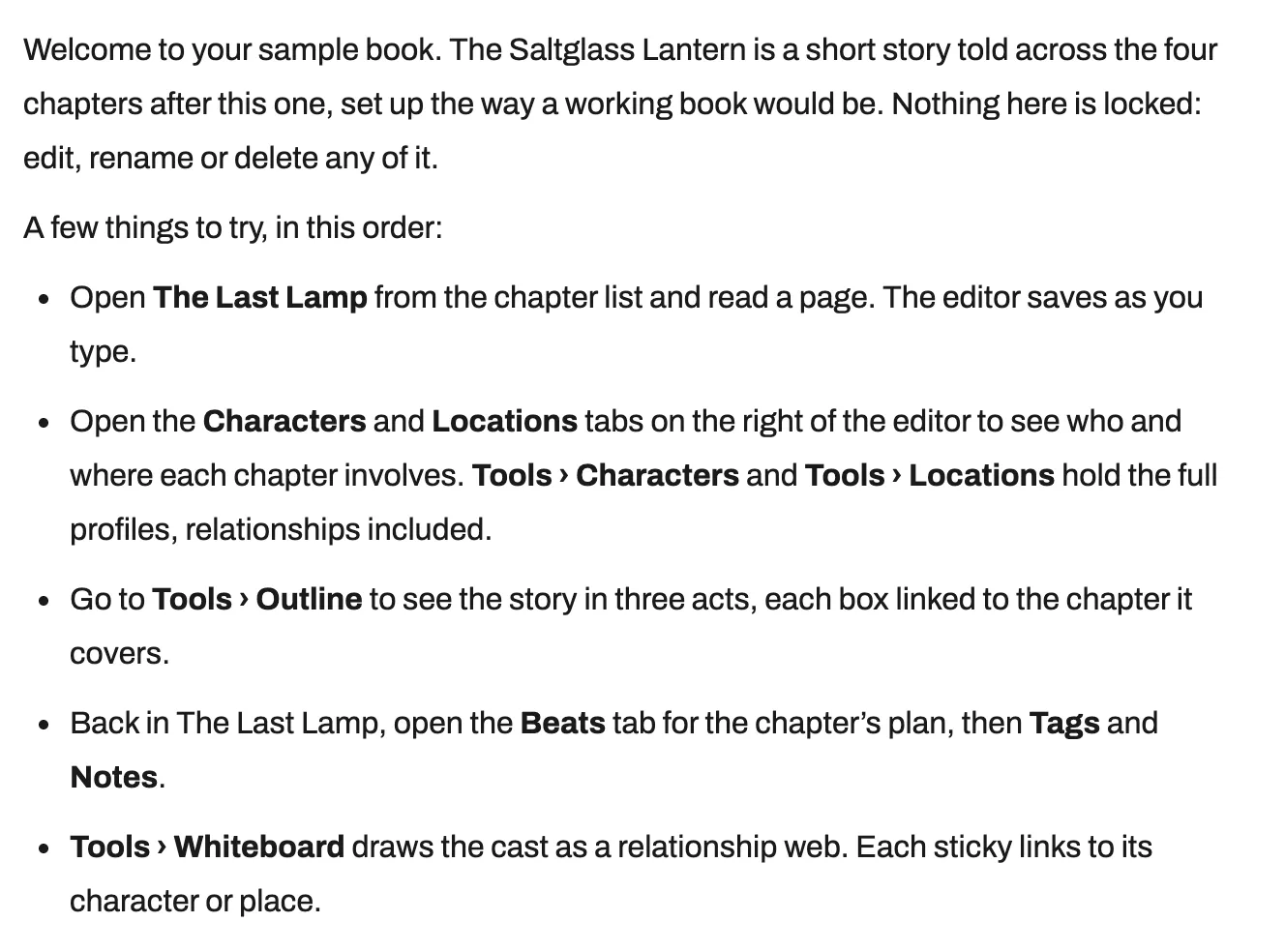
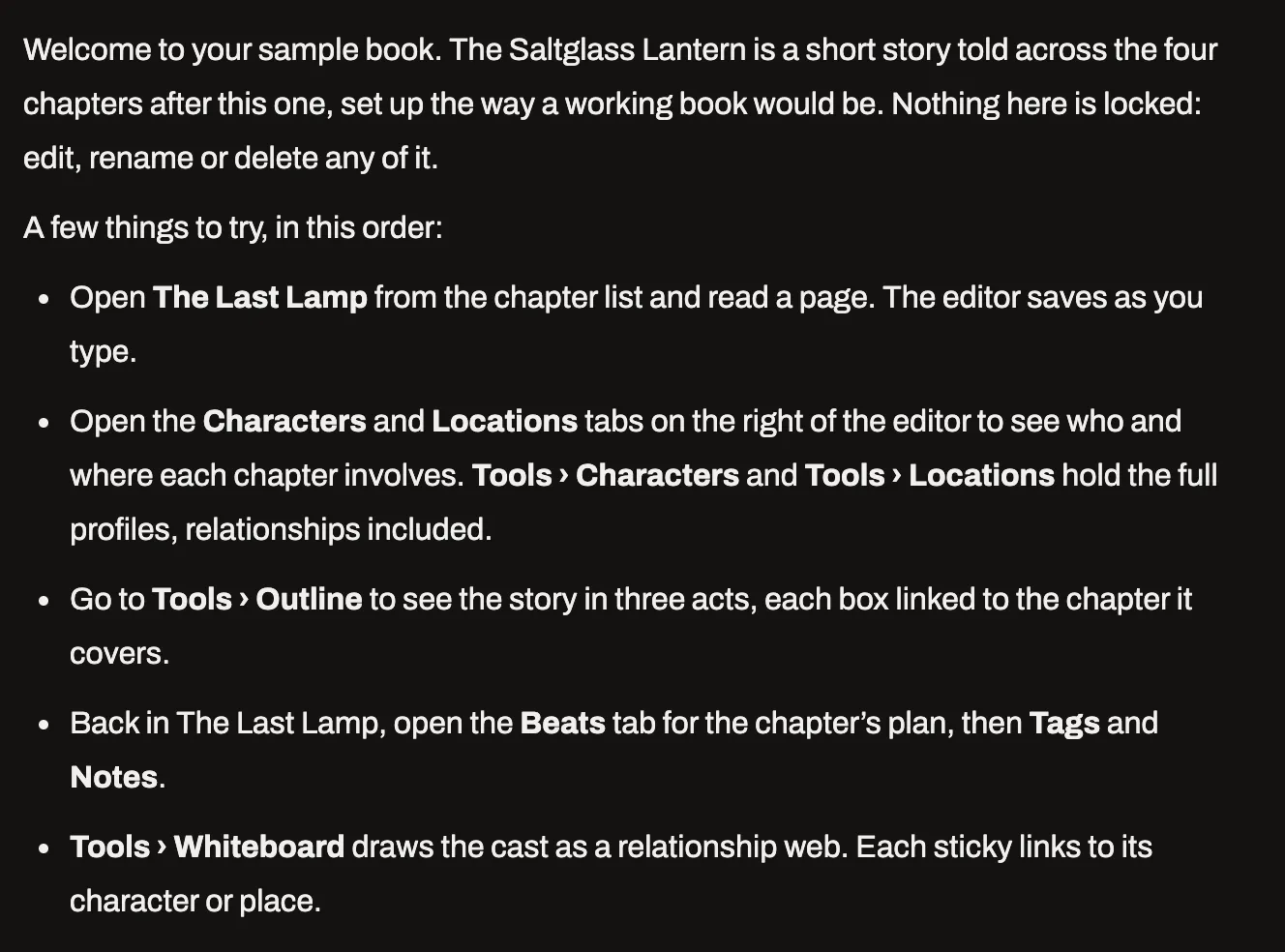
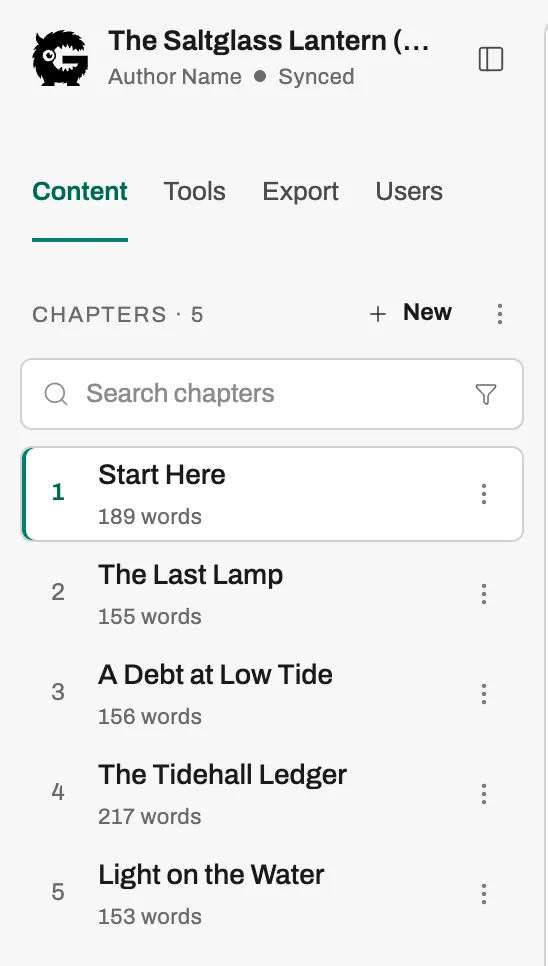
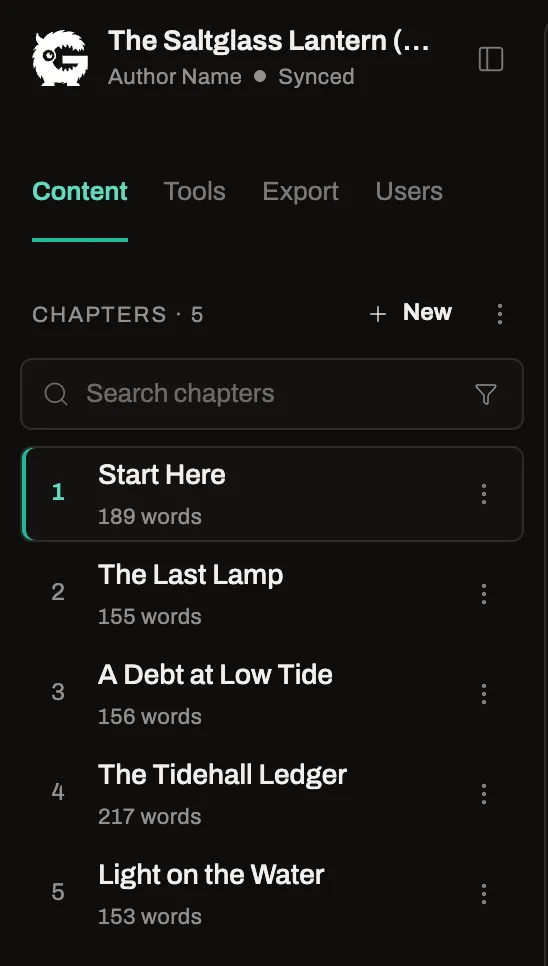
The sidebar lists Start Here and then the four chapters of the story. Because Start Here is chapter 1, the story’s chapters are numbered 2 to 5.
Step 4: Look around
What you find depends on the sample you picked. In Planning Tools:
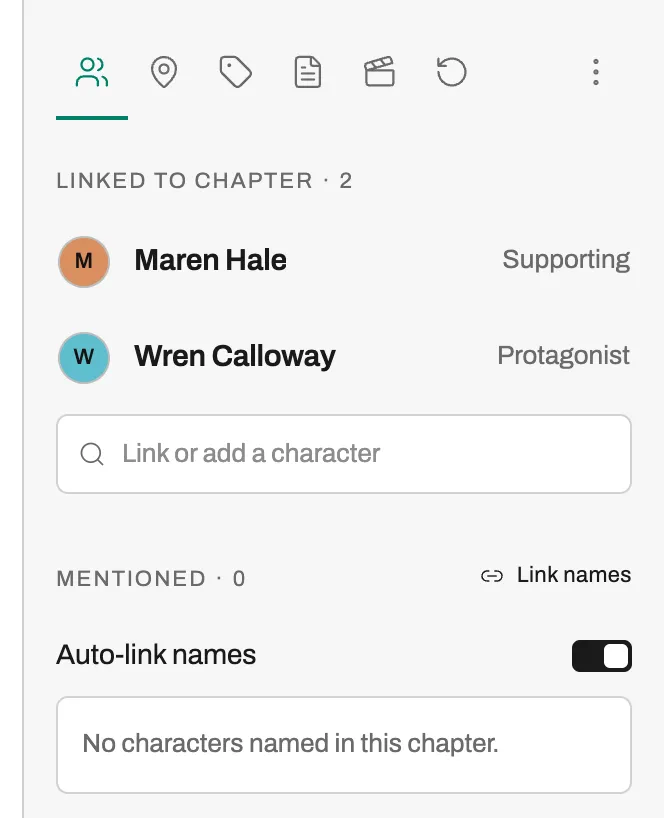
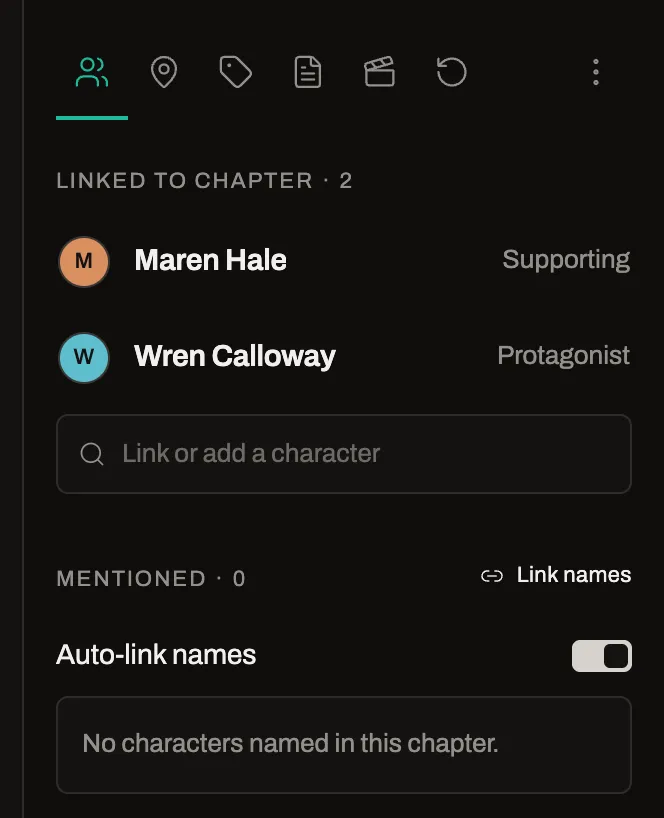
Who is in a chapter. With The Last Lamp open, press the Characters tab, the first icon at the right of the editor. It lists the characters linked to the chapter. The Locations tab beside it does the same for places.
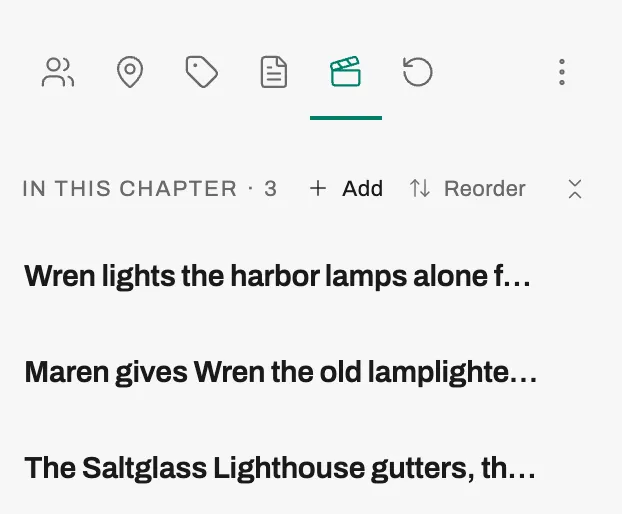
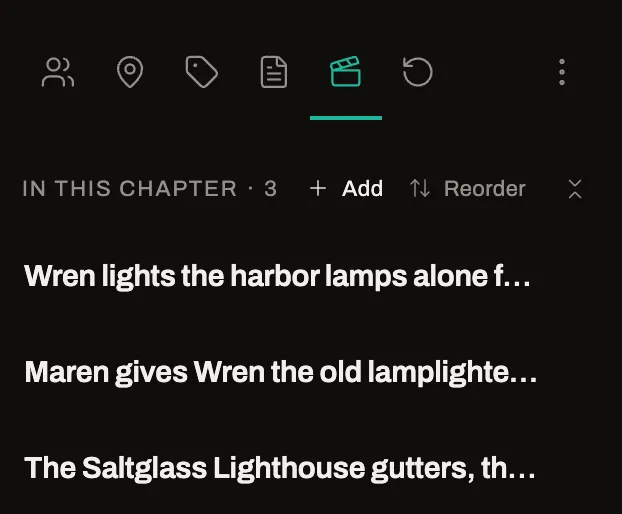
The chapter’s plan. Press the Beats tab, the fifth icon in the same row, to see the three beats planned for the chapter. The Tags and Notes tabs hold the chapter’s two tags and its note.
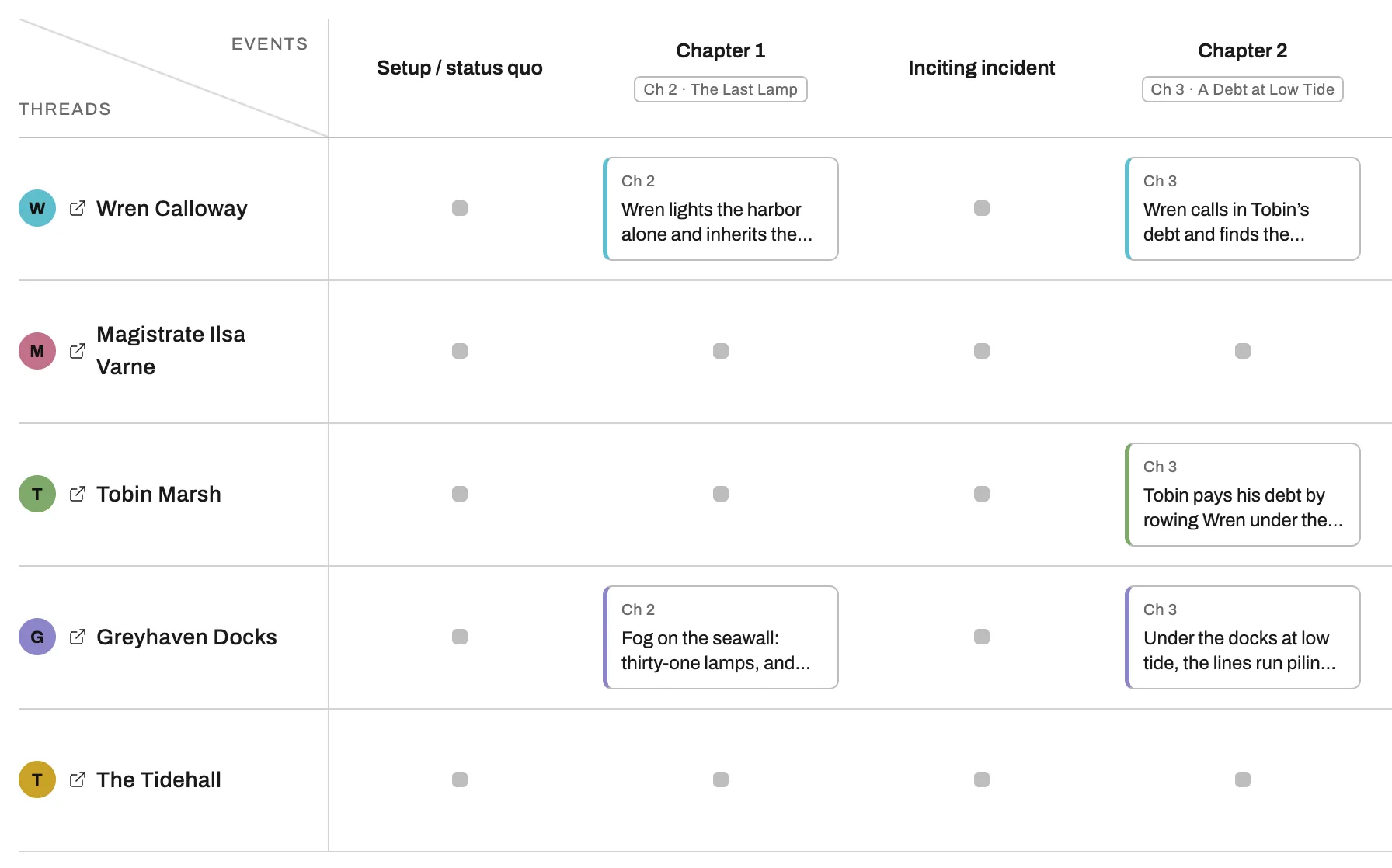
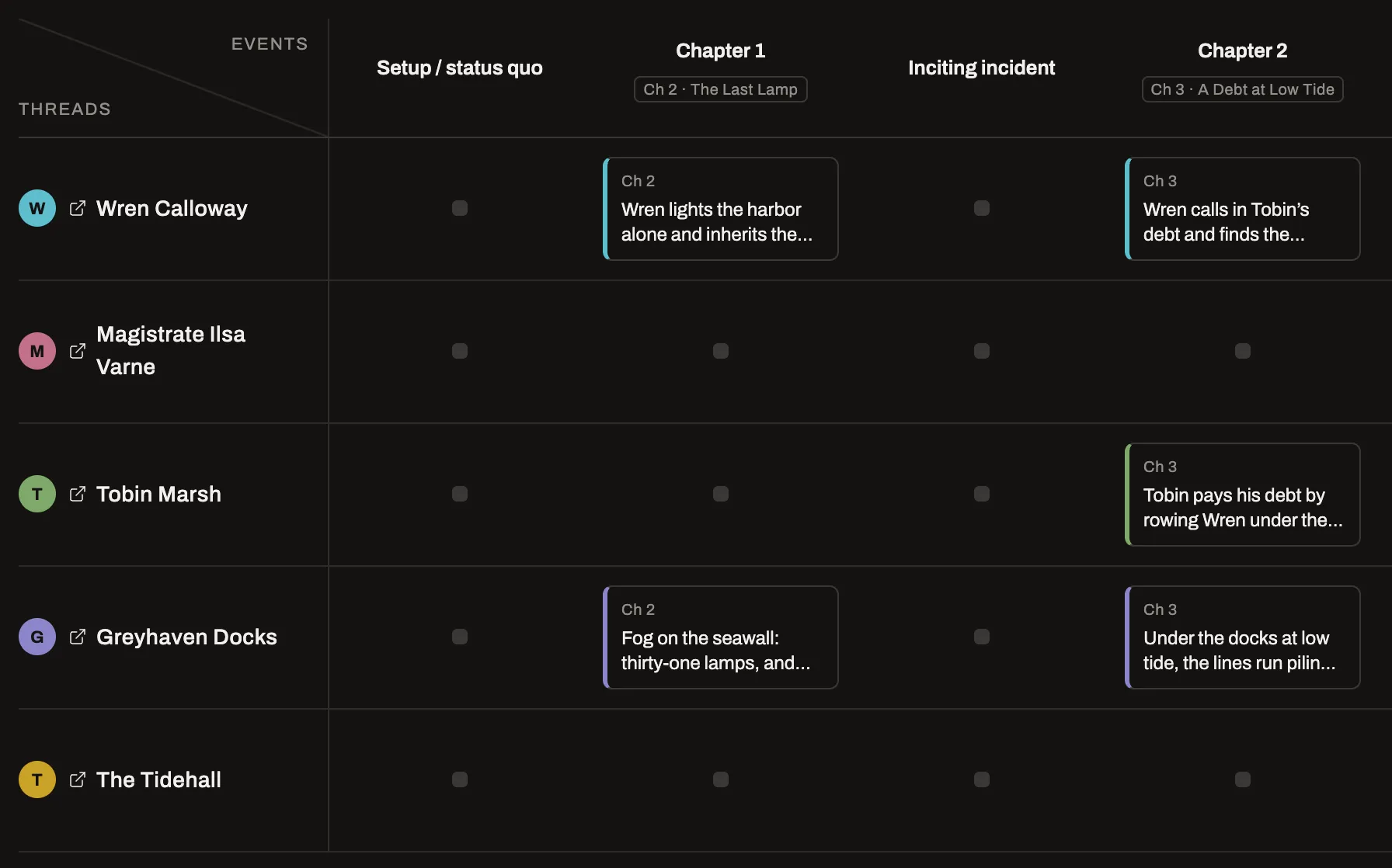
The whole story at once. In the sidebar, choose Tools, then Outline. Each row is a character or a place, each column is a moment in the story, and a box says what happens there. A box linked to a chapter shows the chapter’s number.
Two more places to try:
- Full profiles: in the sidebar, Tools, then Characters or Locations.
- The relationship web (Pro): in the sidebar, Tools, then Whiteboard. Each sticky on the board is linked to its character or place.
- The book as an ebook: in the sidebar, Export, then Kindle.
You can edit, rename or delete anything in a sample, the same as in a book of your own.
Step 5: Keep it or delete it
A sample stays in your library until you delete it. On the dashboard its card looks like any other book’s.
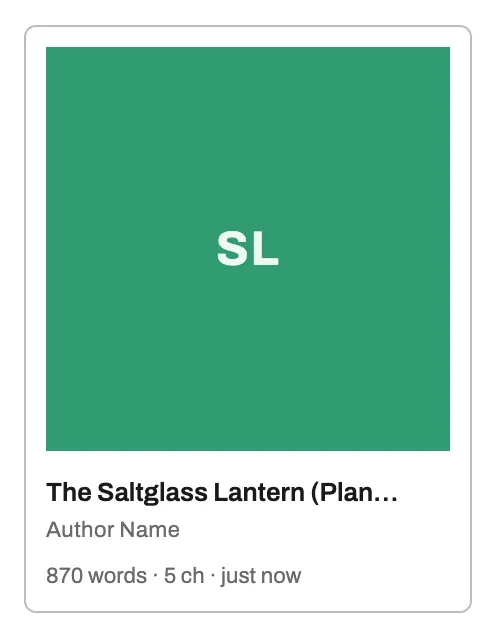
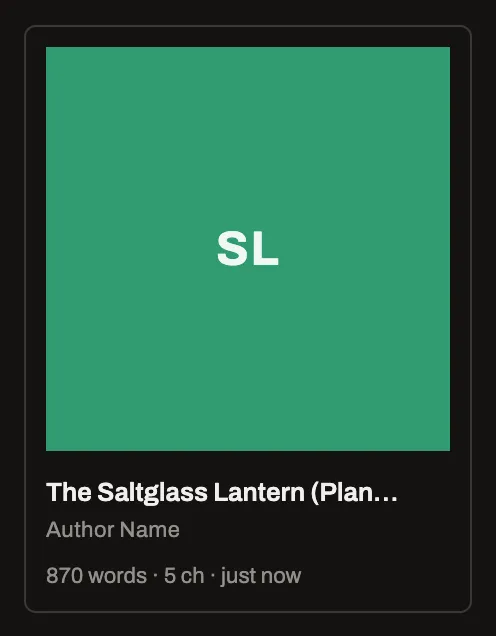
Each sample is titled The Saltglass Lantern followed by the sample’s name in brackets; Kitchen Sink is just The Saltglass Lantern. The author is “Author Name”. To change either, open the book’s Title page.
To delete a sample:
- Open the sample book.
- Press the gear at the bottom of the sidebar. It opens the book’s Settings.
- Under Delete this book, press Delete book.
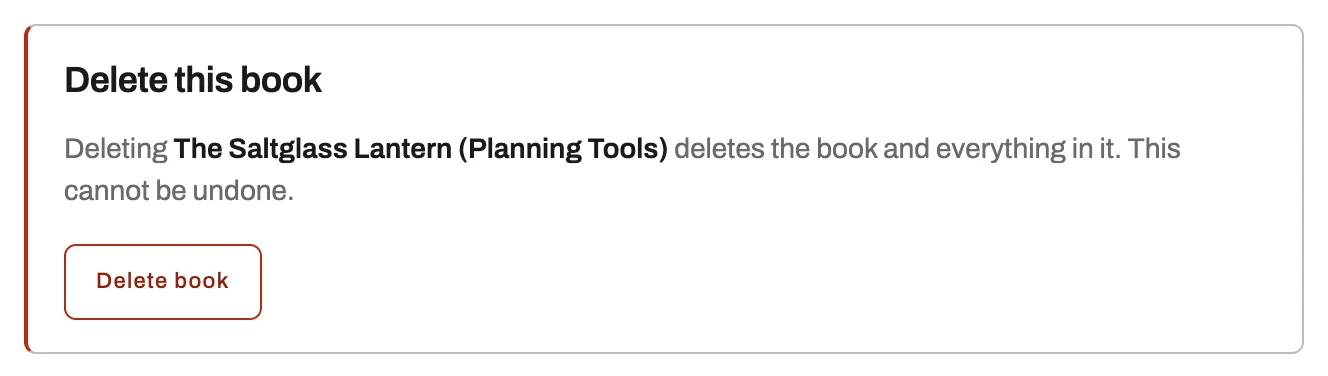
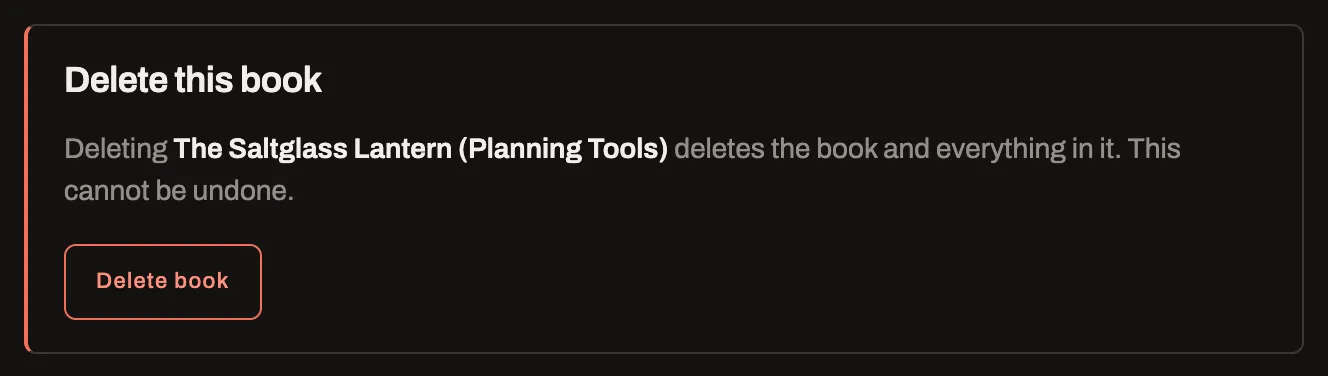
A dialog asks you to confirm. Type the book’s title exactly as shown, then press Delete permanently.
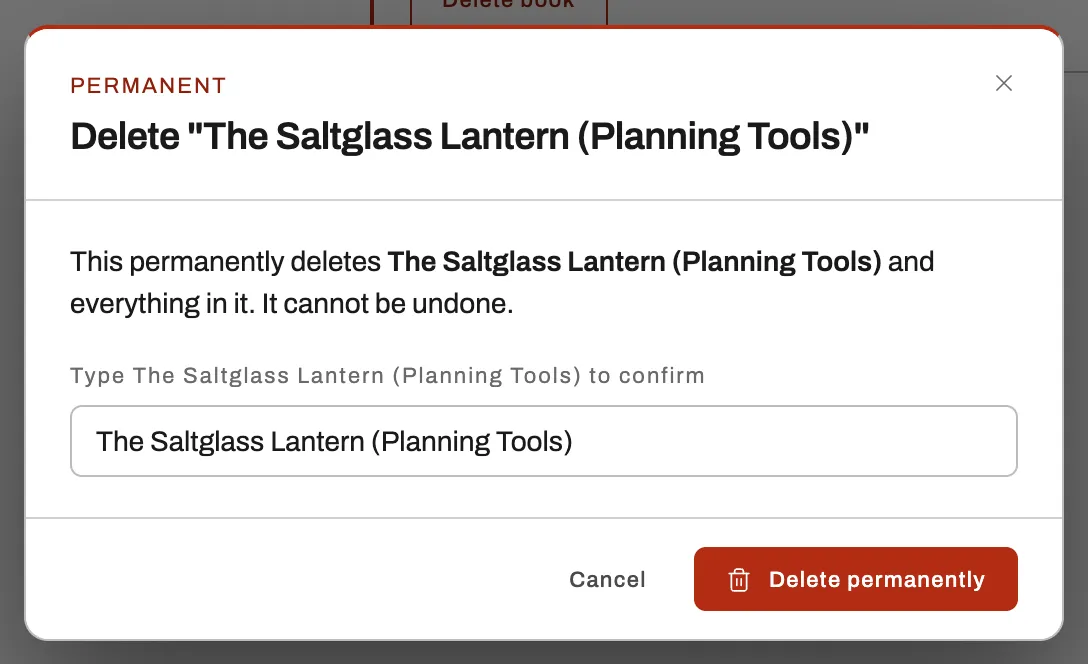
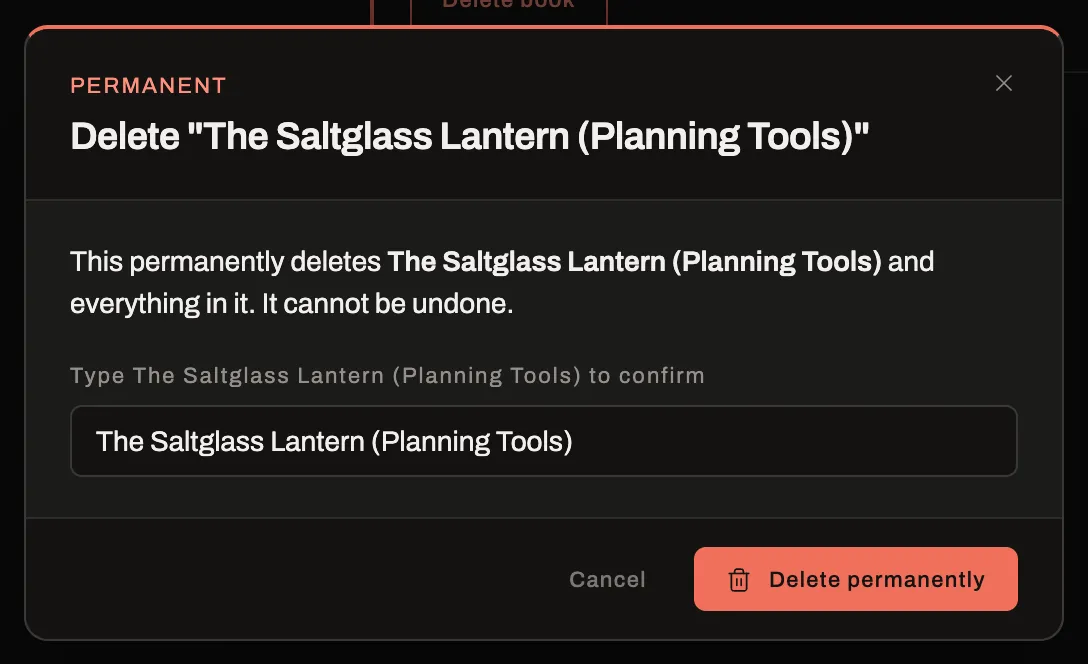
The book is deleted for good and you are back on the dashboard, where a notice reads “Book deleted”. On the Free plan, deleting the sample frees your one book, so you can press New book and start your own.
Your first visit
While you have no books at all, the dashboard also shows Not sure where to start? with an Open the sample book button. It creates the Kitchen Sink sample.
Related
- Create a book: start your own book once you have looked around.
- Export your book for Kindle and Export your book as a print-ready PDF: export a sample to see the files.