DocsWriting
Keep writing without a connection
Updated
Gnarlywog keeps the books you open on your device, so a lost connection does not stop you writing. You can go on working in your chapters, and what you write is sent to your account when the connection comes back. This article covers what works offline, what the sync status tells you, and the Offline page of your account.
Before you go offline
There is nothing to switch on. Two things decide whether a book is there for you without a connection:
- You have opened the book on this device, in this browser, while online. Opening a book is what keeps it here. A book you have never opened on this device cannot be opened offline.
- Keep my work on this device is on. It is on unless you turned it off; see The Offline page of your account.
All of this belongs to one browser on one device. A book kept on your laptop is not kept on your tablet until you open it there too. Working offline is for your own books: a book someone has shared with you needs a connection.
When the connection drops
You do not have to do anything. Two things change on screen.
The sync status, under the book’s title beside the author’s name, changes from Synced to Offline, and its dot turns yellow.


A strip appears across the top of the page: Offline, then “Chapter editing only.”


The strip can carry one or two more sentences:
- “This browser may clear unsynced work. Reconnect to save it.” Your browser has not promised to keep Gnarlywog’s data, and you have changes waiting. Get back online when you can.
- “Reconnect within 2 days to keep editing.” or, on the last day, “Reconnect within a day to keep editing.” You have been offline for a long time. See If you stay offline for a long time.
What works offline, and what waits
Offline, Gnarlywog is for writing chapters. You can:
- Write and edit in any chapter of a book you opened on this device.
- Move between chapters from the chapter list.
- Add a chapter with New.
- Go to the dashboard, by pressing the logo, and open another book you have opened on this device before.
Everything else waits for a connection. It stays on screen, dimmed, and pointing at it says “Unavailable offline”:
- Tools, Export and Users at the top of the sidebar. Content still works.
- The three dots on the chapter list and on each chapter, so reordering, importing, duplicating, deleting and parts wait.
- The pages under Pages, such as Title page and Copyright.
- The side panel. It closes, and its tabs are dimmed: Characters, Locations, Notes and the rest. A note you were typing in Notes is not lost: when the panel comes back, the note is open again with your typing in it.
- The book’s settings (the gear) and the pages of your account. In the account menu only What’s new and Sign out still work.
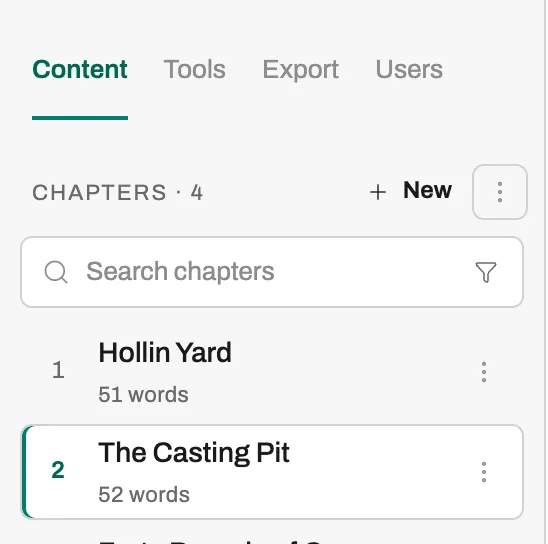
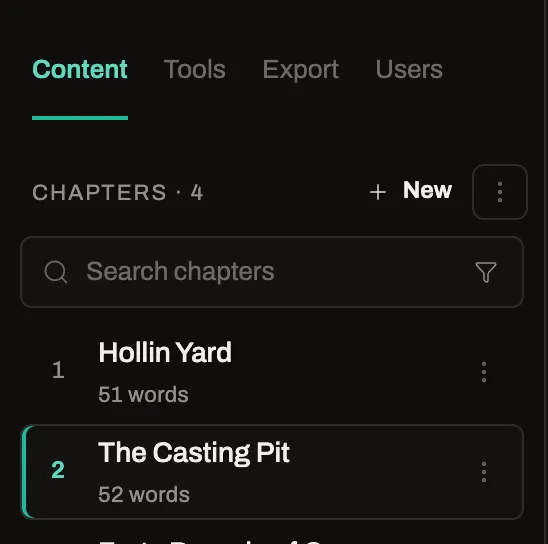
On the dashboard, New book, New series and Import EPUB are dimmed: you need a connection to start a book. A book you have not opened on this device is dimmed too, and pointing at it says “Not downloaded for offline”.


If you were on a page that needs a connection when it dropped, such as Export or the book’s settings, you are moved to a chapter of the same book.
Your changes wait on this device
Each chapter you change offline is kept on this device until it can be sent. The sync status counts them: Offline (1 pending) means one chapter is waiting. A new chapter counts as one.
Press the status to see the count in words.
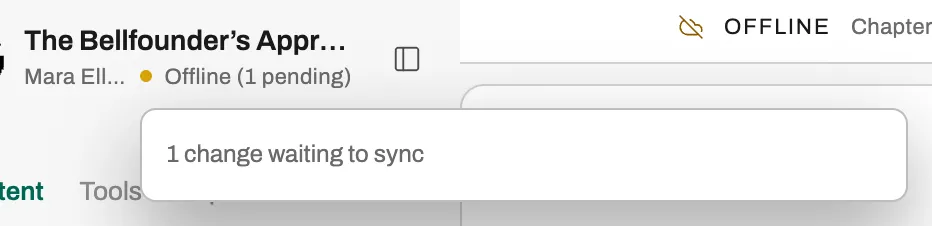
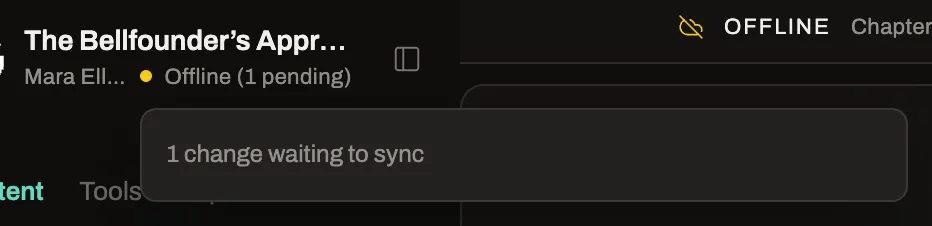
Nothing is sent while you are offline, and no revisions are made. Keep the browser’s data: clearing it, or signing out, removes changes that are still waiting.
When the connection returns
Gnarlywog notices by itself and sends what is waiting. There is no button to press. The status reads Syncing for a moment, then Synced. The dimmed parts of the app come back, and you stay on the page you were on.
The sync status can say:
- Synced: everything you have written is in your account.
- Offline: no connection, and nothing waiting.
- Offline (2 pending): no connection, and two chapters waiting to be sent.
- Syncing: waiting changes are being sent.
- 2 pending, with Retry beside it: you are online, but the last attempt could not send everything. Press Retry to try again.
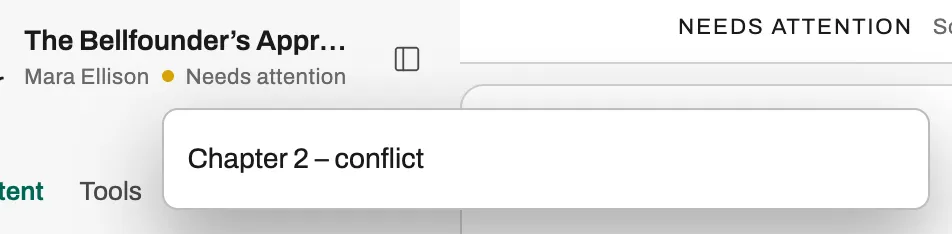
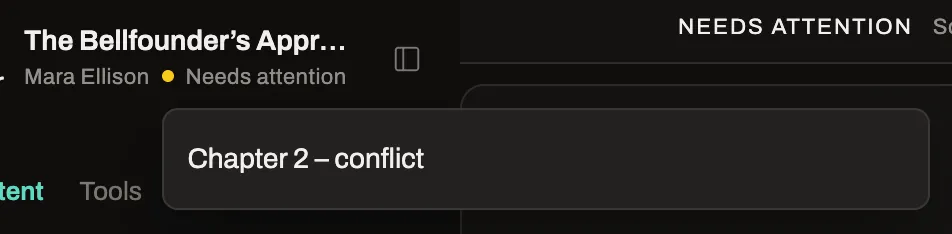
- Needs attention: something came back that you need to look at. See the next section.


When a chapter changed in two places
Suppose you write in a chapter offline, and before that work is sent the same chapter is saved from somewhere else, such as your other computer. Gnarlywog does not pick one and throw the other away. The text already in your account stays as the chapter, and what you wrote offline is saved beside it as an Offline version.
When that happens a strip appears, Needs attention, with “Some chapters changed in two places. Your offline versions are saved.” The X at its end hides the strip; it does not settle anything.


The sync status reads Needs attention, and the chapter gets a yellow dot in the chapter list.
- Press Review on the strip, or press the sync status. A list opens with a row for each chapter, such as “Chapter 2 – conflict”.
- Press the row. The chapter opens with the Revisions tab beside it, on its Offline tab, comparing the Offline version with the chapter.
- Press Restore to make your offline text the chapter, or Keep current to leave the chapter as it is.
A notice confirms your choice: “Offline version restored” or “Kept current version”. Neither button loses any writing. The two buttons and the comparison are covered in Save and compare earlier versions of a chapter. When every row is settled the status goes back to Synced.
The list can hold two other kinds of row:
- “locked by editor. Your offline edits are saved.” An editor started a draft of the chapter while you were offline. The row cannot be pressed yet. When you have reviewed or unlocked the draft, it becomes an ordinary row and you settle it the same way.
- “couldn’t sync”. The chapter no longer exists in your account, for example because it was deleted from another device. Press the row to read what you wrote. Copy text copies it, Save as new chapter adds it to the end of the book, and Dismiss throws it away after asking once.
The Offline page of your account
Open the account menu, at the bottom of the sidebar or the top right of the dashboard, and choose Offline. You need a connection to open it. Everything on the page is about this device only.
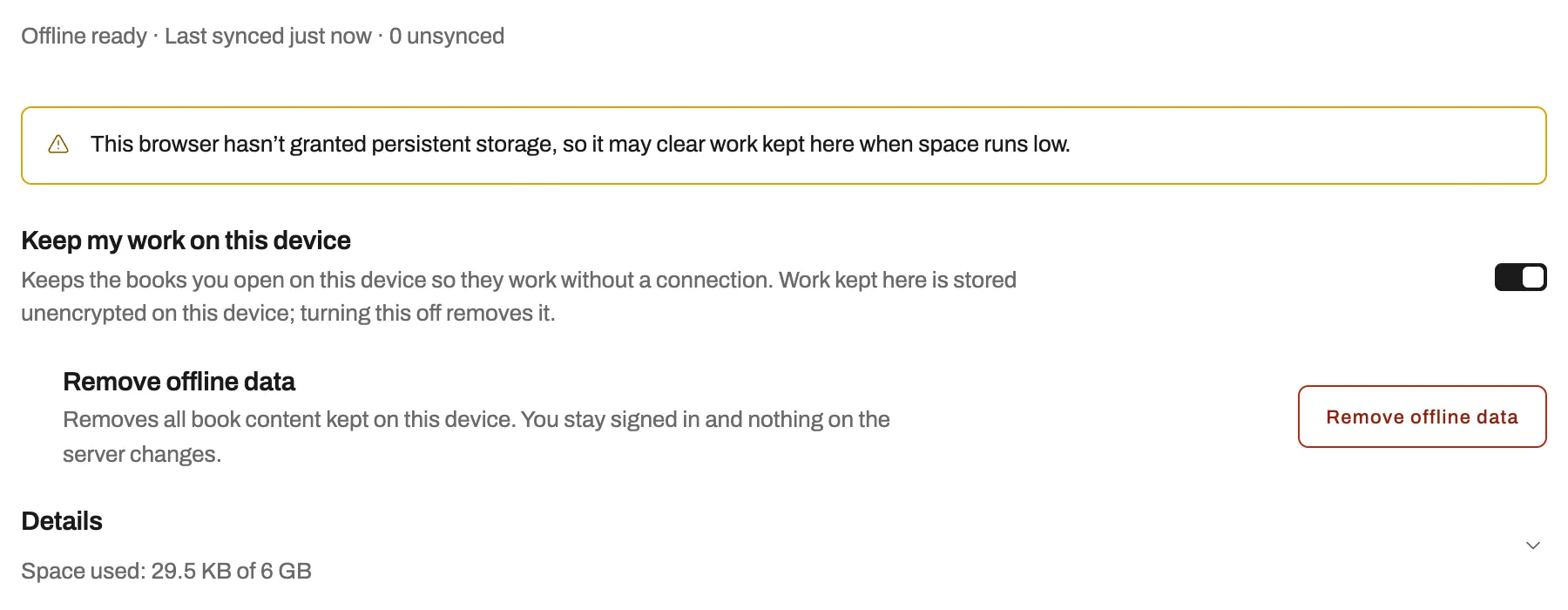
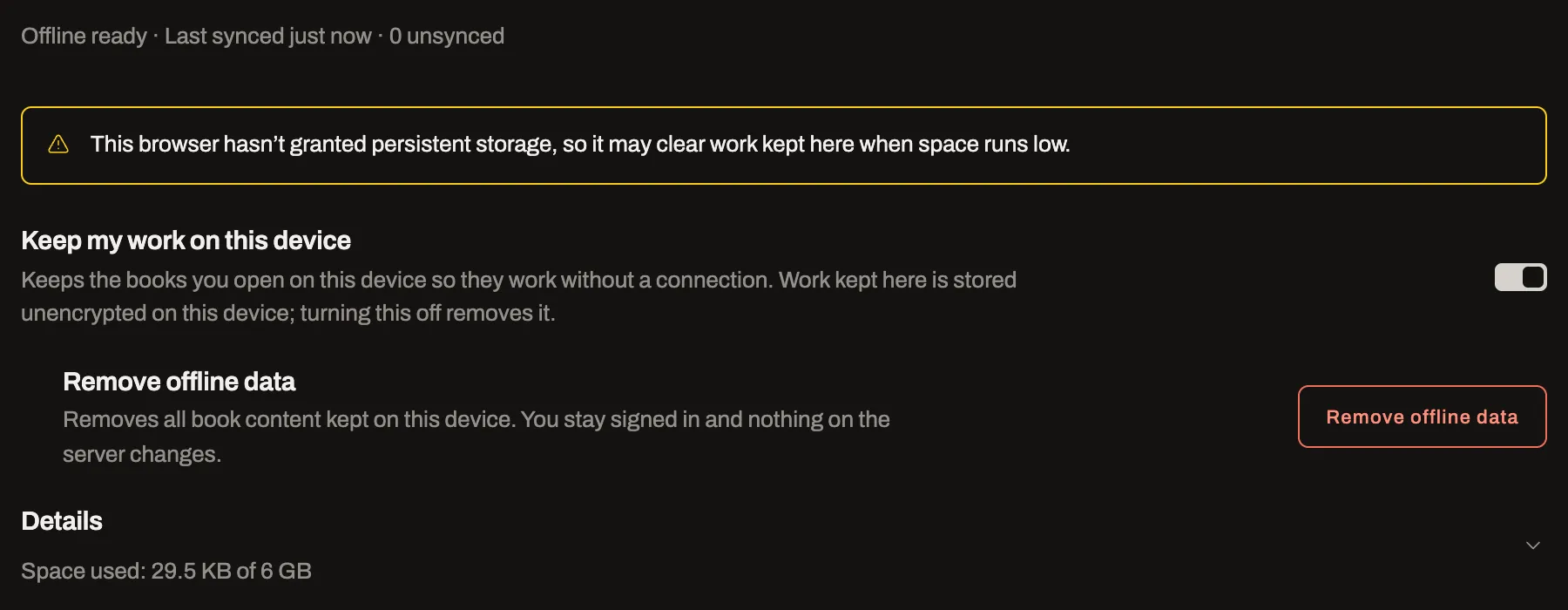
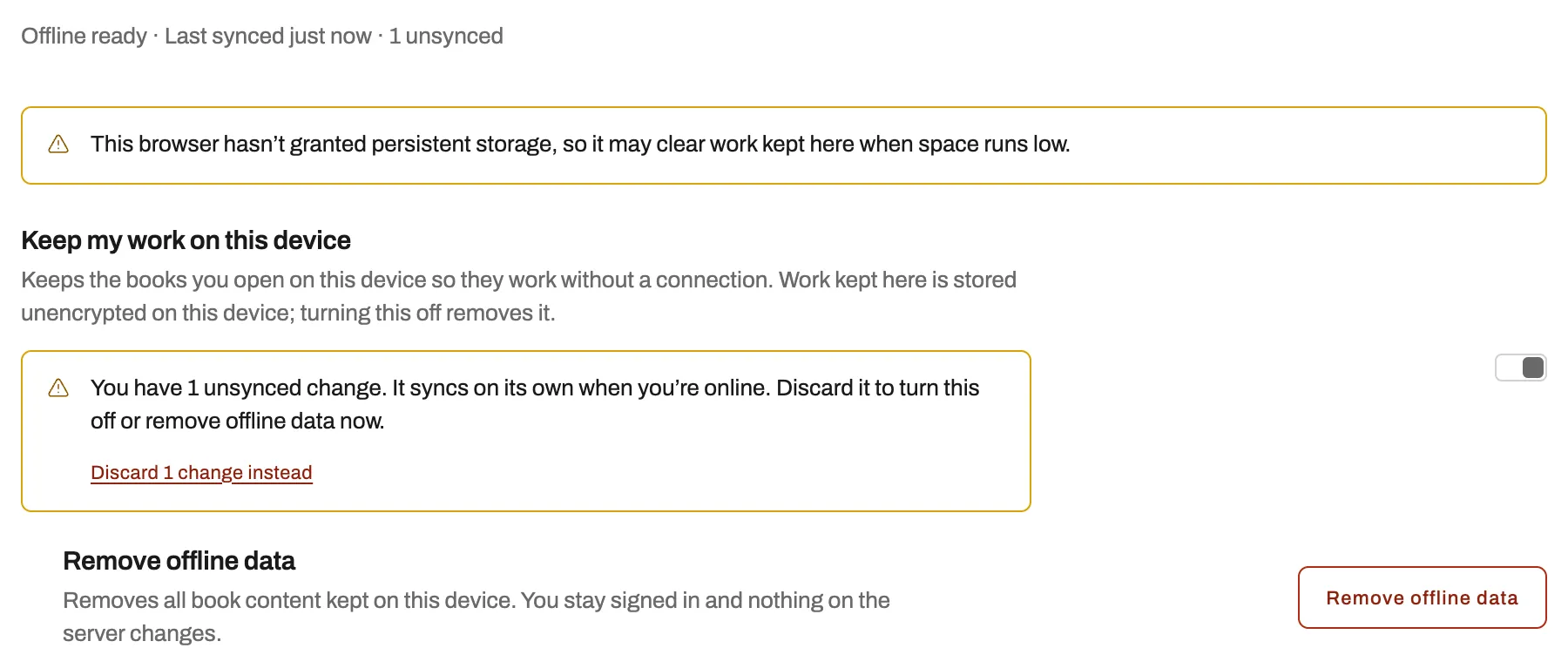
- The line at the top says whether offline is ready, when this device last reached your account, and how many changes are waiting (“0 unsynced”).
- A yellow box appears if your browser has not granted persistent storage. It means the browser may clear what is kept here when the device runs low on space. Work that has synced is safe in your account either way.
- Keep my work on this device is the switch for all of it. On, the books you open are kept here. They are stored unencrypted, so turn it off on a computer you share. Turning it off removes everything kept here, and then there is no working offline on this device.
- Remove offline data clears the book content kept on this device without turning the switch off. You stay signed in, and nothing in your account changes.
- Details shows how much space Gnarlywog is using in this browser. When the browser has granted persistent storage it says so here, with an Install link where the browser can install Gnarlywog as an app.
When changes are still waiting
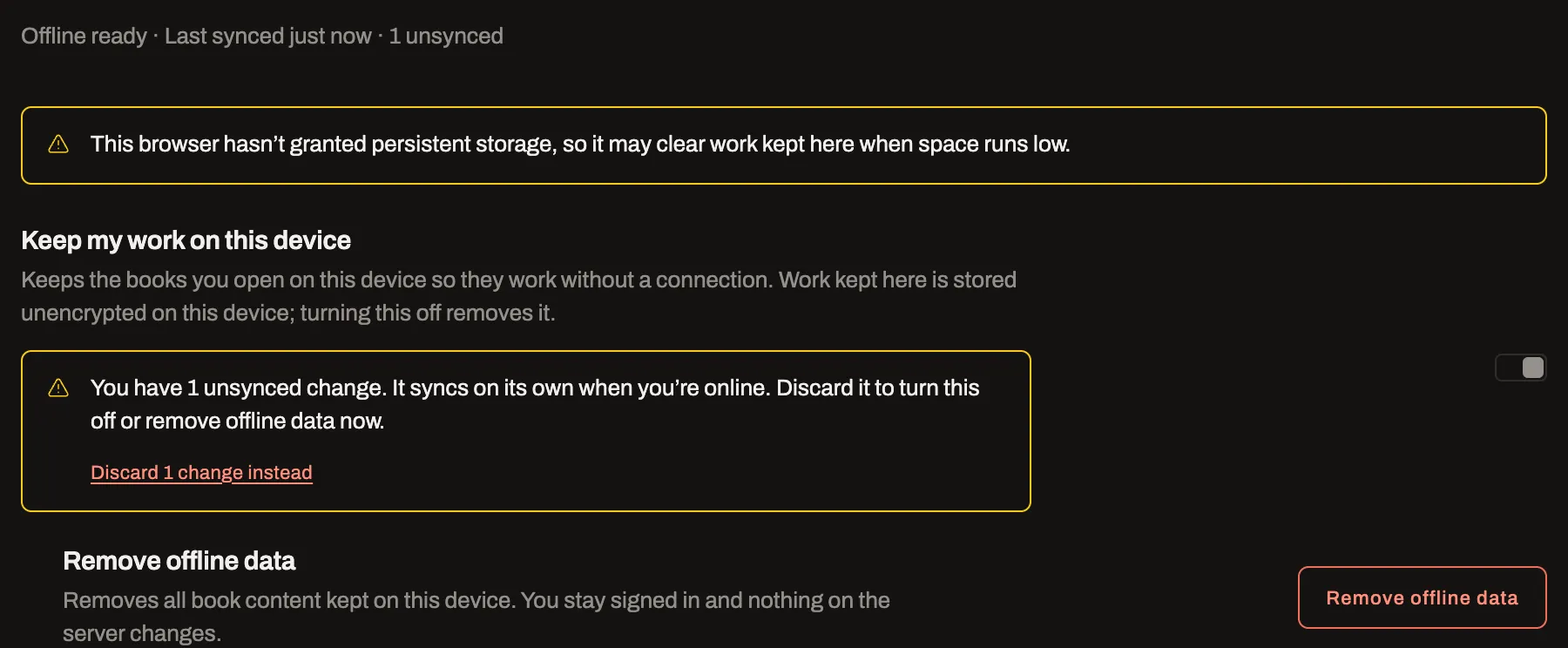
While changes are waiting, the switch cannot be turned off, and a notice under it says how many there are. Get online and they send themselves; the switch is free again.
If you would rather throw the waiting changes away:
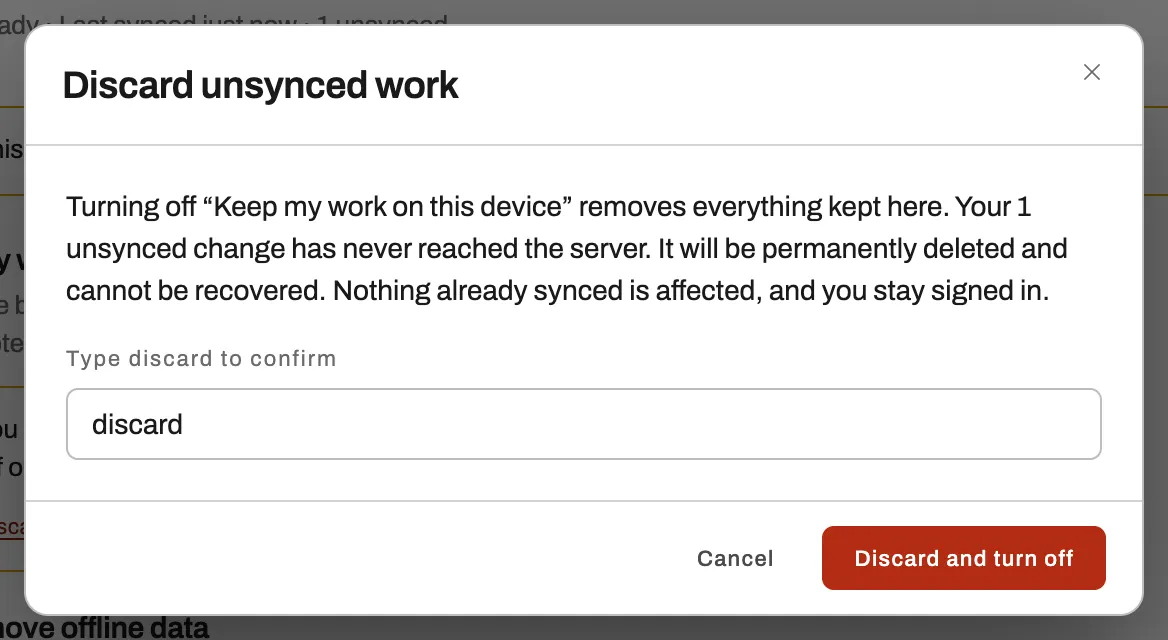
- Press Discard 1 change instead in the notice (the number is your own), or press Remove offline data.
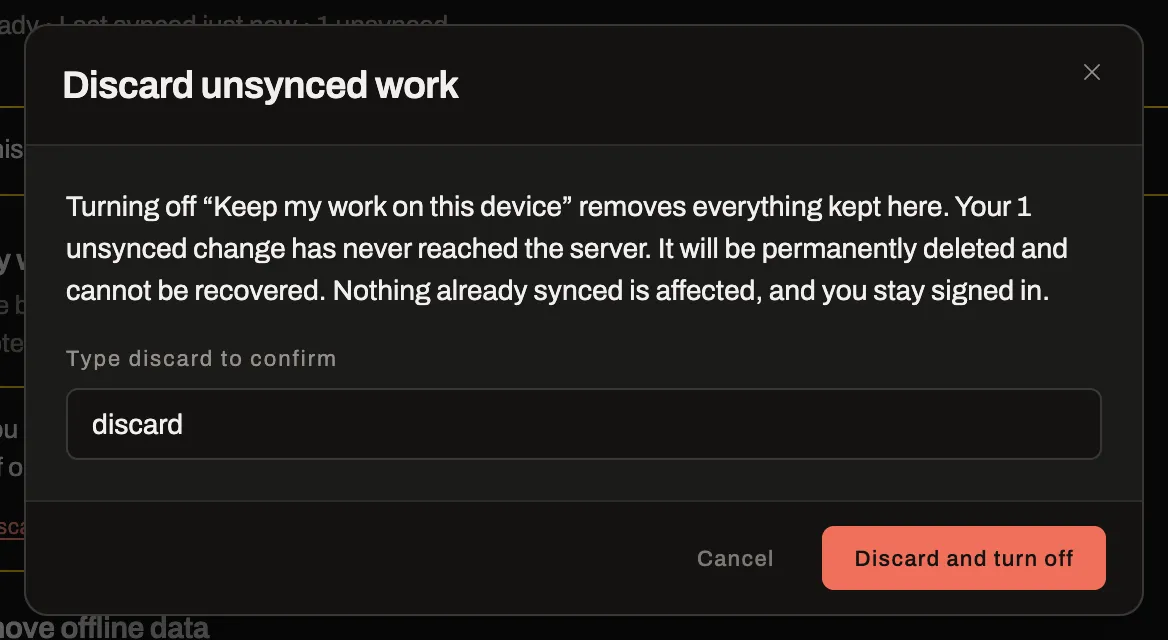
- Read the warning. The changes have never reached your account and cannot be recovered.
- Type discard in the box.
- Press Discard and turn off, or Discard and remove if you came from Remove offline data.
Signing out
Signing out removes everything Gnarlywog keeps on the device, including changes that have not been sent. If any are waiting, or a chapter still needs attention, a dialog titled Sign out with unsynced work? tells you how many. Stay signed in goes back; Sign out anyway signs you out and the waiting changes are gone for good.
You can sign out while offline. If you can get online first, do, and wait for Synced.
If you stay offline for a long time
A device can go 14 days without reaching your account, or 7 days on an iPhone or iPad. In the last 2 days the strip adds “Reconnect within 2 days to keep editing.”, and on the last day “Reconnect within a day to keep editing.”
After that the strip reads “Sign in to keep editing.” and your chapters can be read but not changed. Changes that were already waiting are kept. Get online and sign in, and they are sent.
Opening Gnarlywog with no connection
You can also start offline. Open Gnarlywog in the browser you normally use and it loads from the device: the dashboard, with the books you have opened here ready to open, and the sync status reading Offline. This works only if you were signed in on this device and have not signed out since.
Related
- Save and compare earlier versions of a chapter: the Offline version, Restore and Keep current.
- Write in the chapter editor: the editor you keep using offline.
- Organize your book with chapters and parts: the chapter list and what its menus do when you are back online.
- Find your way around a book: the sidebar, the sync status and the account menu.
- Work with an editor: what an editor’s lock on a chapter is.