DocsWriting
Save and compare earlier versions of a chapter
Updated
A revision is a copy of one chapter’s text as it stood at one moment. You save one yourself before a big change, and Gnarlywog keeps one for you when you leave a chapter you have changed. Later you can put any of them beside the chapter and see what is different. Revisions are on both plans, Free and Pro.
A revision is your own copy of your own chapter. An editor’s copy of a chapter is a draft, which is covered in Work with an editor.
Find the Revisions tab
Revisions live in the side panel, on the right of a chapter. Open a chapter and press the Revisions tab, the arrow going round in a circle.
A new book shows the tab. If your book does not, press the three dots at the end of the side panel’s row of tabs and, under Panels, turn on the switch beside Revisions. The Writing, Editing and All presets there include it too. The choice is kept with the book.
The side panel itself is covered in Find your way around a book.
What the list shows
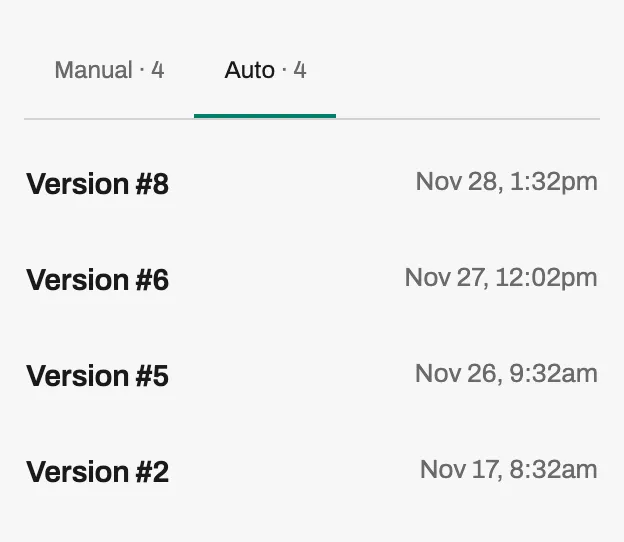
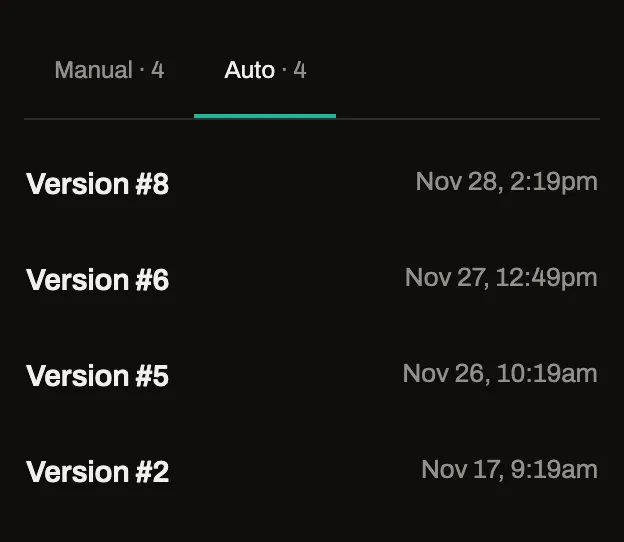
The panel has two lists, Manual and Auto, each with a count. A third, Offline, shows only for a chapter that has an Offline version. Every row is one revision, with the day and time it was made, newest first.
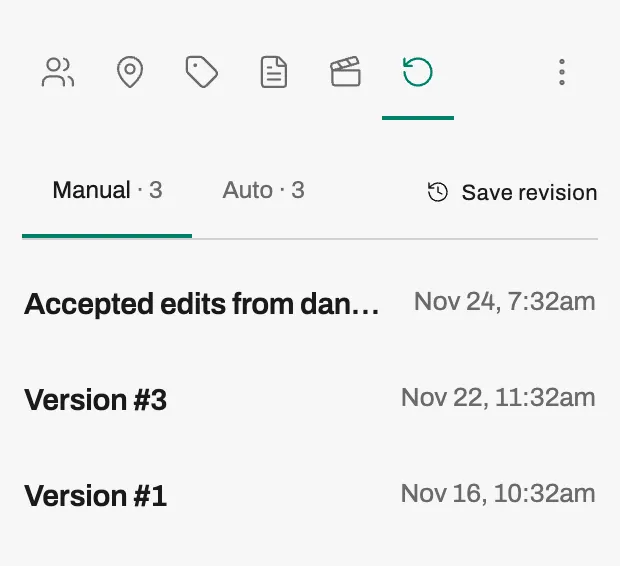
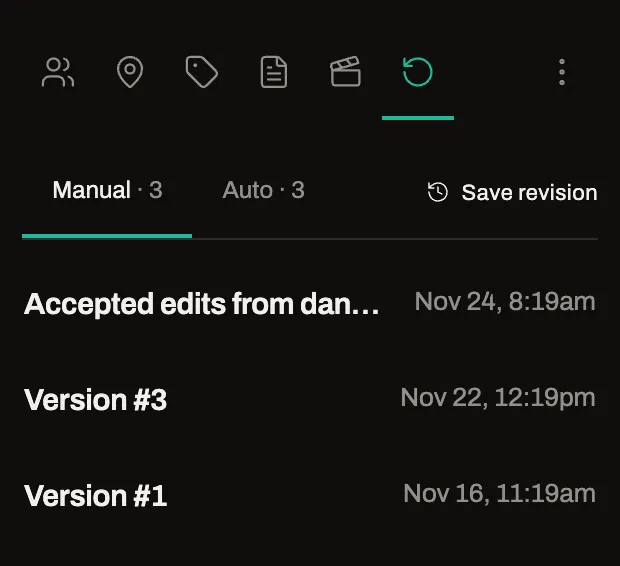
Manual holds:
- The versions you saved yourself with Save revision.
- One entry each time you finish reviewing an editor’s draft and accepted something in it. It is named “Accepted edits from” and your editor’s display name, or their email if they have not set one, and holds the chapter with those changes in it.
Auto holds the copies Gnarlywog makes for you. It makes one when you leave the chapter, or switch away from its browser tab, and only if the text has changed since the last revision.
Two things to know about the lists:
- How long they are kept. A version in Manual stays until you delete the chapter. Auto keeps the newest 20 for each chapter and drops older ones.
- The numbers. Both lists share one run of numbers for the chapter, so Manual can go from Version #1 to Version #3. Nothing is missing: Version #2 is under Auto.
A revision cannot be renamed, pinned or deleted.
The question mark beside the panel’s name opens a short summary of all this.
Save a revision
Save one before you rewrite a scene, cut a passage or try something you may not keep.
- Open the chapter and the Revisions tab.
- On Manual, press Save revision at the right of the row. The button is not on Auto. When the chapter also has an Offline tab, the button is its icon alone, a clock with an arrow round it, without its words.
The chapter as it is now goes to the top of Manual as the next version.
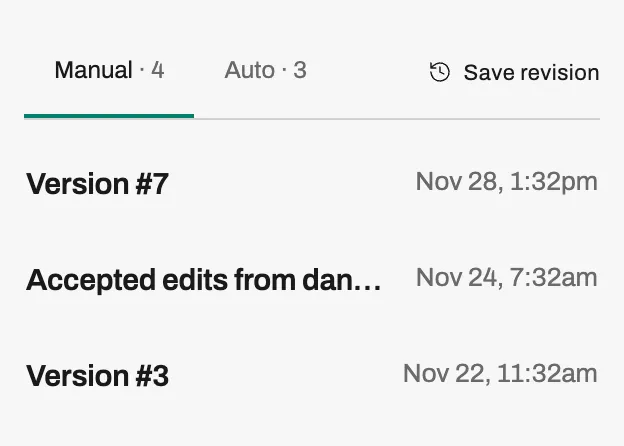
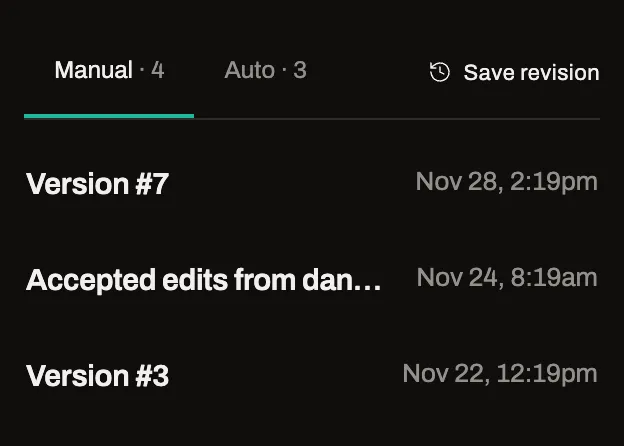
Save revision does not ask for a name and does not check whether anything changed, so pressing it twice saves two versions.
Compare a revision with your chapter
- Press a revision in either list.
- Read the two sides. On the left, under Current chapter, is the chapter as it is now. On the right, under the revision’s name and date, is the same text with the differences marked.
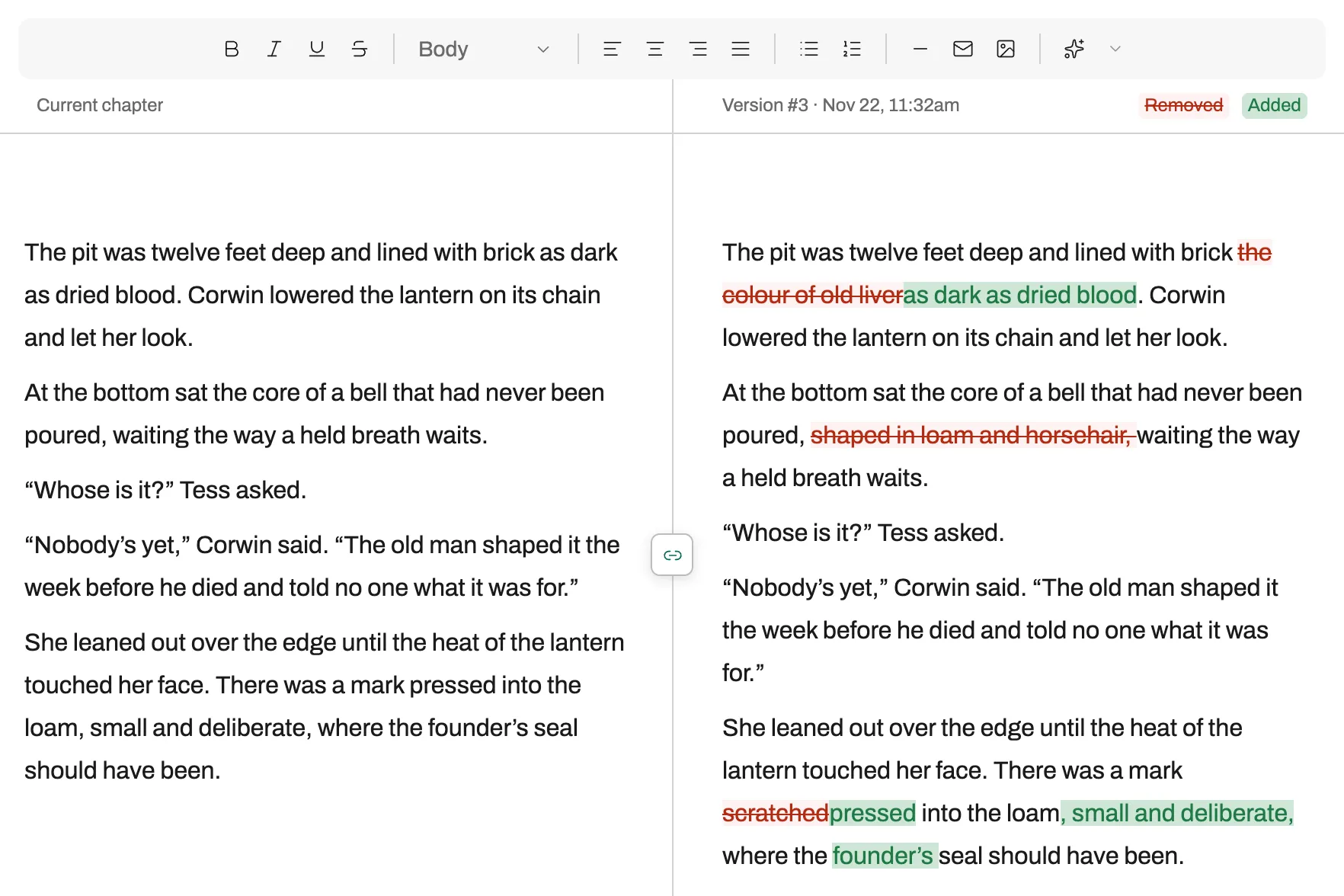
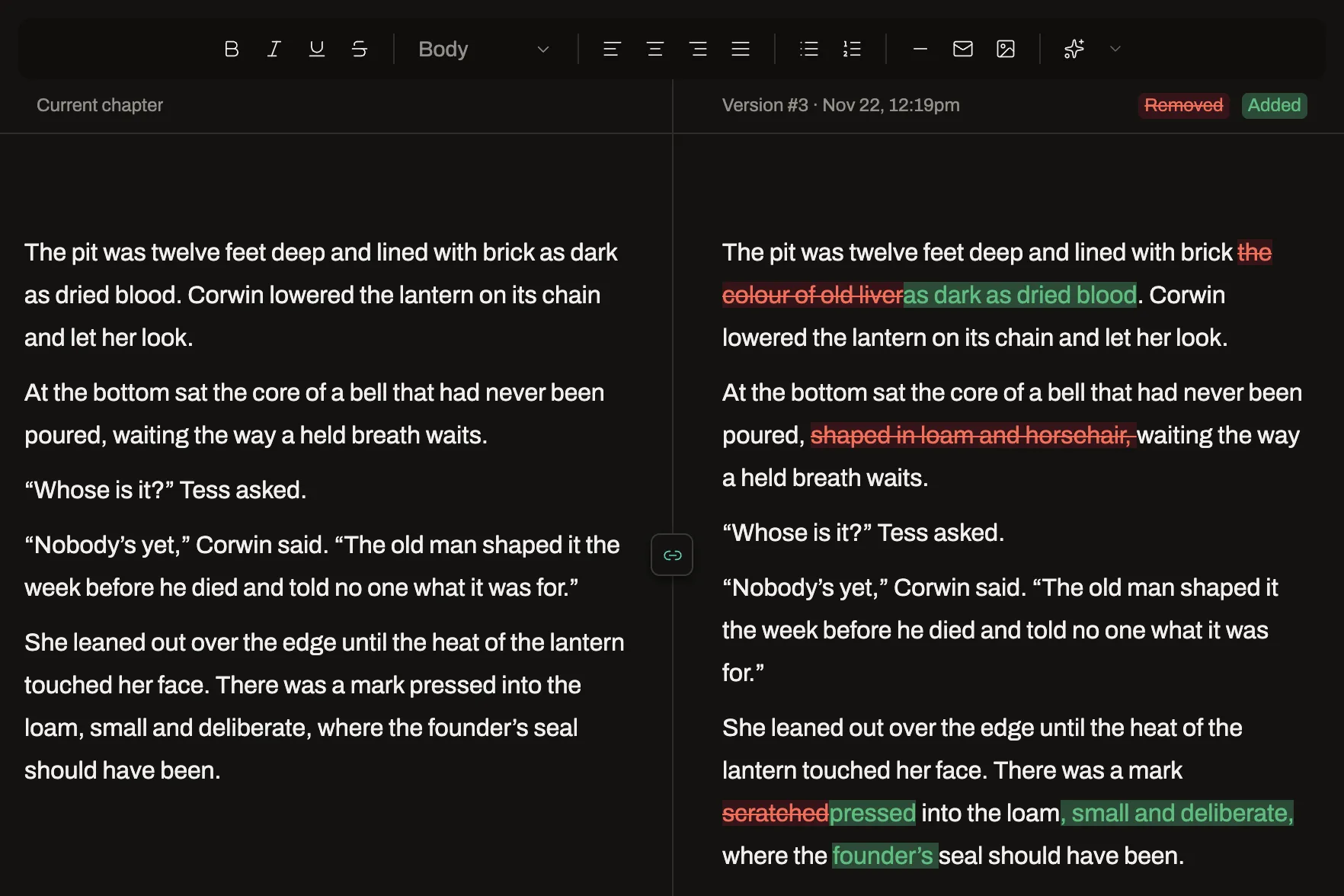
The right side reads from the revision to now:
- Removed, in red with a line through it, is wording the revision had and your chapter no longer has.
- Added, in green, is wording your chapter has now and the revision did not.
The right side shows the differences, not the old version on its own. To read the old wording, read the plain text and the red together and skip the green.
While you compare:
- The sidebar folds away to give the two sides room. It does not come back by itself; press the button at the top of the folded sidebar to open it again.
- You can keep writing on the left. The toolbar stays, and the right side follows what you type.
- The two sides scroll together. To scroll each on its own, press the small link button on the line between them. Press it again to join them.
- The row you are comparing turns green in the list, and a Comparing bar above the list names it.
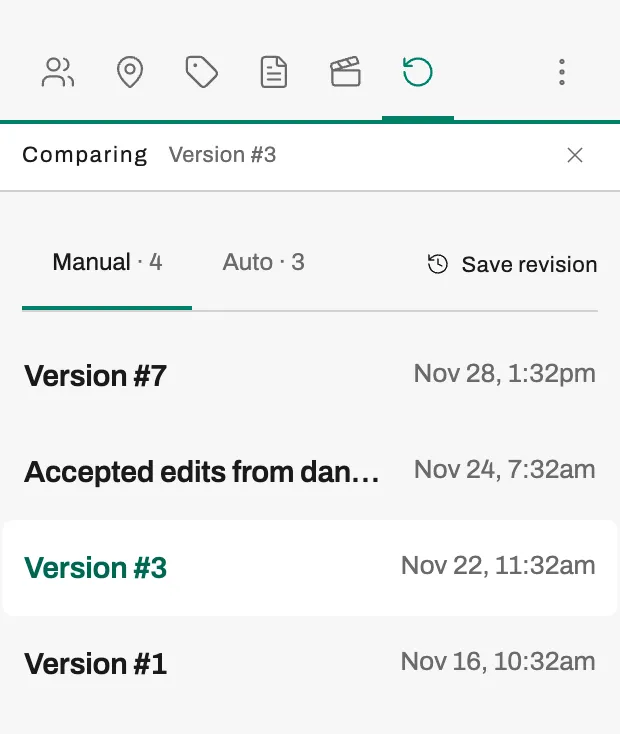
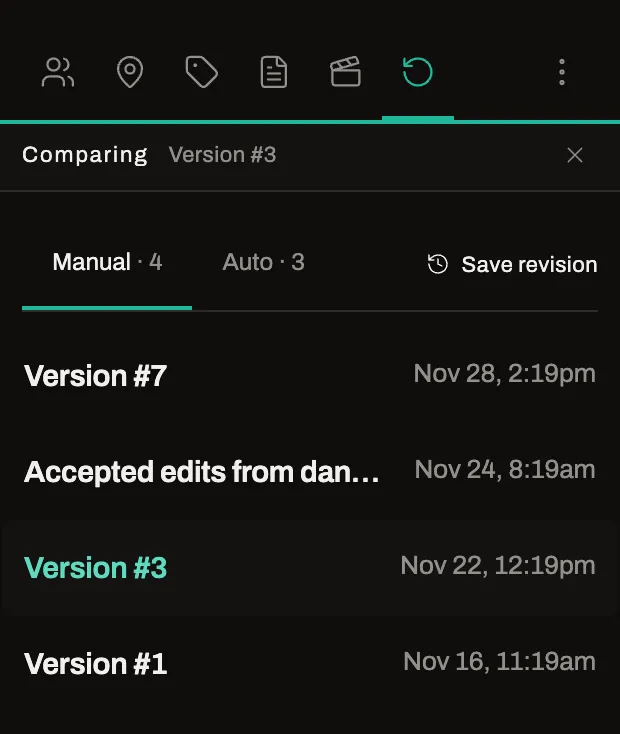
To stop comparing, press the X on the Comparing bar, or press the same row again. Choosing another tab in the panel, such as Manual or Auto, or opening another chapter, ends it as well. So does losing the connection.
Bring back earlier wording
There is no button that puts a revision back in place of your chapter. You bring old wording back by hand:
- Compare the revision that has the wording you want.
- Find the passage on the right. What you lost is in red.
- Type it into the chapter on the left, or select it on the right, copy it, and paste it on the left.
Save a revision first if you are about to undo a lot, so the chapter as it is now is in the list too.
An Offline version
You may one day see a third tab in the panel, Offline, beside Manual and Auto, and a dot on the Revisions tab. It holds a row named Offline version with a yellow warning sign, and the panel opens on it while it waits for you. It appears when you wrote in a chapter while offline and, before that work reached Gnarlywog, the same chapter was changed somewhere else. Gnarlywog keeps the newer text as the chapter and keeps your offline work here, so neither is lost.
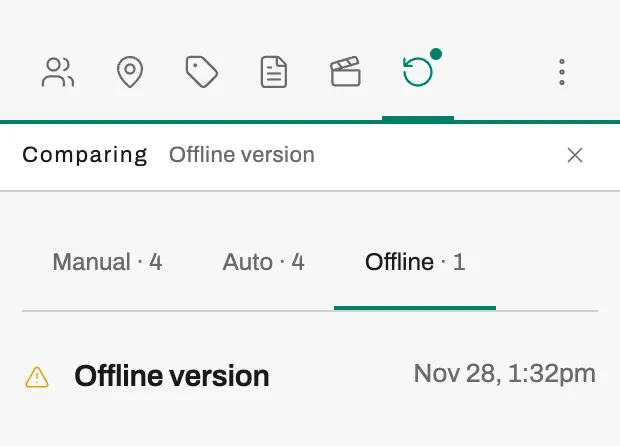
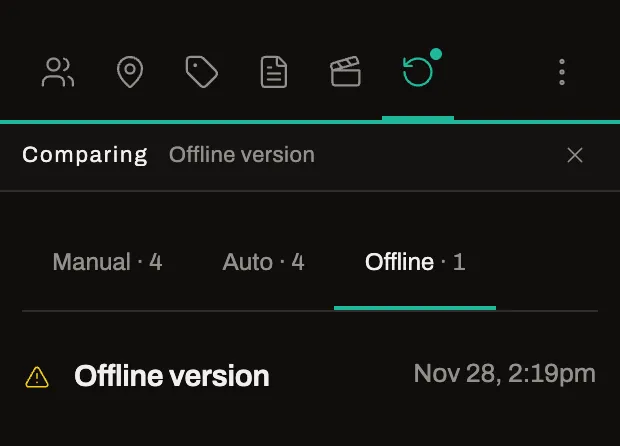
An Offline version is the one revision you can put back.
- Press Offline version to compare it with the chapter.
- Choose one of the two buttons at the bottom of the panel.
- Restore makes the offline text your chapter. The text it replaces is saved first, as a new version at the top of Manual.
- Keep current leaves your chapter as it is.
A notice confirms your choice: “Offline version restored” or “Kept current version”.
Neither one throws any writing away. After either, the row loses its warning sign and stays on the Offline tab, still named Offline version, as one more revision to compare. The two buttons do not come back for it. Manual and Auto never count it.
Writing without a connection is covered in Keep writing without a connection.
When there is no connection
The side panel closes while you are offline, and the Revisions tab with it. A comparison you had open ends, and the chapter goes back to one side. You can go on writing; the panel comes back when you are online again. No revisions are made while you are offline.
Related
- Work with an editor: where an “Accepted edits from” entry comes from.
- Keep writing without a connection: how an Offline version comes about.
- Write in the chapter editor: the editor on the left of a comparison.
- Find your way around a book: the side panel, its tabs and its presets.
- Organize your book with chapters and parts: deleting a chapter deletes its revisions too.
- Free and Pro: what each plan includes.