DocsBook pages
Write your book's copyright page
Updated
The Copyright page holds the copyright text of your book. It is the second of the seven book pages under Pages in the sidebar, and it is printed straight after the title page. Fill in your book’s title page introduces the book pages and the Pages list.
Gnarlywog does not write this page for you. It prints what you type, and adds the ISBN from the Title page.
Open the Copyright page
- Open the book from the dashboard.
- In the sidebar, choose Content.
- Under Pages, below the chapter list, press Copyright. Scroll the sidebar if you cannot see it.
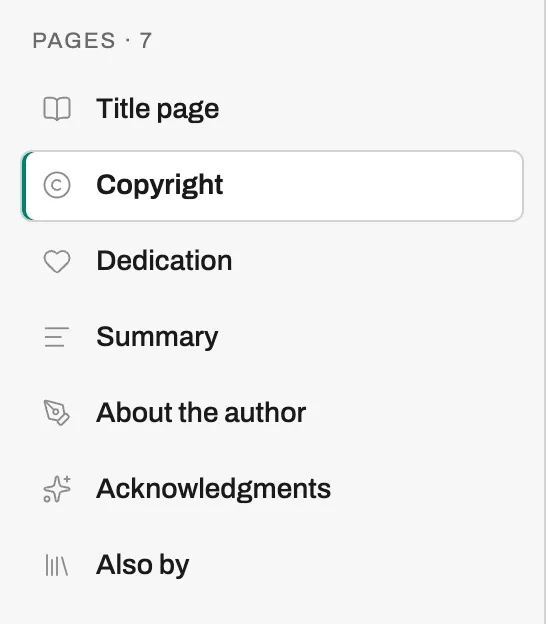
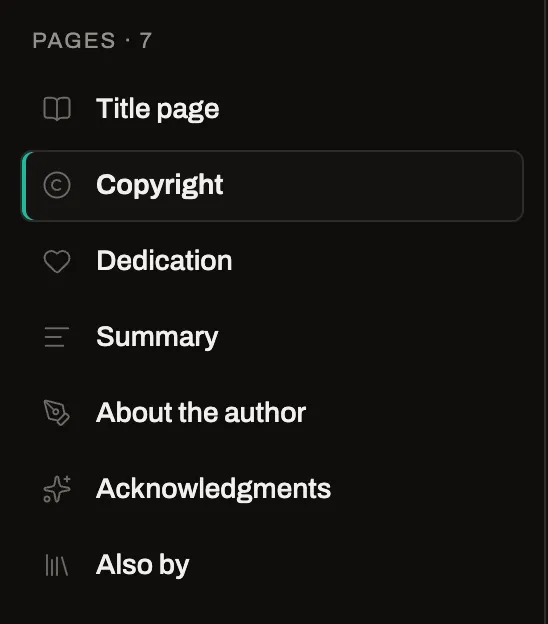
What a new page looks like
A new book’s Copyright page has no text. Where the text will go, a grey line shows a sample: the copyright sign, this year, the author’s name from the Title page and “All rights reserved.”
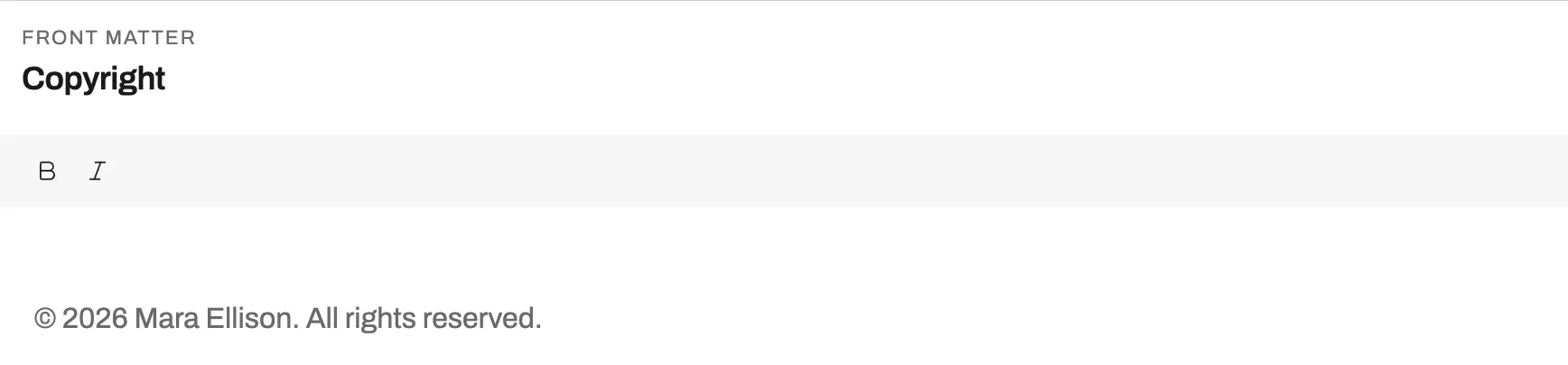
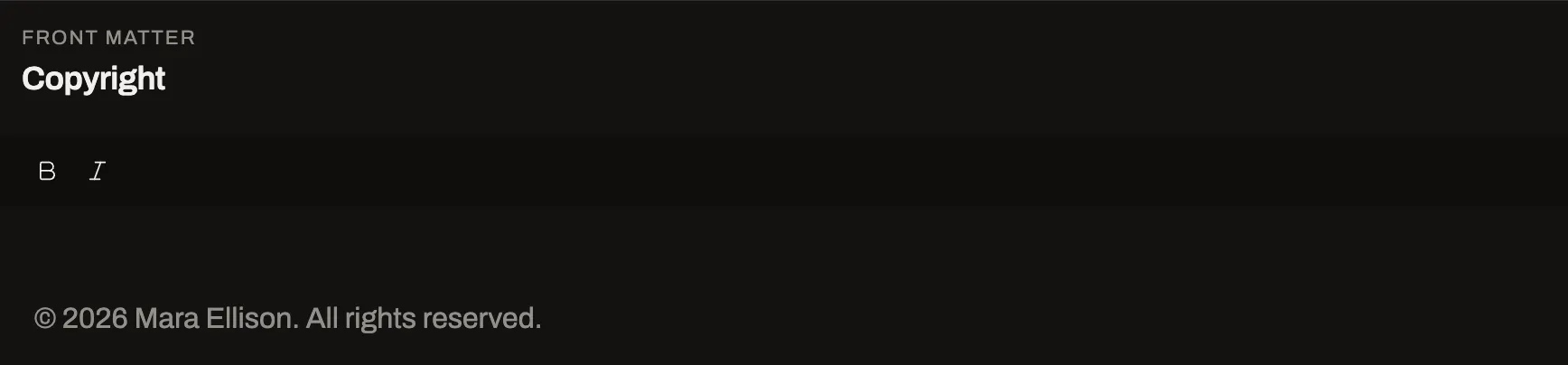
The grey line is not part of your book. It goes away when you start typing, and it is never exported. If you want those words on the page, type them.
Write the page
- Click in the page and type. Press Enter to start a new paragraph.
- To make words bold or italic, select them and press the B or the I button in the strip above the text. Ctrl+B and Ctrl+I (⌘B and ⌘I on a Mac) do the same.
- Press Save at the top right.
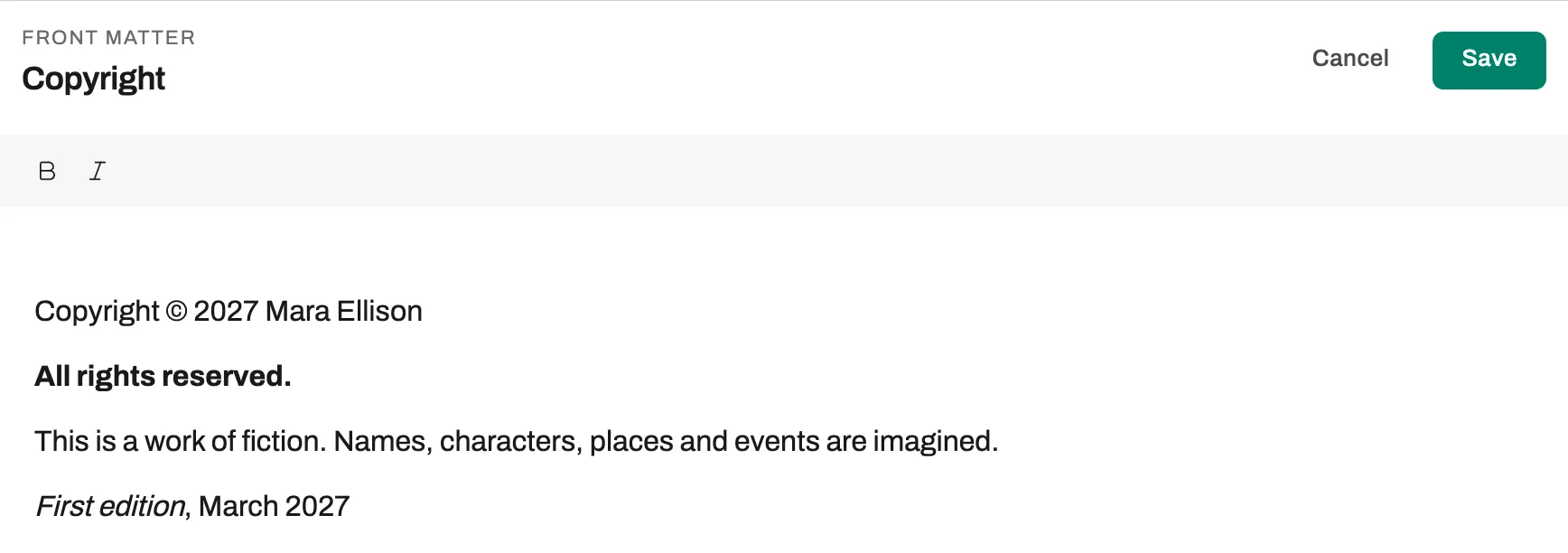
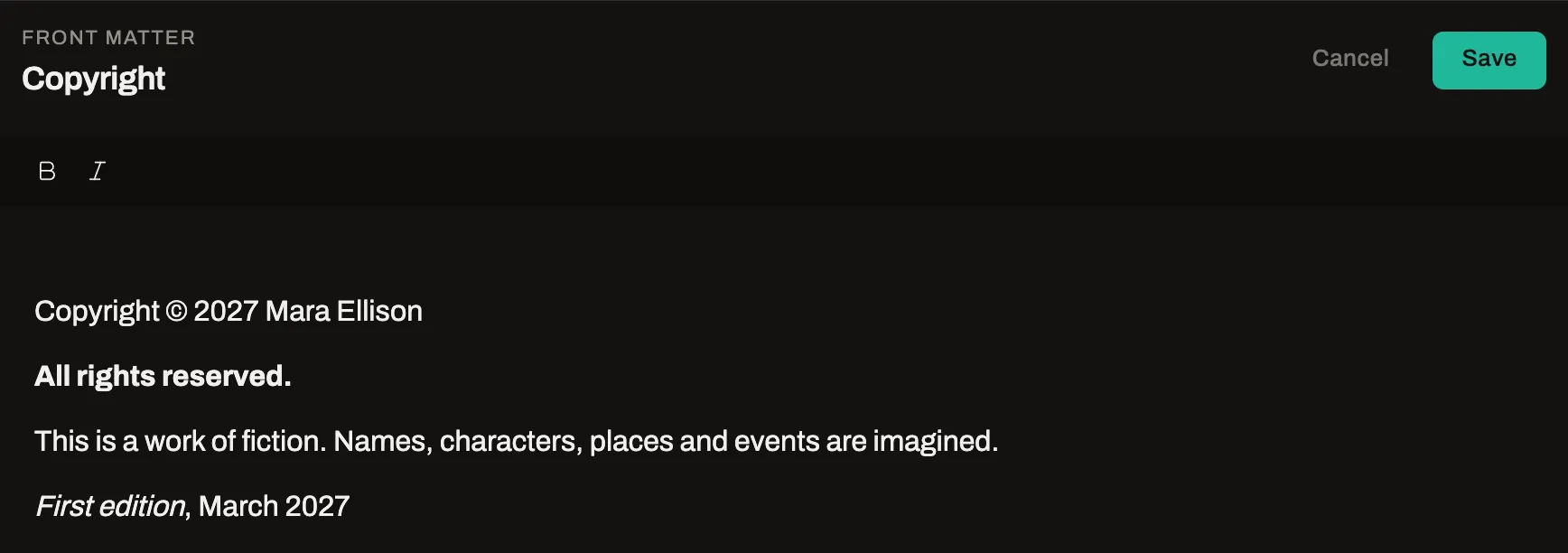
Bold and italic are the only formatting the page offers. What goes on a copyright page is up to you and your publisher. Gnarlywog does not check the wording.
Saving works as it does on the Title page:
- Cancel and Save appear at the top right as soon as you change something, and the bottom right corner of the page reads Unsaved changes. After a save it reads All changes saved.
- Cancel puts the page back to what was last saved.
- The page does not save by itself. If you open a chapter or another page before you press Save, a dialog asks Discard changes? first. Keep editing takes you back to the page; Discard drops your changes and goes on.
The ISBN line
You do not type the ISBN here. If the ISBN box on the Title page is filled in, the exported book prints a line reading “ISBN” and the number under your copyright text. Leave that box empty and there is no such line.
The line is added for you in every export, and the preview on the Kindle page shows it too.
An empty page stops an export
Kindle and Print books always include the copyright page, so both need it to have text. While the page is empty:
- On the Kindle and Print pages under Export, the Review tab of the panel on the right lists Copyright under Needs attention with a red cross and “Copyright page is empty”, and the Export EPUB or Export PDF button is dimmed.
- On the DOCX page the same row has a yellow warning triangle instead. Export DOCX still works.
Press Edit page on that row to go straight to the Copyright page.
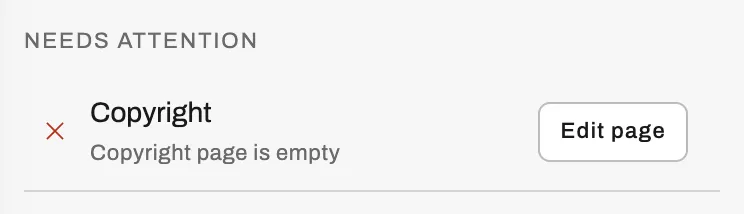
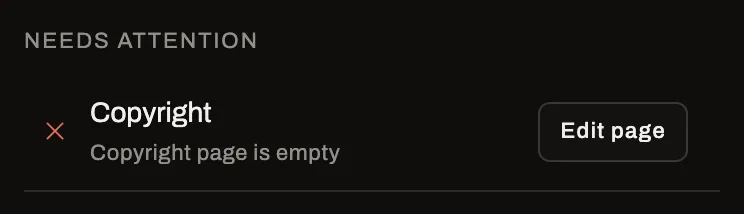
Once the page has text and is saved, Copyright moves to the green tags under Passed. A Kindle book also needs a cover before it can be exported.
The copyright page in your finished book
The page comes straight after the title page in all three files. It has no heading: only your text, with the ISBN line under it.
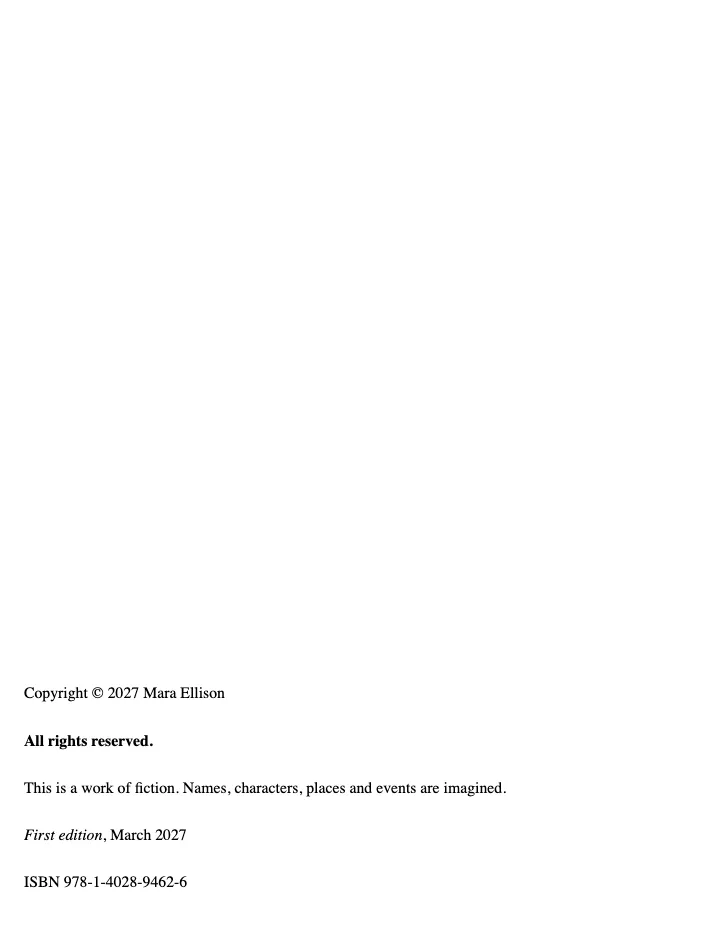
Each export treats the page a little differently.
- Kindle always includes it, in small type at the foot of the page. There is no switch for it.
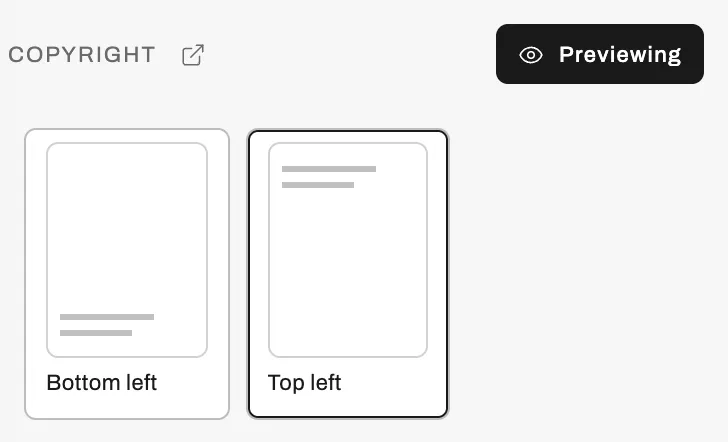
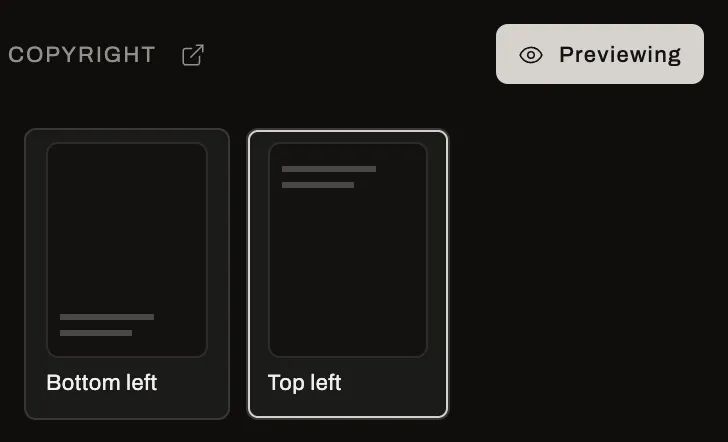
- Print always includes it too, and lets you choose where the text sits. Open the Pages tab of the panel on the right and pick Bottom left or Top left under Copyright. Press Preview in the same section to turn the preview to that page.
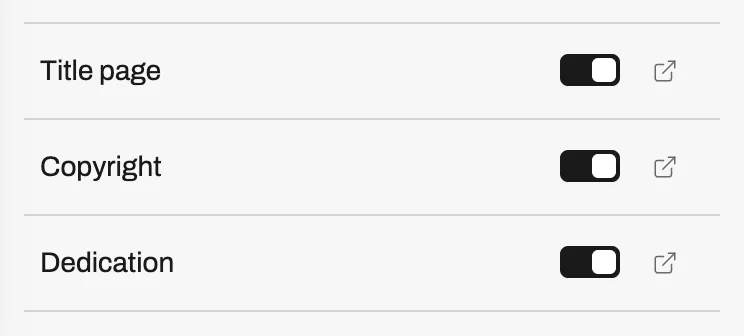
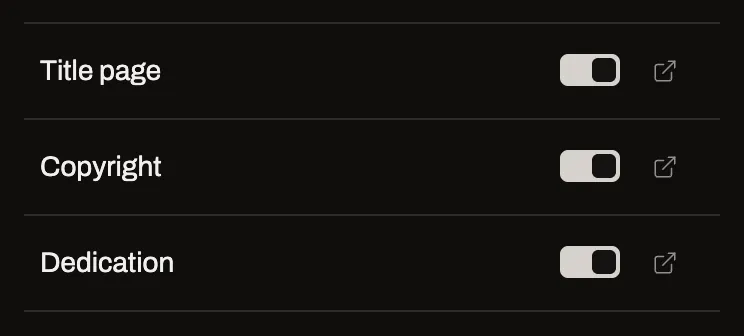
- DOCX is the one export where you can leave the page out. Open the Review tab of the panel on the right and turn off the Copyright switch under Included pages.
Comments from an editor
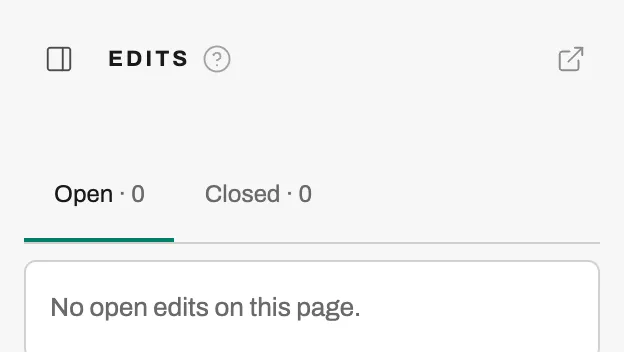
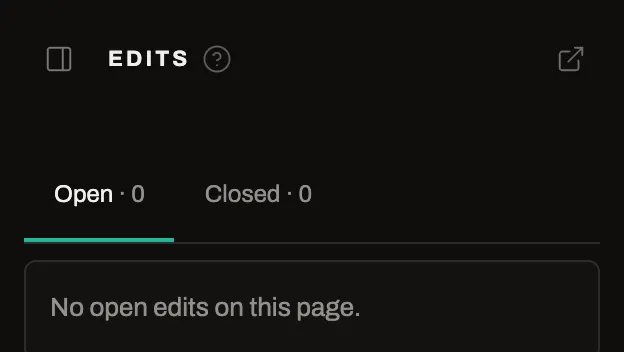
On the Pro plan, a narrow strip at the right edge of the page opens the Edits panel. It lists the comments your editors have left on this page, under Open and Closed. With no comments it reads “No open edits on this page.” The Dedication, Summary, About the author and Acknowledgments pages have the same panel.
Work with an editor covers inviting an editor, answering these comments, and the changes an editor makes to a chapter.
When there is no connection
The Copyright page needs a connection. While you are offline its row under Pages is dimmed. Keep writing without a connection has the rest.
Related
- Fill in your book’s title page: the author’s name and the ISBN this page uses, and the Pages list.
- Work with an editor: an editor’s comments on a page, and the changes they make to a chapter.
- Free and Pro: how the two plans differ: what Pro adds, editors included.
- A book in a series can share one copyright page with the other books of the series. See Share Credit and book pages across a series.
- The other book pages: Dedication, Summary, About the author, Acknowledgments and Also by.
- Export your book for Kindle and Export your book as a print-ready PDF: the two exports an empty Copyright page stops.
- Export your book as a Word file: the export where the copyright page can be left out.
- Check that your book is ready to export: every check on the Review tab, and how to clear it.