DocsWorldbuilding
Keep a profile for each location
Updated
The Locations page keeps a profile for each place in your story: a city, a house, a stretch of coast. It is under Tools, in the Worldbuilding group, just below Characters. A location’s page works the way a character’s does, so this article covers what is different and points to Keep a profile for each character for the rest. Locations are on both plans, Free and Pro, with no limit on how many you keep.
Step 1: Add a location
- Open your book and choose Tools in the sidebar.
- Under Worldbuilding, press Locations.
- Press New location. In a book that already has places, press the name at the top of the page, then New location at the foot of the list.
- Type a Name. It is the only box you must fill in.
- Choose a Type if you like.
- Press Save, at the top right of the page.
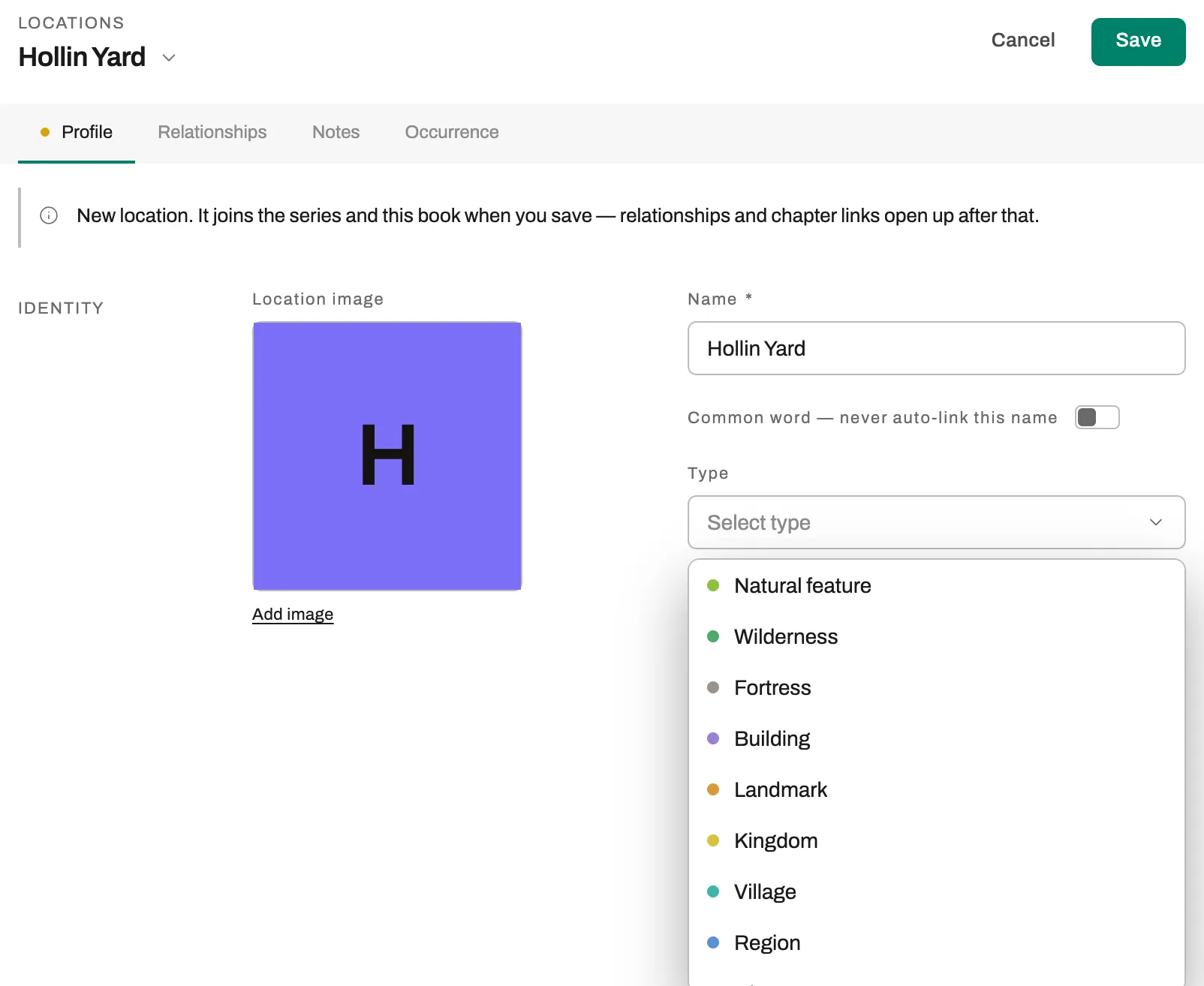
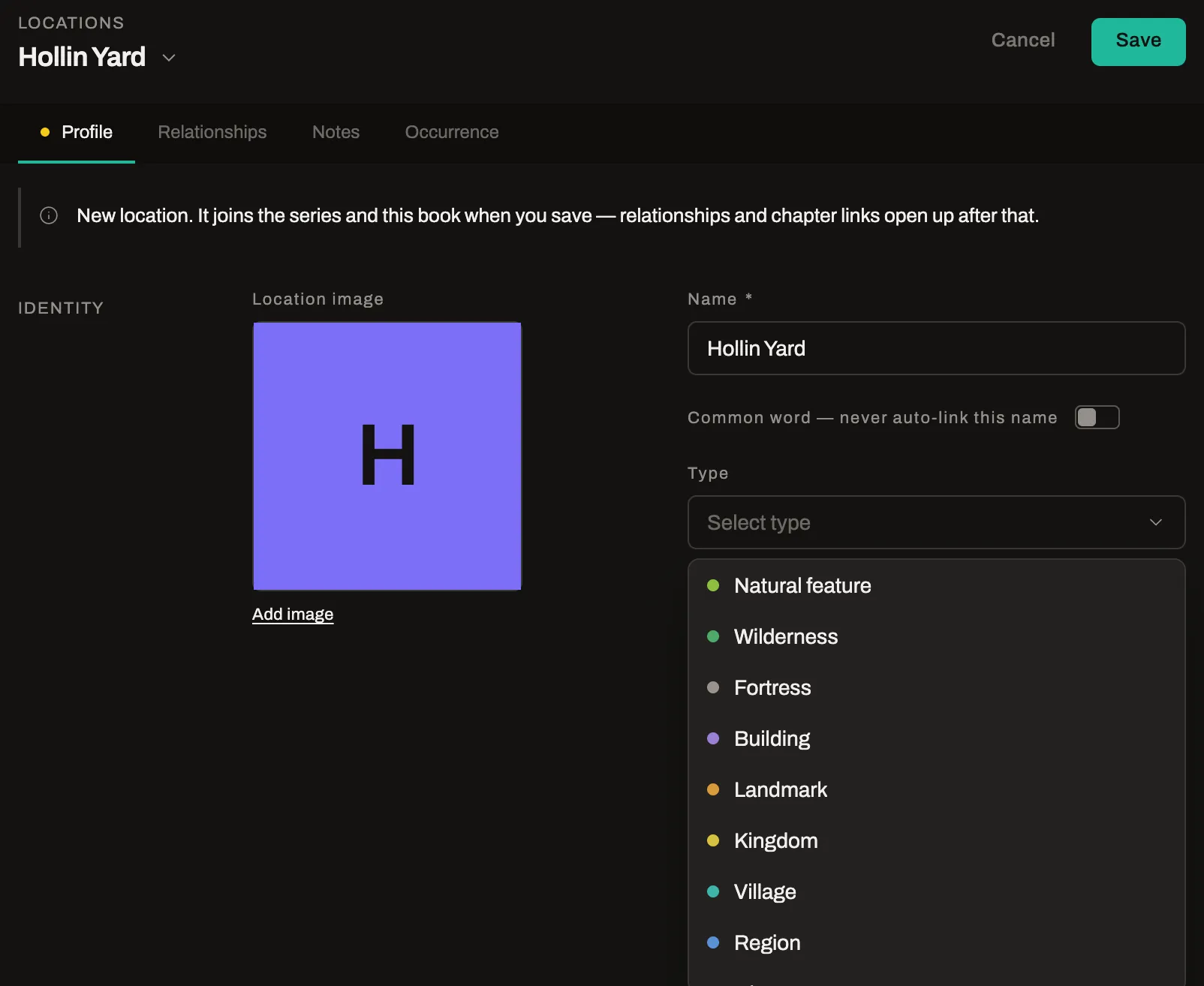
There are twelve types: Natural feature, Wilderness, Fortress, Building, Landmark, Kingdom, Village, Region, City, Town, Ruin and Other. The type is a label with a color. It shows beside the place’s name in lists and changes nothing else.
As with characters, Save stays grey until there is a name, a name already used by another location is refused as you type it, and once the place is saved its name is changed with Rename.
Step 2: Describe the place
The Profile tab has six groups. All the boxes are optional.
- Identity: the picture, the name, Type, a One-line descriptor and A location within, covered in the next step. The Common word switch and the Disambiguator box are explained in Link names in your chapters to characters and locations.
- Atmosphere: Dominant sights, Dominant sounds, Dominant smells and Overall tone / mood.
- Culture: Factions & peoples, Government / power structure, Dominant belief or value and Tensions.
- History: Defining events and Current state.
- Plot role: Narrative function, for what the place does in the story.
- Bucket: one box for anything that does not fit elsewhere.
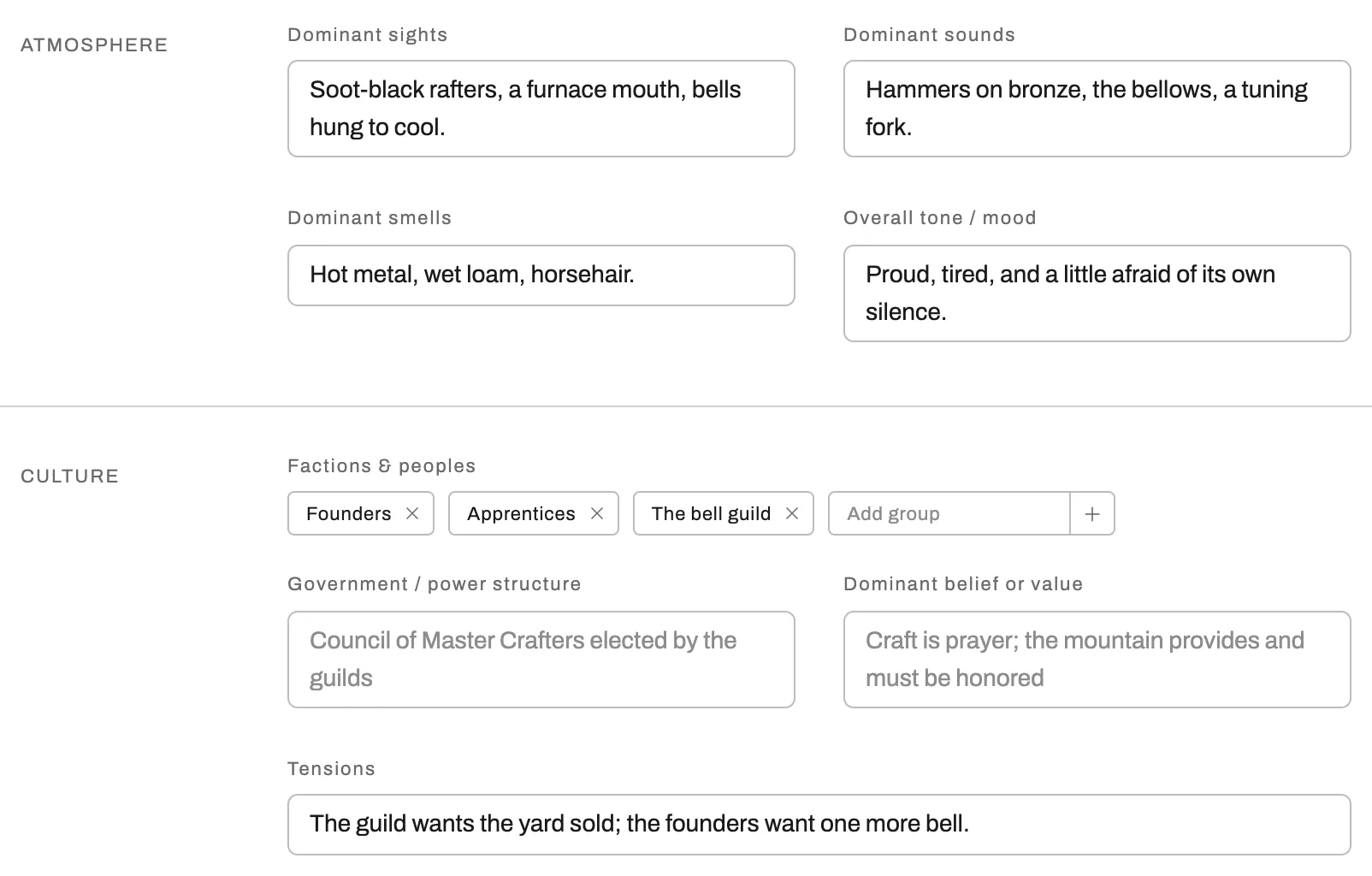
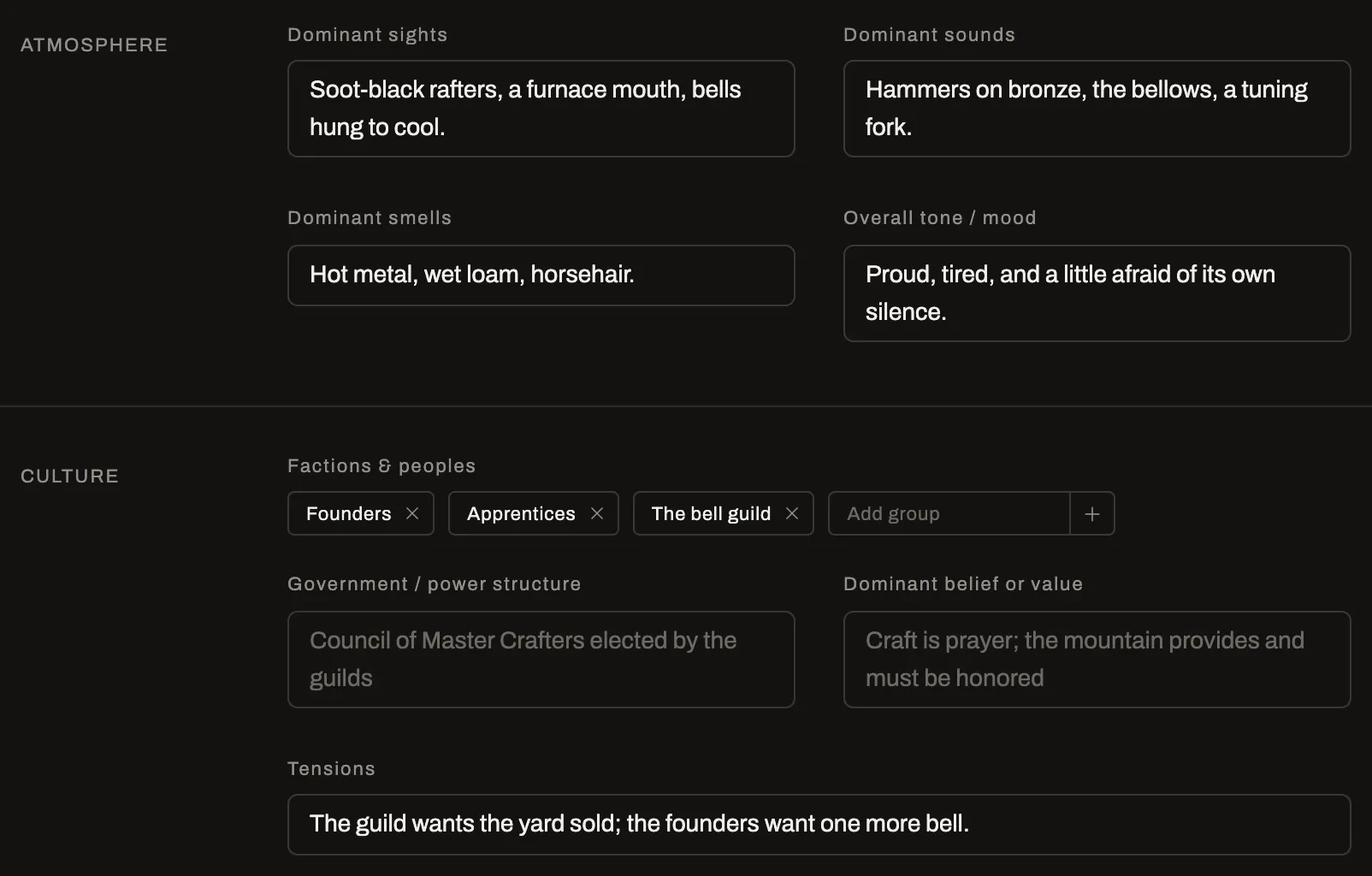
Factions & peoples is a list, like a character’s traits: type a group, press Enter or the plus sign, and press the X on one to take it off.
Press Save when you are done. A picture is added the same way as a character’s, with Add image under the colored square.
Step 3: Put one place inside another
A place can belong to a larger one: a pit in a foundry, a foundry in a valley.
- Open the smaller place.
- Under A location within, choose the place it is inside. The list has every other location in the book.
- Press Save.
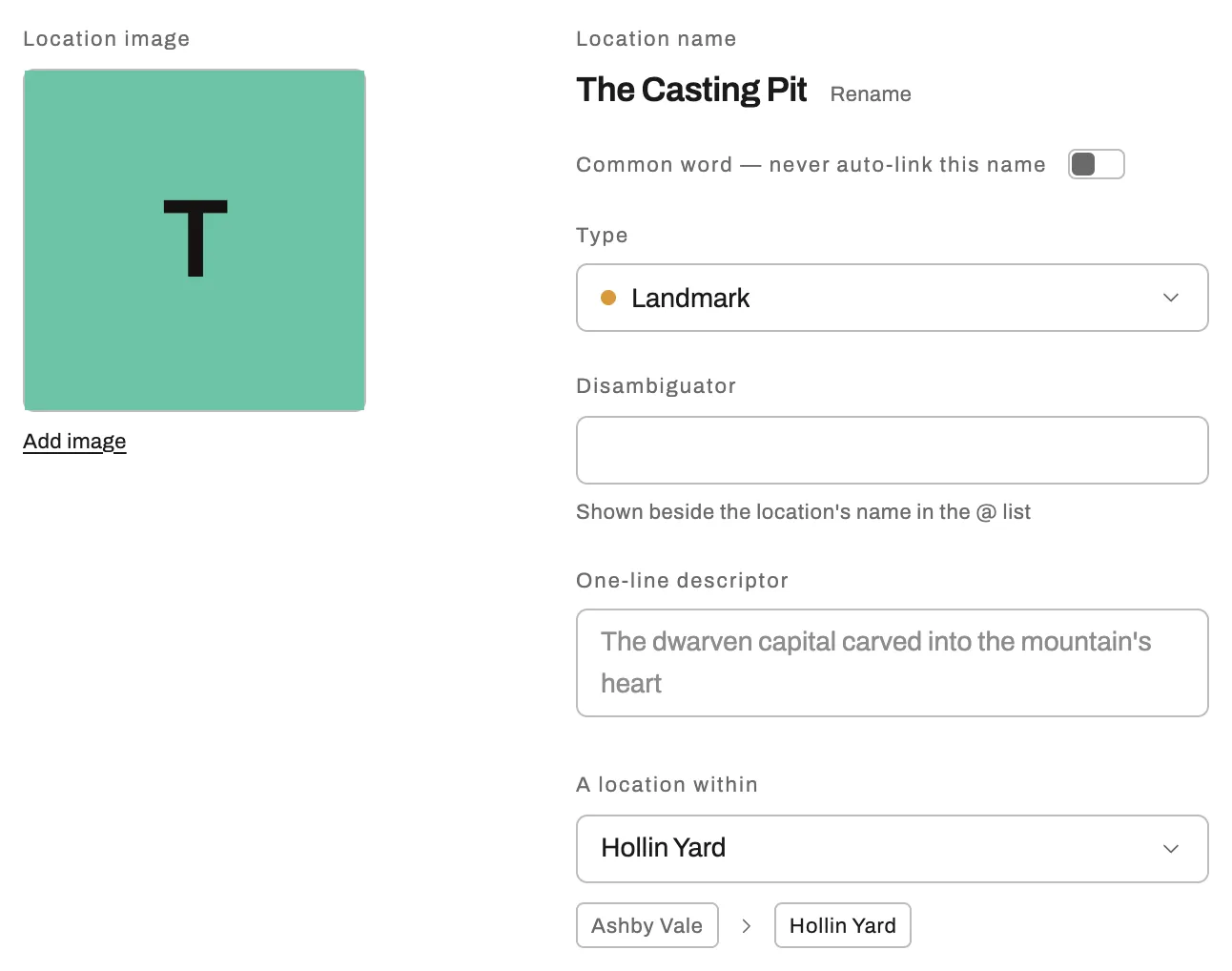
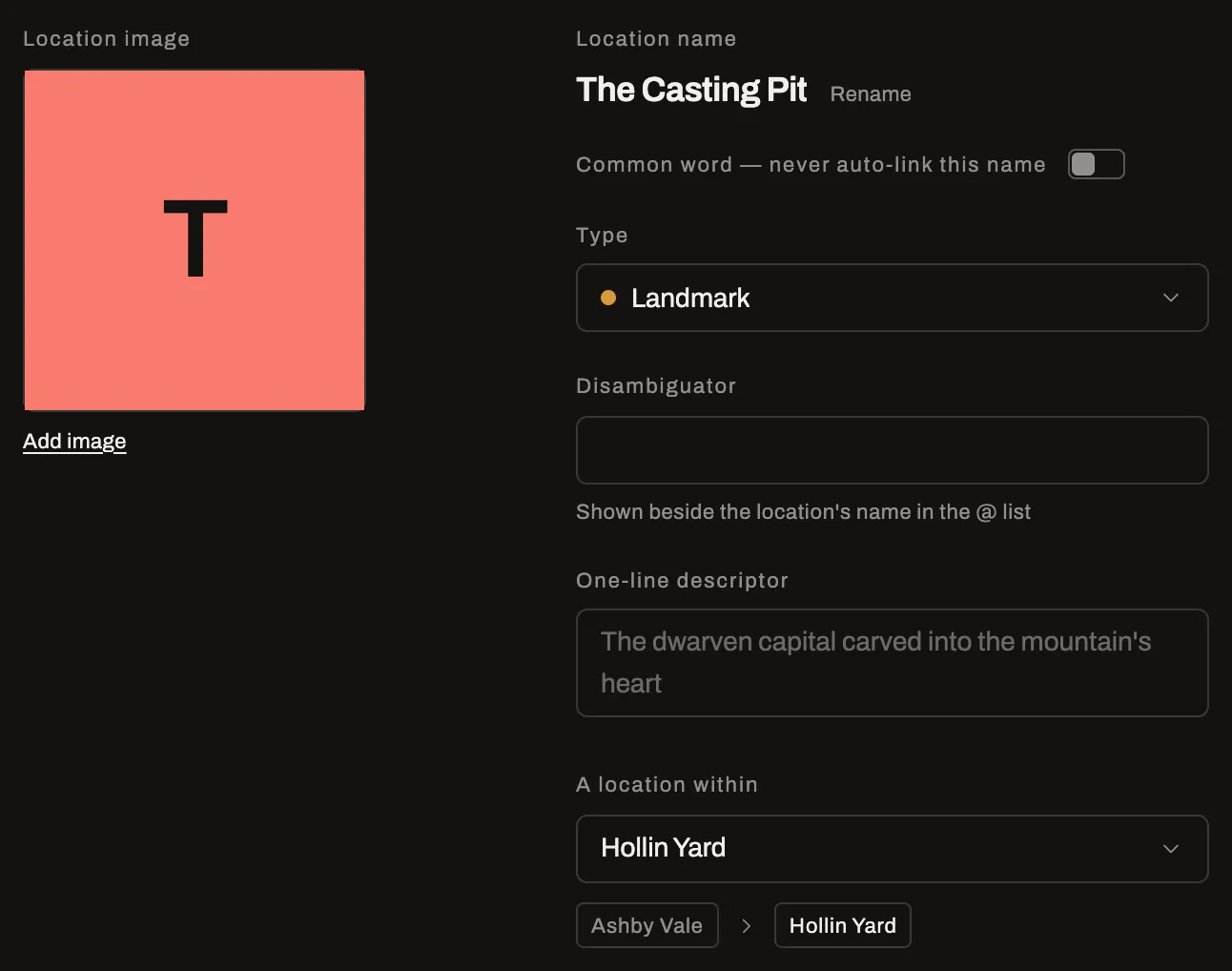
When the larger place is itself inside another, the whole chain is shown under the box, outermost first. To make a place stand alone again, choose No parent (top-level).
A place is not offered as its own parent, nor is any place already inside it. In the side panel beside a chapter, a place inside another reads Within and the larger place’s name, where a top-level place shows its type.
Find a place
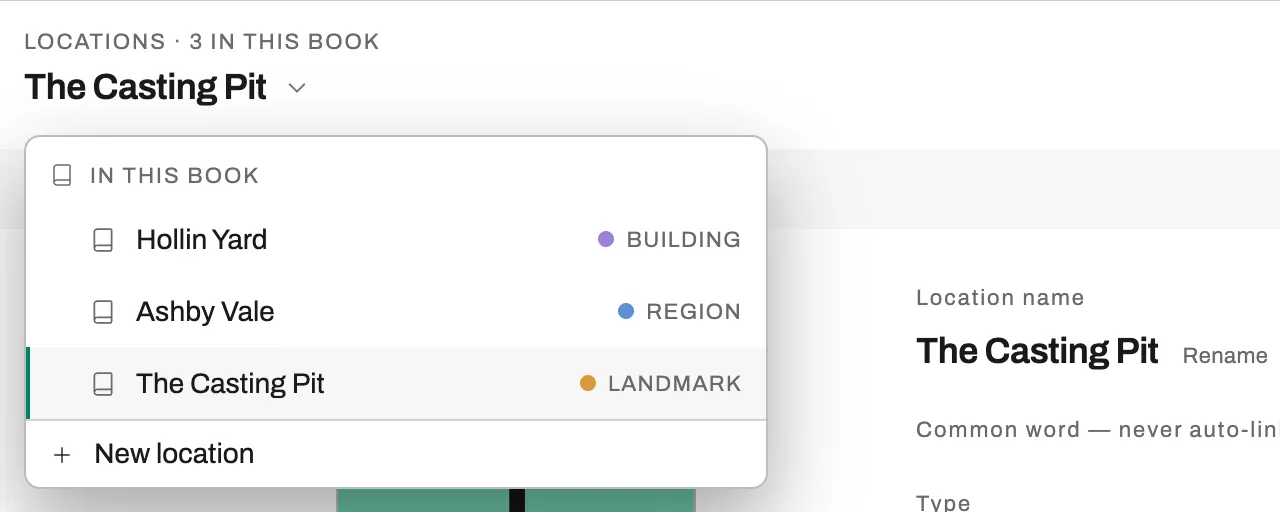
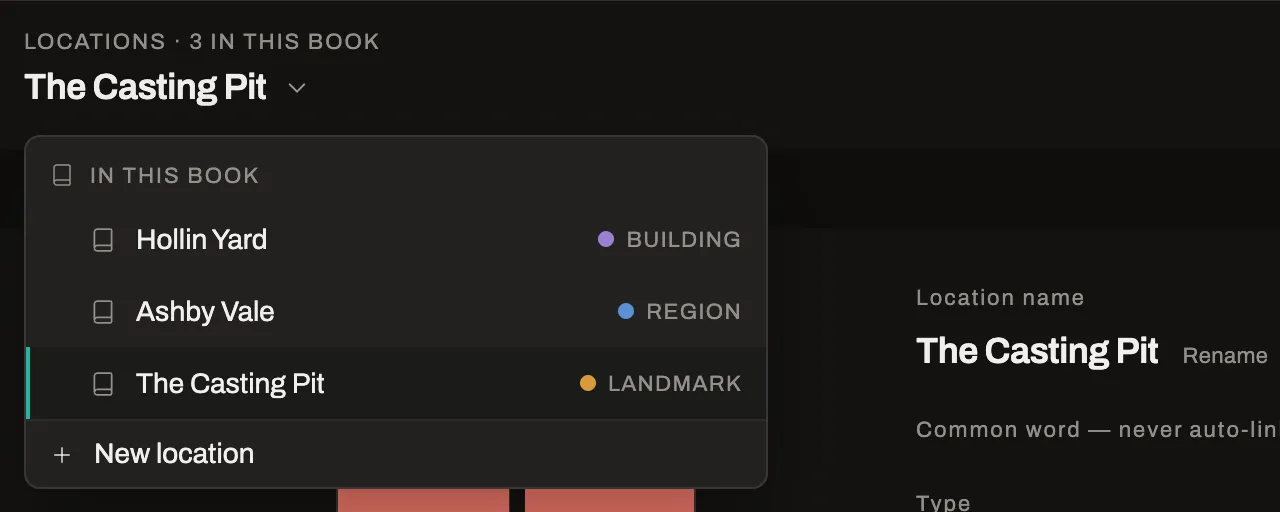
The name at the top of the page is a list of every location in the book, each with its type. Press a name to open it.
What works as it does for a character
The other tabs and the foot of the page are the same as on a character’s page:
- Relationships links the place to characters and to other places, and has a Connections table for borders, roads and places you have not made a page for.
- Notes gathers the notes linked to the place.
- Occurrence lists the chapters, with Add and Remove to say which ones happen here.
- Remove from this book, at the foot of the Profile tab, takes the place out of the book and keeps its profile. Deleting one for good is done from the series’ list, reached through the same dialog. See Share characters and locations across a series.
A location has no LitRPG tab. Each of these is walked through in Keep a profile for each character.
Related
- Keep a profile for each character: the same page for people, with every tab explained.
- Share characters and locations across a series: one place in several books, and deleting one for good.
- Link names in your chapters to characters and locations: how a place’s name in the text ties the chapter to it.
- Outline your book in threads and events: follow a place through the story as a thread.
- Organize your book with chapters and parts: filter the chapter list by location.