DocsSeries
Plan the whole series on the series outline
ProUpdated
The series outline is one plan for the story that runs across your books. It is the same grid as a book’s outline: a thread is a row, an event is a column, and you write what happens where they meet. Outline your book in threads and events explains the grid. This article covers what is different for a series. Series are a Pro feature; Group your books into a series covers starting one.
How it differs from a book’s outline
- It belongs to the series. Nothing you write on it is copied into a book, and a book’s own Outline page does not show it.
- An event is whatever you name it: a turning point, a year, a whole book. It cannot be linked to a chapter, so it has no chapter chip, and its boxes show no chapter number and no chapter beats.
- A thread can be linked to any character or location in the series, whichever books they are in.
- There are no templates. You start with one thread and one event and build from there. A template you saved from a book’s outline is for books: it is offered on the Outline page of every book in the series.
- What you write stays on this page. It does not show on a character’s Notes tab the way a book’s outline does.
Step 1: Open the series outline
- Open the series: press Edit series on its row of the dashboard.
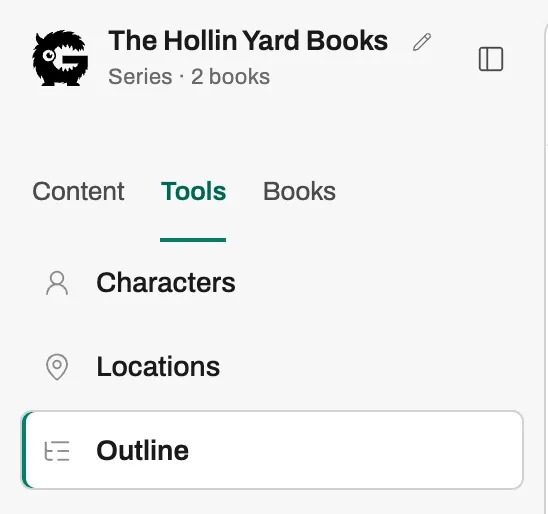
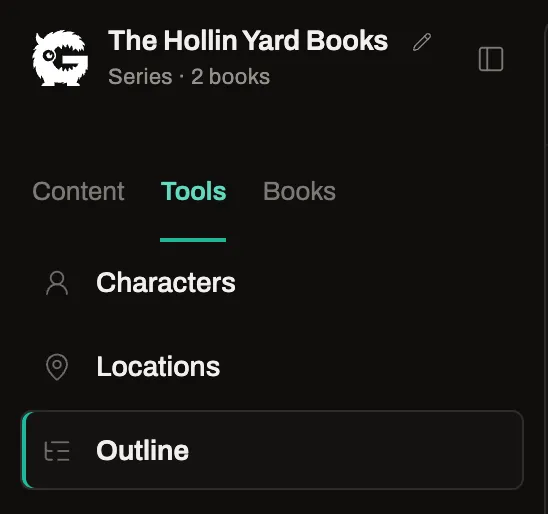
- Press the Tools tab in the sidebar.
- Press Outline, the third row.
Step 2: Start the outline
A series’ outline starts empty, with one button. The outlines of the books in the series are already listed under it.
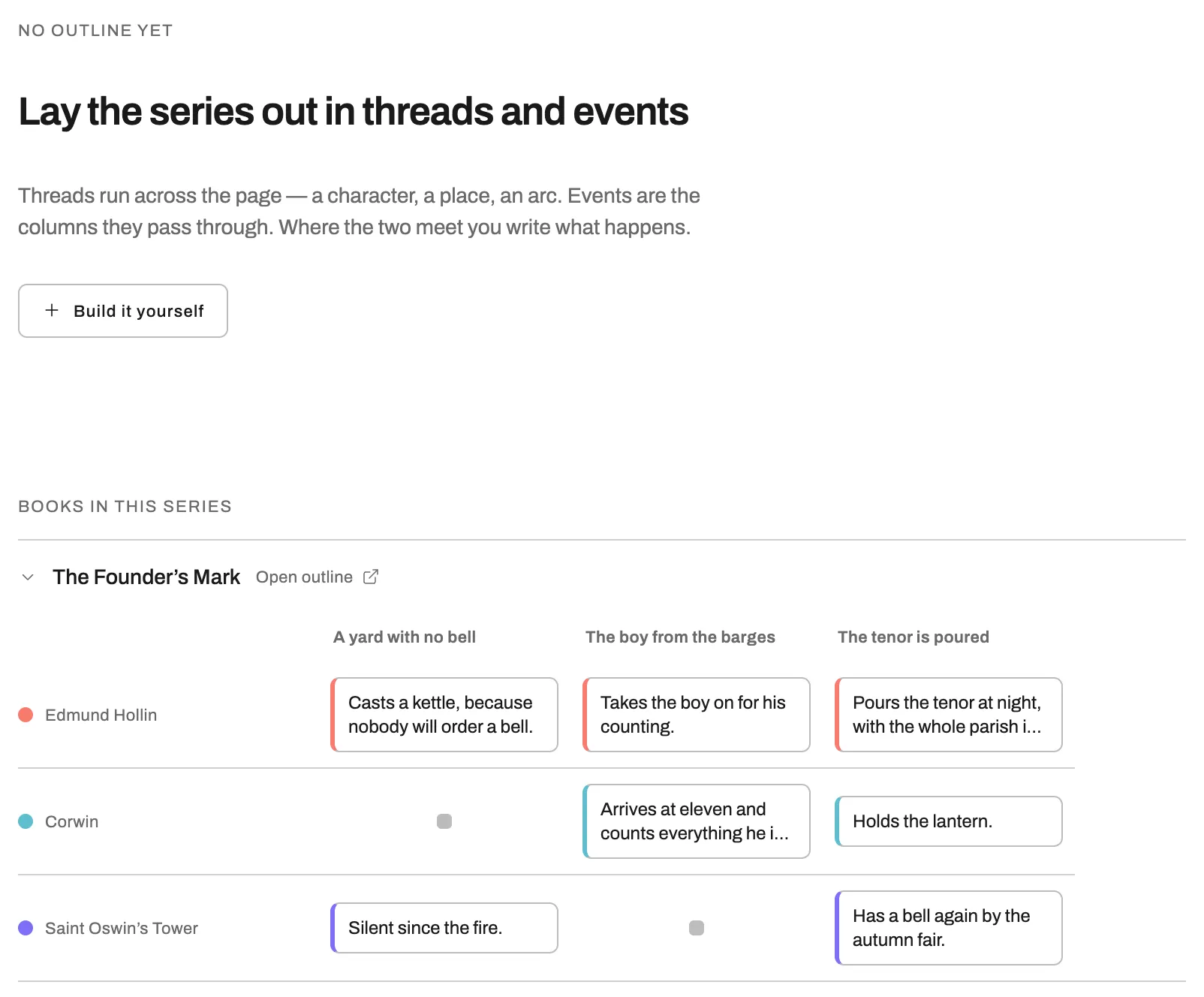
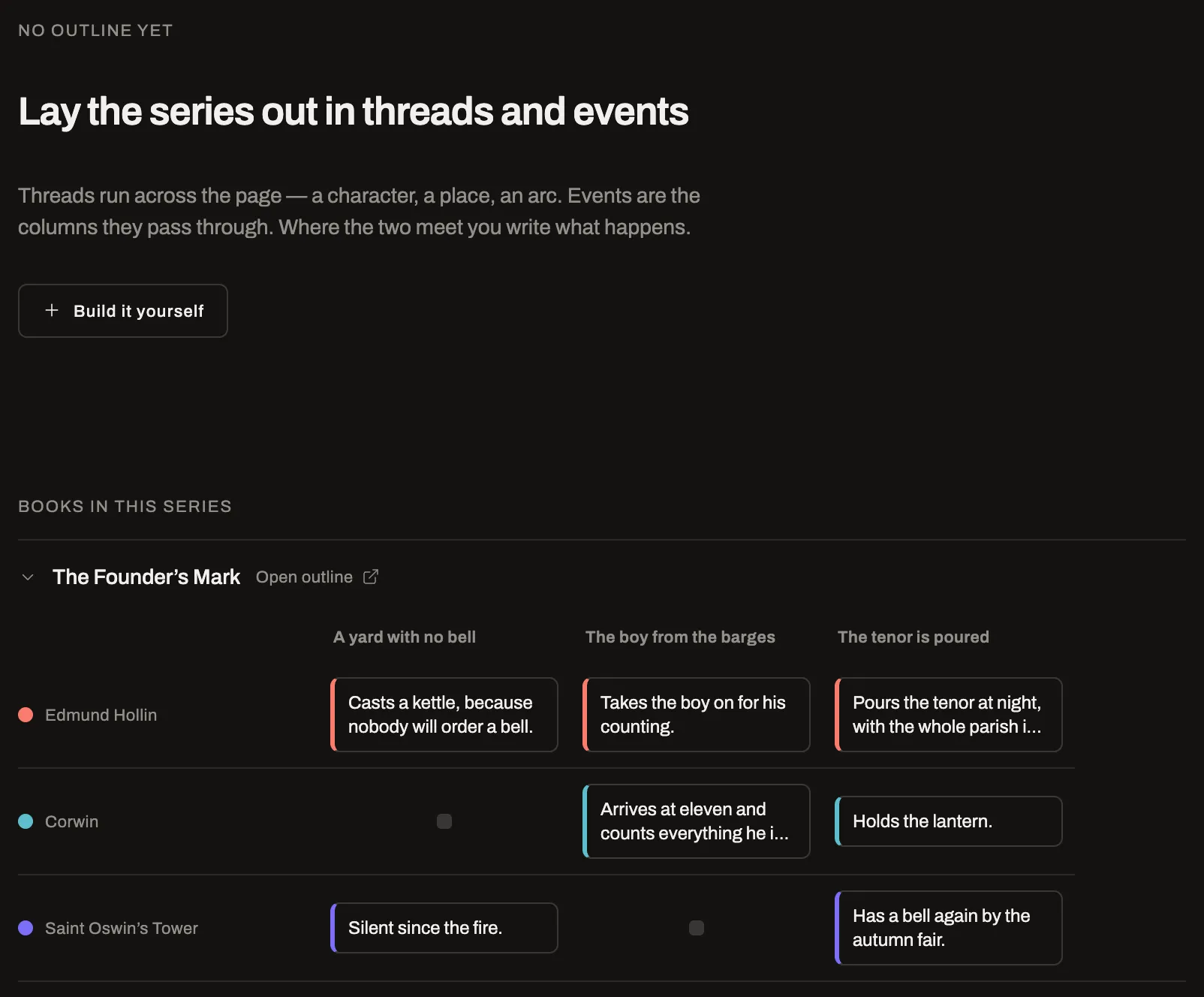
- Press Build it yourself. You get one thread named “Thread” and one event named “Event”, and editing is turned on.
- Press the event’s name, type your own, and press Enter.
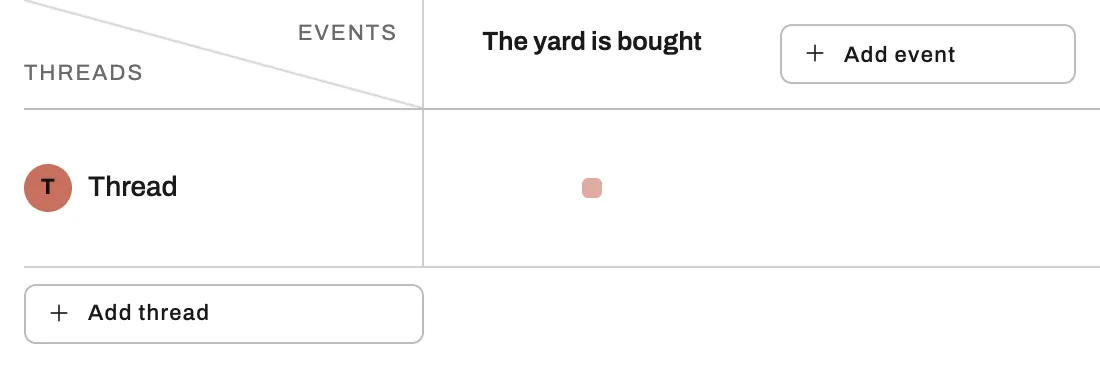
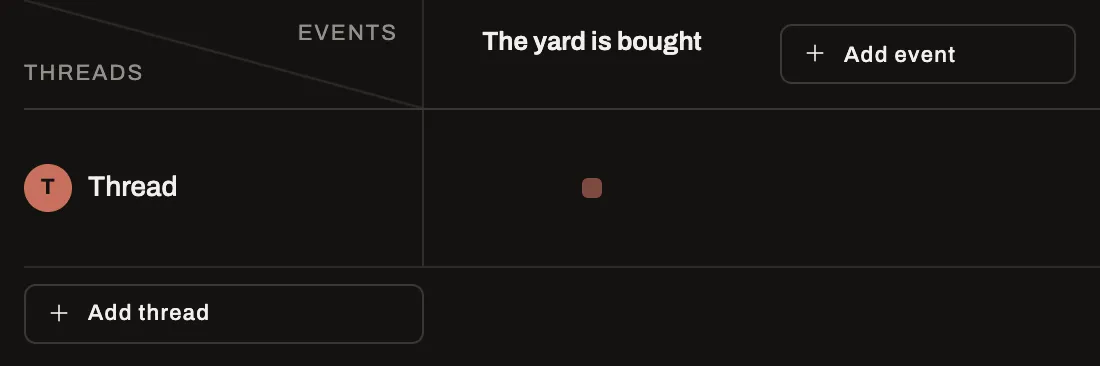
Add event is after the last event and Add thread is under the last thread. A name can be up to 200 characters.
Step 3: Link a thread to a character or a location
- Point at the thread and press the chain link under its name.
- Under Character or location, choose one. The list has every character in the series, then every location, including one that is in a single book.
- Press Save.
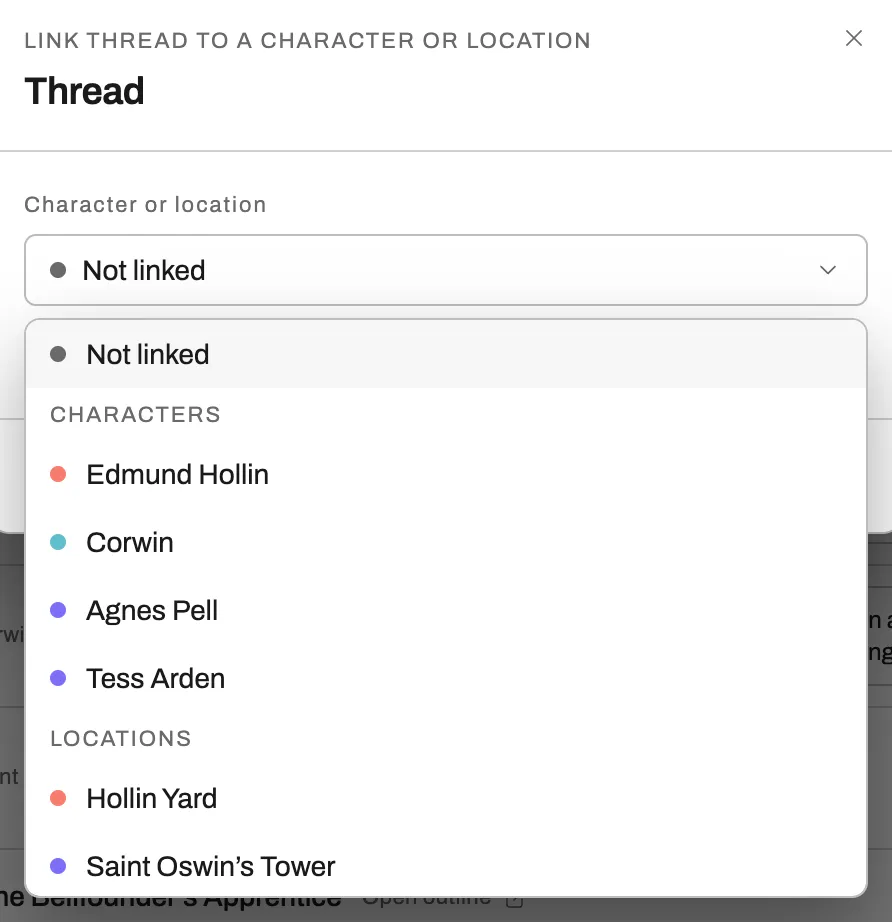
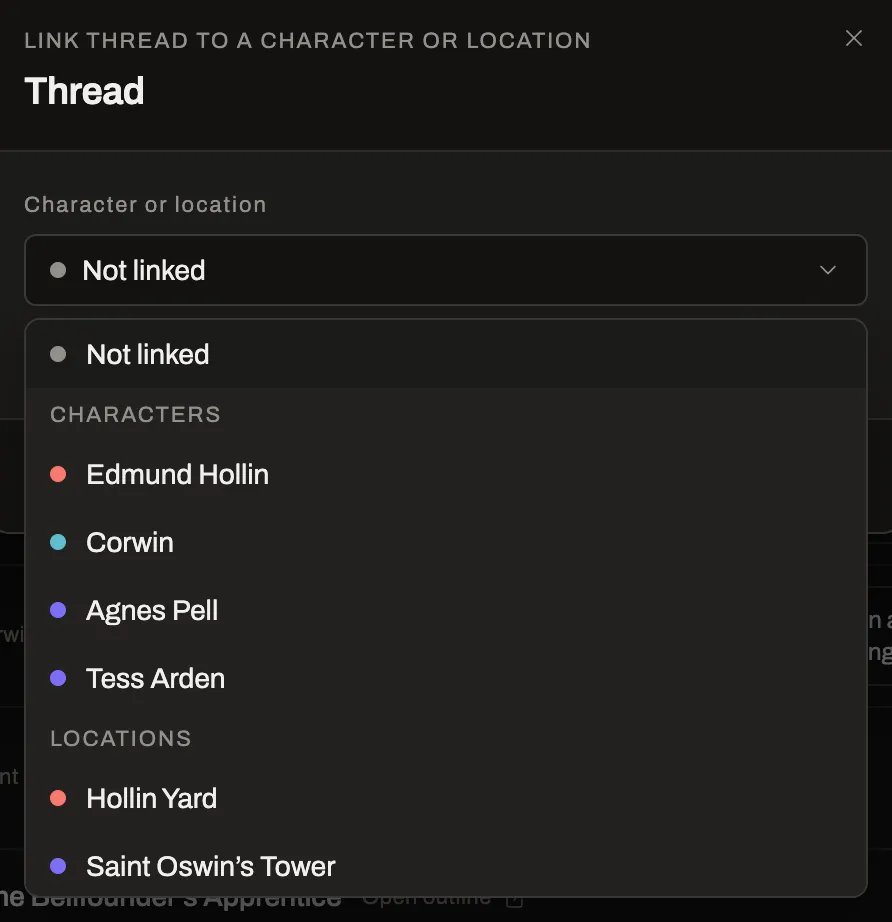
The thread takes their name, color and picture, and an arrow shows beside the name. Pressing the name opens Series characters or Series locations, the lists that Share characters and locations across a series covers.
A thread does not have to be linked. Leave it with a name of your own to follow something that is not a person or a place, such as an object or a secret.
Step 4: Write what happens
- Find the square where the thread meets the event. Point at it and it grows into a plus. Press it.
- Type what happens.
- Press Save.
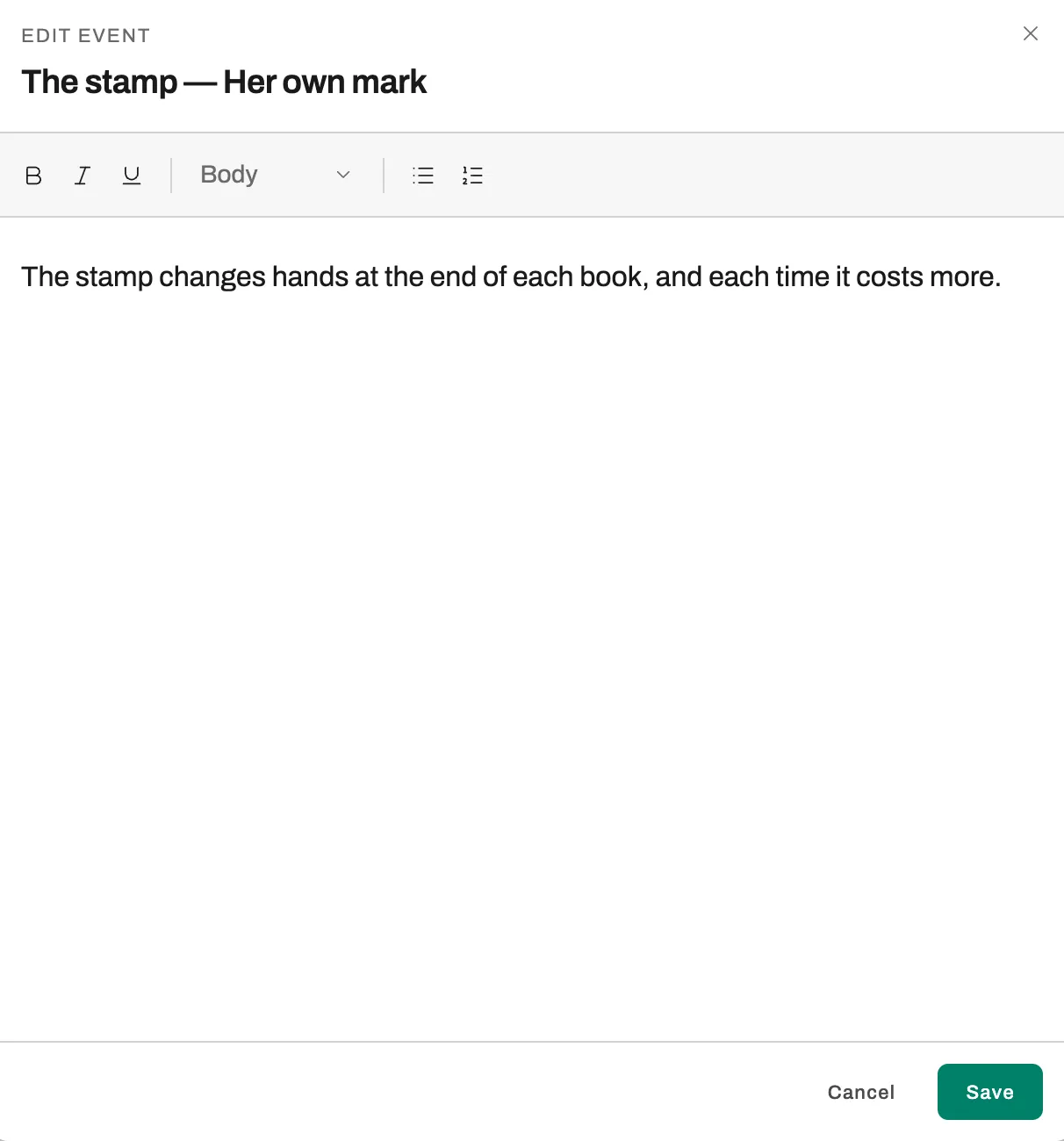
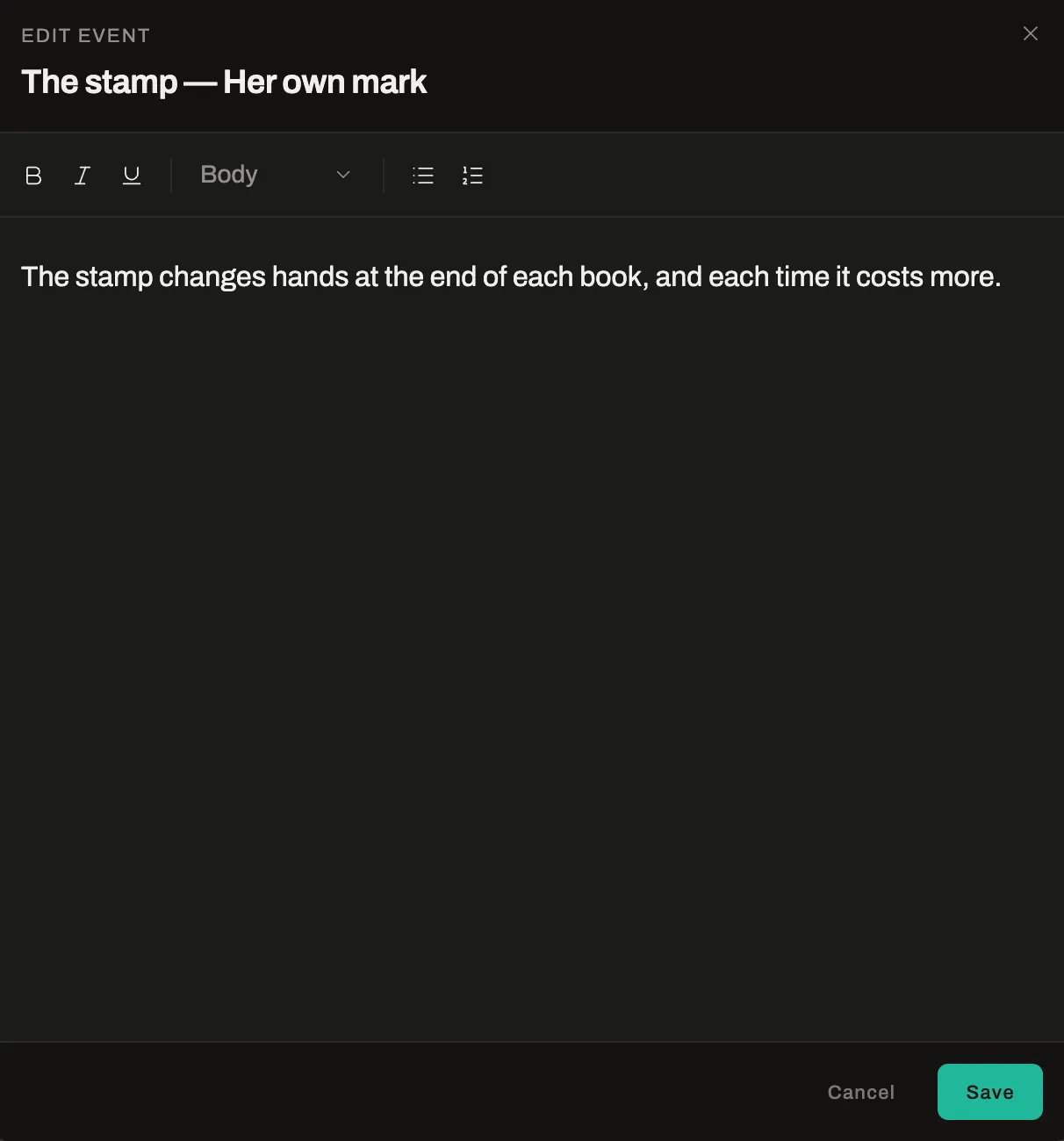
A box can hold up to 20,000 characters. Each change is saved as you make it. Press Done editing, at the top right, when you have finished, and Edit outline to change something later.
Read the series and its books together
The series’ own threads and events are at the top of the page. Under them, Books in this series shows the outline of each book, in the order of the series.
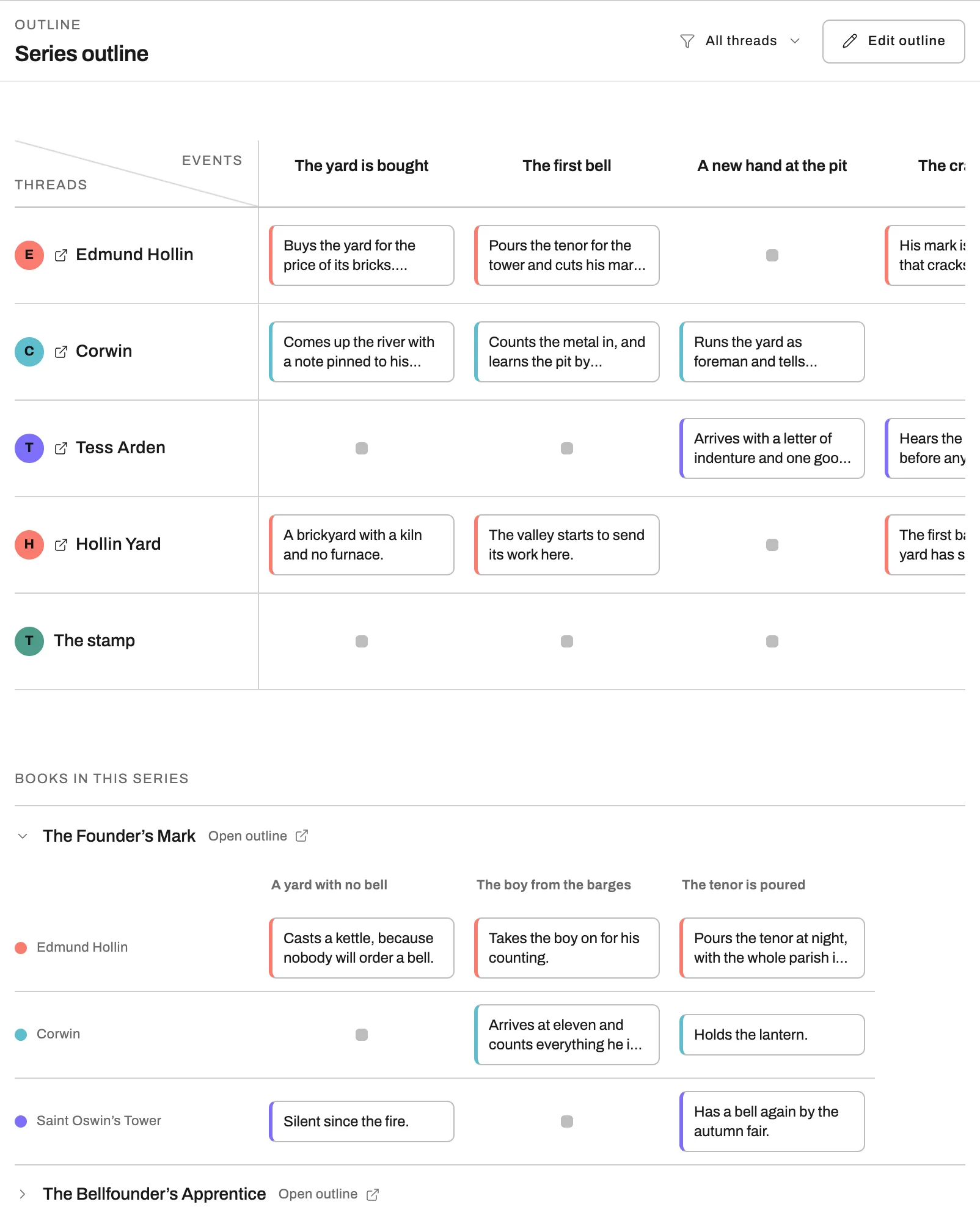
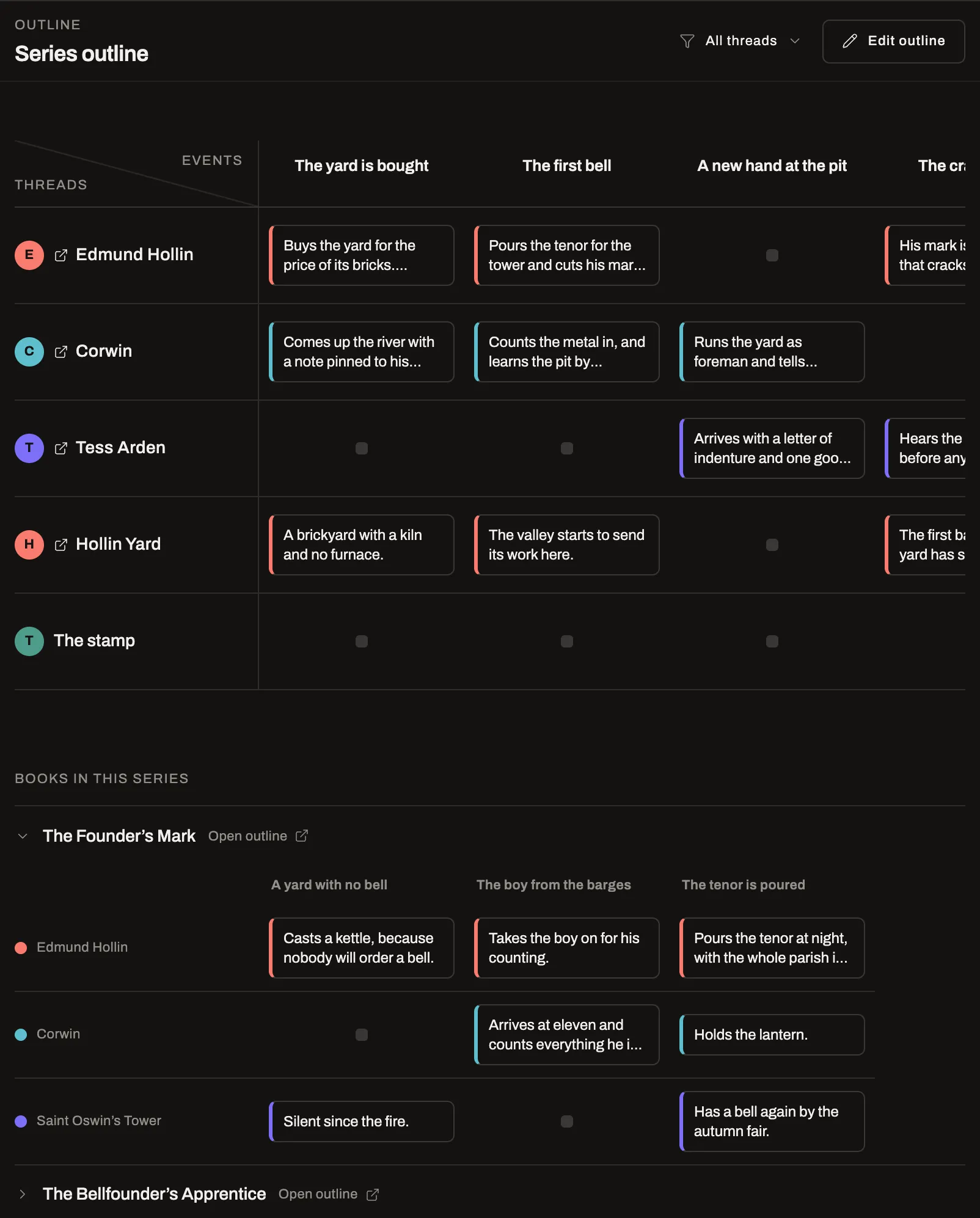
- A book’s outline is here to read. You cannot open a box or change anything in it on this page. Press Open outline, beside the book’s title, to go to that book’s own Outline page.
- Press a book’s title to fold its outline away, and again to bring it back.
- A character keeps one color. A thread linked to a character has the same color in the series’ rows and in each book’s rows, so you can follow one person down the page.
- All threads, at the top, narrows the series’ rows to one thread. The books’ outlines stay whole.
- A book with nothing planned reads “No outline yet.”
The page is usually wider than the window. Scroll sideways, and the books’ outlines move with the series’. The strip of squares at the foot of the page has one square for each event of the series; press one to bring that event into view. Beside it, the footer counts the series’ threads and events, such as “5 threads · 3 events”.
Change threads and events
Press Edit outline. Threads and events are moved, duplicated, renamed and deleted the way they are in a book, as Outline your book in threads and events shows. An event here has three small buttons under its name, not four, because there is no chapter to link.
Deleting a thread or an event deletes every box on it. It asks first, and it cannot be undone. Changing the series outline never changes any book’s own outline.
Where it is not available
- On a tablet or a phone a series opens with its pages and Settings only. See Write on a tablet or phone.
- If Pro ends the series outline is kept and can be read. Edit outline and Build it yourself are gone until you upgrade again.
Related
- Outline your book in threads and events: the grid, templates, and linking events to chapters in one book.
- Share characters and locations across a series: the characters and locations a thread can be linked to.
- Group your books into a series: what a series is and the pages it has.
- Add, move and order the books in a series: the order the books’ outlines are listed in.
- Free and Pro: how the two plans differ: what Pro adds, series included.